Connections
Move in section
Move in section offsets the profile across the depth or the width of its own section, by dragging an arrow. Length, nodes and analysis do not change. Near the face of the support the arrow snaps, and the piece touches it without overlapping. This page uses the chalet mezzanine, where the joist runs through the axis of the beam.
Overview
Four arrows, two axes
Click the piece, and four arrows appear near the end you clicked. The top and bottom ones move in Y, across the depth of the section. The side ones move in Z, across the width. Dragging one moves the whole profile, without adding or removing any steel.
The tool lives in the model tool rail of the Connections tab, and also in the node editor. The shortcut is M.
Move is not Extrude: Extrude end moves along the axis and changes the length. Move works in the section and changes the position.
Step by step
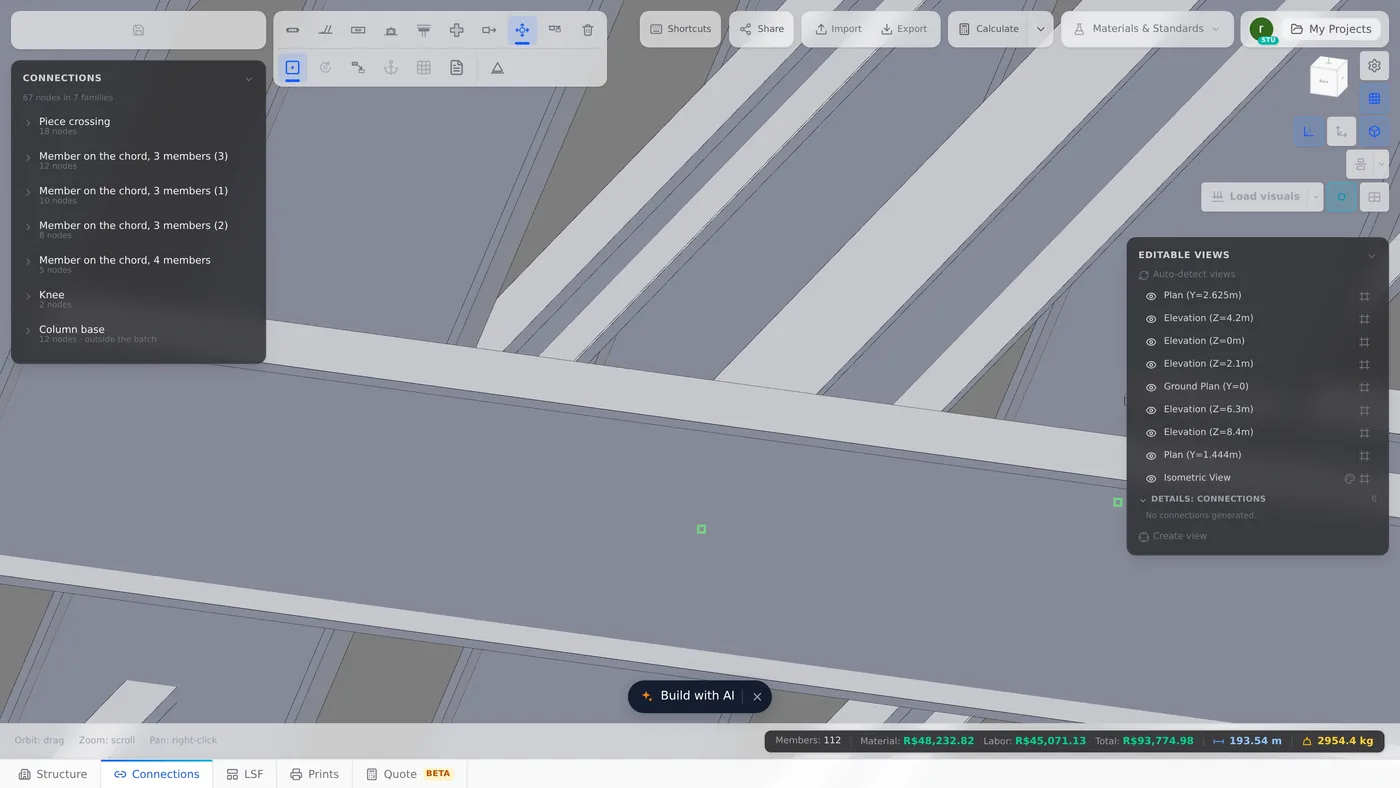
1. Arm the tool
In the model tool rail, click Move in section, or press M.
2. Click the piece
Here, joist BM1, near the beam. The four arrows appear.
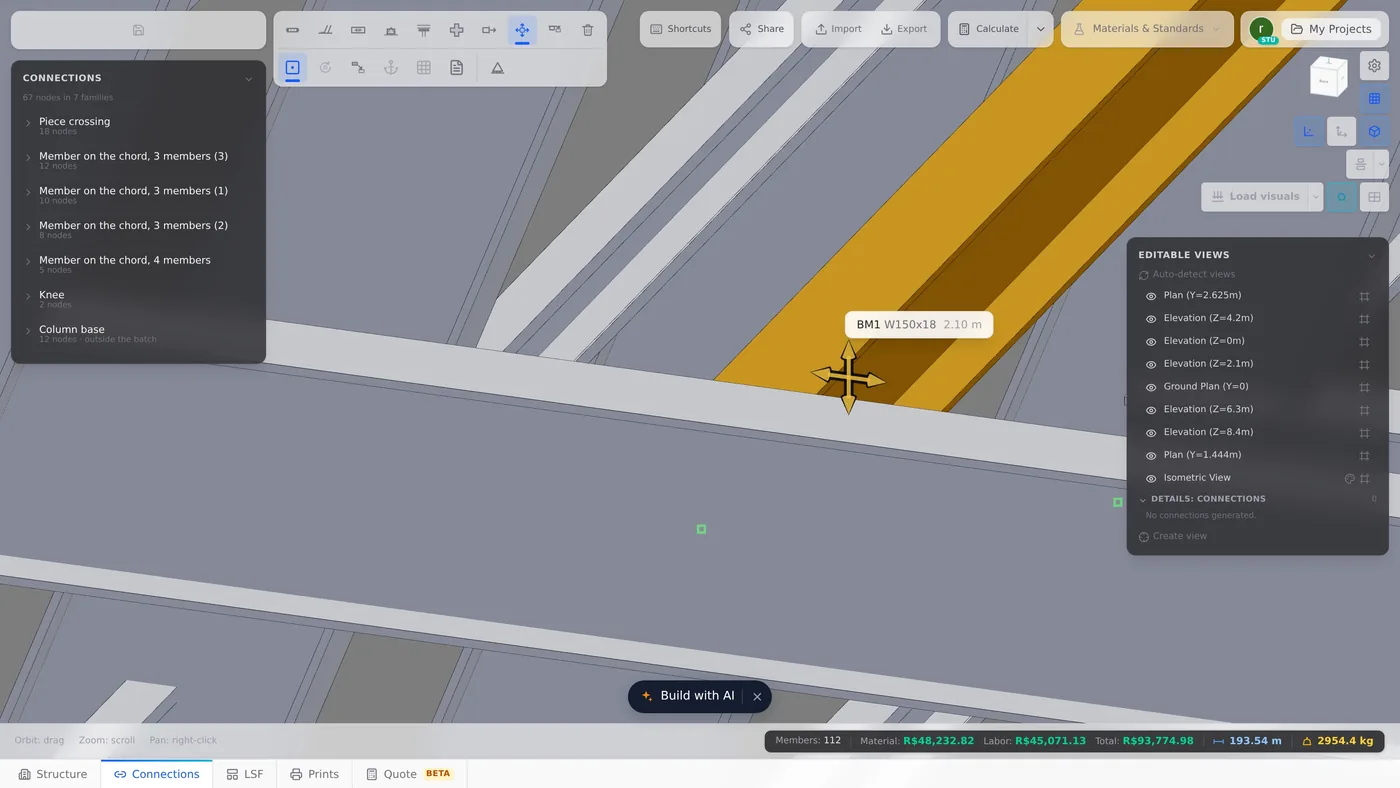
3. Drag the arrow
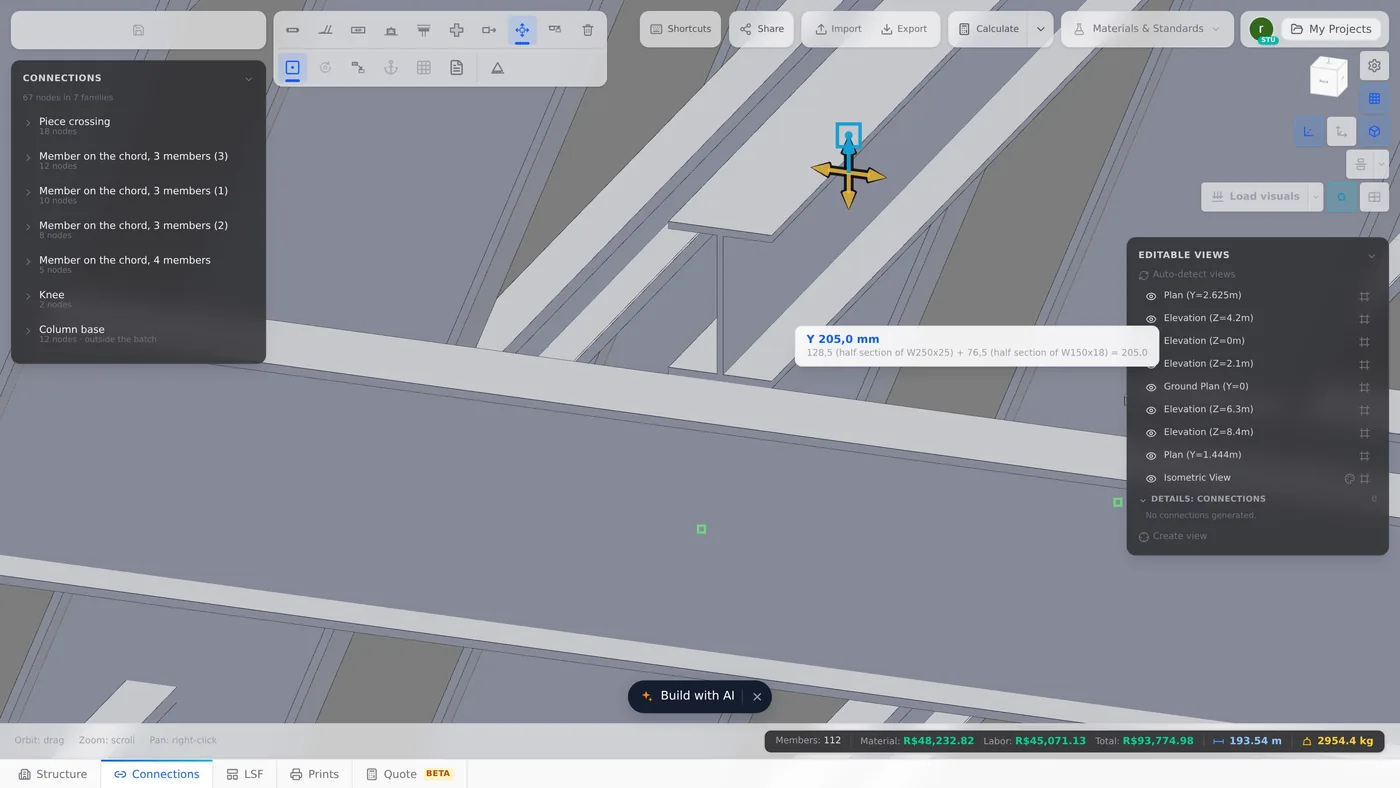
Pull the top arrow. While you drag, the tooltip shows the value and says "Free offset. Near a face it snaps." Near the face of the beam, the arrow turns blue and snaps. The tooltip shows Y 205 mm and how the contact is worked out: 128.5 mm for half of the W250x25 section, plus 76.5 mm for half of the W150x18.
4. Release
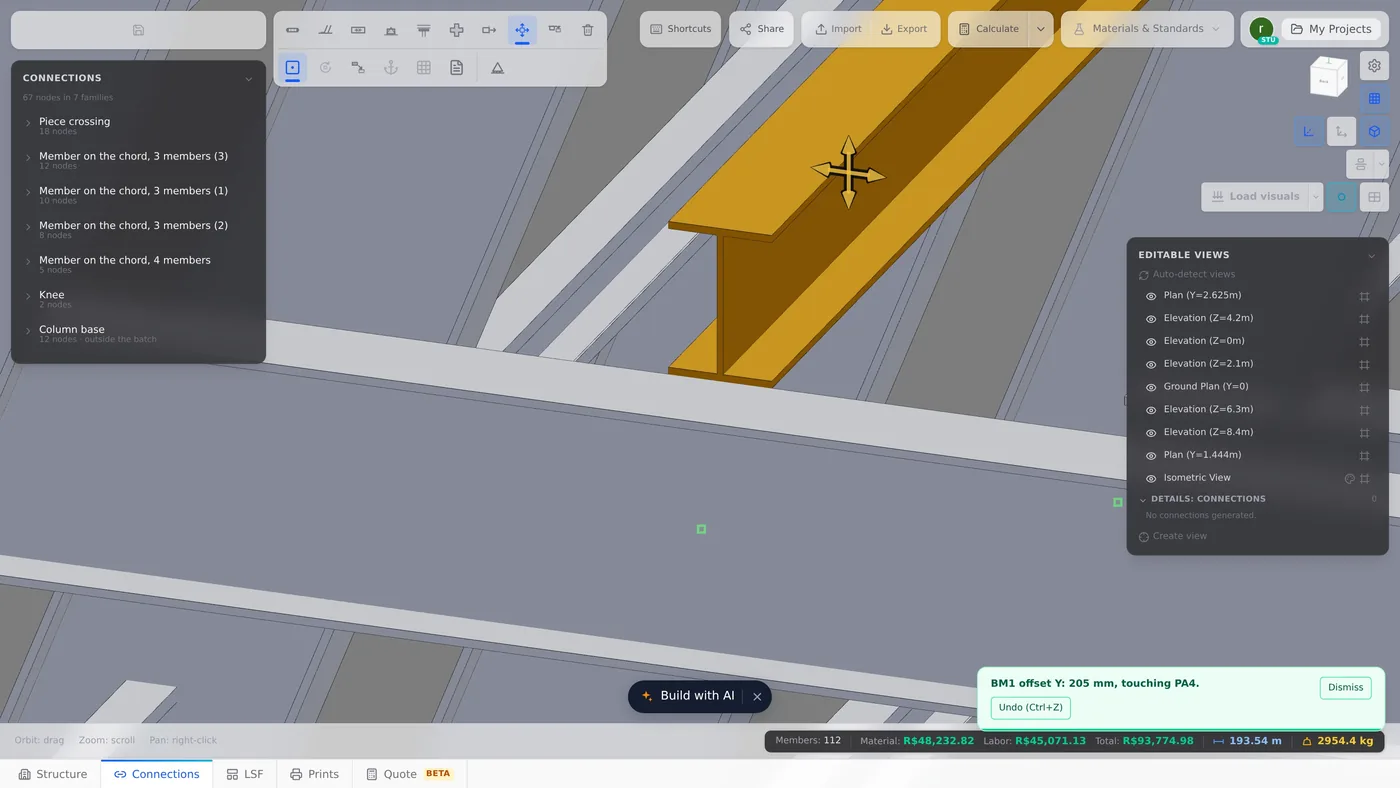
On release, the notice confirms: "BM1 offset Y: 205 mm, touching PA4." The joist now bears on top of the beam, with the same length and on the same nodes.
Esc leaves the tool. Esc in the middle of a drag puts the piece back where it was. Ctrl+Z undoes the offset.
Without a snap, the piece stops where you release it, in whole millimetres. Releasing the arrow where you picked it up writes nothing and leaves no empty Ctrl+Z. If the arrow axis points at you, dragging cannot set an offset: the notice asks you to orbit the view.
Shortcuts
- M↵
Move in section
Shifts the piece in the section plane.
In the node editor
In the node editor, Move places the four arrows in the middle of the drawn stub, and the snap is the same. The number is the one in the offset Y and offset Z fields of the Placement card, and it stays in that node's connection until you click Apply, which takes the offset to the canvas.
Two cases where the editor refuses the drag, with a notice:
- the axis points at you in this view: orbit the view, or type the value in the Placement card fields;
- the piece is seated by the gusset plate: its position is measured on the frame, and it is not moved by hand.
Shortcuts
- M
Move in section
Shifts the piece in the section plane.
- Ctrl+Enter
Apply to model
Carries what you did at the node to the project.
What the engine checks
Move writes the section offset of the piece, the same fields Align by face writes. The engine analyses each bar node to node, on its axis, and this offset stays out of the calculation: no eccentricity is added. What changes is the drawing: the 3D and the drawing outputs show the piece in its new place.
When the node has a catalogue connection, the node card checks whether the moved piece still fits the connection model, and warns when it leaves the face the connection bears on. It is a warning, not a block: the drawing follows what you asked for.
LSF Move is the same gesture, on the LSF Drawing card: see LSF editing tools.
Summary
| Move in section | model rail or node editor rail, key M |
| Click | the piece, and four arrows appear |
| Drag | in Y or Z; near the support face it snaps |
| Esc | leaves, or puts the piece back mid-drag |
| Ctrl+Z | undoes the offset |
On video
Each tool on this page on video, in your language, with its manual chapter in PDF.
Move in section
Shifts the profile in Y or Z within its own section, without changing the length.