LSF (Light Steel Framing)
LSF sheets
CalcSteel builds the LSF sheet set on its own, from the model: the panel plan, the elevation of each wall, the wall schedule and the opening schedule. This page shows how to request each sheet, what it carries, on which paper and scale it starts, and how the PDF comes out.
Overview
From the model to the sheet, without redrawing
In LSF, the crew that assembles the house does not read the 3D: it reads paper. The installer needs to know where each panel goes, what is inside it and how each window opening is framed. The factory needs the marks and the lengths. The engineer needs to sign all of it.
In CalcSteel these sheets are not drawn by hand. With a wall selected, the wall footer shows six sheet buttons. Each one creates a sheet in the Prints tab (Sheets list), already laid out, with the views, the schedules and the title block.
The sheet is live: it stores only the choice (which wall, which scale, black and white or not) and redraws from the model every time the project changes. Move a window in the 3D, and the plan, the panel and the opening schedule change together.
- 6: sheet buttons in the wall footer
- 3 sheets: on this page: plan, panel and opening details
- 2 schedules: that come in on their own: walls and openings
- A3: starting paper; only the plan goes up to A2 or A1
| Item | Button | Where it appears |
|---|---|---|
| Panel plan | Panel plan | its own sheet, one per story |
| Wall elevations | Sheet | one sheet per wall (or for the selected ones) |
| Wall schedule | comes with the plan | beside the plan, with the legend and the notes |
| Opening schedule | comes with Details | on the first opening details sheet |
The other three buttons (Joints, Typicals, Project cut list) have pages of their own: Standard details and Cut list, takeoff, DXF and IFC.
What it is for
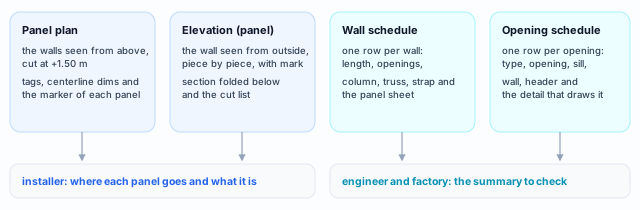
Four pieces, three readers
An LSF house reaches the site as a stack of finished panels. The sheet set is what says which panel goes where, facing which way, and what is inside it. That is why it has three readers, and each piece speaks to one of them.
Why generate, and not draw
The sheet comes from the same bars the 3D shows and the calculation checked. The panel elevation reads the same set of pieces as the 2D wall view. There is no second drawing to fall out of date: change the model, and the sheet changes with it.
What this page covers
The four pieces requested for the 9x7 house: panel plan, wall elevations, wall schedule and opening schedule, plus the title block, the paper, the scale and the PDF. Joint details and typicals are in Standard details; the project cut list, DXF and IFC, in Cut list, takeoff, DXF and IFC.
The example house is the 9x7 from the other LSF pages, with a 2.80 m wall height, roll-formed on the FRAMECAD F325iT in C 89x41 of 0.95 mm. The front is V6, with door P1 (80 x 210), window J1 (120 x 100, sill at 100), lattice column PL1 and strap F1, and there are windows on V3 and V5 too. In the screenshots, the house has no PL1 or F1, and the three windows kept the name J1 every opening starts with: step 3 shows what that changes on paper.
Standard
What 16970-2 asks of the drawings
NBR 16970-2:2022, the Brazilian standard for light steel framing design, treats an LSF design as a set: specification, calculation and drawings. Three of its items say what the sheet set must carry. We cite only the item number; the text of the standard belongs to ABNT.
NBR 16970-2 · item 4.5.
The design includes the design, fabrication and erection drawings of the steel components, and not only the calculation. The panel plan is an erection drawing; the panel elevation with its cut list serves fabrication and erection.
NBR 16970-2 · item 4.7 d).
The calculation report identifies the members. The clause asks for the identification together with the analysis schemes; the sheet set uses the same wall labels (V1 to V6) and the same piece marks.
NBR 16970-2 · item 4.8.
The drawings highlight the steel grade, and each component has the same identification in the drawings and in the report. Clauses a) to g) list the minimum the drawings carry.
| 4.8 | What it asks, in short | Where it is in CalcSteel |
|---|---|---|
| caput | steel grade highlighted; same identification | note 1 of the plan and of the cut list carries the steel and fy, when the project has a steel defined; the piece mark is the same on the panel, in the details and in the list |
| a) | location of the supports of the base panels, with the actions | outside the sheets on this page |
| b) | plan of each story | panel plan, one per story (this page) |
| c) | roof view with the structure | Roof sheet, on the roof card (see Roof) |
| d) | views, sections and cladding details | opening detail and section through the opening (this page); the detail is of the steel, without boards or cladding |
| e) | panels of each story, with each component | panel sheet, piece by piece, with marks (this page) |
| f) | designed connections, anchorage, screws | Standard details (joint details) |
| g) | splices, reinforcements and typical truss nodes | Standard details (typical details) |
Generating is not approving. The standard asks for the drawings; the professional who signs the title block answers for them. The app builds the sheet from the model, and the model may be wrong. Check each sheet before signing.
Recommendation
The order of use in this house
Since the sheet is live, the order breaks nothing: any sheet redraws when the project changes. But there is an order that closes the set sooner and avoids checking twice.

1. Calculate first
While the calculation runs, the button creates the sheet but does not switch tabs: the message says the tab switches when the calculation ends. And drawing a house that still fails is rework.
2. Fill in the title block once
Company, project, client, location, engineer of record and registration apply to every sheet. The app writes the scale and the sheet name on its own (step 9).
3. Panels before the plan
The FOLHA (sheet) column of the wall schedule and the marker of each wall on the plan say which sheet holds the panel. A wall with no panel sheet shows "·", and the note says so. Generate the panels first, and the plan is born with all six sheets referenced.
4. One panel per sheet
Selecting several walls puts the panels together on one A3, if they fit. In the house, the 9 m front with a door and a window already needs a sheet of its own: alone, it came out at 1:50, and at that scale the opening framing is still readable. Before that, give each window a name (J1, J2, J3), because the app creates them all as J1.
5. Details last
The Details button draws one detail per type of opening framing, and the type comes from the pieces in the 3D. Change the header of a window, and the type may become another. Leave it for when the openings are settled.
Shortcuts
- Ctrl+Enter
Calculate the project
Sends the project to the engine, like the Calculate button.
Step by step
Panel plan
1. Select a wall and click Panel plan
In the LSF tab, click a wall of the house. The wall footer opens with the sheet buttons on the right. Panel plan creates the sheet for the story and opens the Prints tab.

2. Read the sheet
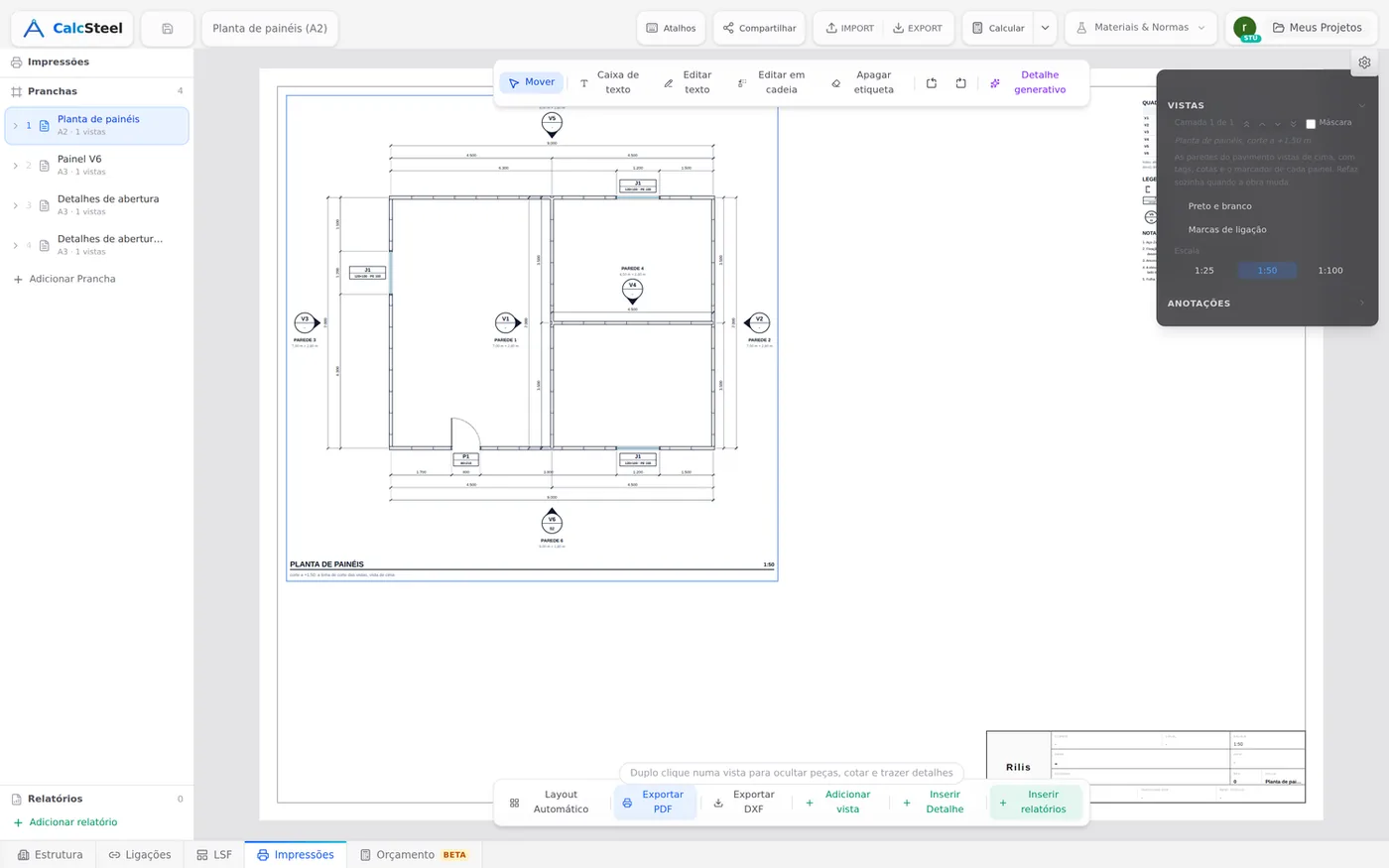
For the 9x7 house the app put the plan on A2 at 1:50: A3 at 1:25 and A3 at 1:50 did not fit with the schedule beside it, and A2 at 1:50 is next in line. The cut is at 1.50 m, the same as the LSF plan.
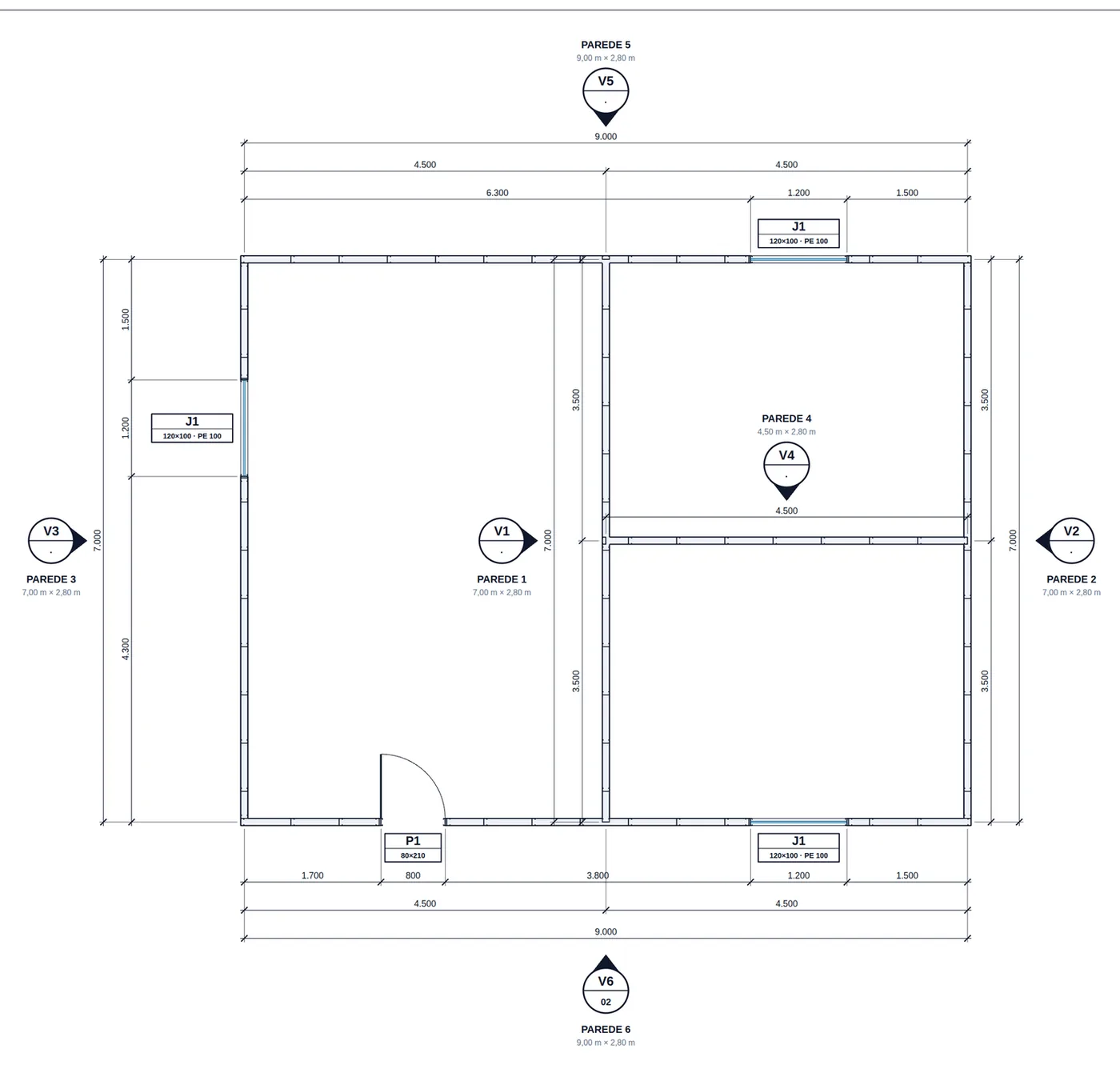
On the sheet: the plan cut at 1.50 m, with the marker of each wall, and on the right the wall schedule, the legend and the notes.
Only V6 shows a sheet in its marker (02): it was the only one with a panel sheet. The others show "·".
Wall schedule
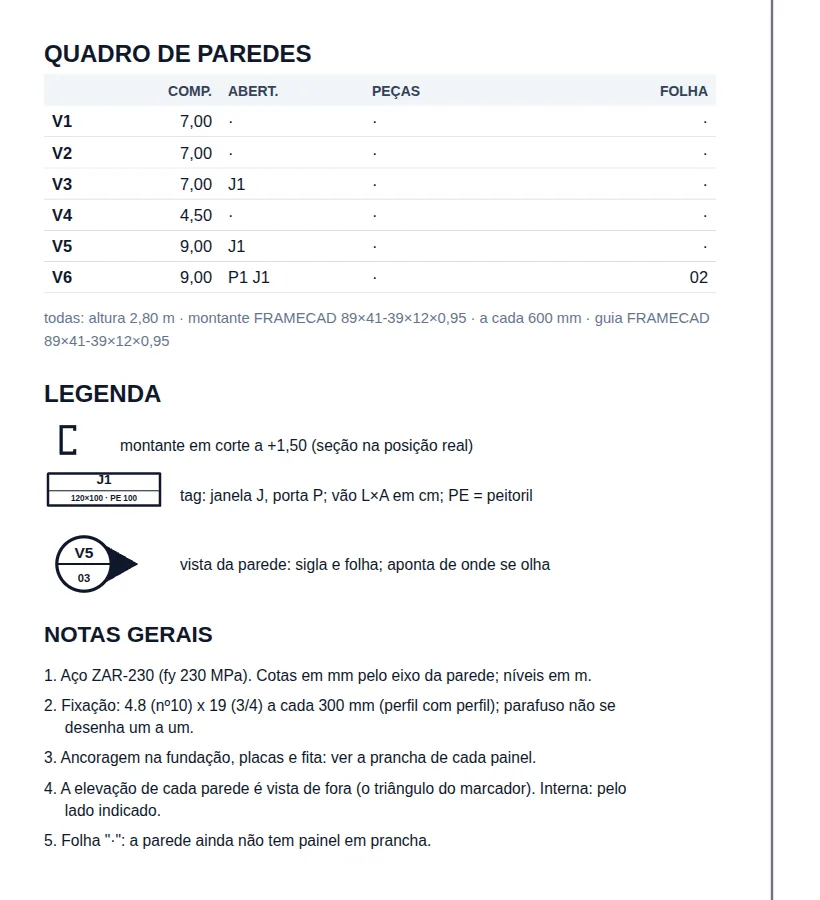
The wall schedule has no button of its own: it goes on the plan sheet, on the right, with the legend and the notes below. It reads the same plan and redraws with it.
3. Check the columns
| Column | What it carries |
|---|---|
| COMP. | length, in m |
| ABERT. | the opening tags; "·" with no opening |
| PEÇAS | column, truss, strap |
| FOLHA | the panel sheet; "·" if there is none |
The "todas:" (all) row gathers what the walls have in common: in the house, height 2.80 m, FRAMECAD 89×41-39×12×0.95 stud at 600 mm and the track in the same section.
The legend only carries what the plan has. Note 1 carries the project steel, ZAR-230 with fy 230 MPa, and note 2 the fastening, with size and spacing.
Name each opening. Every new opening starts with the short name J1 or P1, and the name only changes if you change it in the opening field. In this house the three windows are J1, on V3, V5 and V6. Name the others J2 and J3 before printing.
4. Adjust the sheet in the Views section
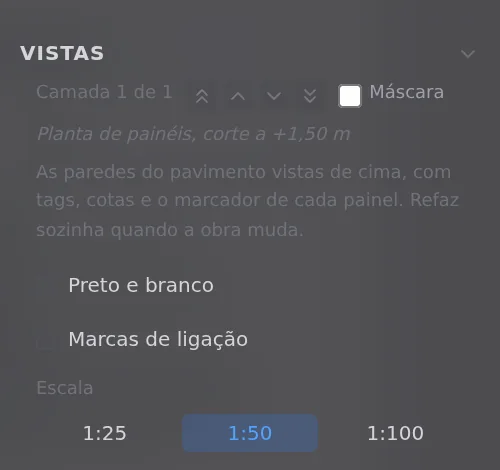
Click the plan inside the sheet. The Views section shows its control: Black and white, Connection marks, Scale 1:25, 1:50 or 1:100 and, with more than one story, Story.
Each click on Panel plan creates another sheet, with "(2)" in the name. To change the scale, use the control.
Wall panel
5. Select V6 and click Sheet
The Sheet button creates the "Painel V6" (panel V6) sheet on A3. If the V6 sheet already exists, it opens the existing one, without duplicating it. With several walls selected, it tries to put the panels together.
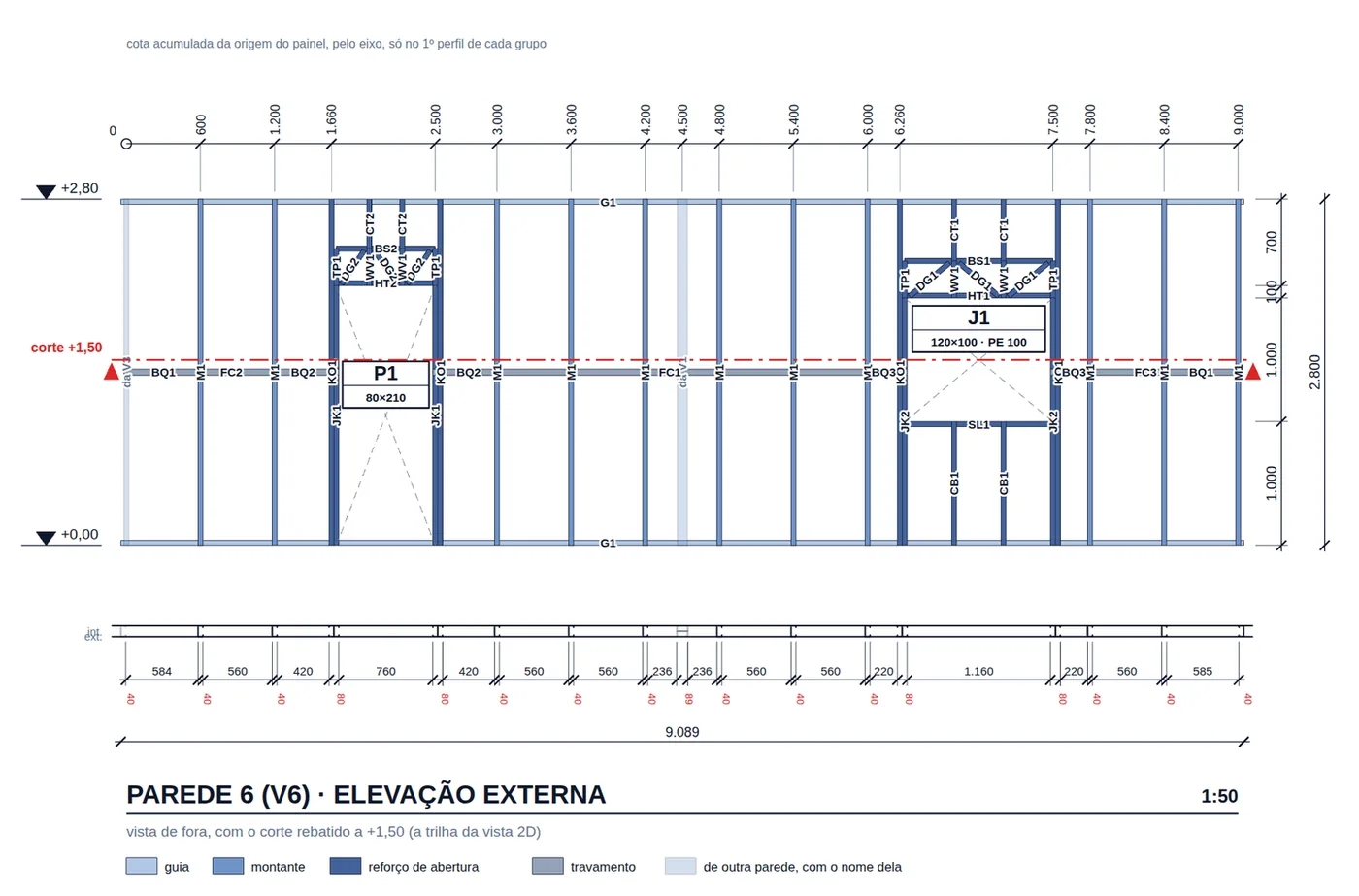
The elevation is seen from outside, the same direction as the 2D view. On V6 you can read door P1 and window J1, each with its lattice header (chord BS, verticals TP and WV, diagonals DG), the king studs KO, the jack studs JK, the blocking BQ of the bracing and the straps FC. At the ends, the corner pieces come translucent and with the name of their owner: "da V1" and "da V3" (from V1, from V3), outside this wall's list. At the top, the running dimension only on the first section of each group; on the right, sill 1,000, opening 1,000, 700 to the top and the 2,800 wall height; at the bottom, the section with the clear openings and the 9,089 total.
The scale is the one that fits. The app tries 1:25, 1:50, 1:75 and 1:100 and keeps the first one at which the panel and the list fit on the A3 without covering the title block. A 9 m wall with the list beside it does not fit at 1:25: V6 came out at 1:50.
Marks and cut list
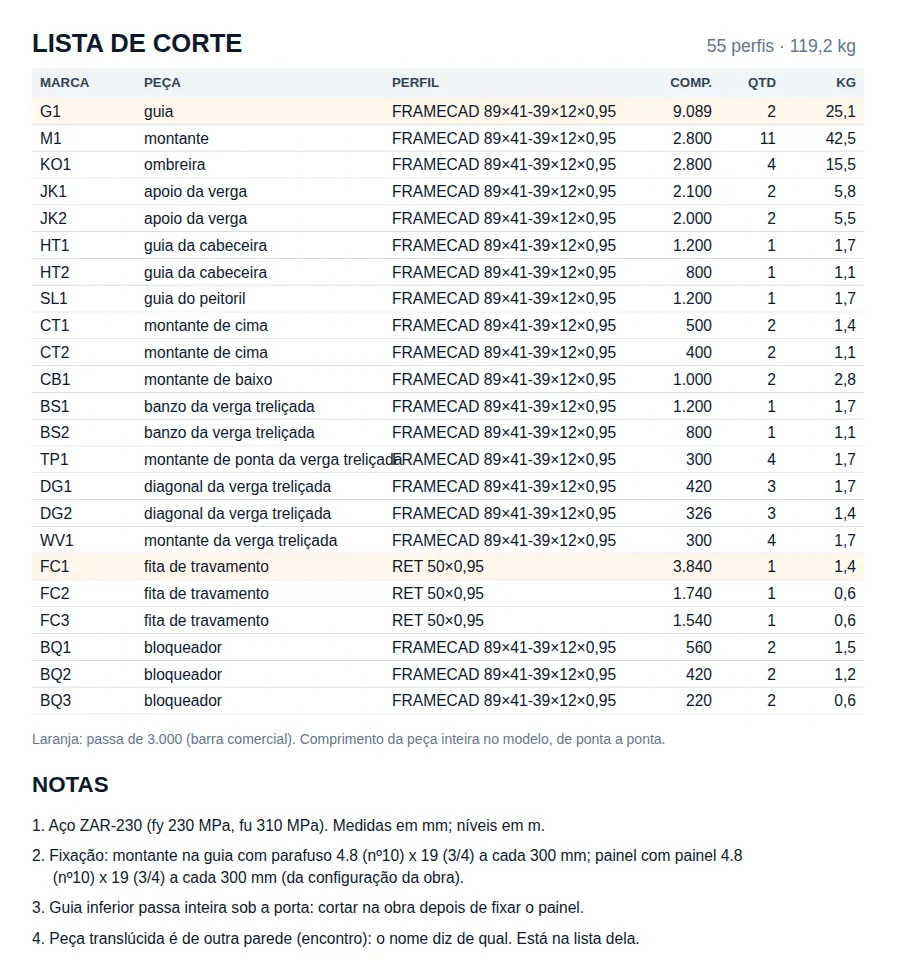
6. Read the marks
A mark is a code plus the group number. Pieces with the same code, section, length to the millimeter and fold get the same mark, in the drawing and in the list; the number goes from the longest length to the shortest. On V6, the eleven full-height studs are all M1, 2,800 mm long.
7. Check the list
MARCA, PEÇA, PERFIL, COMP., QTD and KG (mark, piece, section, length, quantity, weight). The row turns orange when the piece is longer than the commercial bar, 6,000 mm if the market does not say otherwise. On V6 it is track G1: two at 9,089 mm, one at the top and one at the bottom. Decide the splice before sending it to the factory.
| Code | Piece | On V6 in the screenshot |
|---|---|---|
| G · M | track and stud | G1 end to end; M1 at 600 spacing |
| KO · JK | king stud and jack stud | on both sides of P1 and J1 |
| HT · SL · CT · CB | head and sill tracks; cripple studs above and below | over P1; over and under J1 |
| BS · TP · WV · DG | lattice header: chord, verticals, diagonals | both headers, h 300 |
| BQ · FC | blocking and strap of the bracing | on the middle line |
Opening codes as the opening schedule explains them. A column would come in as PB and the bracing strap as FX; the house in the screenshot has neither.
One story per panel
In a two-story house, the ground floor panel does not carry the wall above or the gable. What touches it stays: top track, floor joist, bearing truss.
The track runs through the door
The field track is one piece per level and runs across the door opening. Note 3 of the list says to cut it on site, after fastening the panel.
Opening details and opening schedule
8. Click Details
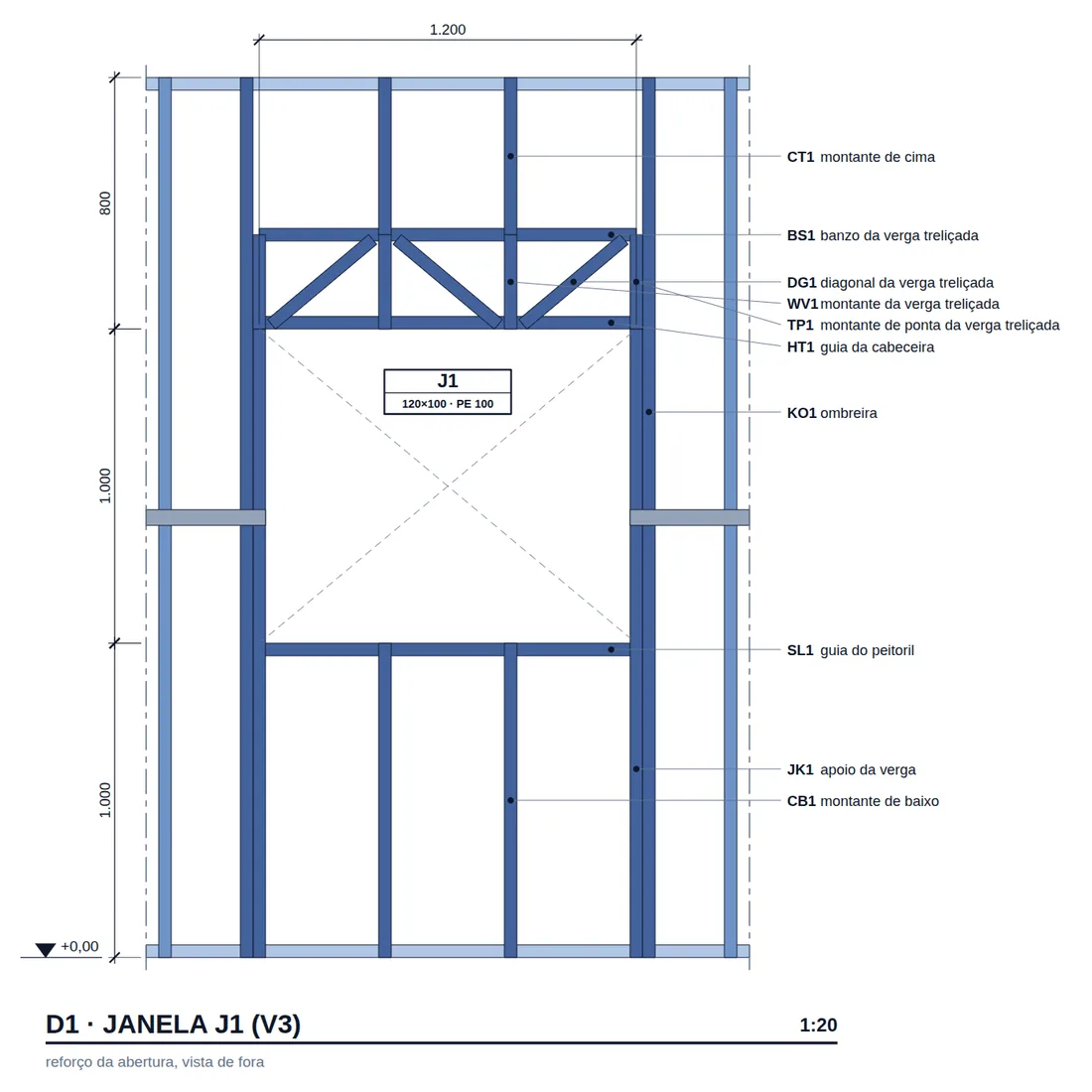
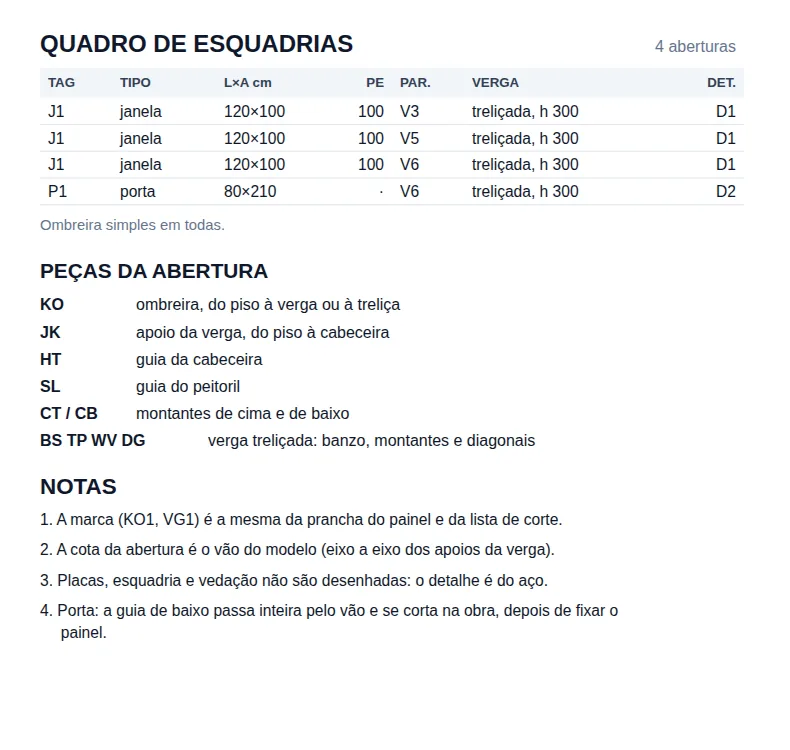
The button creates the "Detalhes de abertura" (opening details) sheet on A3: one detail per type of opening framing at 1:20 and the opening schedule on the first sheet, in the top right corner. In the house, two types came out, D1 (the window) and D2 (the door), and the app spread them over two sheets: "Detalhes de abertura" and "Detalhes de abertura, folha 2".
| Column | What it carries |
|---|---|
| TAG · TIPO | J1, P1 and the type. The three 120×100 windows have the same pieces, so they are one type and a single detail, D1 |
| L×A cm · PE | the opening of the model, centerline to centerline of the header supports, and the sill |
| PAR. · VERGA | the wall and the header: here "treliçada, h 300" (lattice); with a section header, "cx" for box and "ct" for back to back |
| DET. | the detail that draws the opening: D1 for the windows, D2 for the door |
The section through the header. With a section header, box or back to back, the section through the opening goes on the sheet at 1:5 or 1:10. In this house the headers are lattice ones, and the opening detail is the view with the marks.
Title block
9. Fill in the title block
The title block is the same as on every CalcSteel sheet. You fill in one part; the app writes the other.
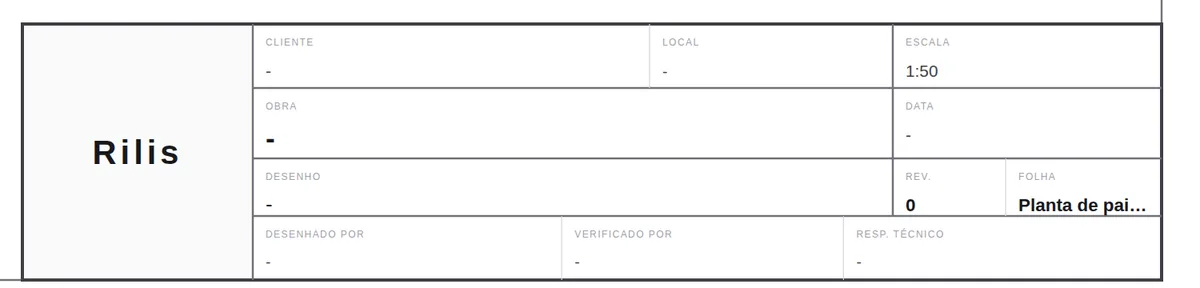
You fill in
The fields are filled in under Settings, Title Block. Company (without it, your name goes in), project, title, drawn by, checked by and the engineer of record, each with the registration, date, revision, logo, client and location.
The app writes
The sheet name and the scale. With views at different scales on the same sheet, the scale becomes "Var.". The sheet name has a fixed width in the technical title block and gets cut.
| Title block model | What for |
|---|---|
| Technical | the default, following ABNT NBR 10068, the Brazilian title block standard (the one in the screenshot) |
| Studio | presentation: another layout of the same fields |
| ART | the legend of the ART (the Brazilian record of technical responsibility), with owner and site |
With no model chosen, the sheet uses the technical one.
10. Paper and scale of the house
| Sheet | Paper | Scale the app chose for the 9x7 house |
|---|---|---|
| Panel plan | A2 | 1:50, third try in the line A3 1:25, A3 1:50, A2 1:50... |
| Painel V6 | A3 | 1:50, second try of 1:25, 1:50, 1:75, 1:100 |
| Opening details | A3, two sheets | 1:20 |
Export
11. Export PDF, in the sheet bar
With the sheet open in the Prints tab, click Export PDF in the bottom bar. The app copies the sheet drawing, removes what is screen only, opens a window with the exact paper size and calls the browser print. In the dialog, choose Save as PDF, paper the size of the sheet and 100% scale. One sheet at a time.
| Path | What comes out |
|---|---|
| Export PDF | the sheet as a PDF, through the browser print, one at a time |
| Export DXF | the sheet as a .dxf, with the views, the dimensions, the schedules and the title block |
| PDF through the AI | several sheets in a single PDF |
Login and plan
Both PDFs require login and count toward the monthly sheet PDF quota of the free plan.
For printing
Turn on Black and white in each view first: the pieces lose their paper color and keep only the line. If the print "fits to page", the title block scale no longer holds.
Shortcuts
- PP↵
Panel plan
Creates a panel plan of the wall's storey, a new one each time.
with walls selected
- PN↵
Panel sheet
Creates the panel sheet of the selected walls, or opens the existing one.
with walls selected
- DA↵
Opening details
Creates the missing opening details, with the door and window schedule.
with walls selected
- C
Title block model
Opens the sheet's title block model picker.
- Ctrl+P
Export PDF
Generates the PDF of the open sheet.
Parameters
Paper, scales and switches of each sheet
The switches of each sheet are in the Prints tab, Views section, after clicking the drawing inside the sheet. They store only the choice; the drawing redraws from the model.
| Sheet | Paper | Starting scale | Scales in the control | Switches |
|---|---|---|---|---|
| Panel plan | A3, A2 or A1 | the first that fits | 1:25, 1:50, 1:100 | Black and white, Connection marks, Story |
| Panel | A3 | 1:25 to 1:100 | 1:25, 1:50, 1:75, 1:100 | Black and white |
| Opening detail | A3 | 1:20 or 1:25 | 1:20, 1:25, 1:50 | Black and white |
| Section through the opening | A3 | 1:5 or 1:10 | 1:5, 1:10, 1:20 | Black and white |
Details: the combinations
The automatic layout tries to put everything on a single sheet, in this order: detail at 1:20 with section at 1:5, 1:25 with 1:5, 1:20 with 1:10, 1:25 with 1:10. If none fits on one, it keeps the first that fits on more sheets. Above 1:25 the detail is already at panel scale and does not show the opening framing, so 1:50 only through the control.
Panel: the layout
Panels and cut list are arranged on the A3 without covering the title block; with several walls, all at the same scale. The list goes on the sheet beside the panels.
| Sheet name | When it repeats |
|---|---|
| Planta de painéis | "Planta de painéis, pavimento 2" in a project with more than one story; "(2)" on each click |
| Painel V6 | does not repeat: it opens the existing one |
| Detalhes de abertura | does not repeat: it draws only the new type, and opens the existing one when nothing changed |
Errors and refusals
When the button says no, and what to do
Every refusal becomes a 5 second message under the button, with the reason. None of them creates a half-built sheet.
- "the project has no LSF wall". Applies to the three buttons. A loose bar from the Structure tab is not an LSF wall.
- "the wall does not fit on an A3 even at 1:100". The wall is too long for the A3. Split the wall into panels, as the factory would.
- "the panels do not fit together on an A3; request one panel per sheet". Too many walls selected at once. Select one and click Sheet; repeat for each.
- "the plan does not fit on an A1 even at 1:100". The project is too large for a design scale. Not the case of the 9x7 house.
- "no wall starts at +N m". A story requested with no wall. The message lists the stories that exist. In the house, requesting +3.00 m answered "no wall starts at +3.00 m; the project stories are at +0.00". Likewise, requesting the panel of a wall that does not exist answered "wall V9 does not exist; the project has V1, V2, V3, V4, V5, V6".
- Details with no opening, or "a detail does not fit on an A3 even at 1:25". "the project has no opening", or "the project openings have no framing yet"; a huge opening may not fit.
- "created; the tab switches when the calculation ends". Not an error: the sheet exists, but the calculation is still running. Wait and open the Prints tab.
Common mistakes when checking
- FOLHA column with "·". The wall has no panel sheet. Generate the panel; the plan updates on its own.
- Two identical plans. Each click on Panel plan creates another sheet. Delete the extra one in the Prints tab.
- PDF out of scale. The browser print fitted it to the page. Use paper the size of the sheet and 100%.
What the engine checks
The sheet reads, it does not calculate
The engine checks the limit states of each bar (see Reading the results); the sheet draws on paper the same model the engine checked, with the marks and the kilograms that come from the pieces.
| The sheet reads | From where |
|---|---|
| the pieces of the panel | the same set as the 2D wall view: the 3D is the truth |
| the section outline in the cut | the same path that draws the 3D |
| the type of each opening framing | the pieces of the opening in the 3D, not what the opening says about itself |
| the weight | length times the kg/m of the section |
| the commercial bar | the project market; 6,000 mm if it does not say |
| the steel in the note | the project steel, with fy and fu |
What stays with the designer
- Boards, window frames and cladding. The detail is of the steel (note 3 of the opening schedule), and the dashed faces of the section are those of the track. The enclosure is specified separately.
- Position of each screw. The fastening goes in the note, with size and spacing.
- Checking the sheet. The sheet comes from the model: check each one before signing the title block.
What does not change on its own. The sheet redraws from the model, but a saved PDF is a snapshot of the day. If the project changed after exporting, export again and raise the revision in the title block.
Summary
The path, in one line
Passing calculation → title block filled in → Sheet for V1 to V6 → Panel plan (FOLHA with no "·") → Details with the opening schedule → Black and white → Export PDF sheet by sheet, paper the size of the sheet, 100%.
The sheets of the house
- 1: ground floor panel plan, with the wall schedule
- 6: panels, V1 to V6, with section and cut list
- 4: openings in the opening schedule
- A2: the plan, at 1:50; panels and details on A3
Quick check: open the plan and the V6 panel side by side. The J1 tag on the plan, the tag on the panel and the J1 row of the opening schedule must state the same opening and the same sill. If they do not, the error is in the model, and fixing the model fixes all three.