LSF (Light Steel Framing)
Straps and blocking
Studs and tracks carry the weight; what holds the wall against wind in its own plane is the X strap. This page shows how to place the strap between two upright members, the angle range the app accepts, the double stud at the ends and what the engine checks on a member that only works in tension.
Overview
The X that keeps the wall square
The example house, as it stood after Columns, has walls, openings, headers and a column in the facade. All of that carries vertical load. Nothing yet stops the wall from racking sideways when the wind pushes it in its own plane.
The Strap and blocking tool places two things. The first is the X strap, the bracing: two diagonals between two upright members. The second is blocking, which restrains the studs at mid-height and is the subject of Bracing.
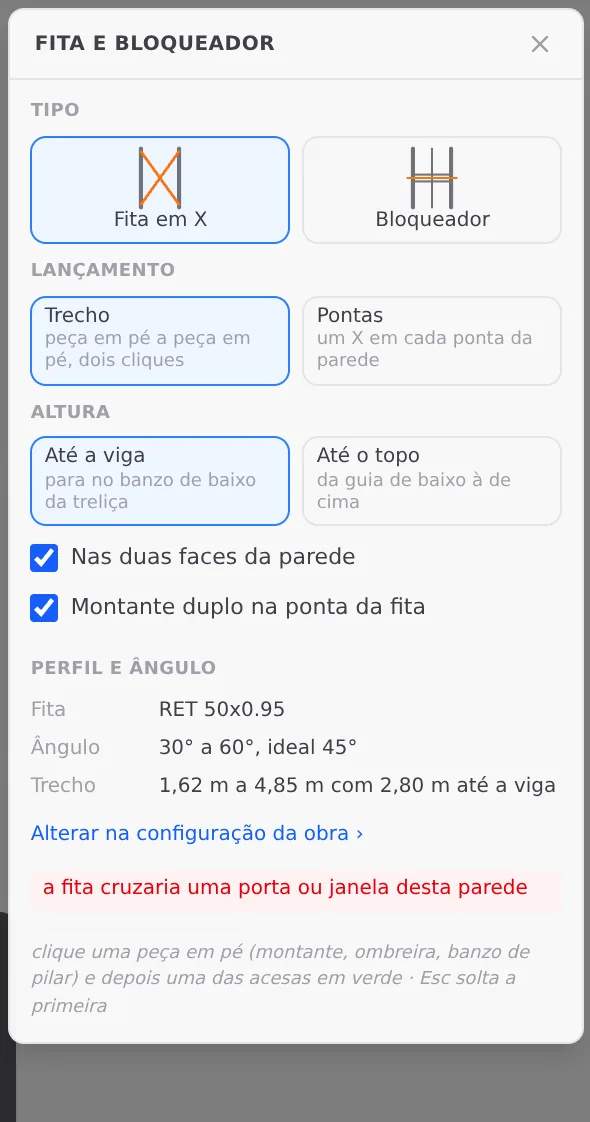
The strap goes in with two clicks: one upright member, then another in the same wall. Before the second click the ghost already shows the span and the angle, and turns red outside the range.
In the example house: an X strap in the front wall, between the left corner and the jamb of door P1.
What it is for
Taking the wind from the wall to the ground
A wall of studs and tracks, on its own, is a pinned frame: pushed sideways, it turns into a parallelogram. What keeps it square is the bracing. In LSF it is a steel strap in X, fixed from foot to head on two upright members: the wind pushes the top, one of the diagonals goes into tension and carries the force down to the base.
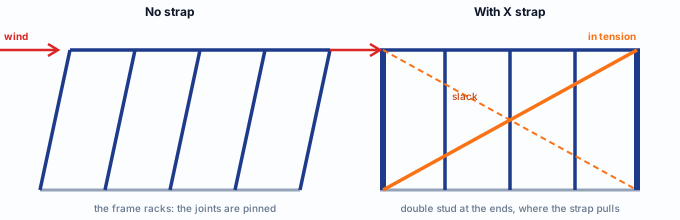
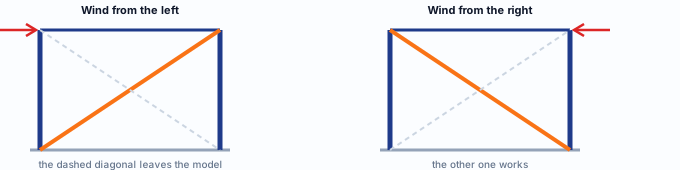
A strap only works in tension. That is why it always goes in pairs, in X: when the wind turns, the other diagonal takes over. The compressed diagonal is a thin strap that buckles under almost nothing, and the analysis ignores it.
| Member | Label | Section (Brazil market) |
|---|---|---|
| X strap | FX | The project's Bracing role: RET 50x0.95, a 50 x 0.95 mm strap. Two members per X. |
| Double stud | PB | A Back to back column (Columns) at each end of the strap. It goes away with the strap when the strap is deleted. |
One tool, two types. The Strap and blocking tool has two types in the same box: X strap, the bracing on this page, and Blocking, the strap and blocking lines that restrain the studs at mid-height. Blocking is covered in Bracing.
What the standard says
A tie, and the angle is a design decision
For the standard, the strap is a cold-formed steel member in tension. Its resistance comes from NBR 14762. NBR 16970-2 covers the LSF system as a whole and is the source of the wall drift limit.
| Where | What it says | What it changes in the strap |
|---|---|---|
| NBR 14762, 9.6.2 | Design axial tensile strength: yielding of the gross section and rupture of the net section. | It is the only strength check on the strap. Rupture at the bolt holes depends on the connection, and is checked together with it. |
| NBR 14762, 9.7.4 | Slenderness limit for compression members. | Does not apply: the strap is not a compression member. In the report, slenderness appears for information only. |
| NBR 16970-2, 8.2, Table 3 | Horizontal displacement of the wall: h/500. | On the 2.80 m wall, 5.6 mm. It is the strap that holds that number. |
NBR 14762 · 9.6.2.
The strap is a tie: tension only. A strap in compression has no resistance worth counting, which is why LSF bracing always goes in X.
What the standard does not say
The standard does not set the strap angle. The 30° to 60° range, with 45° as the target, comes from the market rule the app loads, decided by CalcSteel and declared as a source in the rule. Below 30° the strap lies too flat and stretches a lot for little force; above 60°, it stands too upright and barely holds the top.
The typical detail DT4 on the drawing sheet calls for a minimum strap of 38 x 0.84 mm, following CBCA, the Brazilian Steel Construction Center. The strap in the analysis model is the one in the Bracing role: RET 50x0.95.
Standard as a variable. The strap rule comes from the project's market; the Brazil market brings its own, with a source. The tool only places straps with the market rule, and never with made-up numbers.
Design recommendations
One X per wall, close to 45°
- 45°: the target: span equal to the height
- 1.62 to 4.85 m: the span that fits on a 2.80 m wall
- 2 faces: one strap on each side of the wall
- 2 directions: X and Z of the house, always
- Bracing in both directions of the house. Wind comes from any side. With no strap or truss diagonal in one of the directions, the engine reports a missing bracing error. Sheathing on its own does not count.
- Aim for 45°. With the span equal to the height the strap works best: on a 2.80 m wall, a span close to 2.80 m. The accepted range goes from 1.62 m (60°) to 4.85 m (30°).
- Keep solid wall for the strap. The strap does not cross a door or a window. When you place the openings, leave a solid stretch of at least 1.62 m in each facade. On a wall with many openings, use Ends, which looks for the stretch at each end.
- Both faces and double stud: keep the defaults. A strap on one face only pulls the wall to one side. The double stud at the end receives the concentrated force the strap delivers. Uncheck them only with a reason. At an end that falls on a wall joint the double stud is not created: the joint stud is already there.
- Anchor the foot of the double stud. The strap force reaches the ground through the end stud. The anchor bolt at that foot is designed and detailed separately.
- Leave "Up to the beam", the default. Under a beam the studs are cut at it, and the strap stops at the bottom chord of the beam. With no beam over the stretch, as in the example house, the height is the wall height: the box shows "with 2.80 m up to the beam".
Step by step
1. Open the view and arm the tool
Select the front wall and click Open view on its card, in the footer. On the LSF card, click the Strap and blocking button. The box opens next to the card. Leave the defaults: type X strap, placement Span, height Up to the beam, both checkboxes on. The tool works in the plan, in the wall view and in 3D; in the view the upright members are large and the angle is easy to read.
2. Click the first upright member
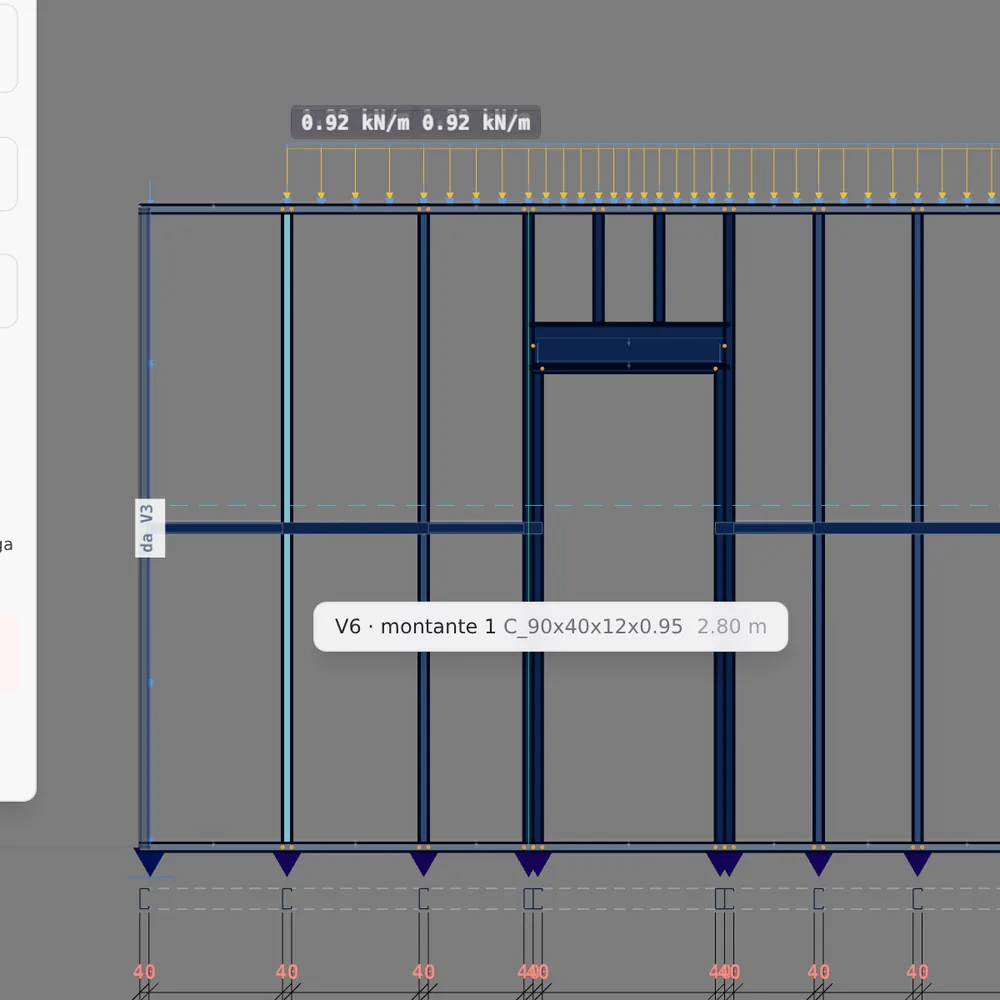
An upright member is any vertical member of the wall: stud, stud cut by the beam, door or window jamb, column chord. Click the stud at the left corner. It turns blue, and the members it can close a strap with inside the range light up in green.
Esc releases the first member without leaving the tool.
Why start at the corner. The strap takes the force down to the base through the end member. At the corner there is already the wall joint stud (Wall joints), a built-up member: it is the best place for the force to come down.
3. See a refusal before clicking
To understand the rule, move the cursor over the next stud, 0.60 m from the corner. The strap would stand almost upright, at 78°. Nothing lights up in green and the box says why, with the number that solves it: on the 2.80 m wall, the span goes from 1.62 m to 4.85 m.
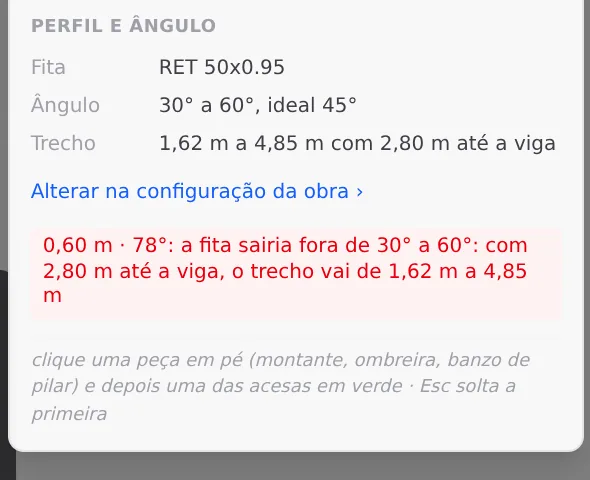
The math behind it. The angle is the one between the diagonal and the horizontal: tan θ = height ÷ span. With a 2.80 m height, 60° calls for a span of 2.80 ÷ tan 60° = 1.62 m and 30° calls for 2.80 ÷ tan 30° = 4.85 m. A taller wall pushes the whole range toward longer spans.
4. Move the cursor to the door jamb
Move the cursor over the left jamb of door P1. The green ghost draws the whole X, from the foot of the corner to the head of the jamb and from the foot of the jamb to the head of the corner, and the box shows the measurement in green: 1.66 m · 59°.
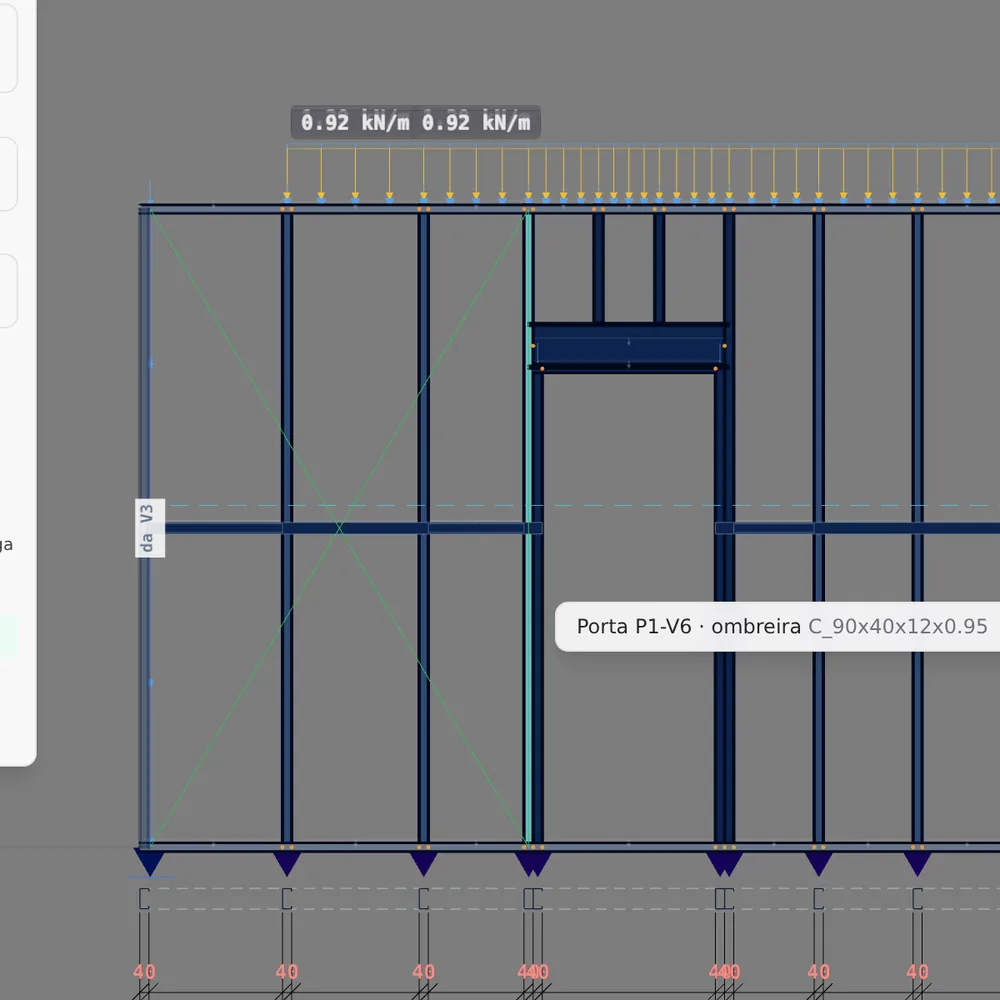
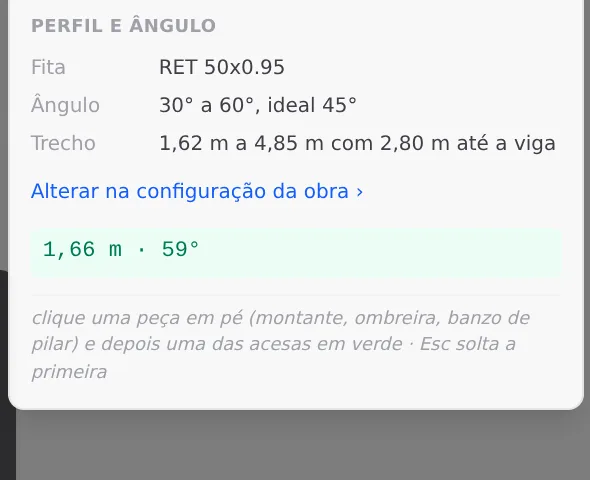
59° is inside the range, but close to the upper limit. Between the corner and the door there is only 1.66 m of solid wall, and the strap does not cross the opening. To get close to 45° on the 2.80 m wall, the solid stretch would need to be close to 2.80 m: that is an architectural decision, made when the openings are placed (Doors and windows).
5. Click and check
Click the jamb. The strap appears in orange, in X, on both faces of the wall, and a double stud (the Back to back column from Columns, in red) appears next to the jamb. At the corner it is not created: the joint stud is already there. Strap and double stud are a single Ctrl+Z step.
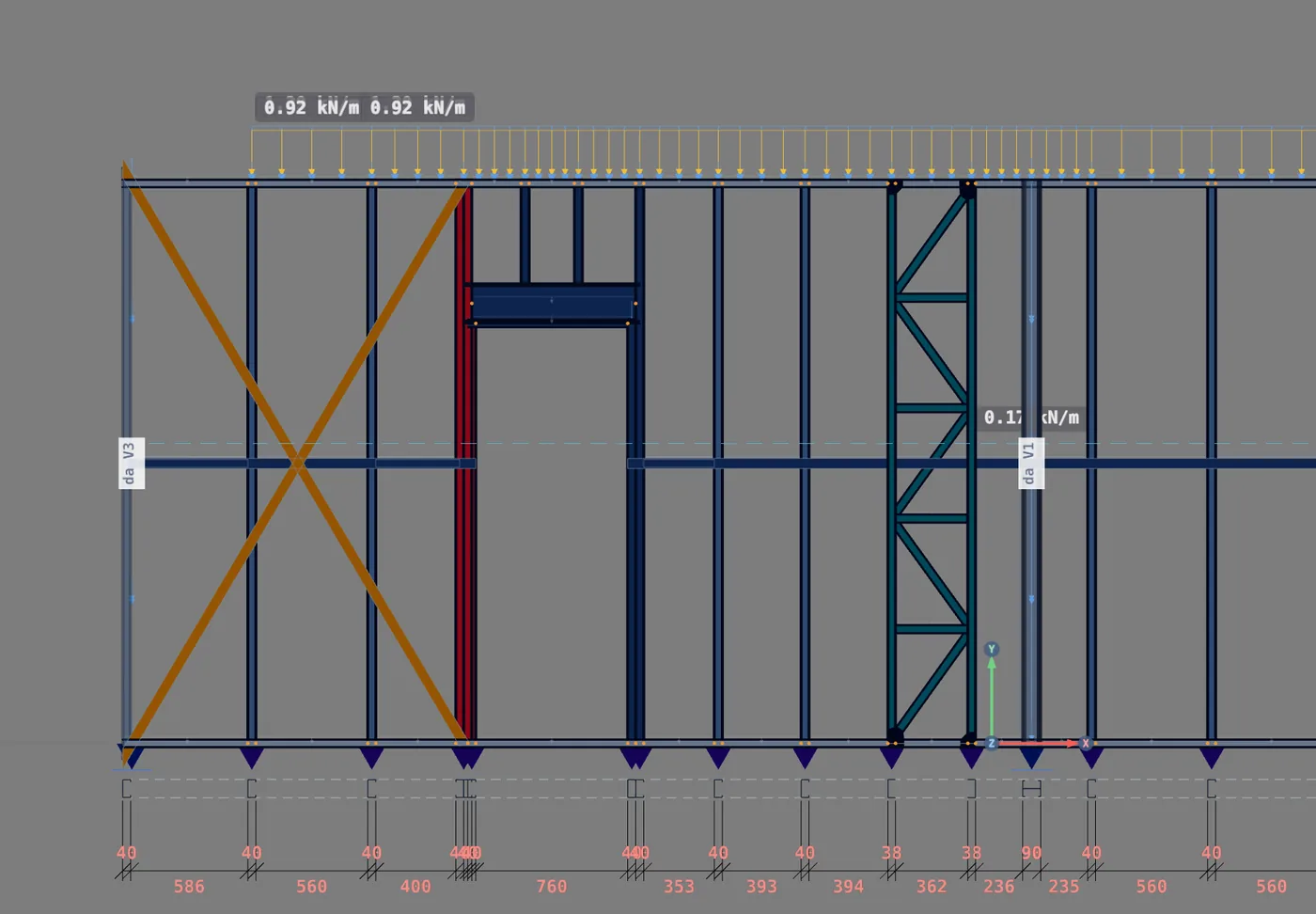
Click one of the diagonals to select the strap. The footer becomes its inspector: name, wall, the saved span and angle, and the options you can change without deleting it.

6. Repeat in the other direction and look in 3D
The front strap braces the house in the direction of the facade. The perpendicular direction is still loose: do the same on a side wall, on a solid stretch of at least 1.62 m. As long as one direction has no strap or truss in the wall, the analysis reports an error (see What the engine does with it).
Esc releases the selection and closes the view. In 3D, the strap shows at the front, with the double stud in red and the lattice column further along.
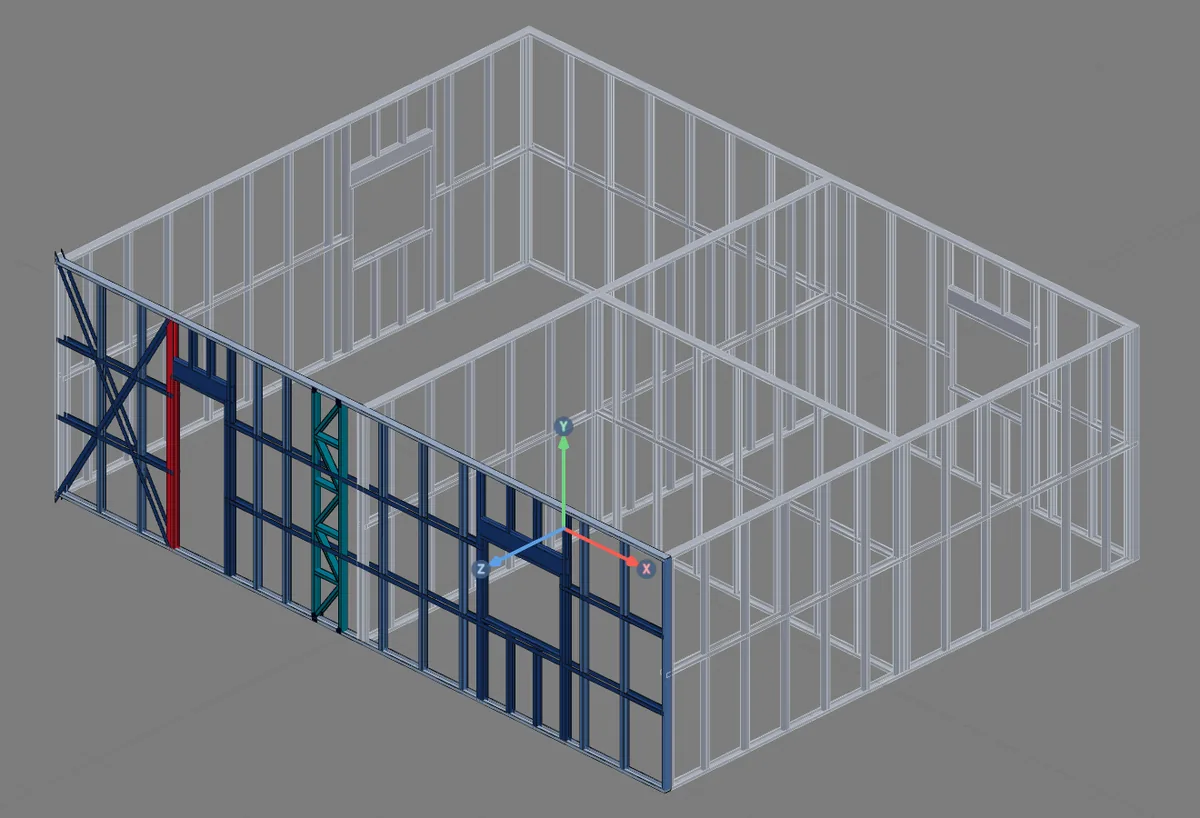
Shortcut: with two upright members of the same wall selected, the footer offers "X strap between A and B" and the Place strap button, without arming the tool. Ends, in the box, does the opposite: one click on the wall and the app looks for an X at each end.
Shortcuts
- BL↵
Strap and blocking
Places bracing strap and blocking between studs.
- AV↵
Wall view
Opens the elevation of the selected wall, seen from outside. Again, goes back.
with one wall selected
- PL↵
Plan view
Goes to plan view. With the wall view open, closes it and keeps the wall selected.
- Home
3D view
Goes to 3D at the last camera pose. With the wall view open, closes it.
Parameters
The box and the strap footer
The box (applies to the next strap)
| Field | What it is | Options | Default |
|---|---|---|---|
| Type | X strap (this page) or Blocking (Bracing). | X strap, Blocking | X strap |
| Placement | Span: upright member to upright member, two clicks. Ends: one click on the wall, one X at each end. | Span, Ends | Span |
| Height | Up to the beam: stops at the bottom chord of the beam that runs over the stretch. Up to the top: from the bottom track to the top track. | Up to the beam, Up to the top | Up to the beam |
| On both faces of the wall | Draws one strap on each face. | yes, no | yes |
| Double stud at the strap end | Places a Back to back column at each end, except where there is already a joint stud. | yes, no | yes |
| Section and angle | The strap in the Bracing role, the angle range and the span that fits. Read only; it changes in "Change in the project settings". | from the project | RET 50x0.95; 30° to 60° |
The footer (applies to the selected strap)
| Field | What it is |
|---|---|
| Span and angle | What was saved, read only. To change it, delete and place again. |
| On both faces, Double stud at the end | The same checkboxes as the box, applied to this strap. |
| Up to the beam, Up to the top | The height of this strap. |
| Delete | Removes the strap and the double stud it placed (or Delete). |
The project sets the range. Minimum, maximum and target angle come from the market rule. The box only shows them; the refusal happens before the click.
Shortcuts
- BL↵
Strap and blocking
Places bracing strap and blocking between studs.
- Del/⌫
Delete selection
Deletes the selected walls, pieces or members.
with a selection
Common mistakes
The refusals, and what to do
Every refusal shows before the click, in red in the box. Nothing is saved.
- "The strap would fall outside 30° to 60°." Seen in step 3. Fix: pick the upright member that gives a span inside the range the message itself gives.
- "The strap would cross a door or window in this wall." The diagonal does not cross an opening. Fix: a solid stretch between openings, or move the opening.
- "No stretch of this wall fits the strap: there is not enough solid wall between openings." Shows in Ends mode. Fix: brace another wall in the same direction, or rethink the openings.
- "It hits another strap in this wall." Two straps do not overlap. The message says which one. Fix: delete the other one or pick another pair.
- "The two members must be in the same wall." The strap does not turn the corner. Fix: one strap on each wall.
- Project in a market without a strap rule. The angle range and the section come from the project's market rule, and the box only places straps with it. Use a market that brings the rule, such as Brazil.
What the engine does with it
One tie per combination
Model. Each diagonal goes in as a tie (class FIT), fixed to the nodes of the two upright members. Where it crosses a stud along the way, there is no node: the strap only bears at its ends.
Tension only. The analysis is nonlinear: in each combination, the diagonal that would be in compression leaves the model, and the other one takes the wind alone. With the wind from the other side, the roles swap.
| What | How | Where it shows |
|---|---|---|
| Strap tension | NBR 14762, 9.6.2, with the section of ONE strap | FX report |
| Slenderness | Informative only: a tie has no slenderness limit | same |
| Wall drift | h/500, NBR 16970-2, 8.2, Table 3 | project displacements |
| Direction without bracing | Error, one per plan direction with no strap or truss diagonal in the wall. Sheathing does not count; neither does the diagonal of the lattice column | analysis warnings |
| Refused strap | A saved strap the wall no longer accepts (an opening that moved, for example) does not enter the model, and the analysis warns about it | analysis warnings |
The strap does not shorten the stud.
The X strap braces the wall in its plane, but it does not enter the buckling length of the studs. What shortens the stud are the strap and blocking lines, in Bracing.
An approved strap is not finished bracing
The engine checks the strap as a member. The load path continues through the connections and the foundation, and that part is checked separately.
| Left to the design | What to do |
|---|---|
| Strap screws into the upright member | Design the connection to NBR 14762, including rupture of the strap at the holes, which depends on the number and diameter of the screws. |
| Anchoring the double stud | The vertical component of the strap pulls the foot of the end member up on one side and pushes it down on the other. Design the anchor bolt and its anchorage in the concrete separately. |
| Strap on site | A slack strap does not work until the wall moves enough to stretch it. Specify the strap tensioned at installation. |
Reading the result: if the FX fails in tension, move to a wider or thicker strap in the Bracing role, or share the force with one more X in the same direction. If the drift goes over h/500, more straps or an angle closer to 45° help more than a thicker strap.
Shortcuts
- Ctrl+Enter
Calculate the project
Sends the project to the engine, like the Calculate button.
Summary
The path, in one line
Wall view → LSF card → Strap and blocking → X strap, Span → click the first upright member → cursor on the second (green ghost, measurement in the box) → click → strap footer → repeat in the other direction → calculate and read the FX and the displacements.
The example so far
- 1: X strap, F1-V6, in the front wall
- 1.66 m: of span, at 59°
- 2: faces, RET 50x0.95
- 1: double stud, at the jamb of P1