LSF (Light Steel Framing)
Columns
When the load arrives concentrated, or the wall runs too long without support, a stud wall needs a column inside it. This page shows how to place an LSF column (lattice, back to back or box), what the market rule limits and what the engine checks on it.
Overview
A column inside the wall
The example house, as it stood after Headers, has single studs every 600 mm, the bracing line at mid-height and headers over the openings. Each stud carries its own strip of wall. That works as long as the load arrives spread along the top track.
A porch beam, a roof truss bearing at a single point or a long wall with no joint change the picture: the load arrives concentrated, or the wall needs a stiffer support in the middle. The Column tool places a built-up member there, made of the LSF sections themselves, without switching systems.
The column always lives inside a wall, in place of a stud or against a joint. There is no free-standing column in the middle of a room.
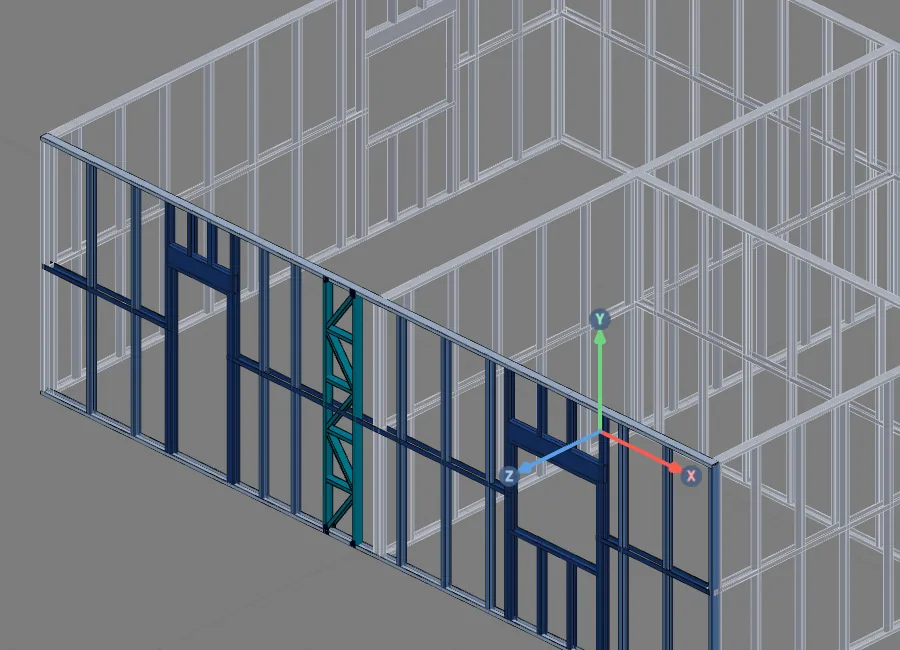
In the example house: a lattice column in the front wall, between the door and window J1, the most heavily loaded stretch of the facade.
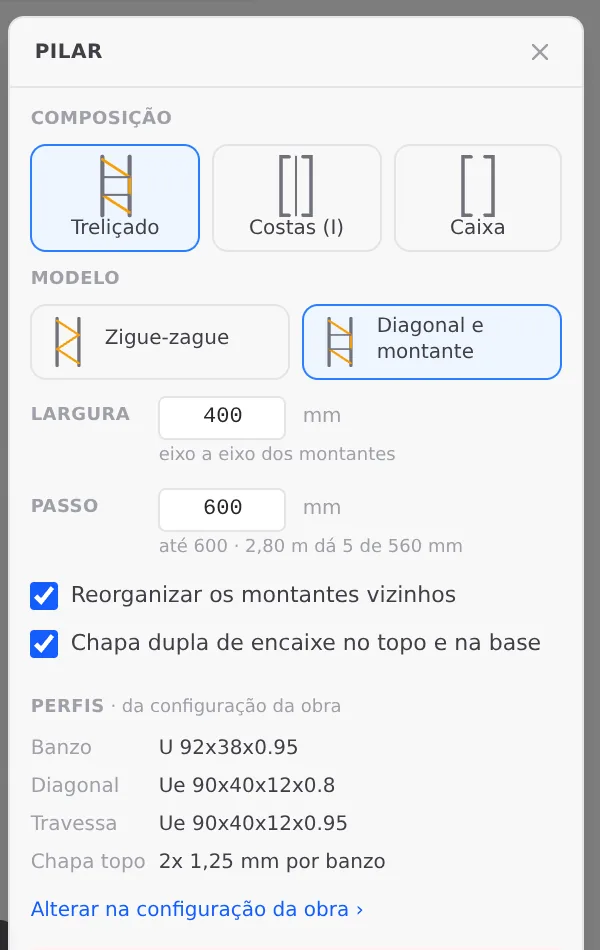
Stick-built or roll-formed. The screens on this page show a stick-built project, where the lattice column uses the U 92x38x0.95 track for the chords, Ue 90 for the diagonal and the strut, and gets a double plate of 1.25 mm at the top and base. In a roll-formed project, the default for a new project, chords, diagonals and struts all come from the C 89x41 the machine forms, and the column gets no plate: the box shows "sem chapa: a máquina monta C com C" (no plate, the machine joins C to C). The column rule, the box and the refusals work the same way in both (see Steel and sections).
What it is for
Three ways to join sections into a column
An LSF column is built up: two chord sections working together. What changes between the make-ups is how they are tied. In the lattice column, diagonals and struts make the two chords work as an upright truss; in back to back and box, the two sections sit against each other.
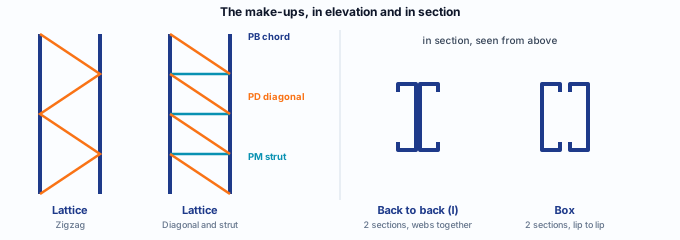
| Member | Label | Where the section comes from (stick-built) |
|---|---|---|
| Chord | PB | From the project Track role: U 92x38x0.95. The two edge studs of the column. |
| Diagonal | PD | From the Diagonal (truss) role: Ue 90x40x12x0.8. It is the same role as the roof truss diagonal. |
| Strut | PM | From the Stud role: Ue 90x40x12x0.95. Only in the Diagonal and strut model. |
| Top plate | n/a | 2 x 1.25 mm per chord, at the top and base, when the double plate is on. In a roll-formed project, no plate. |
The column has no section of its own: it borrows the ones in the project settings. Changing the truss diagonal in the settings also changes the column diagonal.
What the standard says
A compression member, built up from cold-formed sections
NBR 16970, the Brazilian standard for light steel framing, has no item of its own for an "LSF column". For the standard, each chord is a cold-formed member in compression, sometimes in bending, and joining two sections makes a built-up member. All of that is NBR 14762, the Brazilian cold-formed steel standard. NBR 16970-2 adds the displacement limit.
| Where | What it says | What it changes in the column |
|---|---|---|
| NBR 14762, 9.7.2 | Axial compression resistance, with global flexural, torsional or flexural-torsional buckling. | The buckling length of each chord decides almost everything. |
| NBR 14762, 9.7.3 | Distortional buckling of the section in compression. | Checked on the U of the chord and on the Ue of the diagonal. |
| NBR 14762, 9.7.4 | Slenderness ratio of a compression member up to 200. | A long, thin diagonal fails here before it fails on force. |
| NBR 14762, 9.7.5 | Built-up compression members. | Back to back and box: the two sections count as a single section. |
| NBR 14762, 9.8.2 and 9.9 | Bending moment resistance and the interaction of axial force with moment. | Wind on the wall bends the chord; the interaction adds that to the compression. |
| NBR 16970-2, 8.2, Table 3 | Horizontal displacement between stories: h/500. | On a 2.80 m wall, 5.6 mm. |
NBR 14762 · 9.7.4.
The slenderness of a compression member cannot exceed 200. In a lattice column, the member that usually hits that limit is the diagonal, not the chord: it is the thinnest and longest member of the assembly.
What the standard does not say
The standard does not set the column width, the panel spacing or the diagonal angle. Those numbers belong to the market rule the app loads, with a declared source. In Brazil: 400 mm width, spacing up to 600 mm, diagonal between 30° and 60°. They are a CalcSteel design decision, not an ABNT requirement.
Standard as a variable. The column rule comes from the project market; the Brazil market brings its own, with a source. The tool only places a column with the market rule, and never with made-up numbers.
Design recommendations
A column where the load arrives, and at the corners
- 400 mm: width, chord axis to chord axis
- 600 mm: maximum spacing between web nodes
- 30° to 60°: diagonal range
- 6 m: maximum span between supports along the wall
- A column under a point load. Porch beam, truss bearing at one point, garage frame: put the column underneath. Without it, the load lands on one or two single studs, or on the header.
- L corners, right at the corner. In the AI automatic layout, every L corner gets a column, and every wall longer than 3 m gets at least one corner column. At the corner, the chords of the two walls merge into a box.
- No stretch of wall longer than 6 m without support. If the gap between joints and columns goes over 6 m, split it: first at the T joints in the middle, then with evenly spaced columns. That is what the AI does on its own.
- Lattice as the default. It gives stiffness with thin steel: 400 mm wide with 0.95 mm sections in the chords. Back to back and box are for places where the lattice width does not fit, or next to an opening.
- Diagonal and strut for a tall column. With the PM strut, each chord gets a node in every panel; in the zigzag the nodes alternate from one chord to the other. A closer node means a shorter buckling length about the weak axis. Zigzag saves members in a short, lightly loaded column.
- Place the column before the truss. Between a column and a truss beam, whichever goes in last governs: a column placed under the beam splits the beam; a beam placed afterwards shortens the column. Decide the order by which one must run through whole.
Step by step
1. Open the view and arm the tool
Select the front wall and click Open view on its card, in the footer. On the LSF card, click the Column button. The Column box opens next to the card. The tool works in the plan, in the wall view and in 3D; in the view the studs are bigger and the snap is easier to see.
2. Hover over a stud
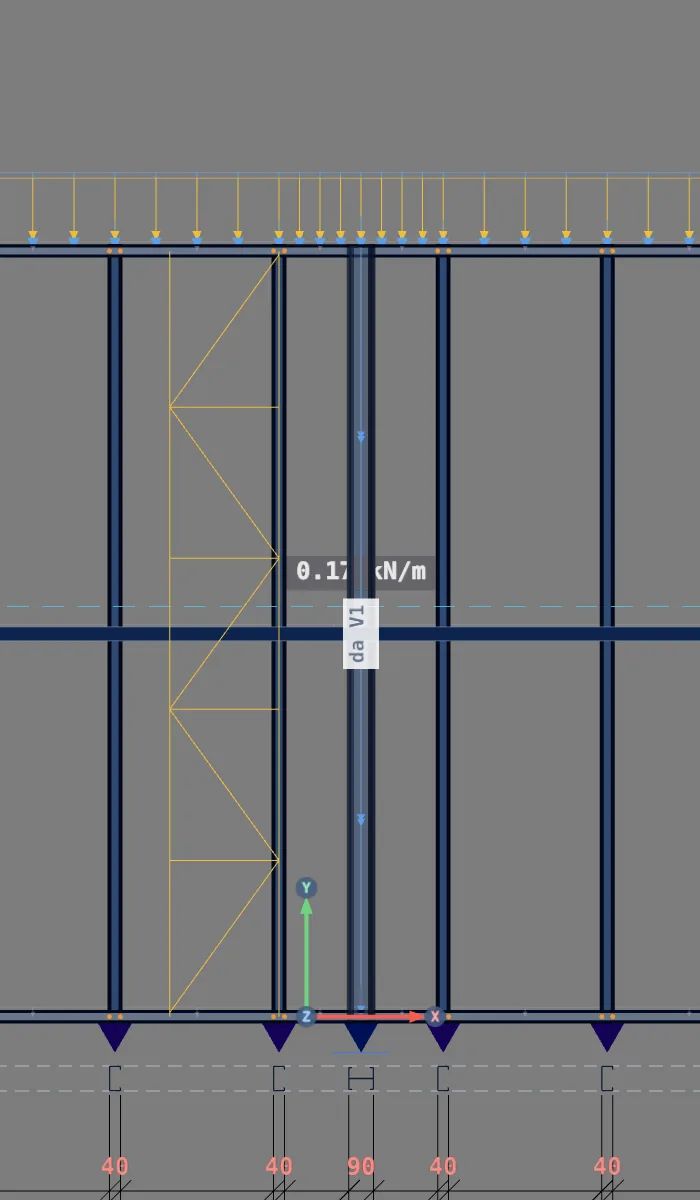
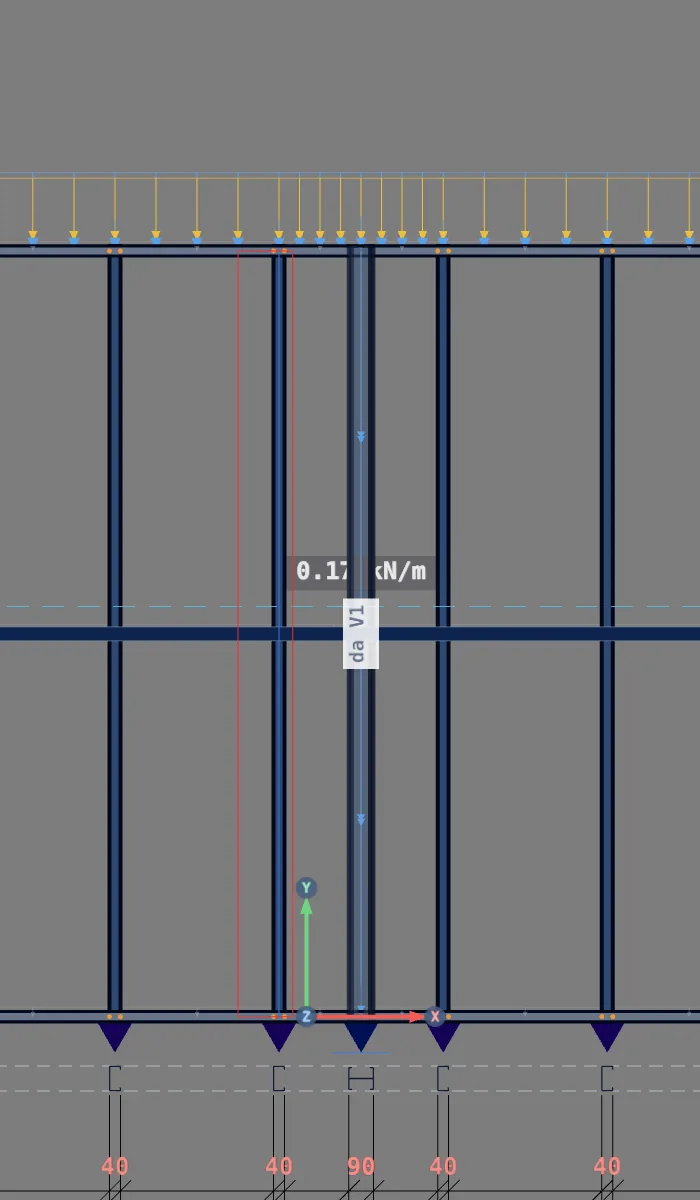
An amber ghost shows the column before the click: the two chords, the diagonals and the struts, with the width and spacing of the box. It snaps to the nearest stud (the magnet reaches 0.35 m) and grows toward the side of the cursor.
Here the cursor is on the stud between door P1 and window J1, and the column will grow to its left.
A red ghost means the click will be refused. The reason shows in red in the box. Move the cursor or change the width and spacing.
3. See a refusal before clicking
To understand the rule, change the Width to 100 mm and hover over the same stud. With chords 100 mm apart and panels up to 600 mm, the diagonal is almost upright, above 60°. The ghost turns red and the box says why, before any click. Set the width back to 400.
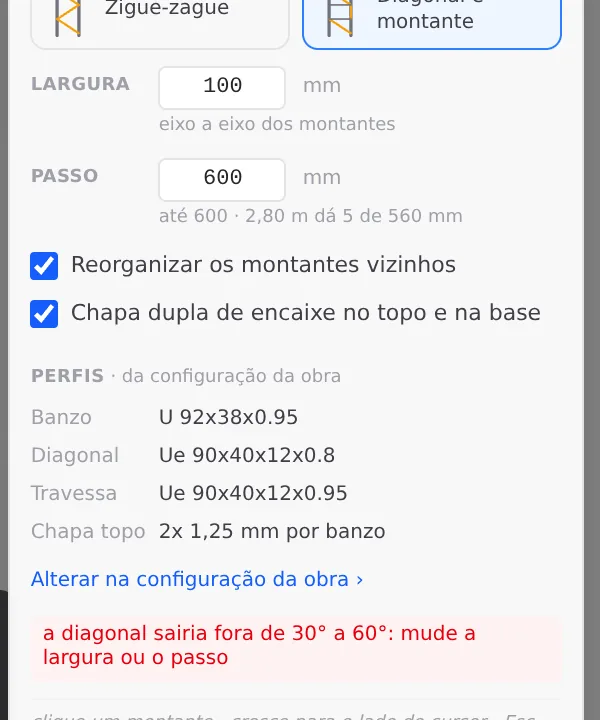
The diagonal math. The angle comes from width and spacing: tan θ = spacing ÷ width. With 400 x 552 mm, θ ≈ 54°. With 100 x 552 mm, θ ≈ 80°, out of range. A smaller width calls for a smaller spacing.
4. Click and check the dimensions
With width 400, click. The column appears in orange, the studs that fell between the chords go away, and with Rearrange neighboring studs checked the stretch next to it is split again into equal bays. The tool disarms by itself, and the whole column is a single Ctrl+Z step.
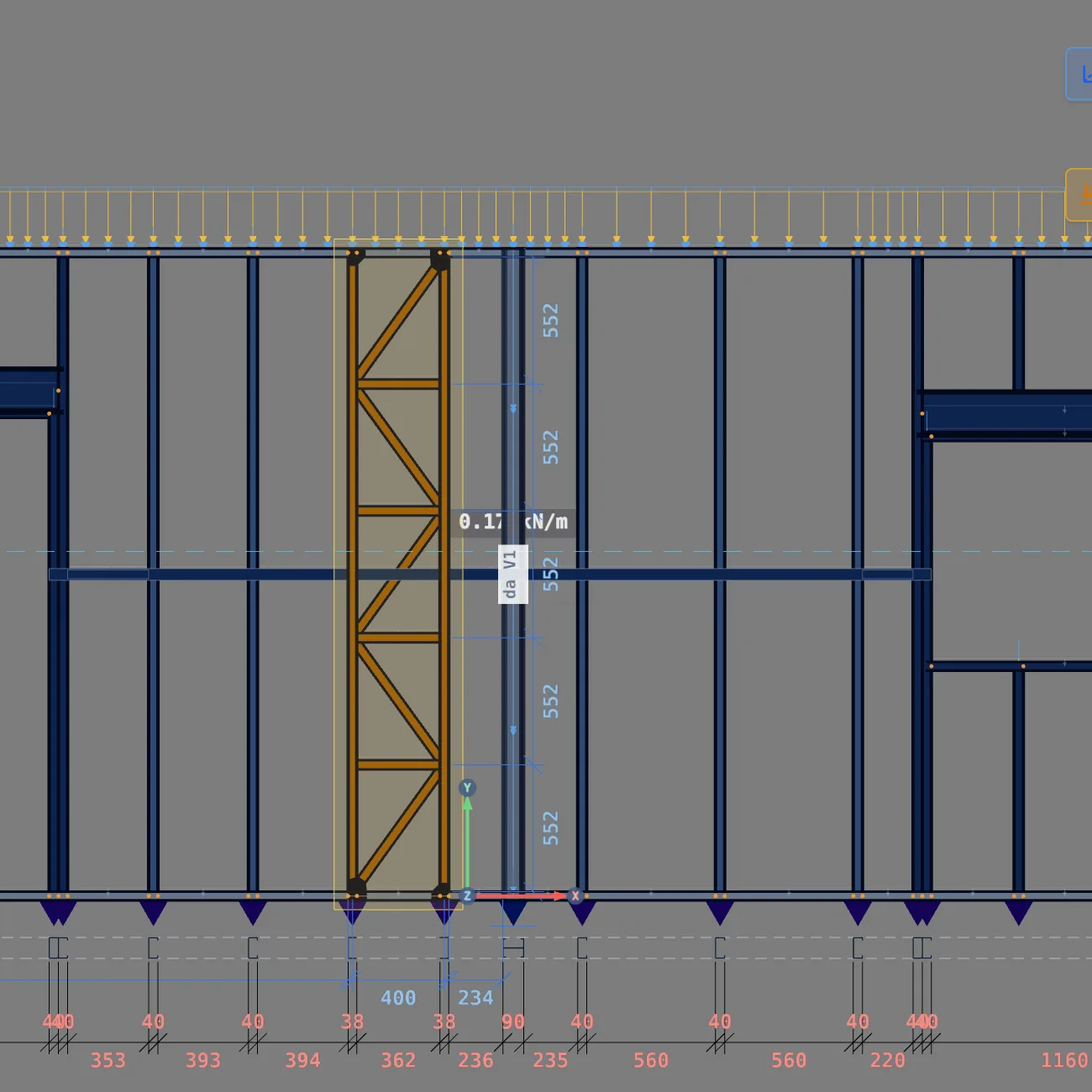
The column stays selected and the footer becomes the column inspector: name, make-up, wall, and the fields you can change without reopening the box.

5. Change the make-up in the footer
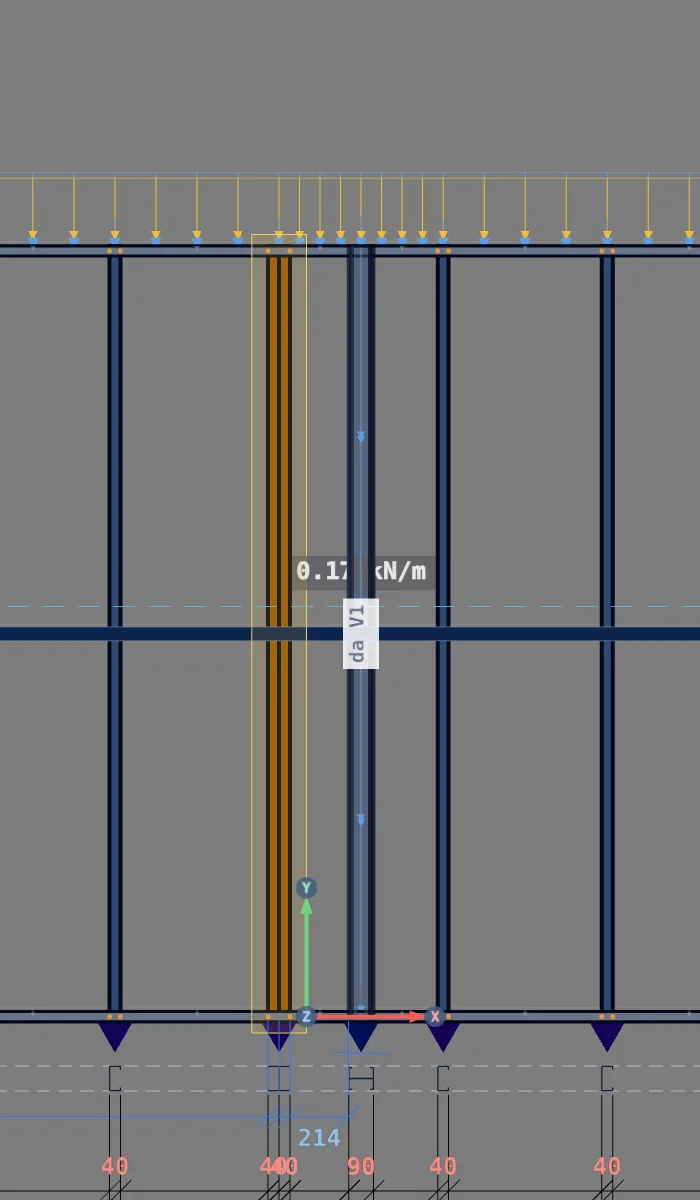
In the footer, click the second button, Back to back (I). Diagonals and struts go away and the two sections stay against each other, web to web. The width and spacing fields leave the footer: in back to back they do not exist.
In the example, we go back to Lattice right after, with the first button.

6. Exit and check in 3D
Esc clears the selection and closes the view. In 3D, the column shows in the front wall between the door and J1, with chords, diagonals and struts.
Shortcuts
- C↵
Column
Places an LSF column: click a stud.
- AV↵
Wall view
Opens the elevation of the selected wall, seen from outside. Again, goes back.
with one wall selected
- PL↵
Plan view
Goes to plan view. With the wall view open, closes it and keeps the wall selected.
- Home
3D view
Goes to 3D at the last camera pose. With the wall view open, closes it.
Parameters
The Column box and the column footer
The box (applies to the next column)
| Field | What it is | Options | Default (BR) |
|---|---|---|---|
| Make-up | How the two sections are joined. | Lattice, Back to back (I), Box | Lattice |
| Model | The web of the lattice column. | Zigzag, Diagonal and strut | Diagonal and strut |
| Width | Chord axis to chord axis, in mm. | free, within 30° to 60° | 400 |
| Spacing | Maximum height of one panel. The app splits the height into equal panels that do not go over it. | free, within 30° to 60° | 600 |
| Rearrange neighboring studs | Splits the stretch next to the column into equal bays again. | yes, no | yes |
| Double plate | Plates at the top and base of each chord, 8 per column. | yes, no | yes (stick-built) |
Model, width, spacing and the two checkboxes only show for the lattice column.
The footer (applies to the selected column)
| Field | What it is |
|---|---|
| Make-up and model | The same buttons as the box, applied to this column. |
| Width, Max. spacing | Lattice only. |
| Double chord | Each chord becomes two sections, as "[] caixa" (box) or "][ costas" (back to back), with a Gap between them (or auto). |
| Delete | Removes the column (or Delete). The studs and the layout come back. |
Editable dimensions
With the column selected in the view, the clearance dimensions to each side, the width and the spacing of each panel accept a click and a number, like the other dimensions of the wall view.
The box fields have no cap. The limit is the 30° to 60° rule, checked before the click. The AI has its own limits: width from 100 to 2000 mm and spacing from 100 to 3000 mm.
Shortcuts
- C↵
Column
Places an LSF column: click a stud.
- Del/⌫
Delete selection
Deletes the selected walls, pieces or members.
with a selection
Common mistakes
The refusals, and what to do
Every refusal shows before the click: the ghost turns red and the box gives the reason. Nothing is saved.
- "The column would go past the end of the wall." The width does not fit between the stud and the end of the wall. Fix: cursor on the other side of the stud, so the column grows inward.
- "It lands on a door or window of this wall." A column does not go inside an opening. Fix: place it against the frame stud next to the opening, or move the opening.
- "It hits another column in this wall." Two columns do not overlap. Fix: a single, wider column, or move them apart.
- "It is a joint stud: it is already built up and holds the other wall." The joint stud is already a built-up member. Fix: place the column against it, at the abutting station, without replacing it.
- "The diagonal would fall outside 30° to 60°: change the width or the spacing." Seen in step 3. Fix: width and spacing of the same order of magnitude.
- Project market without a column rule. Width, spacing and the diagonal range come from the project market rule, and the box only places a column with it. Use a market that brings the rule, such as Brazil.
What the engine does with it
Chords in compression, braced by the web
Model. Chords, diagonals and struts enter the model as members, all with the column role. Each chord is pinned at the track about the strong axis. The wind on the wall reaches only the PB chords.
Chord buckling. About the strong axis (the chord bending out of the wall plane), the length is the column height. In the other two modes (weak axis and torsion), it is the longest stretch between the web nodes and the strap and blocking lines. The member card shows "entre os nós da alma do pilar" (between the column web nodes).
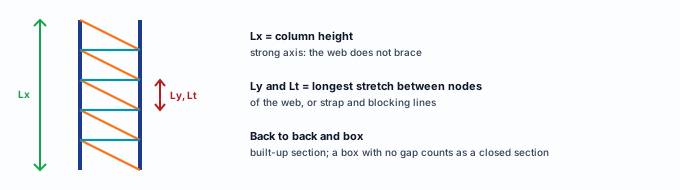
Checks (NBR 14762:2010).
| Check | Item | Where it shows |
|---|---|---|
| Compression | 9.7.2 and 9.7.3, with the lengths above | report of PB, PD, PM |
| Slenderness | 9.7.4, up to 200 | same |
| Built-up member | 9.7.5 (back to back and box) | chord report |
| Bending and interaction | 9.8.2 and 9.9 | chord report |
| Displacement | h/500, NBR 16970-2, 8.2, Table 3 | project displacements |
A column that passes is not a connection that passes
The engine checks the members of the column. The parts that join them, and web crippling of the chord, stay with the design. Check them separately, with the supplier or with your own calculation.
| Stays with the design | What to do |
|---|---|
| Web crippling of the chord | Where the point load lands on the PB (truss, beam), check it per NBR 14762, Annex D, as the engine does for the header on the jack stud. |
| Double plate | In a stick-built project, the 8 plates of 1.25 mm are drawn, not designed: design them with the supplier. |
| Stitching between the two sections | In back to back and box, check the spacing of the screws that make the two sections work together. |
| Diagonal-to-chord connection | Design the screws between PD, PM and PB. |
How the model connects the web.
In the calculation model, the diagonals and struts of the column are rigidly connected to the chord, not pinned like the diagonals of a roof truss. On site, a screwed connection sits somewhere in between. For a column with a small margin, read the forces in the diagonals with caution.
Reading the result: if the PB fails in compression about the weak axis, the spacing is too large: reduce the spacing or switch to Diagonal and strut. If it fails about the strong axis, the length is the full height: only a larger width or section solves it. If the PD fails on slenderness, shorten the diagonal, with a smaller spacing or width.
Shortcuts
- Ctrl+Enter
Calculate the project
Sends the project to the engine, like the Calculate button.
Summary
The path, in one line
Wall view → LSF card → Column → make-up, model, width, spacing → cursor over the stud (amber ghost) → click → column footer → Esc → calculate and read PB, PD and PM.
The example so far
- 1: lattice column, PL1-V6, in the front wall
- 400 mm: between chords
- 5: panels of 552 mm
- 8: plates, 1.25 mm