LSF (Light Steel Framing)
Plan and 3D
Before the first wall, it is worth knowing where it will be drawn: the plan, seen from above, and the 3D view, which orbits around the project. This page shows how the camera moves in each one, where you pick the story and what the purple roll former button draws.
Overview
Two views, one project
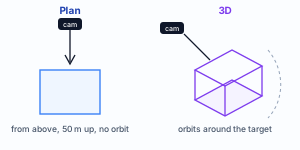
In the LSF tab, the project shows up in two ways. The plan looks from above, with no perspective and no orbit: it is where you draw walls, openings, roofs and columns. The 3D view orbits around the project: it is where you check what was drawn and see each piece the way the roll former will deliver it.
Both show the same data. Nothing is copied from one to the other, and nothing you do in the view (orbiting, zooming, isolating a story, turning a layer on or off) changes the project that is saved and calculated.
The example house is still empty. That is why this page is short on pieces and long on controls: it is the last stop before the drawing tools, which have one page each.
- 2: views in the LSF canvas: Plan and 3D, switched in the footer, plus the wall view, which opens from the Open view button on the wall card
- 3D: the view the LSF tab opens with, every time you enter it
- 0.00: Ground floor level, from which the mini section measures the story boundaries
- 1 m: scene grid cell in a small project; the 10 cm snapping is something else, the Grid snap
- 0: effect of the view on the calculation: camera, isolation and layers are not saved
What it is for
The LSF tab screen
When you close the New project wizard and click the LSF tab, the empty project looks like this. The view is 3D: the camera looks at the origin from above and from the side, and the three colored arrows are the X, Y and Z axes.
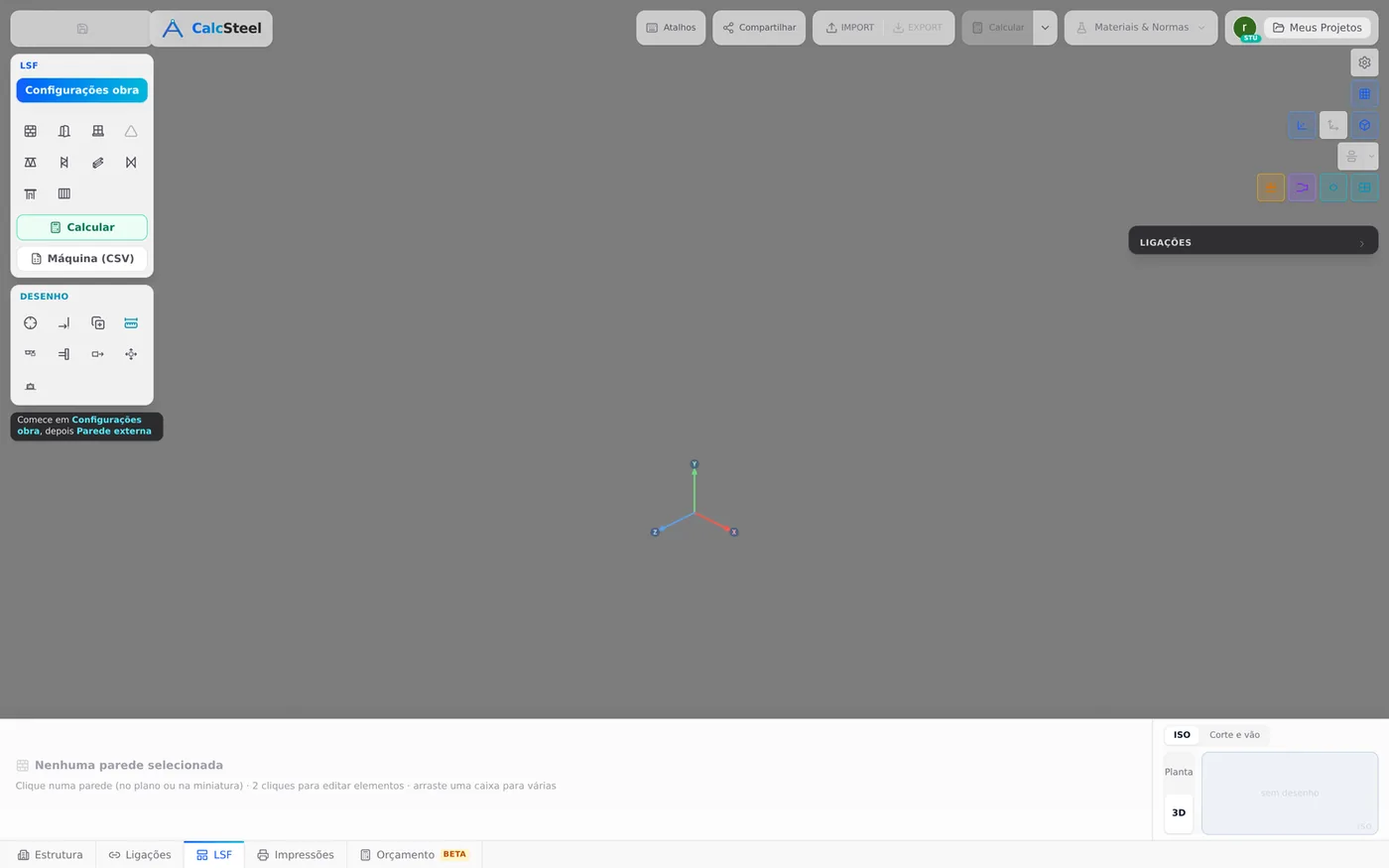
The four areas of the screen
| LSF card | Project settings, the piece tools, Calculate and Machine (CSV) |
| Drawing card | Snap, Join walls, Copy, Dimensions and the member tools |
| Right column | what the scene shows: grid, axes, 3D profiles, loads, the purple button |
| Footer | the selected wall, Plan|3D, the ISO thumbnail and the Section |
Why there are two views
Drawing needs a plane: the click has to land on a point of the floor, with no doubt about depth. That is the plan. Checking needs the opposite: seeing the height, the joints and the piece from every side. That is the 3D view. CalcSteel keeps one camera for each, and switching is one click in the footer.
The same project, seen from above
Click Plan in the footer and the camera rises and looks down, aiming at level 0. The X axis runs to the right and Z toward the bottom of the screen. There is no perspective and no orbit: the plan is a sheet of paper.
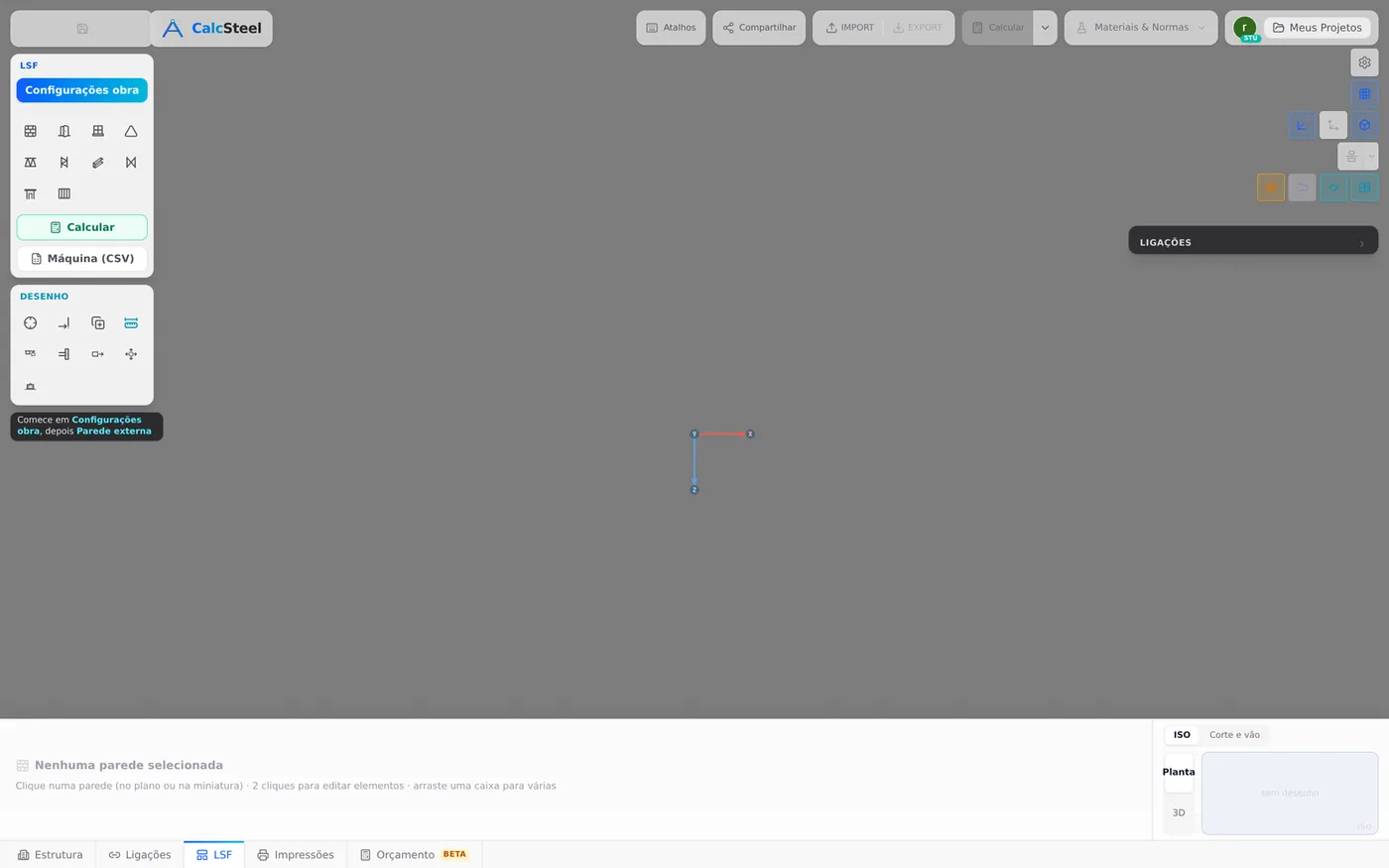
Measured in the screenshot
| Camera | orthographic in both views |
| 3D | at position (17.95, 16.40, 18.05), zoom 1 |
| Plan | at (0, 50, 0), with the top of the screen pointing to negative Z |
| Scale | 52 px per meter on a 1600 x 1000 screen, zoom 1 |
Orthographic means no vanishing point: a 9 m wall measures the same at the front and at the back of the screen.
What the standard says
Drawing convention, and nothing more
No applicable item.
No Brazilian standard regulates the screen of a program. What applies here is the convention of every project: the plan is the building seen from above, the section shows the heights, and levels are measured from a reference, which in CalcSteel is the Ground floor at 0.00. NBR 16970-2 (the Brazilian light steel framing standard) and NBR 14762 (cold-formed steel members) come in on the page for each piece.
For the 9 x 7 m house
Draw in plan
The tab opens in 3D. Before placing the Exterior wall (Exterior walls), click Plan in the footer. The click lands on the floor of the chosen story, the snaps find ends, midpoints and lines, and the measurement box takes 9.00 and 7.00 with no doubt about depth.
Check in 3D
After each wall, go back to 3D and orbit with the right button. That is where you see the 2.80 m height, the corner joints and, with the purple button on, the piece the way the machine forms it.
One story, the Ground floor
The house is single-story. The mini section shows a single story, from 0.00 to 2.80, and that is where everything is drawn. There is nothing to pick: with no active story, the tool draws on the Ground floor.
Keep the defaults
Grid, axes and 3D profiles come on, and so do the purple button and the six snaps. For the example house, none of them needs to change.
Rule of thumb: plan to place, 3D to see. Drawing in 3D means picking the point by screen depth, and screen depth is deceptive.
Step by step
1. Open the LSF tab
In the tab bar at the bottom of the screen (Structure, Connections, LSF, Prints, Estimate), click LSF. The editor opens in Structure; LSF is a tab over the same model, not another file. When you enter it, the view is always 3D, and the Structure reference lines are hidden; they come back when you leave the tab.
2. Read the footer
With nothing selected, the footer says No wall selected and teaches the three gestures: click a wall, double-click to edit elements, drag a box to select several. On the right is the thumbnail, with the ISO and Section and span tabs.

3. Switch to Plan
In the footer, click Plan (tooltip: "Plan view (from above)"). To go back, 3D (tooltip: "3D view: 1 click picks the wall, 2 clicks open it for editing"). The choice is not a saved preference: when you leave the tab and come back, it starts again in 3D.
4. Use the three mouse buttons
The left button never moves the camera: it is for selection. The wheel zooms in and out. The middle button drags the view (pan). The right button changes role with the view: in plan it also pans, because there is no orbit there; in 3D it orbits.
| Gesture | Plan | 3D |
|---|---|---|
| Left, click | selects a wall, opening, joint or column | selects the wall by its surface |
| Left, drag | selection box; the camera does not move | the camera does not orbit |
| Wheel | zooms in and out | zooms in and out |
| Middle, drag | pan | pan |
| Right, drag | pan | orbits around the target |
Measured on the empty plan
| Before | zoom 1; 52 px per meter |
| 6 wheel turns | zoom 1.45; 75 px per meter |
| Middle, 170 px | target moved 2.0 m in X and 1.1 m in Z |
| Left | camera unchanged, to the thousandth |
| Right | moved (pan); same orientation |
The camera target
With nothing selected, orbit and zoom happen around the center of the screen. With a piece selected, they anchor on it: the piece stays in the same place on the screen while the rest orbits or zooms. Pan is not affected.
To zoom in on a corner, select a piece of it, or bring the corner to the center with pan.
5. Go back to 3D and find the camera as you left it
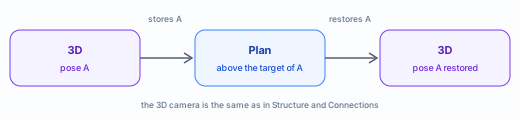
When you enter the plan, CalcSteel stores the 3D pose (position, target, orientation and zoom). When you go back, it restores it: the house reappears from the same angle you left it at. The plan, in turn, always starts above the target of the 3D camera, 50 m up.
6. Select: one click, double click, box
One click on a wall selects the whole wall; the footer then shows its data. A double click enters editing, and only then can the studs and tracks be picked one by one. Dragging to the right makes a window box (it only picks a wall that is entirely inside); to the left, a green crossing box that picks every wall it touches. Delete deletes whatever is selected.
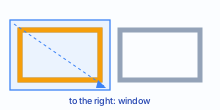
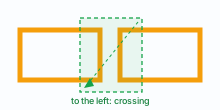
Our own drawing: the house has no wall yet for the box to pick. In amber, what the box selects.
7. Open the Section and span tab
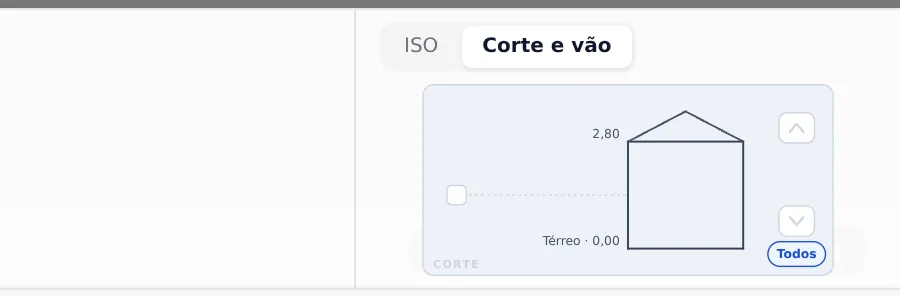
In the footer thumbnail, the Section and span tab shows the project in section: one rectangle per story, the roof on top and, on the left, the elevations of the story boundaries. On a screen narrower than 1680 px, ISO and Section share the same cell as tabs, and CalcSteel remembers the last tab chosen; on a wider screen, both appear side by side.
8. Isolate a story, or open the plan of a level
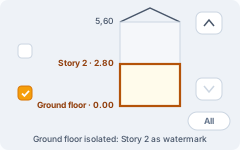
With more than one story, the section becomes the selector of where you work. Clicking the band of a story (or its checkbox) makes it the active story: the others become a watermark in the scene. Clicking an elevation, such as "Ground floor · 0.00", opens the plan of that level, marked by an amber line in the section. Clicking again closes it.
| ↑ ↓ | moves the active story up and down |
| 0 Esc | goes back to All |
| All | shows the whole project; the tools draw on the Ground floor |
| Level plan | shows the track at that elevation, the stud that crosses it and what is above; the rest disappears |
Our own two-story drawing, in the format of the mini section. The example house has only one, and the arrows stay dimmed.
The active story is where you draw
The mini section is not just a view filter. Exterior wall, Floor and Roof start from the active story; so does wall selection. With no active story (All), everything goes to the Ground floor. In a two-story project, choosing Story 2 before the tool is what puts the wall at 2.80, and not on the ground.
Isolate
One story in front, the others as a gray watermark. The camera does not change. It is for working on one floor without the one above getting in the way of the click.
Level plan
A horizontal cut at an elevation. Thin lines, studs as markers and trusses highlighted. It is for seeing what rests at that height.
Display
A card that appears once there are walls: it turns Wall, Floor and Roof on and off, isolates the selection (Shift+H) and hides it (H).
The three are exclusive and are not saved. Isolating a story closes the level plan, and the other way around. When you reload the page, none of the three comes back: the project reopens with all stories in view.
9. While you draw a wall, the section becomes the span selector
With the Exterior wall tool active, the mini section changes role. The "section" label becomes "set span": the first click on a band marks the bottom story of the wall, the second ("click end") marks the top one, and an amber Span: pill shows the result in meters. That is how a wall goes through two stories. The tool is in Exterior walls; here it is enough to know the selector exists.

Shortcuts
- PL↵
Plan view
Goes to plan view. With the wall view open, closes it and keeps the wall selected.
- Home
3D view
Goes to 3D at the last camera pose. With the wall view open, closes it.
- ↑/↓
Switch storey
Moves the active storey up or down. 0 shows all.
mini section focused
- 0
All storeys
Shows every storey again, like the 0 of the mini section.
with no tool armed
- Shift+H
Isolate selection
Shows only the selection without moving the camera. Again, toggles.
- H
Hide selection
Hides the selection without deleting it.
with a selection
The controls
The right column
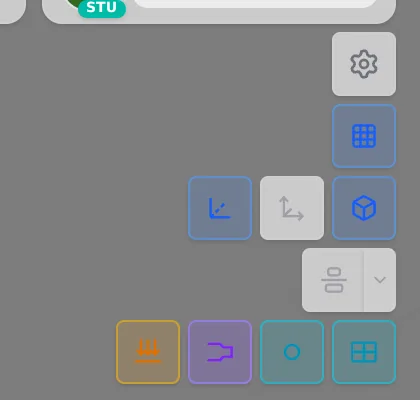
The column of buttons in the right corner decides what the scene shows. None of them changes the project: they are view layers. The defaults are kept in the browser, not in the project.
| Button | Default | What it does |
|---|---|---|
| Grid | on | the floor grid, in 1 m cells in a small project, gray on gray |
| Global axes | on | the X, Y and Z arrows at the origin |
| Local axes | off | the axes of each member |
| 3D profiles | on | the member with its profile shape, not a line |
| Reference lines | off in LSF | hidden when you enter the tab, back when you leave |
| Loads | from Structure | the load arrows |
| Purple | on | the roll former detail; it only exists in the LSF tab |
| Releases | from Structure | the hinges at the ends |
| Panels | from Structure | the load panels |
Three notes on the scene
Views. In LSF there are three views: the Plan, the free 3D and the wall view, which shows each panel head-on.
Light mode. The 3D view is light for everyone: a still scene is not redrawn. There is no button; it is simply on.
Units. LSF works in meters, with a decimal comma, in the footer and in the section, and in millimeters for the profiles.
Left cards and snaps
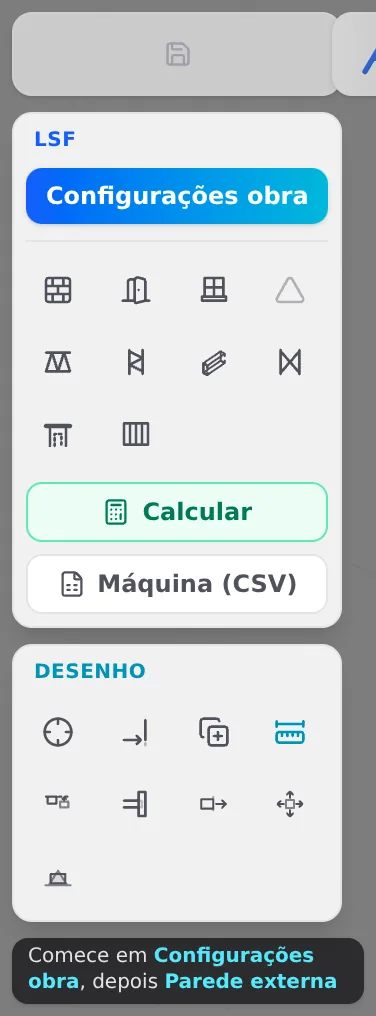
The LSF card is the one for pieces: Project settings at the top, the tools (exterior wall, interior wall, openings, roof, truss, column, member, strap, header, floor), Calculate and Machine (CSV). In the empty project, the hint at the bottom says where to start: "Start with Project settings, then Exterior wall".
The Drawing card is the one for aids: Snap, Join walls, Copy, Dimensions, and five tools that act on members (Align by face, Continuity, Extrude end, Move in section, Double plate).
The Dimensions button on the Drawing card does not draw dimensions: it opens the dimension style of the wall view (colors, background, size and terminator). The measurement while you draw comes from the box and the ruler of the tool itself, and Enter confirms it.

Snap and the six drawing snaps
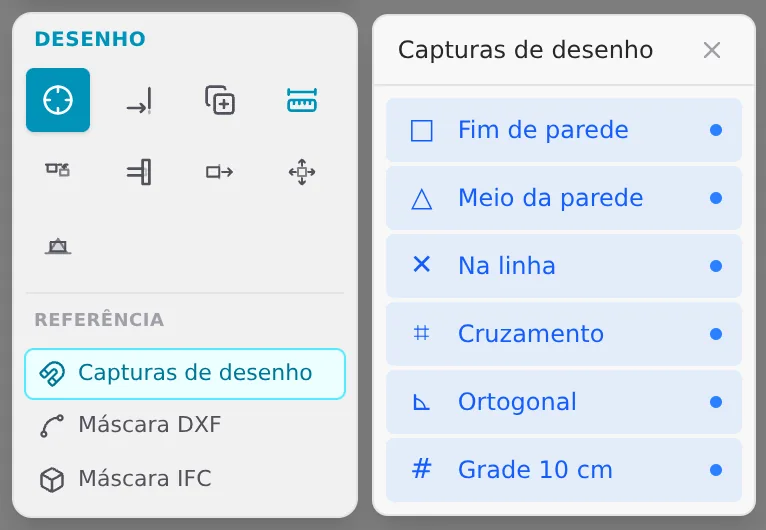
Turning on Snap brings up the Reference: Drawing snaps (the walls already drawn), DXF mask or IFC mask. The magnet of Drawing snaps opens the card with the six, all on by default and remembered by the browser.
The purple button: the piece as the machine forms it
The purple button in the right column shows each piece the way the roll former will deliver it: the fit stamped at the end, the lip cut away where another piece passes, and the dimples (the small screw holes, in orange). It starts on. Off, the piece goes back to the plain profile.
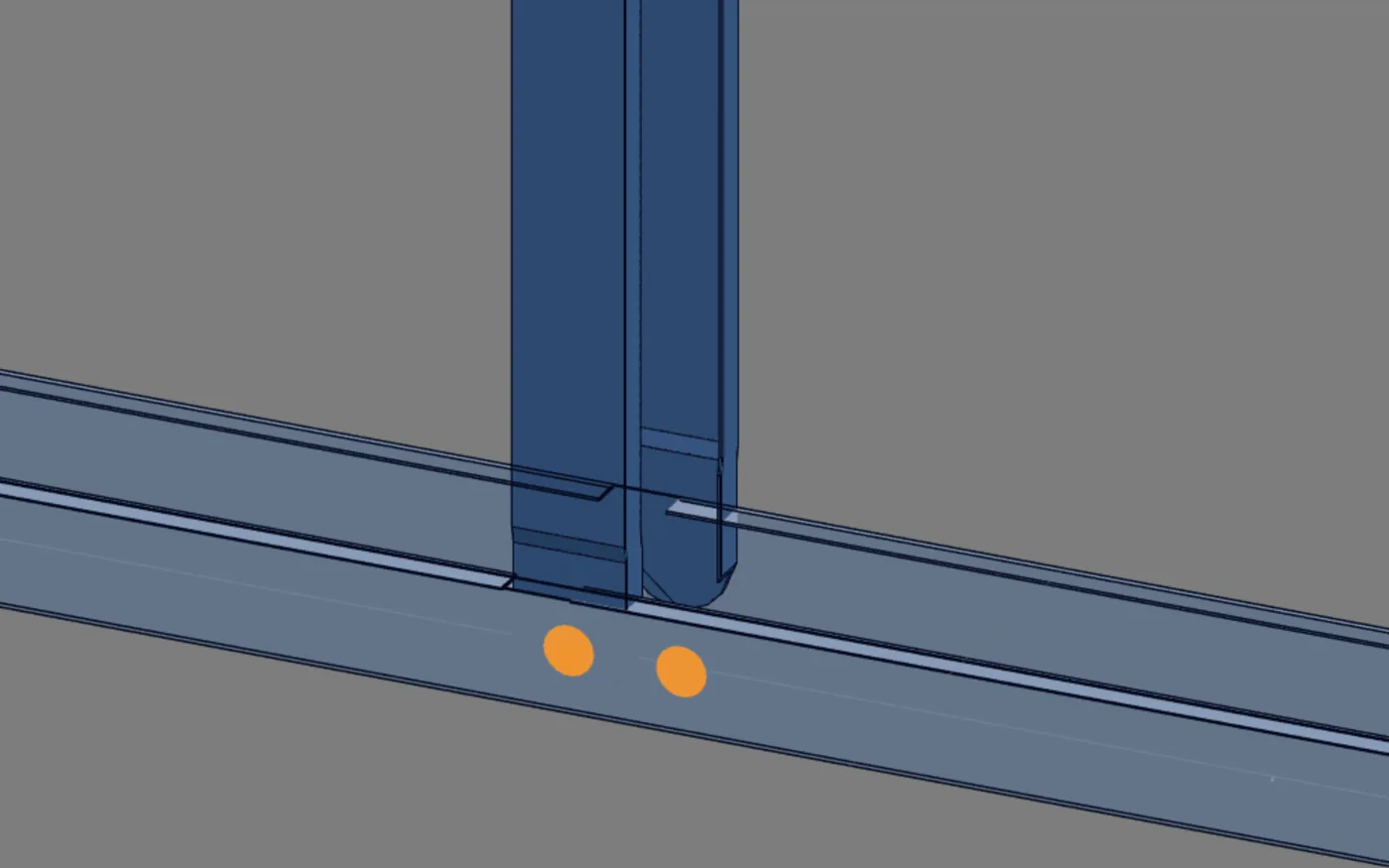
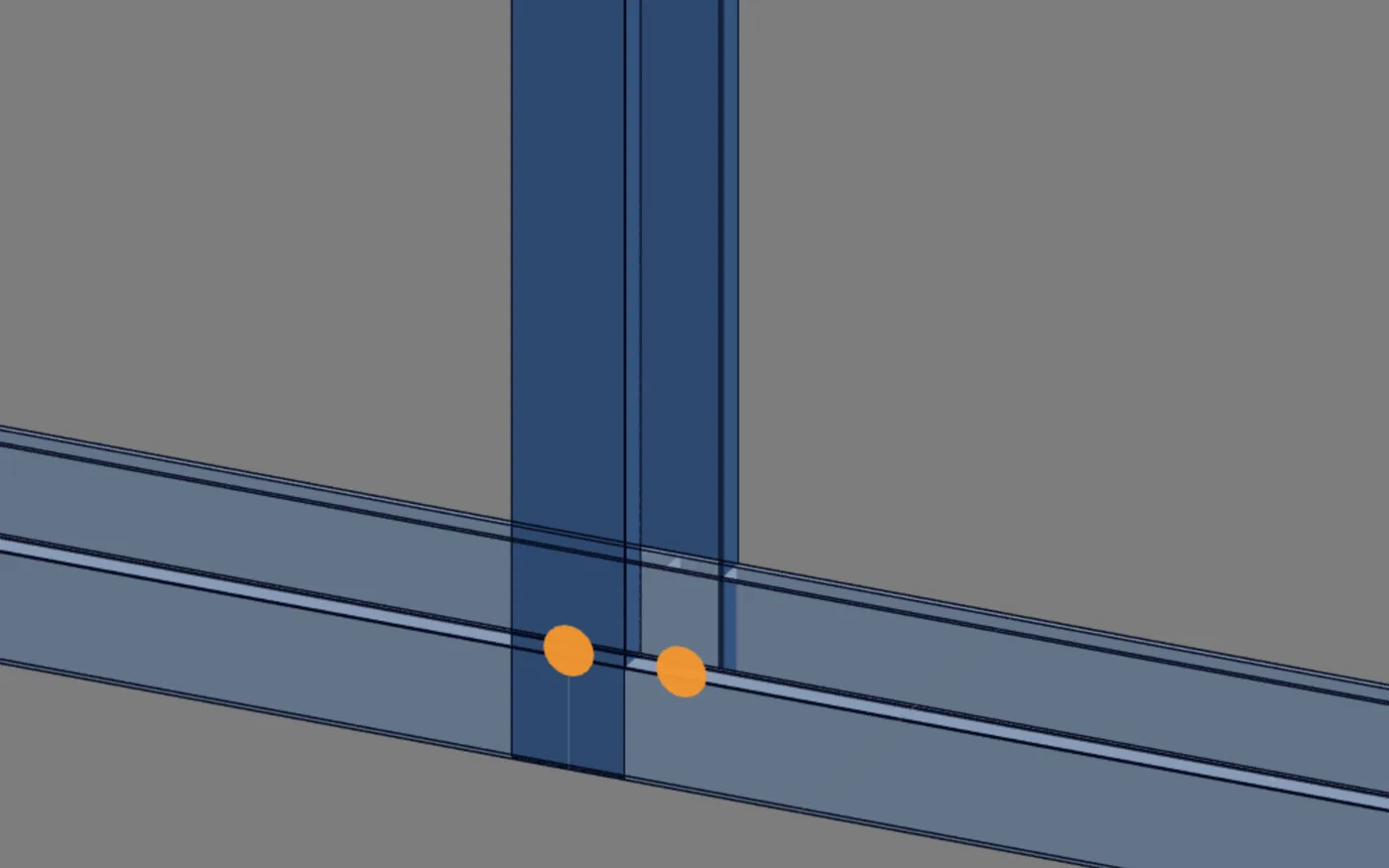
Images from another project, from the Roll-former file page. The example house has no piece yet for the purple button to draw.
| Situation | The purple button |
|---|---|
| LSF tab, 3D | clickable; the tooltip is "Hide the roll former detail" when on and "Show as the roll former makes it (swage, fit, dimple)" when off |
| Wall view | clickable, as in 3D |
| Plan | dimmed, with the tooltip "In 3D or in the wall view"; the choice is kept |
| Other tabs | does not appear |
| 3D profiles off | lit, but with no effect: the detail needs the member profile |
When you click, "Building the roll former detail..." or "Removing the roll former detail..." appears for a moment. In a large project the drawing takes a while; in the 9 x 7 m house, almost no time at all. The punches come from the same calculation that writes the machine CSV.
Shortcuts
- CFG↵
Project settings
Opens the project wizard: envelope, structure, loads and wind.
- CA↵
Snap
Arms snapping and shows the reference: drawing, DXF or IFC mask.
- RG↵
Drawing snaps
Snaps to the walls already drawn. Again, opens and closes the snaps card.
with Snap armed
- CT↵
Dimension style
Opens and closes the section dimension panel: colors, background, size, terminator.
Common mistakes
What tends to confuse
- "The purple button does not light up". You are in plan. It only works in 3D and in the wall view; the tooltip says so. Click 3D in the footer.
- "I turned on the purple button and nothing changed". Either the project has no pieces yet (as with the empty house), or the 3D profiles button is off. The detail needs the member profile, and without it there is nothing to stamp.
- "I drag with the left button and the view does not orbit". That is on purpose: the left button is for selection. Orbit with the right button, in 3D. In plan there is no orbit.
- "Where is the front view?". LSF has no view cube. To see a wall head-on, select it and use Open view on the card: that opens the wall view, shown in Exterior walls.
- "The wall was created on the ground, and it belonged to the 2nd story". The active story is where the tool draws, and with no active story it is the Ground floor. Pick the story in the mini section before you start the tool, or use the span selector.
- "I reloaded and everything came back". Isolated story, level plan and Display are view settings, and they are not saved. The tab also goes back to Structure on reload.
- "In 3D I cannot pick the opening or the joint". In 3D the click picks the wall surface. Openings and joints are plan marks, and can only be selected there.
- "The grid does not snap the point". The scene grid is only a drawing. What rounds the click is the 10 cm grid snap, on the Drawing card.
- "The plan opened somewhere else". It starts above the target of the last 3D camera. If you orbited or moved the 3D view, the plan opens centered there. Use pan, or go back to 3D and reframe.
What the engine does
The view does not enter the calculation
What the engine reads
The pieces drawn and the project settings: stories, ceiling heights, profiles, steel, loads and wind. That is why the 2.80 m ceiling height matters, and the camera angle does not.
What it does not read
Camera, zoom, Plan or 3D, isolated story, level plan, Display, grid, axes, purple button. None of this goes into the save, the calculation, the sheet, the IFC or the DXF.
The purple button deserves a sentence of its own: it draws the roll former calculation, the same one as the CSV, but it does not check it. Checking the pieces is the job of the LSF engine, and it starts with Calculate, once there is something to calculate.
Shortcuts
- Ctrl+Enter
Calculate the project
Sends the project to the engine, like the Calculate button.