LSF (Light Steel Framing)
Exterior walls
Four clicks and three numbers: that is all that separates an empty site from the full perimeter of a steel house, with studs, tracks and bracing in place. Here you raise the exterior walls of a 9 x 7 m single-story house and learn what the standard requires of each one.
Overview
The example house
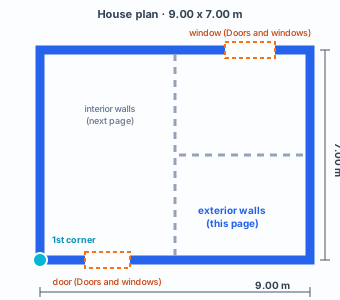
The LSF articles follow a single example: a 9 x 7 m single-story house with a 2.80 m ceiling height and a gable roof. Each tool adds a layer to it, up to the complete project, calculated and laid out on sheets.
Everything starts with the exterior walls. They carry the roof, take the load down to the foundation and resist the wind on the facade. The rest of the house bears on them, so they are where the project starts.
Stick-built or roll-formed. The screens on this page show a stick-built project, with the stock sections of the Brazil market: Ue 90x40x12x0.95 stud and U 92x38x0.95 track. A new project starts roll-formed on the FRAMECAD F325iT, and then stud and track come from the C 89x41, 0.95 mm section the machine forms. Drawing the walls works the same way in both; the choice is in the header of the project settings (see New project wizard).
What it is for
A wall that is the structure
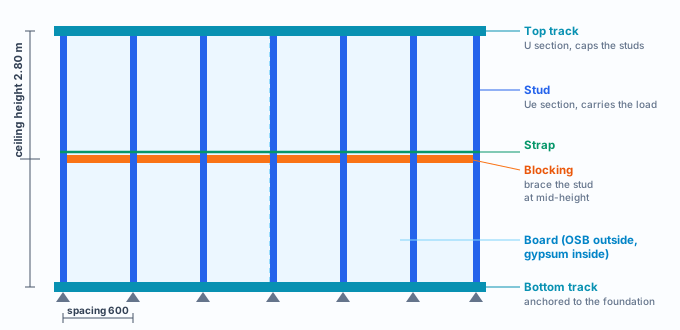
In Light Steel Framing the wall is not infill hung on a frame: it is the structure. Each panel is a frame of thin galvanized steel sections: studs standing every 400 or 600 mm, held at the top and bottom by horizontal tracks. Boards close both faces. Together they carry the roof load down to the foundation and resist the wind on the facade.
The Exterior wall tool draws that whole frame from a single line. You click the corners of the house in plan, type the lengths, and the app generates the tracks, the studs at the project spacing, the corner joint, and a line of blocking and strap at mid-height. A 9 m wall comes out with dozens of pieces, each with its section, material and role defined.
Exterior or interior?
The difference is not the section, it is what the wall faces. The exterior wall closes the outline of the house: it takes wind on its face, gets exterior sheathing and a facade finish, and gains a pressure panel in the wind calculation. The interior wall (Snap and interior walls) divides the rooms and stays out of the wind.
Why start with the perimeter?
Because everything else bears on it. The roof looks for the exterior walls, the interior walls are drawn against them, and the openings are cut inside them. Closing the perimeter first settles every corner joint at once.
What the standard requires
NBR 16970-2: the wall rules
In Brazil, the structural design of LSF follows ABNT NBR 16970-2:2022, the Brazilian standard for light steel framing. It defines the system and requires every section to be checked under NBR 14762 (cold-formed steel members); the sections themselves follow NBR 15253. Loads come from NBR 6120 and wind from NBR 6123. For the wall, five items matter from the moment you place it:
| Item | What it requires | How CalcSteel helps |
|---|---|---|
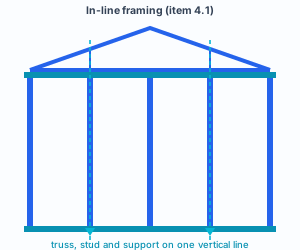
| 4.1 · in-line framing | Studs on one story aligned with those on the story below, with the floor joists and with the roof framing. The load goes down in a straight line. | Studs are created at the project spacing, and the same spacing applies to floor and roof. |
| 4.2 · eccentricity | Construction tolerance: up to 20 mm between the centerline of the joist web and that of the stud web; with an external stiffener, also up to 3 mm between the joist web and the stud. | The Web ⊥ wall ok badge checks the orientation of every stud. |
| 5.2 · steel and thickness | Steels ZAR 230 to ZAR 400 (Table 1). Minimum nominal thickness of 0.80 mm for structural sections; 0.65 mm only for battens. | The Brazilian market default is ZAR-230 with a Ue 90x40x12x0.95 stud. |
| 7.2 · studs | Intermediate bracing with force Fbr = 0.004·NSd and stiffness Sbr = 2·γr·NSd / Lbc, with γr = 1.35. | The strap and blocking line comes ready and the engine checks both values. |
| Table 3 · displacements | Top of panel relative to the base: H/400. Between floors: h/500. Mid-panel relative to the ends: h/300. | The engine checks all three for the wall members. |
The standard is a variable.
The examples use the Brazilian standard. The project market (the Brazil · NBR 14762 chip in the wizard) sets the catalog, the steel and the rules. In another country, the same tool reads that market's defaults, and the reasoning on this page still holds.
The items above summarize NBR 16970-2:2022 by item number. The drawings on this page are our own: the full standard is published by ABNT and should be consulted in the official text.
Design recommendations
The starting numbers of the house
Before you click, decide four numbers. They apply to the whole project and they are the ones the wizard asks for. For the example house we kept the Brazilian market defaults, which cover most single-story houses:
- 600 mm: stud spacing (the usual is 400 or 600)
- 2.80 m: ground-floor ceiling height
- 0.95 mm: Ue 90x40x12 stud, ZAR-230 steel
- 6.00 m: maximum member length: beyond that the piece gets a splice
The spacing comes from the board
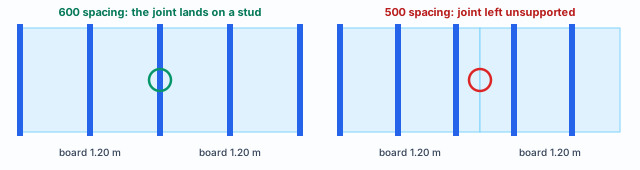
NBR 16970-2 describes LSF as sections laid out on a module that divides the sheathing boards evenly. A 1.20 m board calls for 400 or 600 mm spacing: that way every board joint lands on a stud, where it can be screwed. A 500 mm spacing would leave the joint unsupported.
400 or 600?
600 mm saves steel and screws and suits a single-story house with a light roof. 400 mm comes in when the load per stud gets tight (two-story house, heavy roof tiles, a water tank over the wall) or when the sheathing needs closer support. Changing it later is one field on the card, so start with 600 and let the calculation decide.
Draw along the outline, in order
Start at a corner and follow the perimeter in one direction, typing each side. Closing on the first point makes the app create the fourth corner joint. Dimensions come from the architecture: before you type, check on the architect's plan whether the dimension is to the centerline, the outer face or the finished face.
Step by step
1. Open the project and the wizard
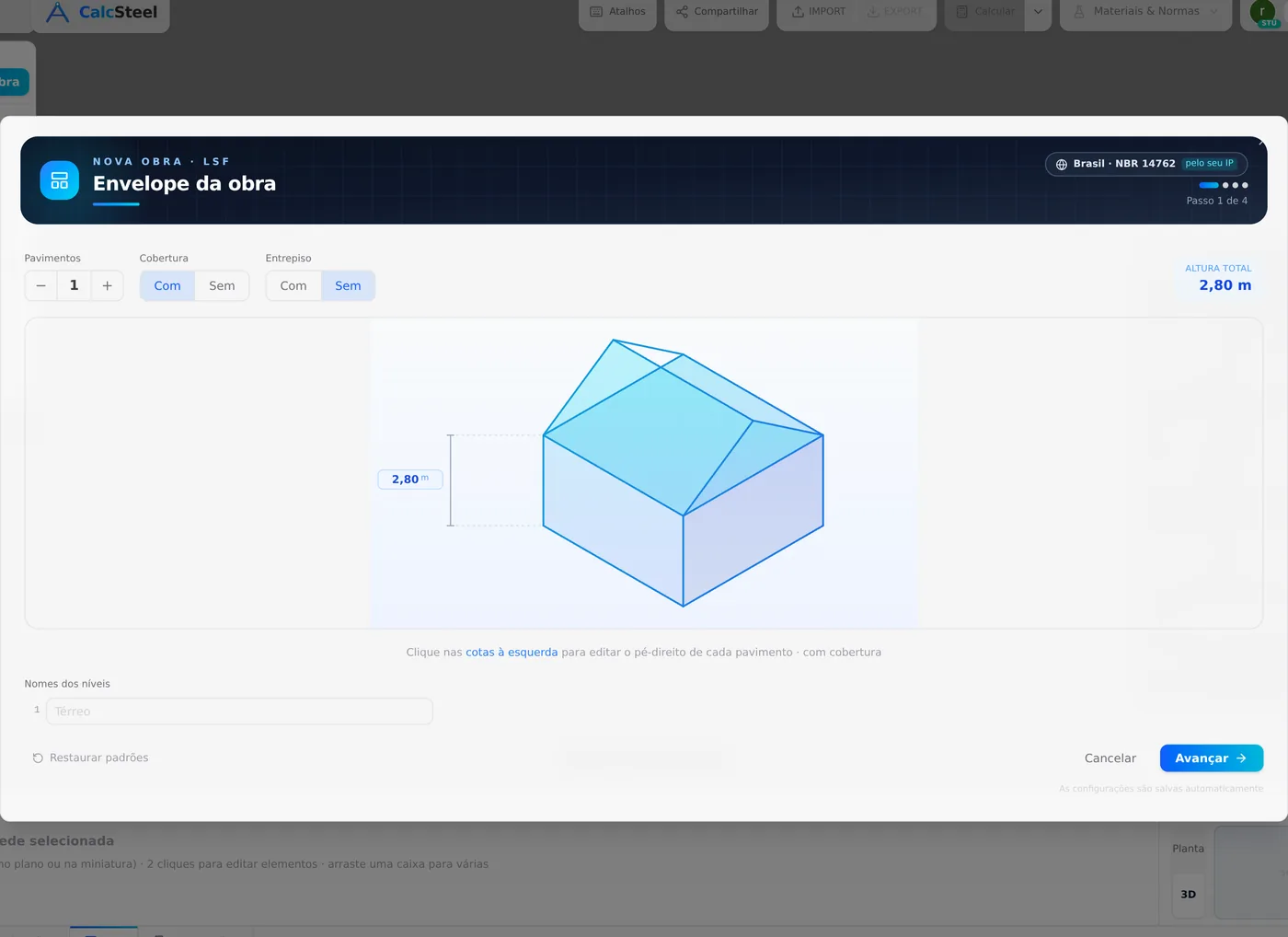
In the editor, choose New blank model, go to the LSF tab and click Project settings. The wizard opens on Building envelope: one story, with a roof, no intermediate floor, total height 2.80 m. At the top, the Brazil · NBR 14762 chip tells you which market the defaults come from (the app suggests one from your IP; click it to change).
2. Check the sections and the spacing
Click Next: the Structure · sections screen shows each role with its catalog section: Ue 90x40x12x0.95 stud, U 92x38x0.95 track, ZAR-230 steel, 600 mm spacing and a maximum member length of 6000 mm. Keep clicking Next through Loads and Wind (see Loads) and end with Finish.

3. Switch to the plan and pick Exterior wall
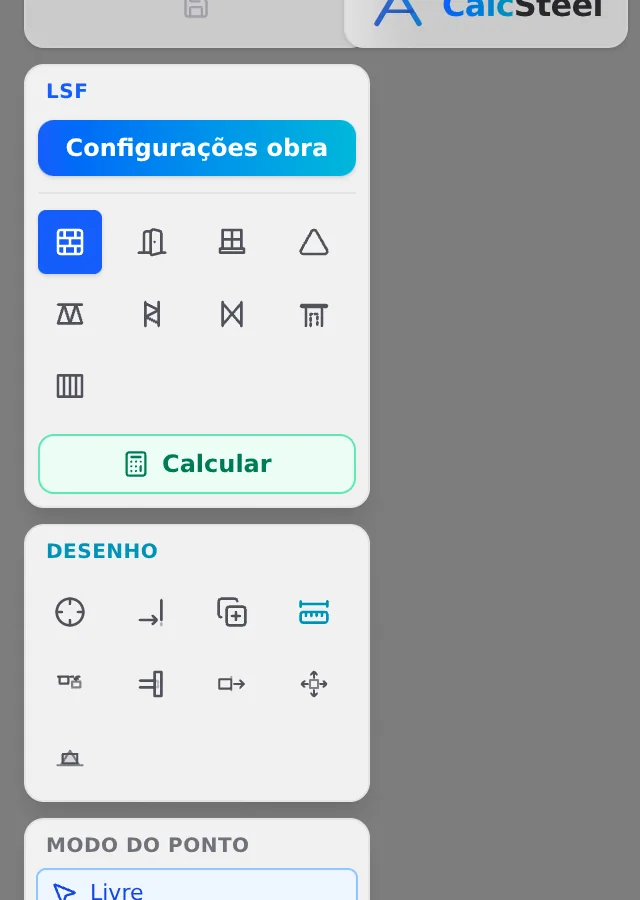
Switch the view to Plan (bottom right corner) and click the first icon of the LSF group, Exterior wall. The tool is highlighted in blue and stays active until you press Esc.
The tool's shortcuts. Click the corners; type the distance and Enter; hold Shift to lock to 0° and 90° (ortho); close by clicking the 1st point; Esc finishes.
In plan, the wall is drawn along its centerline. The app knows the track section, so the physical thickness shows up on its own in 3D and in the wall view.
4. First corner, then type 9
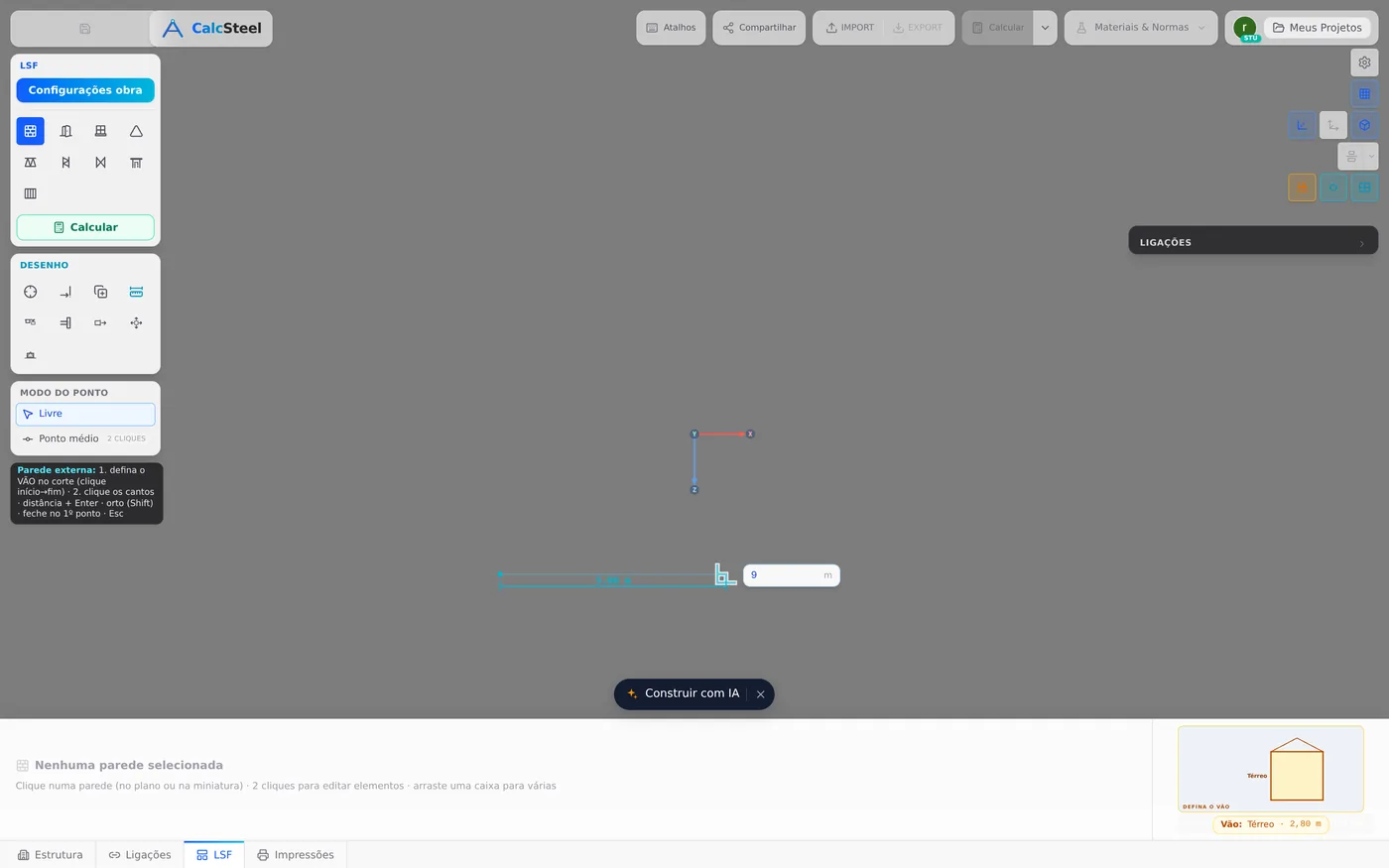
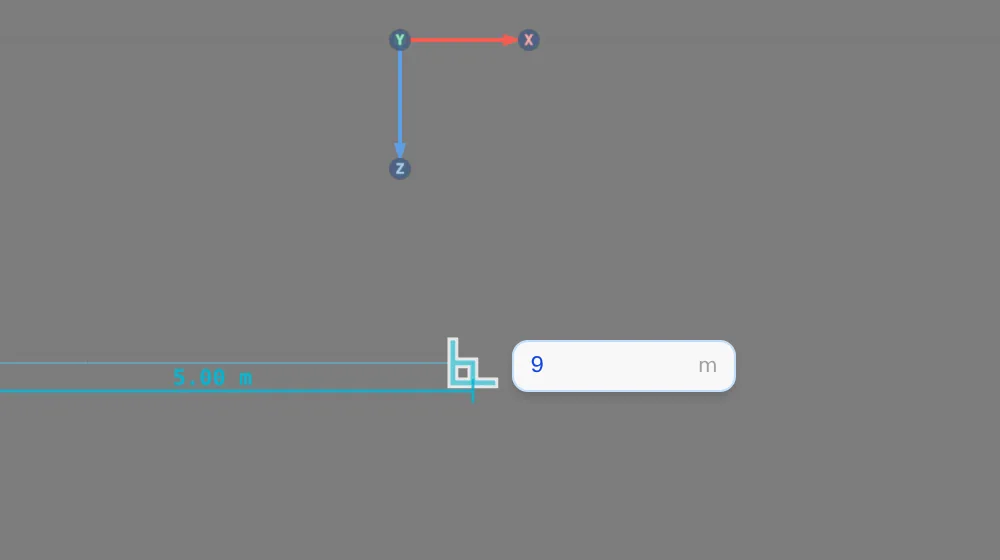
Click the point on the site where the bottom-left corner of the house goes. Move the mouse to the right: the app opens the measurement box next to the cursor. Type 9 and confirm with Enter. The unit is meters.
5. See what one Enter created
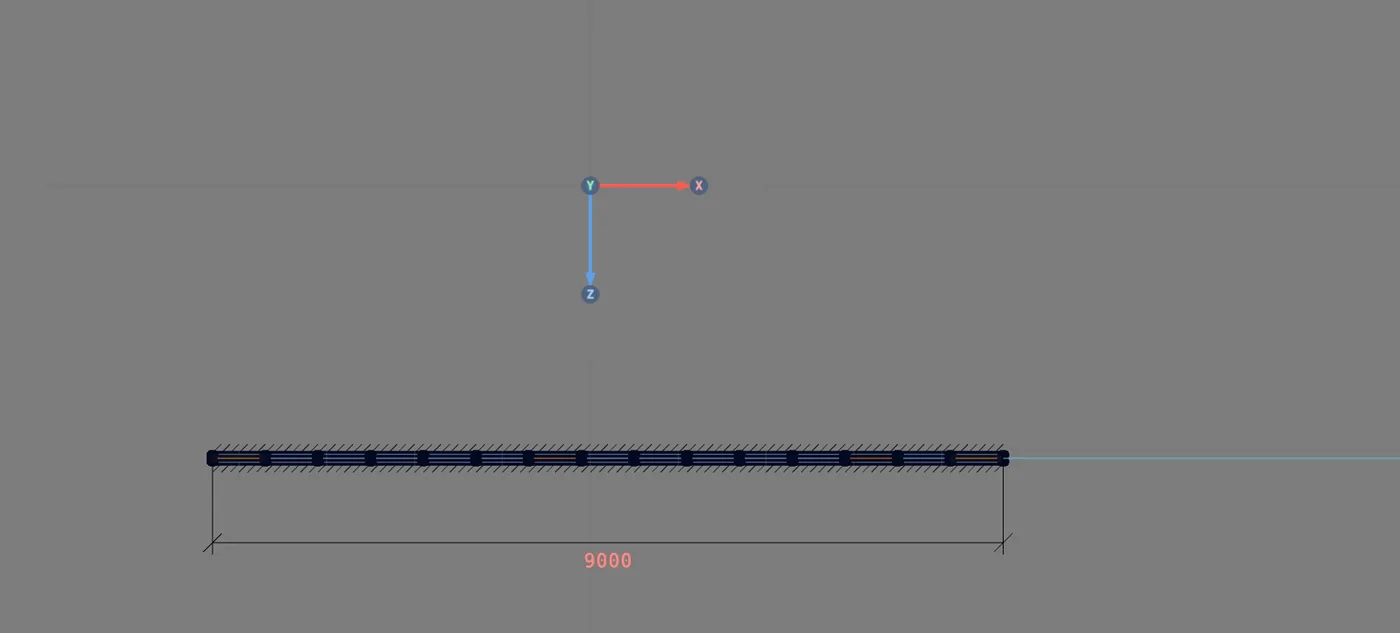
With Enter, the 9.00 m wall appears complete: tracks, studs at 600 mm spacing and the bracing line. In this capture the project went from zero to 51 members with a single wall. The tool stays active, already starting from the end of the wall that was just created.
6. Up 7, back 9
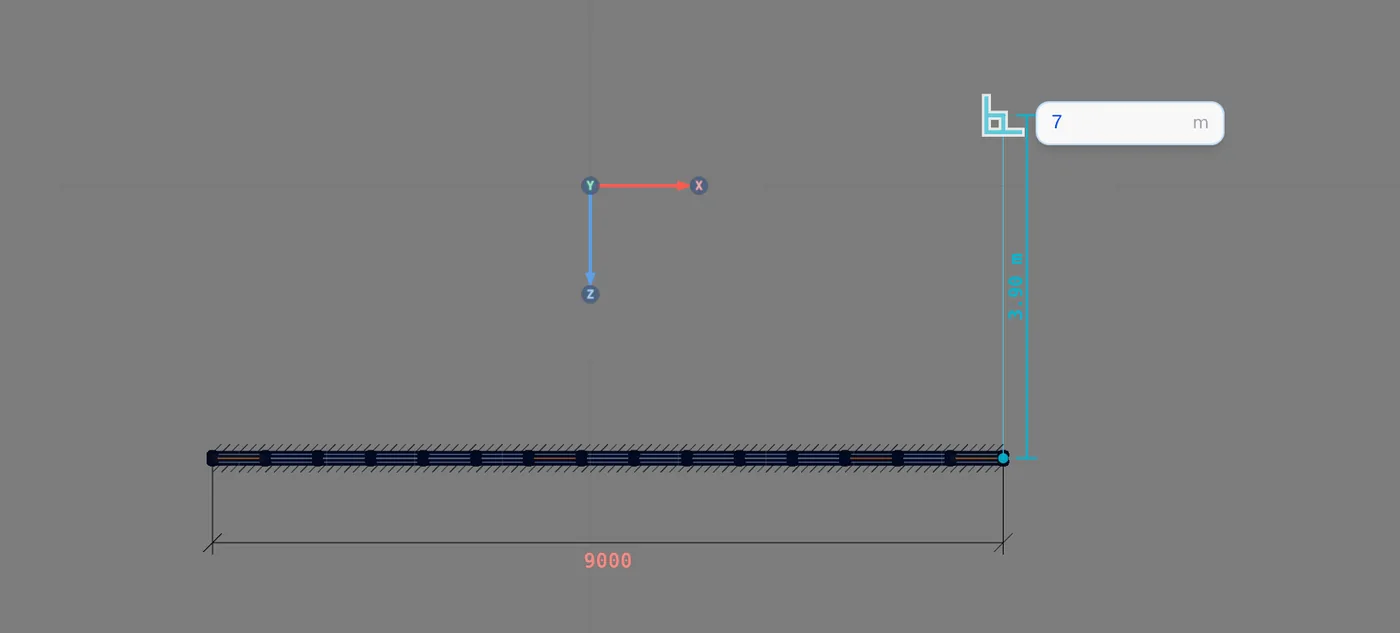
Move the mouse up, type 7 and Enter. Then to the left, 9 and Enter. The direction comes from the mouse, the length from the keyboard. If the line comes out crooked, hold Shift to lock it to ortho.
7. Close on the first corner
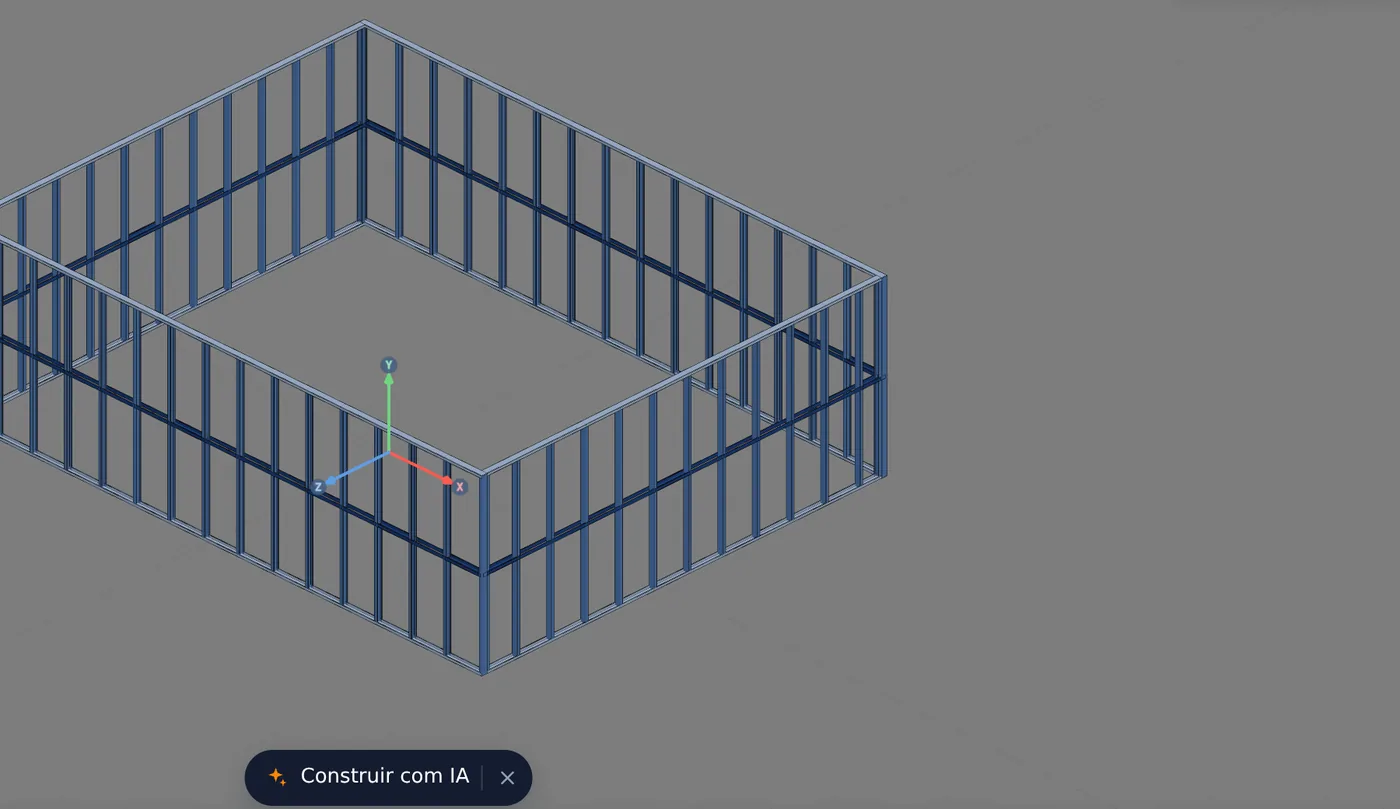
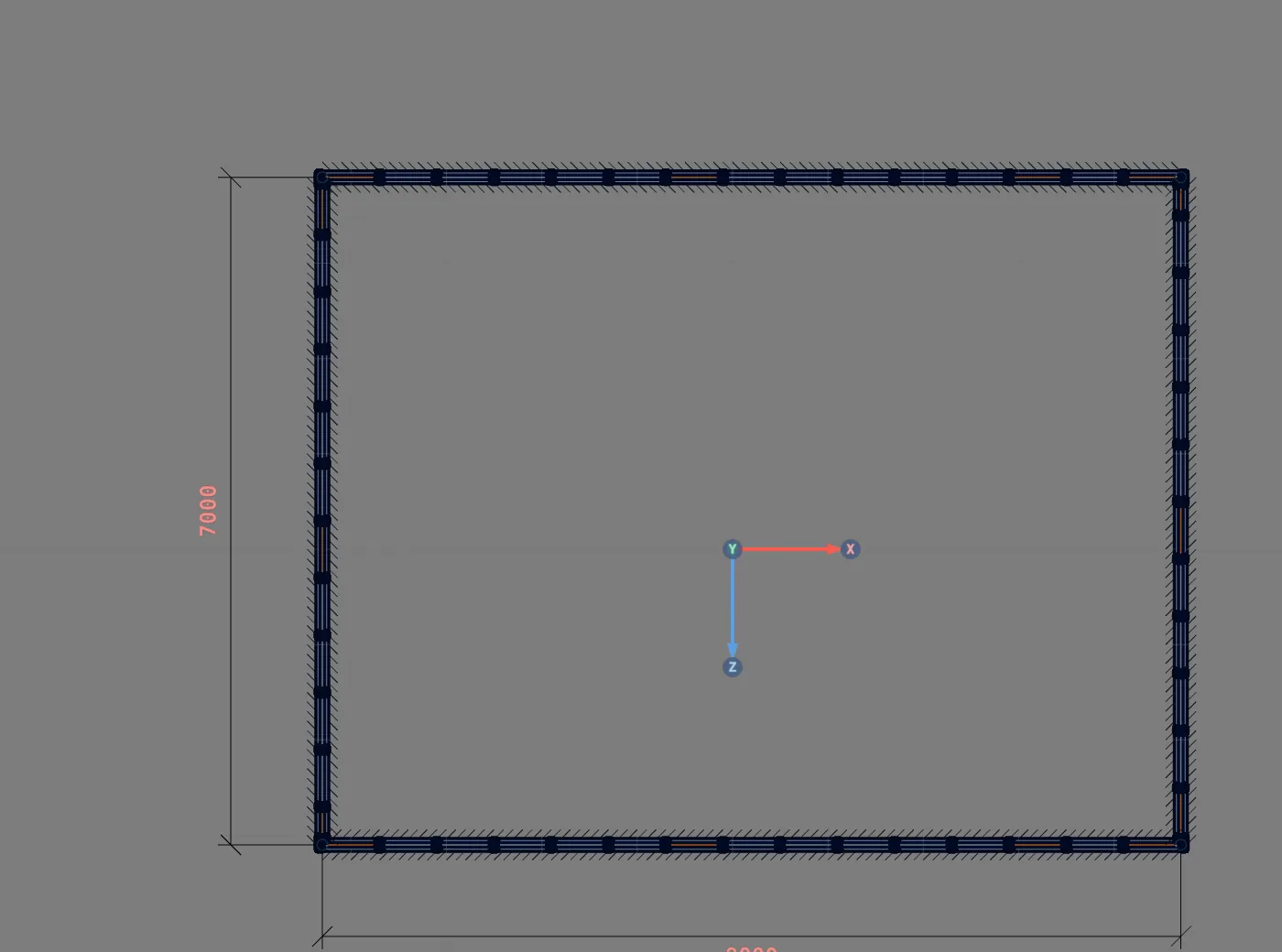
The last side needs no typing: click on the first corner (the app accepts a click within 40 cm of it). The app closes the perimeter and creates the fourth corner joint. Press Esc to leave the tool. The house now has 4 walls and 196 members.
8. Select a wall
Click the middle of the 9 m wall. The wall card opens in the footer with the name (Wall 4, exterior, 9.00 m), its joints and the fields you can change. Each one is explained in Card parameters.

9. Open the wall view
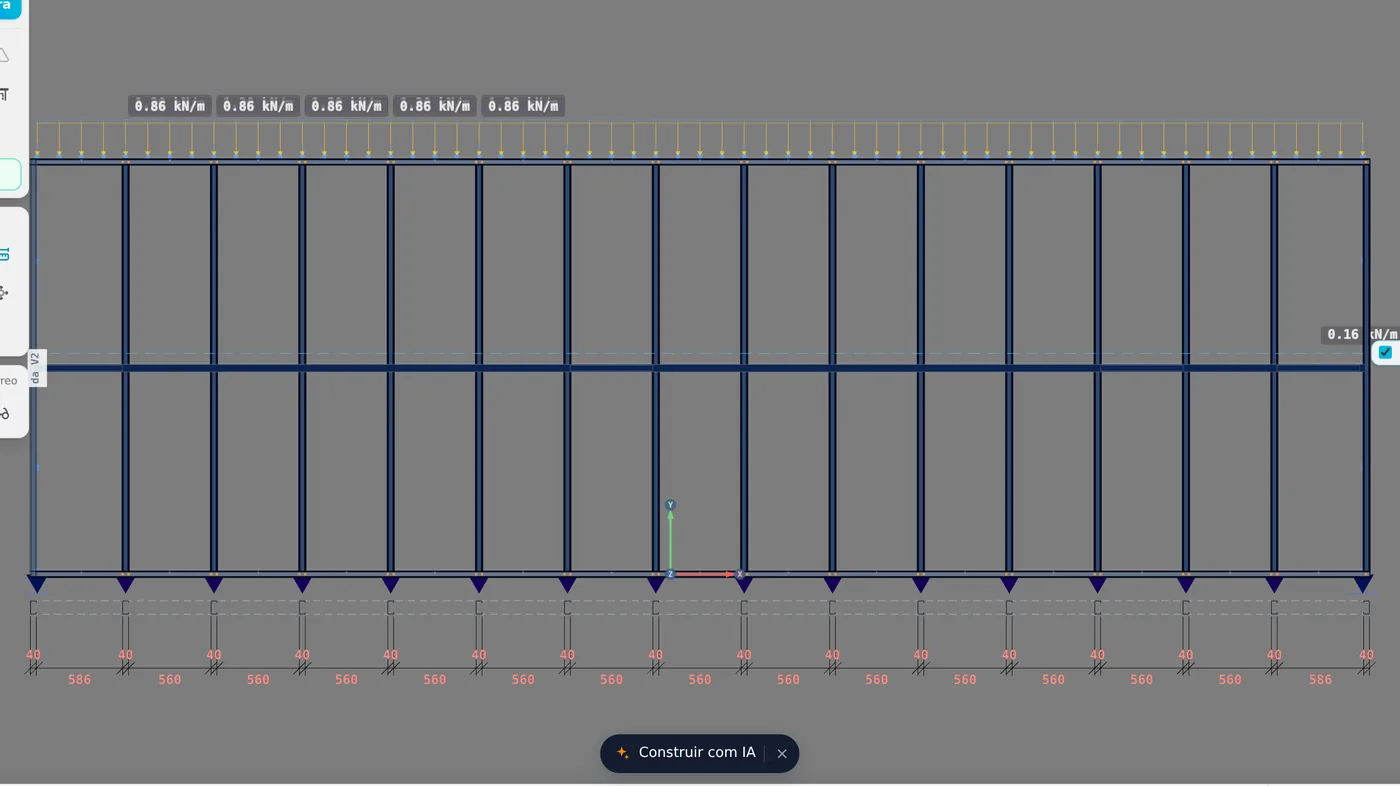
On the card, Open view shows the wall head-on, the way the installer will see it. The dimensions below give the clear gap between studs (560 mm, which plus the 40 mm flange make the 600 spacing) and the band at mid-height is the bracing line. At the top is the distributed load the app already applies from the wizard's default loads (0.86 kN/m in this example). This is where doors and windows come in.
10. Check it in 3D
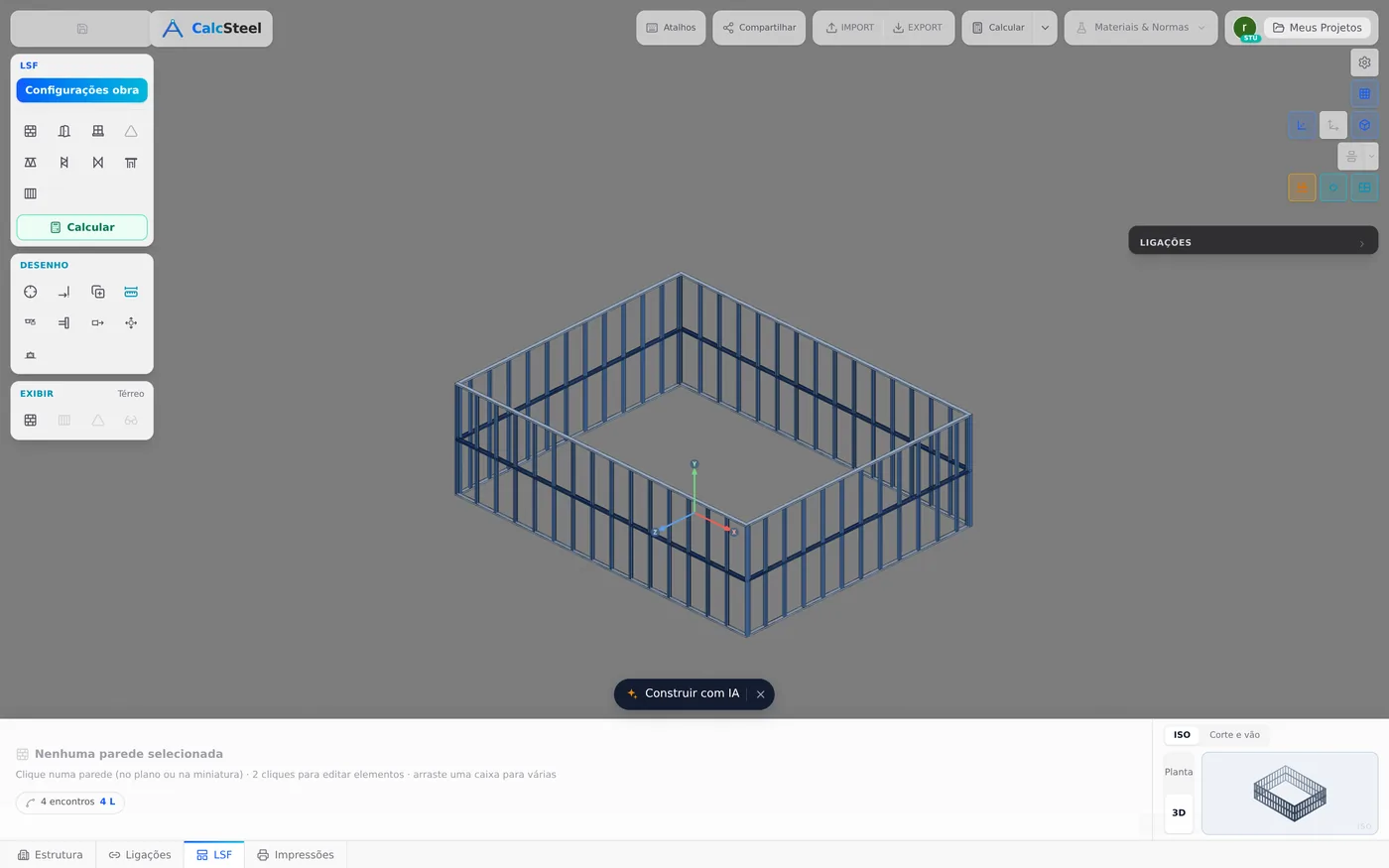
Go back to the plan, close the card and switch to 3D. It is the same project: everything you change in one view shows in the others. Orbit the house and check the four closed corners.
Shortcuts
- W↵
Exterior wall
Draws the wall point by point. Type a distance and Enter.
- PL↵
Plan view
Goes to plan view. With the wall view open, closes it and keeps the wall selected.
- Home
3D view
Goes to 3D at the last camera pose. With the wall view open, closes it.
- AV↵
Wall view
Opens the elevation of the selected wall, seen from outside. Again, goes back.
with one wall selected
Card parameters
What each wall field does
| Field | What it is, and when to change it |
|---|---|
| Length | Read-only, in meters. To change it, edit the geometry (Editing tools), not this field. |
| Spacing | Distance between studs, in mm, in steps of 50. Changing it here rebuilds the studs of this wall only; the project spacing stays in the wizard. |
| Studs | How many studs the wall has (minimum 2). Typing a number redistributes the wall with that count. |
| Auto divide | Redistributes the studs evenly, with no short panel at the end. With an opening in the wall it is disabled, because the opening breaks the division: open the view, select two or more studs and it becomes Divide segment, between those studs only. |
| Span | Which story the wall is on (here, Ground floor). In a multi-story project, it sets from which level to which level the wall runs. |
| Angle | Direction of the wall in plan, in degrees. Read-only. |
| Fit | Stud and track pairs that touch, out of the total (0.5 mm tolerance). Fit 60/60 means everything is in contact; 2 with gaps calls for a look at the wall view before moving on. |
| Web ⊥ wall | Checks that the web of each stud is perpendicular to the wall (5° tolerance), a condition for the alignment in item 4.2 of the standard. |
| Buttons | Edit opens the wall to work on it piece by piece. Sheet, Panel plan, Details, Typicals and Project cut list lead to the outputs (LSF sheets, Standard details and Cut list). Connections opens the Connections panel. Open view is step 9. The trash can deletes the wall. |
In the example. Wall 4 showed Fit 58/60 · 2 with gaps right after it was placed. Before moving on to the calculation, open the view and see where the two pairs are: it is the kind of check that costs a minute now and avoids a wrong connection at the factory.
Shortcuts
- AD↵
Auto divide
Spreads the studs evenly. With studs selected in the view, only that stretch.
with one wall selected
- ED↵
Edit the wall
Edits the elements of the selected wall. Again, finishes.
with one wall selected
- AV↵
Wall view
Opens the elevation of the selected wall, seen from outside. Again, goes back.
with one wall selected
Common mistakes and app warnings
Where beginners usually trip
- Closing far from the first corner. The app closes the perimeter when the click lands within 40 cm of the first corner. Farther than that, it assumes you want another wall, and a fifth short wall appears with the corner left open. Zoom in on the corner before the last click and check in plan: four walls, four joints.
- Typing in centimeters. The measurement box is in meters. Typing 900 asks for a 900 m wall, and the view jumps far away. Undo with Ctrl+Z and type 9.
- A face dimension taken as a centerline dimension. Architectural plans usually dimension the finished face. If you type that number on the centerline, the house grows by the wall thickness on each side. Decide the reference before the first click and keep the same one on every side.
- Spacing that does not match the board. A 500 mm spacing with a 1.20 m board leaves joints with no stud behind them. The app accepts any spacing in steps of 50 mm, because there are legitimate cases; the choice belongs to the design (see Design recommendations).
- Forgetting the tool is active. While Exterior wall is active, every click in the plan starts a new wall. Press Esc when you finish. If a new wall crosses an existing one, the app splits the newer wall at the crossing when both pieces are longer than 0.6 m, and the existing wall stays whole.
- Ticking board bracing without structural sheathing. In the wizard, the board bracing options come unticked and with the opt-in, not in the standard badge. NBR 16970-2 recognizes strap and blocking as stud restraint. Ticking the board shortens the buckling length in the calculation and shifts the responsibility to whoever ticked it.
- Ignoring the card badges.
with gapsormisaligneddo not fail anything in the calculation, but they point to a piece out of place. At the factory, a stud that does not touch the track becomes a screw with no bite.
What the engine does with it
The wall in the engine
When you click Calculate, the wall does not become a rigid frame. The LSF engine models each stud the way the LSF industry designs it: member by member, with defined supports. This is what it does with the wall you just placed:
| Piece | Engine assumption |
|---|---|
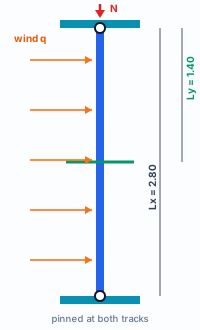
| Stud | Pinned at both tracks about the strong axis. Lx = stud height. Ly, Lt and Lb = the longest segment between strap or blocking lines. In the house: 2.80 m and 1.40 m. |
| Wind | Each exterior wall gets an NBR 6123 pressure panel with the data from the Wind step of the wizard. The studs take their tributary strip and are checked for combined compression and bending. Interior walls stay out of the wind. |
| Section | Strength per NBR 14762, with the project steel (ZAR-230). |
| Strap and blocking | Checked as members under item 7.2 of 16970-2: a force of 0.4% of NSd and a minimum stiffness, summed along the line up to the anchorage. |
| Web crippling | Where the load enters the section as a concentrated force, per NBR 14762, Annex D. |
| Track | The web b/t limit becomes a warning, because the web bears on the foundation or the floor; the flange limit still fails the member. |
| Displacements | Stud at mid-panel: h/300. Top of panel: H/400. Between floors: h/500. Table 3 of 16970-2. |
The number on the card is the one the calculation uses. Select a stud and the member card shows the buckling length the engine is using, with the reason (bracing, board or full height). If Ly shows 2.80 m, the bracing line is missing from that wall.
The same project calculates the same way in any tab and in any order. A project created in an earlier version of the engine stays on it: CalcSteel versions the calculation, and the result of an older project does not change on its own.
Shortcuts
- Ctrl+Enter
Calculate the project
Sends the project to the engine, like the Calculate button.
Summary
The path, in one line
New blank model → LSF tab → Project settings (market, sections, spacing) → Finish → Plan → Exterior wall → 1st corner → 9 Enter → 7 Enter → 9 Enter → click the 1st corner → Esc.
The example so far
- 4: exterior walls
- 196: members generated
- 9 x 7 m: perimeter
- 0: pieces drawn by hand