LSF (Light Steel Framing)
Snap and interior walls
Here you draw walls on top of what already exists: the plan the architect sent as a DXF, or the walls you placed yourself. Ends, midpoints and lines become magnets, the wall lands on its centerline and the T joints sort themselves out.
Overview
The house gets rooms
In Exterior walls, the house became a 9 x 7 m rectangle. Now it is divided: a wall at mid-length separates the living room and kitchen (4.50 x 7.00 m) from the bedroom side, and a second wall splits that side into two bedrooms of 4.50 x 3.50 m.
The tool is Snap. It draws the same wall as the Exterior wall tool, with studs, tracks and bracing. The difference is the magnet: each click sticks to a point of the reference you choose, and the joint with the neighboring wall comes out exact, with no mental math.
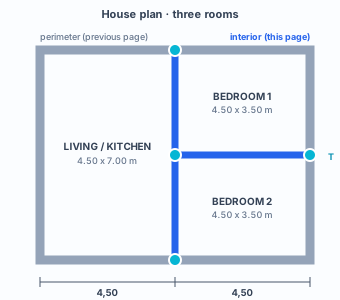
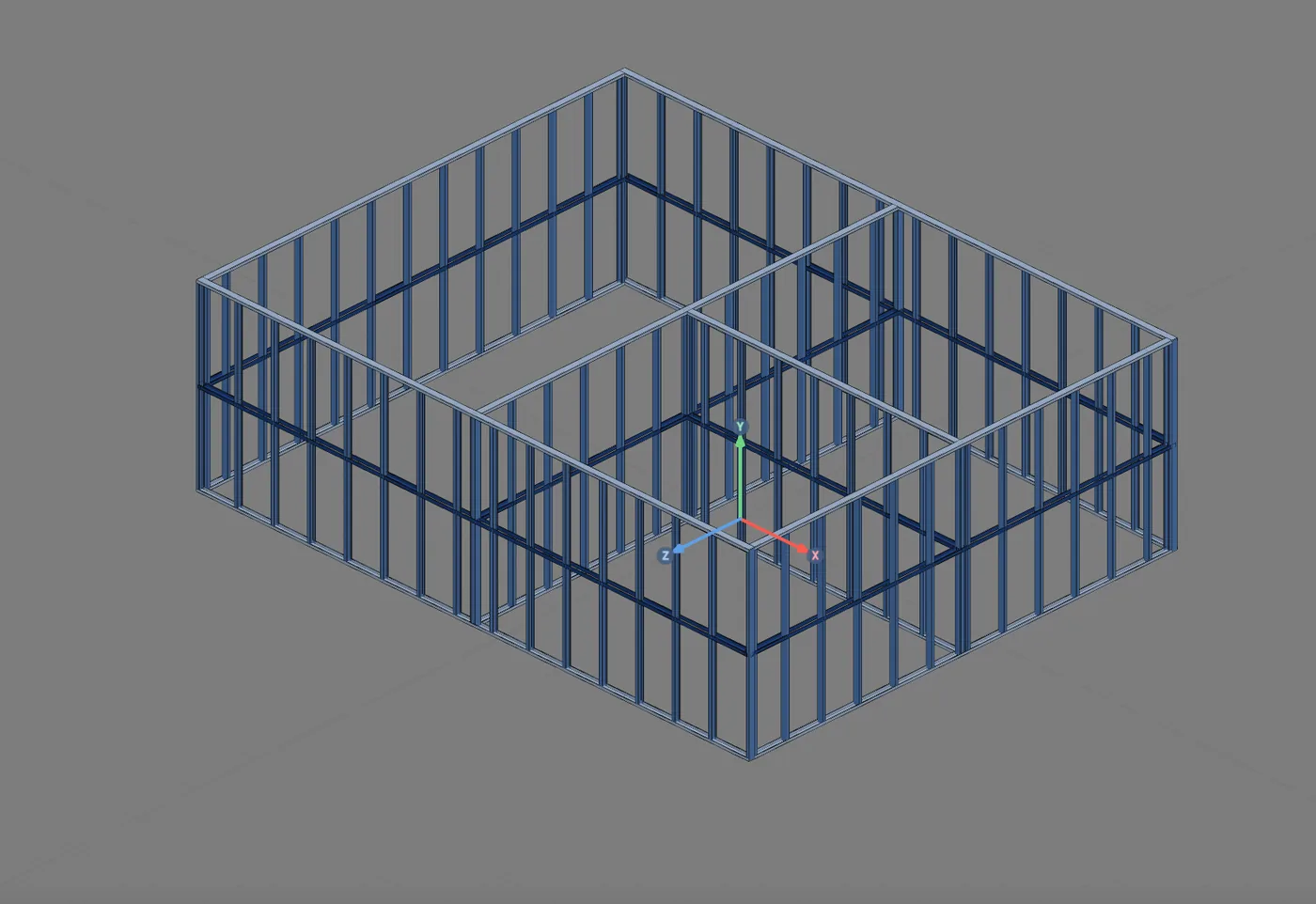
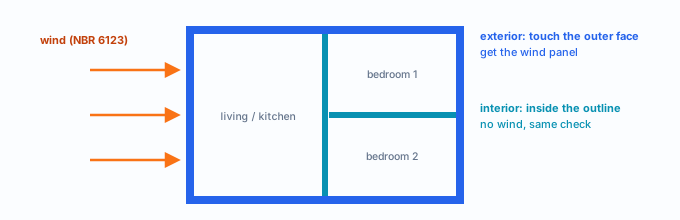
Interior or exterior? CalcSteel has no interior wall tool, and it does not need one. Geometry decides: the wall that touches the outer face of the outline is exterior and takes wind; the one on the inside is interior. You draw with the same tool and the engine tells them apart. The section What the engine does with it shows how.
What it is for
Drawing on top of what exists
Snap is the Exterior wall with a magnet. You choose the reference, and each click sticks to a point of it: the end of a line, its midpoint, any point along it. What comes out is the same wall as in Exterior walls, with the same card, the same bracing and the same design assumptions.
It serves two jobs. The first is tracing the architect's plan, which arrives in CAD or BIM. The second is placing walls that meet other walls: interior walls, the walls of an extension, any wall that has to start exactly at the middle or on the line of a neighbor.
| Reference | What becomes a magnet | When to use it |
|---|---|---|
| Drawing snaps | The walls already drawn: end, midpoint, line and the intersection of projection lines | Interior walls, extensions, any wall that meets another |
| DXF mask | The lines of the imported DXF, on the layers with snap on | The architect's plan made in CAD |
| IFC mask | The edges of the imported IFC model | A design that came from Revit or another BIM program |
Point mode: one click or two
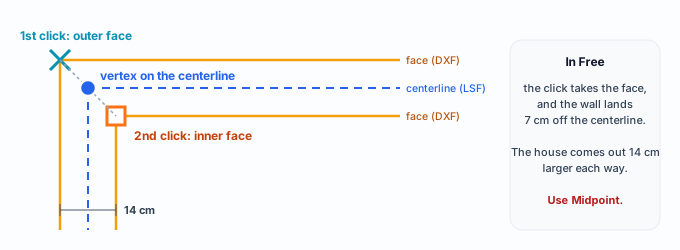
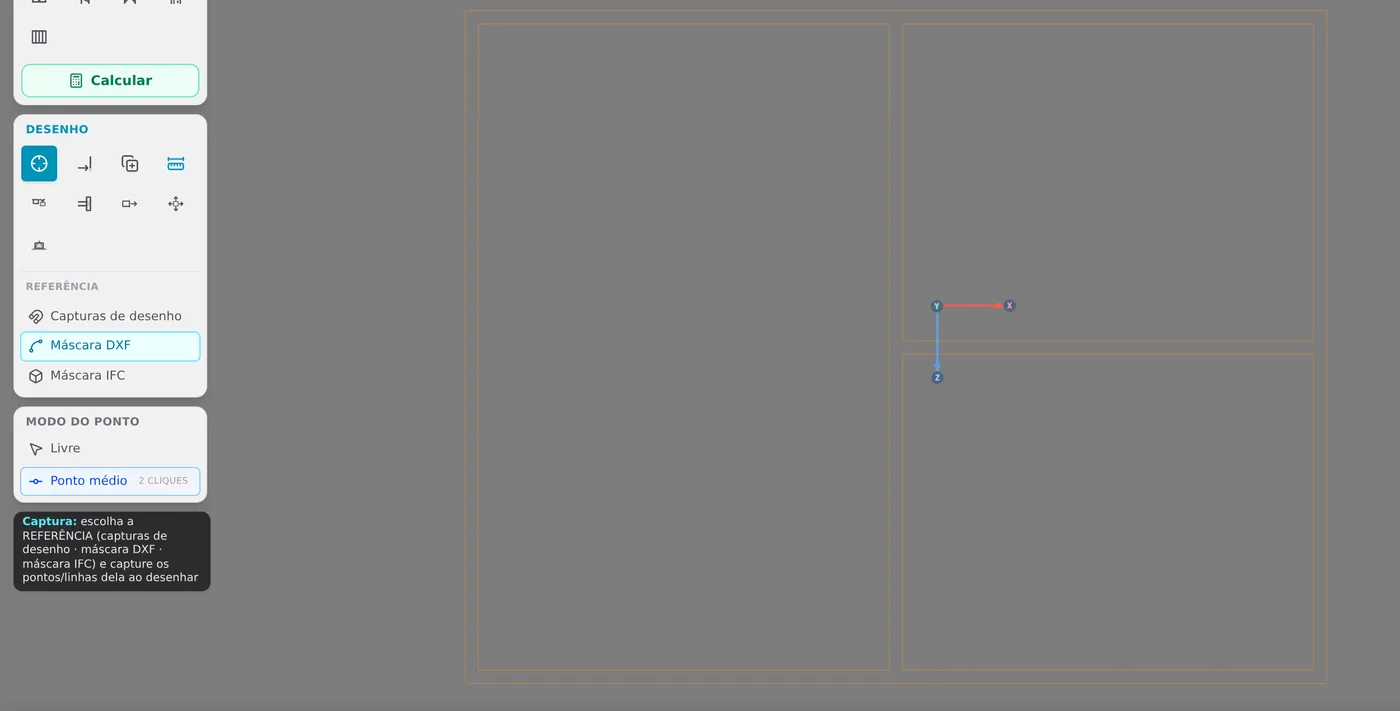
Below the reference is the Point mode. In Free, each click is a vertex. In Midpoint, it takes two clicks per vertex, and the vertex lands halfway between them. This is the mode for an architect's plan, which draws the wall by its two faces: you click the outer face, then the inner face, and the LSF wall lands on the centerline.
What the standard requires
An interior wall is a panel like any other
NBR 16970-2, the Brazilian light steel framing standard, has no item just for interior walls. To it, every wall that carries load is a framed panel (item 3.1), and what is in Exterior walls applies: steel, minimum thickness, eccentricity and bracing. When the house gets partitions, four items weigh more.
| Item | What it says | What changes for an interior wall |
|---|---|---|
| 4.1 | Stud aligned with the floor joist and with the roof framing (in-line framing). A non-structural element cannot compromise the continuity of the structure. | An interior wall that receives a truss needs a stud under it. One that carries nothing cannot cut the load path of the others. |
| 4.8 b, e | The design includes a floor plan of each story and the drawing of each panel, with its components. | Each interior wall is a panel with its own drawing on the sheet. A wall off the centerline sends a wrong dimension to the site. |
| 4.8 f | Detail of the connections between pieces: screws, diameter, number and spacing. | The L and T joints are connections, and their detail goes on the sheet (Connections panel). |
| 7.1 | Bracing perpendicular to the braced element, with minimum strength and stiffness, so that the unbraced length holds between braces. | The interior wall starts with the same line of blocking and strap at mid-height, and that is why the stud has an Ly of 1.40 m. |
The two joints, in plan
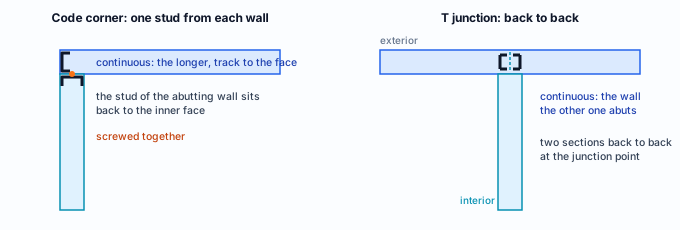
The joint is where the board of one wall ends and the other begins, and where the two are connected. At the corner (L), a new project starts with the code corner: each wall brings its own stud, and the two are screwed together. In the T, two studs sit back to back. The page Wall joints shows how to change them.
NBR 16970-2 · 4.1.
"Non-structural elements cannot compromise the continuity of the structure." The sentence applies to the light partition: it may be just an enclosure, but it cannot interrupt the stud, the track or the bracing line of a wall that carries load.
Design recommendations
Centerline, order and closed rooms
Four numbers govern Snap. Knowing them explains almost every joint that did not close.
- 15 cm: an end within this distance of another wall becomes a joint (L or T)
- 14 px: radius of the magnet on screen; end and midpoint pull within about 4 px
- 10 °: tolerance of the ortho snap; with Shift it always locks
- 10 cm: grid step, when nothing is snapped
- Draw on the centerline. The panel drawing, the sheet dimension and the joint all come from the wall centerline. On the architect's double-line plan, use Midpoint: two clicks, outer face and inner face.
- Perimeter first, interior walls after. An interior wall needs a wall to meet. Drawn first, it becomes a loose corner and the T does not appear. The order of this page is the order of the build.
- Close every room. An end more than 15 cm from the neighboring wall does not become a joint. The room does not close, the floor (Floors) cannot find where to start and the engine loses the reference of inside and outside for the wind.
- With Snap, the click is final. A snapped point does not open the measurement box: the wall goes exactly to the magnet. To place a T at an exact distance from the end (a door 80 cm from the corner, for example), use the Exterior wall: its "On line" point opens the box, measured from the nearest end.
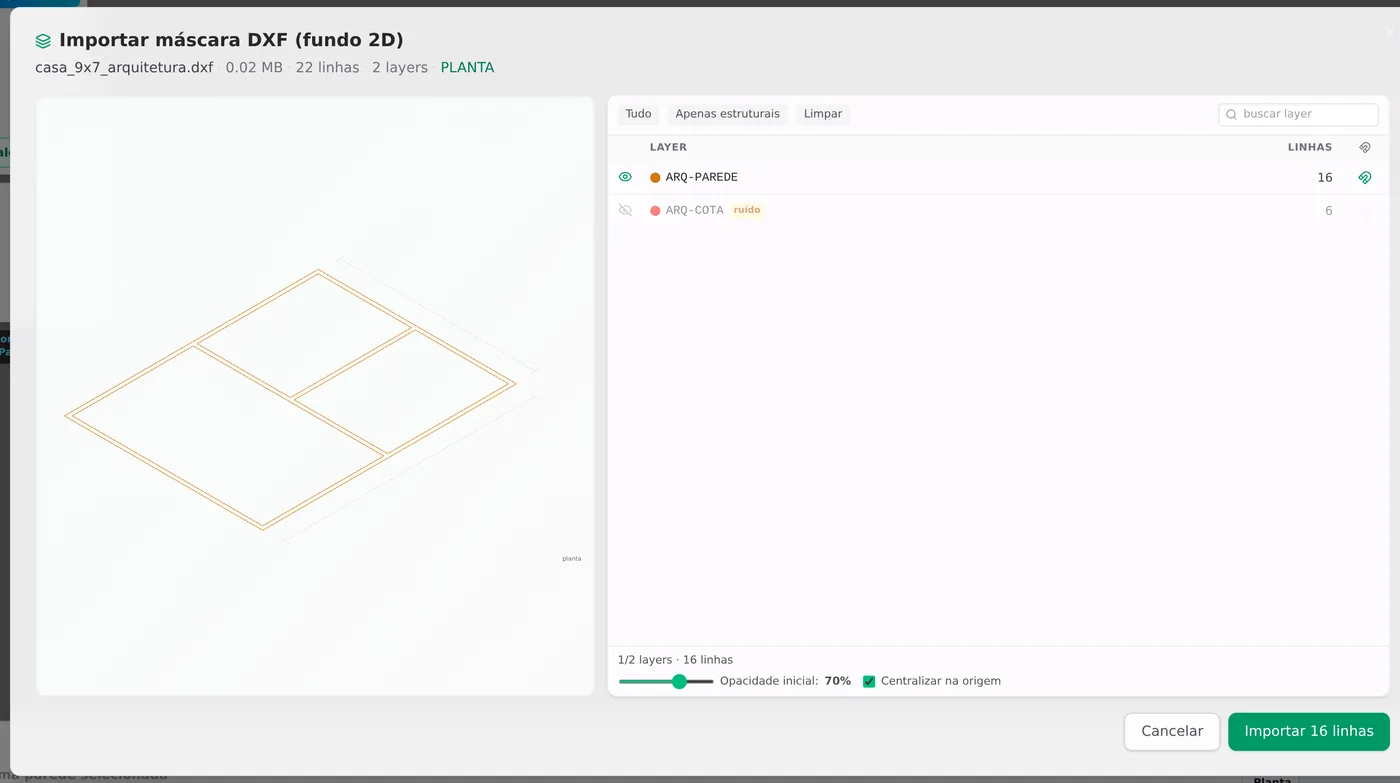
- Only walls get a magnet. When importing the DXF, leave snap on only for the wall layers. Dimensions, hatches and text pull the cursor to places that are not walls. The app already marks those layers as noise and leaves them out.
- Decide early which walls are load-bearing. The interior wall under the ridge, or the one that supports a truss, carries load; the others are just partitions. The tool is the same, but the decision changes where the truss bears (Roof trusses) and what the engine checks in it.
In this house: the two interior walls sit at the exact middle of the walls (4.50 m and 3.50 m), so the Wall middle magnet does all the work. In a real plan, with rooms of different sizes, the way to go is the architect's DXF or the measurement box of the Exterior wall.
Step by step
Two paths, the same house
Path A (steps 1 to 6) starts from the architect's plan in DXF and redraws the perimeter on top of it: it is the natural start when the house is born in CAD. Path B (steps 7 to 11) starts from the finished perimeter and places the interior walls with the drawing snaps. If you come from Exterior walls with the perimeter typed in, go straight to step 7.
In this example, the plan is a simple DXF of the house: 14 cm walls in double lines, on the ARQ-PAREDE layer, plus a dimensions layer.
1. Open Import and choose DXF mask
At the top of the screen, IMPORT. The list has four entries; the one for this page is DXF mask, the plan or section that sits under the drawing as a reference. The others become editable members or a 3D reference, and are not used here. Pick the file on your computer.

2. Say it is a plan, and check the size
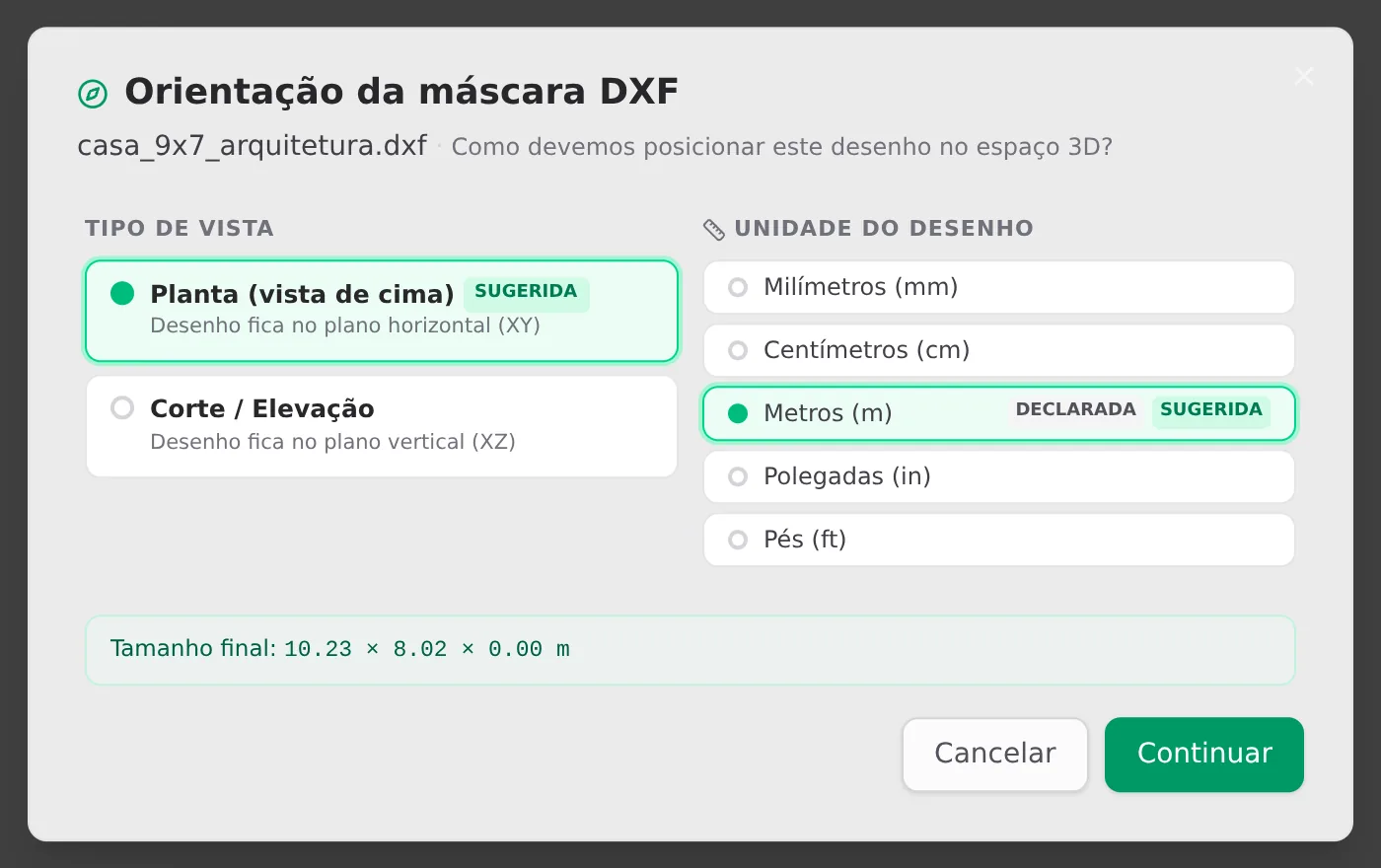
The dialog asks how to lay the drawing down and what unit it is in. Check Plan (top view) and the unit of the file, here Meters. Before moving on, read the Final size: 10.23 x 8.02 m is the house with the dimensions around it. If a number a thousand times smaller shows up, the unit is wrong.
3. Choose the layers and the magnet of each one
Each DXF layer appears with its number of lines and a preview. The dimensions layer came marked as noise and was left out; only ARQ-PAREDE goes in, with snap on. Center on origin comes checked: the plan lands in the middle of the work area. Click Import 16 lines.
4. Turn on Snap on the mask, in Midpoint
On the Drawing card, the first button is Snap. When it is on, it shows the Reference: choose DXF mask. In Point mode, choose Midpoint. The plan appears in orange under the grid, with the wall faces in double lines.
5. Two clicks, one corner
Click the outer corner of the wall: an X stays to mark the first point. Move the cursor to the inner corner: the orange square is the end snap, the exact end of the DXF line. Click, and the vertex lands halfway between the two, on the wall centerline.
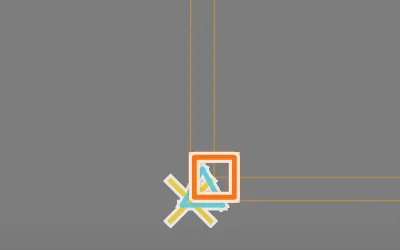
Why two clicks. The architect draws the wall by its faces; LSF works on the centerline. Clicking only one face puts the wall 7 cm outward (half of a 14 cm wall), and the whole house grows 14 cm each way.
6. Close the perimeter over the plan
Repeat at the four corners and go back to the first: the wall closes by itself, as in Exterior walls. No click opened the measurement box, because every point came from the snap. The centerline came out at 9.000 x 7.000 m, without typing a number.
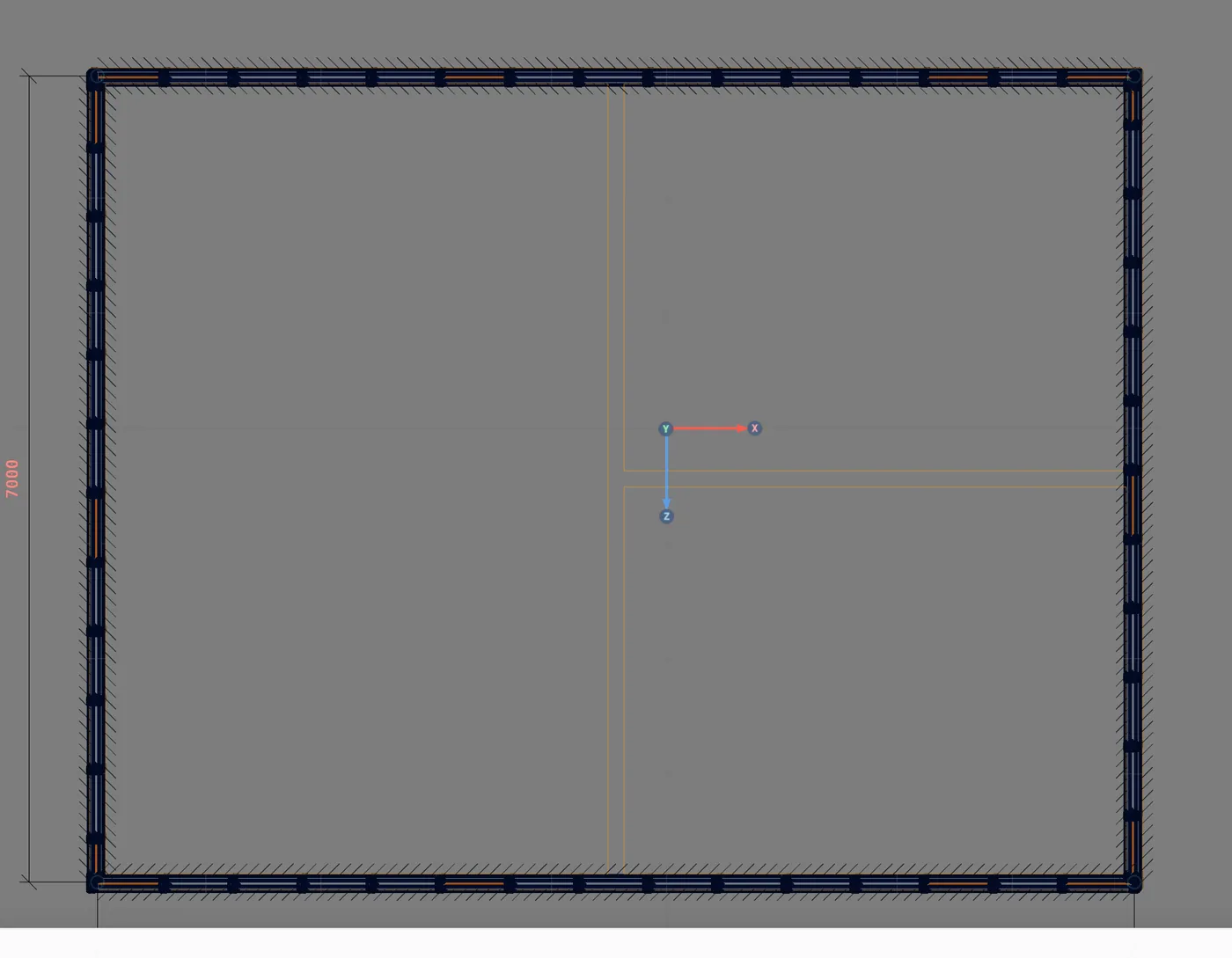
7. Switch the reference to Drawing snaps
With Snap on, click Drawing snaps. The magnet opens the card with the six snaps, all on by default. In Point mode, go back to Free. From here on, the magnets are the walls you have already drawn. In the next screenshots the mask is hidden, so the wall shows clean.

What stays on
Wall end, Wall middle, On line, Intersection, Ortho and 10 cm grid. Turning one off applies only to LSF (Structure has its own magnet) and is stored in your browser.
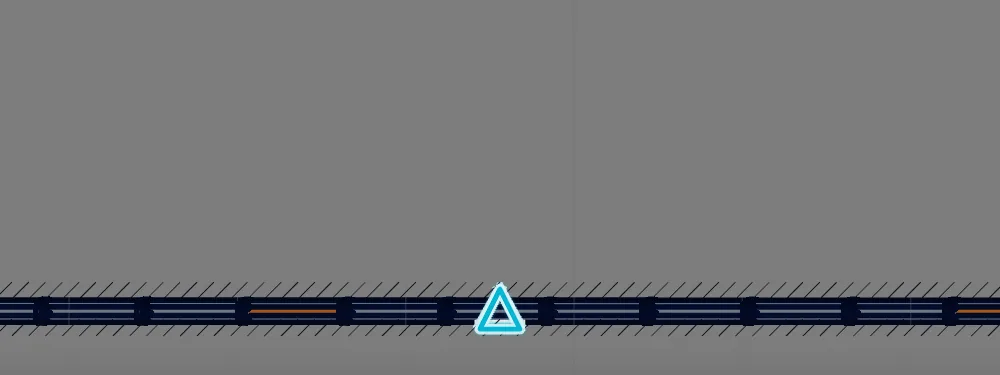
8. Find the middle of the 9 m wall
Move the cursor over the 9 m wall. When the blue triangle appears, the snap has found the middle, 4.50 m from each corner. Click: this is the first point of the interior wall.
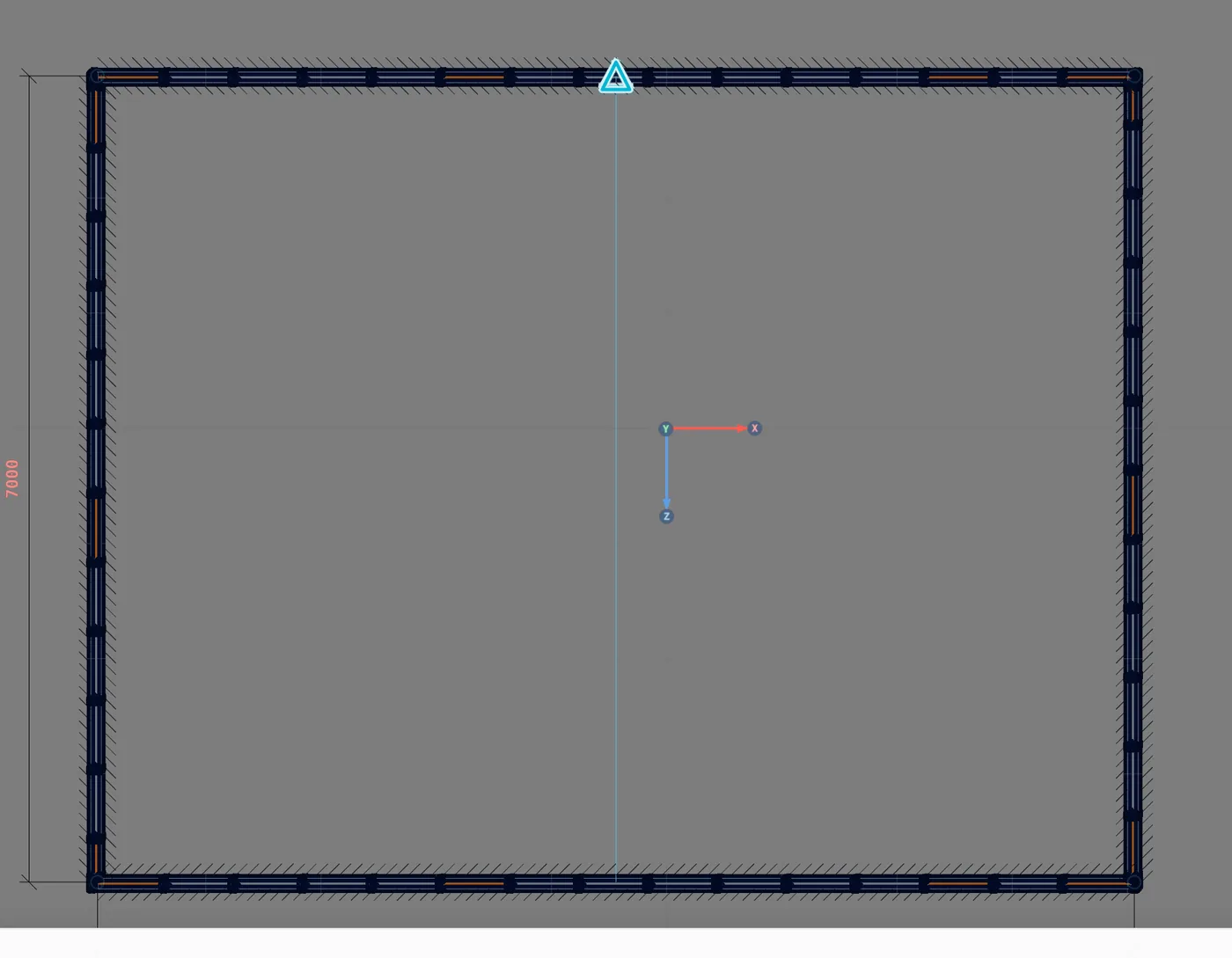
9. The first interior wall, middle to middle
Move the cursor to the middle of the opposite wall and click. The wall is created at 7 m, with studs, tracks and the bracing line, and both ends become a T. Esc ends the drawing and releases the tool.
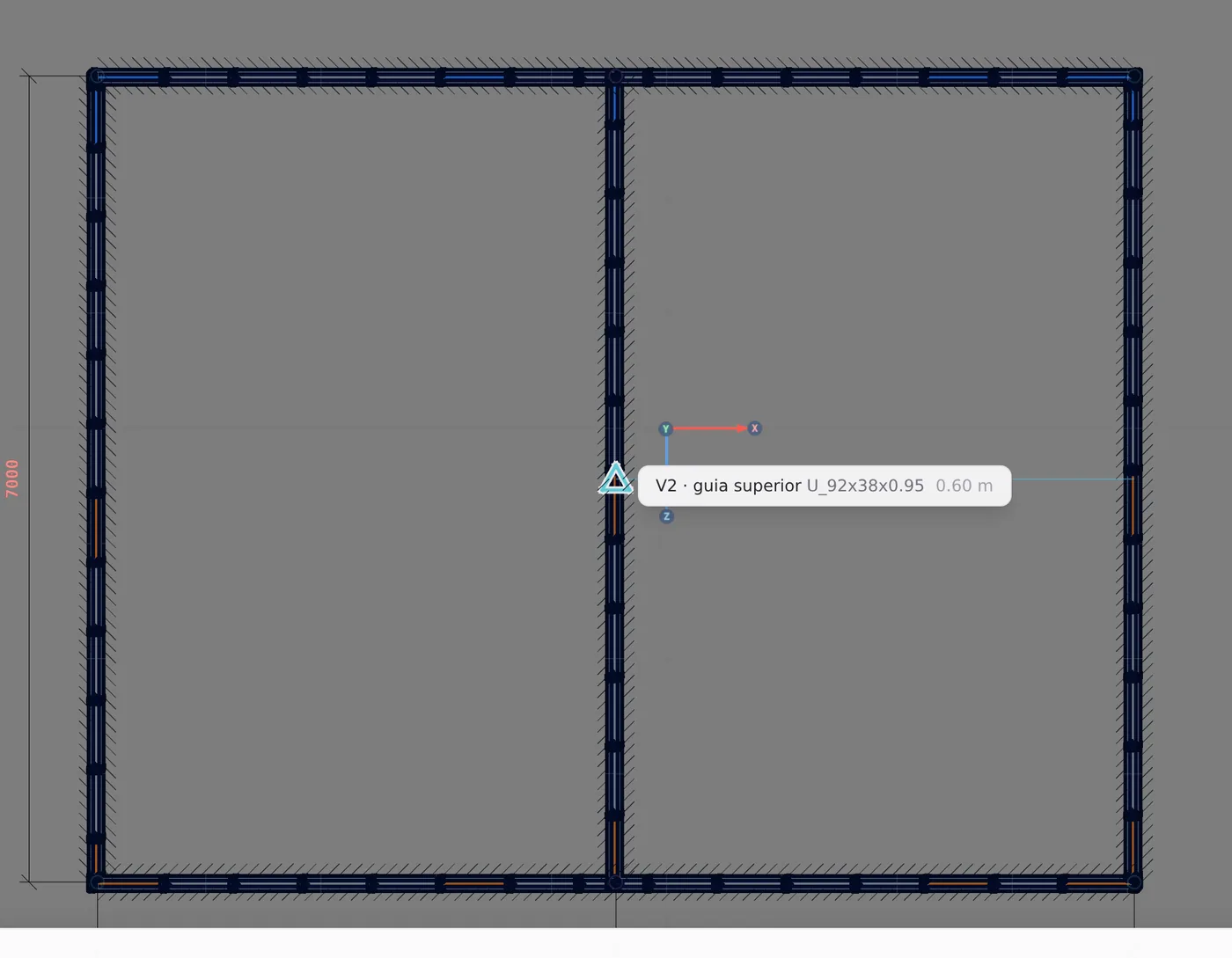
10. The second interior wall, up to the new wall
Turn on Snap again (the reference stays on Drawing snaps). Click the middle of the 7 m wall on the right and move the cursor to the interior wall you just created: its middle is exactly at 3.50 m, on the same line. Click and press Esc.
11. Check the joints
With nothing selected, the plan footer sums up the joints of the house: 8 joints, 4 L and 4 T. The four L are the corners of the perimeter; the four T are the ends of the two interior walls. If the number of T is smaller than the number of ends you brought to a wall, some end stayed too far from the neighboring wall.
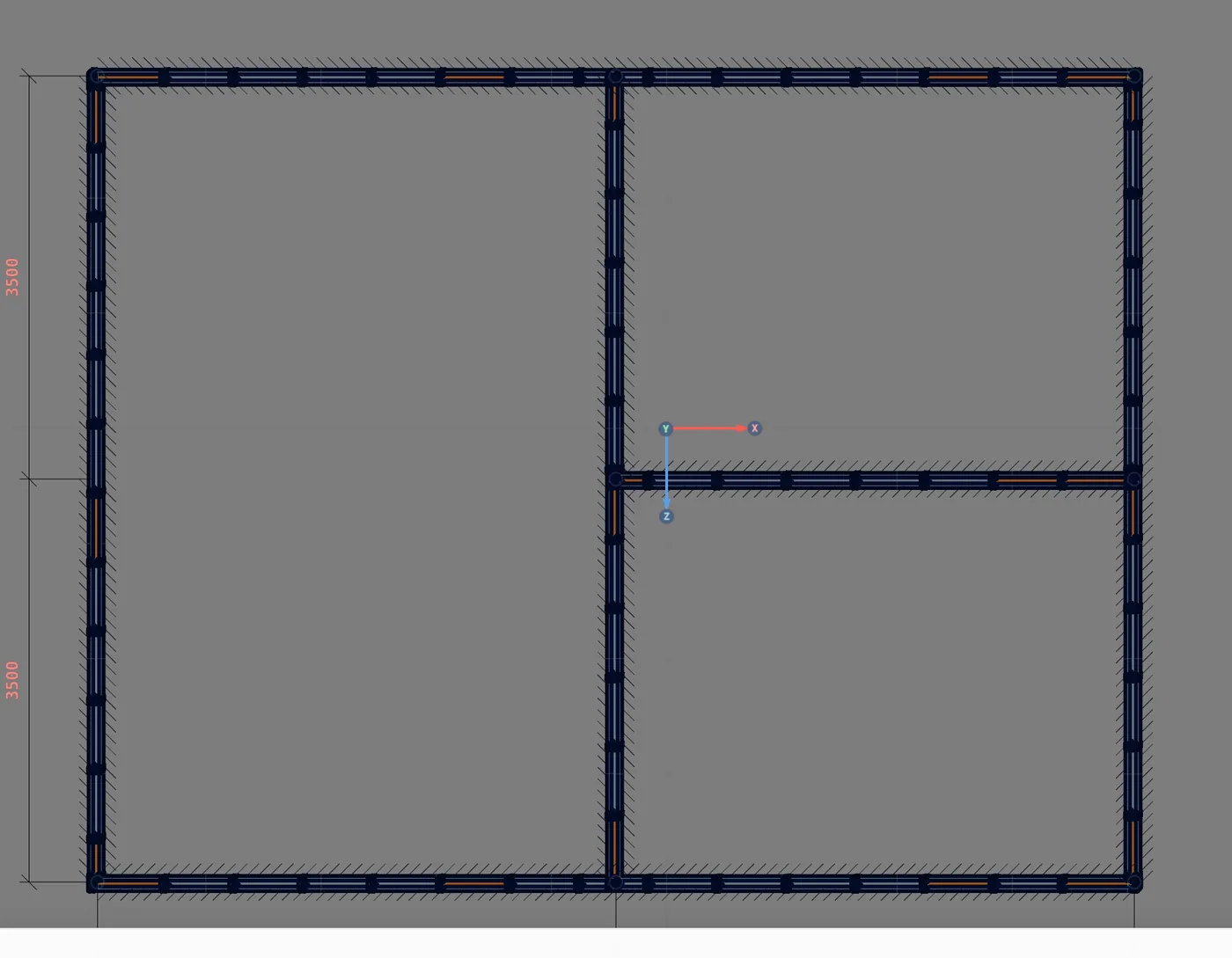

Checked in this house: the model went from 196 members (the perimeter) to 278, with the two interior walls and their bracing lines. No piece was drawn by hand.
Shortcuts
- CA↵
Snap
Arms snapping and shows the reference: drawing, DXF or IFC mask.
- RD↵
DXF mask
Snaps to the imported DXF mask.
with Snap armed
- PM↵
Midpoint
Toggles the point mode: free, or the midpoint of two clicks, which puts the wall on the axis.
wall or snap armed
- RG↵
Drawing snaps
Snaps to the walls already drawn. Again, opens and closes the snaps card.
with Snap armed
- PL↵
Plan view
Goes to plan view. With the wall view open, closes it and keeps the wall selected.
The snaps and what each one picks
Six magnets, one order
| Snap | What it picks | When you use it | |
|---|---|---|---|
| □ | Wall end | The end of a wall and the joints | Continuing from a corner, closing a room |
| △ | Wall middle | The middle of each wall | A partition at the center, as in this house |
| ✕ | On line | Any point along the wall | A T away from the middle |
| ⌗ | Intersection | Where two projection lines cross | Lining up with the ends of two walls at once |
| ⊾ | Ortho | Straightens the wall up to 10° from the axis; Shift locks it | Almost always |
| # | 10 cm grid | Rounds the free point every 10 cm | Quick sketch, with no reference |
Which one wins when two snaps compete for the same point
End, then middle, then intersection, then on line, and last ortho and grid. End and middle come first because they are real geometry; the intersection beats ortho and line because, when two projections meet, that is the point you are looking for.
| Control | Options | Note |
|---|---|---|
| Reference | Drawing snaps · DXF mask · IFC mask | Stays chosen until you change it; the Drawing snaps magnet opens the card above |
| Point mode | Free · Midpoint | Also applies to the Exterior wall |
| Snap per layer | In the DXF import dialog | "Automatic snap on selected layers" turns them all on at once |
| Closing the outline | Click within 40 cm of the first point | Same rule as in Exterior walls |
Exterior wall or Snap? Both draw the same wall. In the Exterior wall, the magnet is that of the walls (end at 25 cm, line at 15 cm) and the "On line" point opens the measurement box. In Snap, the magnet is that of the chosen reference, measured on screen (14 px), and every snapped point is placed directly.
Shortcuts
- CA↵
Snap
Arms snapping and shows the reference: drawing, DXF or IFC mask.
- RG↵
Drawing snaps
Snaps to the walls already drawn. Again, opens and closes the snaps card.
with Snap armed
- RD↵
DXF mask
Snaps to the imported DXF mask.
with Snap armed
- RI↵
IFC mask
Snaps to the imported IFC mask.
with Snap armed
- PM↵
Midpoint
Toggles the point mode: free, or the midpoint of two clicks, which puts the wall on the axis.
wall or snap armed
Common mistakes and app warnings
What goes wrong, and how to notice
- The plan came in a thousand times smaller. The unit was wrong in the orientation dialog. The app suggests the unit from the box the file itself declares, and a file with an outdated box can point to millimeters for a plan in meters. Read the Final size before moving on: the house has to be the size of the house.
- The house came out 14 cm larger. The plan was traced by the face, in Free. Each wall landed half a thickness outward. Redo it with Midpoint, clicking both faces.
- The cursor sticks to nowhere. Some dimension, text or hatch layer kept snap on during import. Import again, leaving snap on only for the wall layers.
- The T did not show up in the footer. The end of the interior wall stayed more than 15 cm from the neighboring wall. Without the joint, the room does not close. If no wall on that level closes a room, the calculation warns: "Light steel framing: at elevation 0.00 m the walls do not close an outline, and the outside could not be found." The page Wall joints shows how to join the two walls.
- The T came out in the wrong place. With Snap, the "On line" point is placed where the cursor was. For an exact position, use the middle, an end, or the Exterior wall with the measurement box.
- The second wall did not start. Esc ends the drawing and releases the tool. For the next wall, turn on Snap again; the reference and the point mode stay as you left them.
- Expecting the mask to go into the calculation. The mask is only a reference: the engine does not see the DXF, it sees the walls you drew over it. A DXF wall with no LSF wall on top does not exist for the calculation.
What the engine does with it
Interior wall without wind, joint connected
The same wall, the same assumptions. The interior wall is checked like the exterior one (Exterior walls): stud pinned at the tracks, Lx equal to the ceiling height (2.80 m), Ly and Lt of 1.40 m from the bracing line at mid-height, track with its web checked. The tool does not change the calculation.
Geometry says which wall is exterior. On each story, the engine builds the closed rooms from the wall centerlines: ends that touch (L), an end at the middle of another wall (T) and walls that cross (X) become vertices. The walls that touch the outer face are the exterior ones, and only they get the wind panel from NBR 6123 (the Brazilian wind load standard), with the outside found from the room. The interior wall gets no wind. If no room closes, all walls get wind in the generator's orientation, with the warning described in Common mistakes and app warnings.
Joints. At the corner (L), a new project uses the code corner: one stud from each wall, screwed together, and the continuous wall is the longer one. In the T, the continuous wall is the one the other abuts, and the joint stud is doubled back to back. The joint nodes are the same for both walls, so the calculation sees the two as connected. The joint marker in the plan opens the options: flip the continuous wall, change the connection and the fastener.
Crossing (X). If the new wall crosses another, it is framed in pieces, with the track cut at the crossing; the crossed wall stays whole. The rule is "only what overshoots": the piece that went past the point stays separate and can be deleted.
Shortcuts
- Ctrl+Enter
Calculate the project
Sends the project to the engine, like the Calculate button.
Summary
The path, in one line
A: IMPORT → DXF mask → Plan, Meters, check the size → wall layers → Snap → DXF mask → Midpoint → outer face, inner face, at the four corners and back to the first.
B: Snap → Drawing snaps → Free → middle of the 9 m wall → middle of the opposite one → Esc → Snap → middle of the 7 m wall → middle of the interior wall → Esc.
The example so far
- 6: walls: 4 exterior and 2 interior
- 278: members generated
- 3: closed rooms
- 8: joints: 4 L and 4 T