LSF (Light Steel Framing)
Calculation report
The calculation lives on the screen. What leaves it for the client, for the city and for whoever reviews the design is the calculation report. This page shows what the standard asks it to contain, how to generate the one for the example house, how to read each section, from the summary to the X strap, and how to check the document against the screen before signing.
Overview
The document that leaves the screen
The calculation is read on the screen: the Combinations card, the colors, the Bar Verification list and the report of each bar (see Reading the results). The calculation report gathers all of it in a single document, built by the app from the result of the last calculation. It is the paper that goes with the sheets and that NBR 16970-2 asks for in item 4.7.
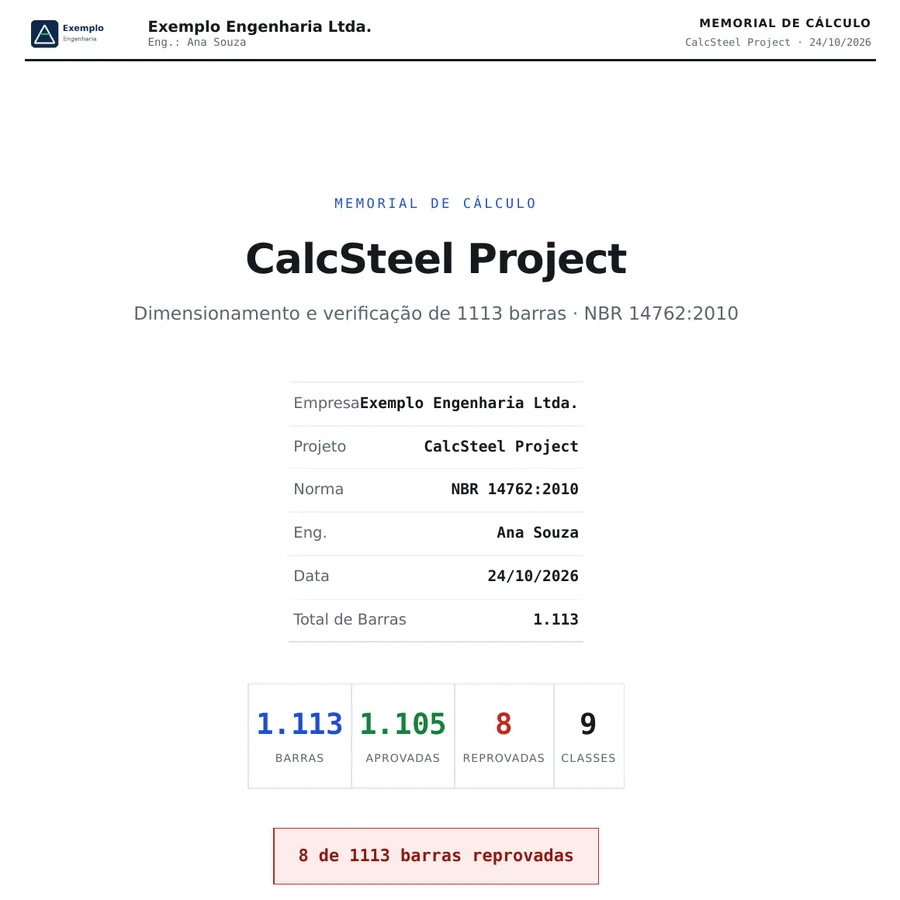
The one for the example house starts with the cover, with the office and the engineer, goes through the methodology, the design basis and the summary of the 1,113 checks, and goes on with each bar, the appendix by class and a section of its own for light steel framing: walls, straps, openings, roof and horizontal straps.
In the house, the calculation gives 8 failed bars. The report does not hide them: they come out in red, with the same ratio as on screen, and the check starts with them.
What it is for
One document, eight parts
The screen answers one question at a time: does this bar pass? The report answers all of them at once, and in the order a reviewer asks them: who designed it, with which standard, on which model and which loads, with which result, and how each number was reached. The parts are numbered as in the PDF.
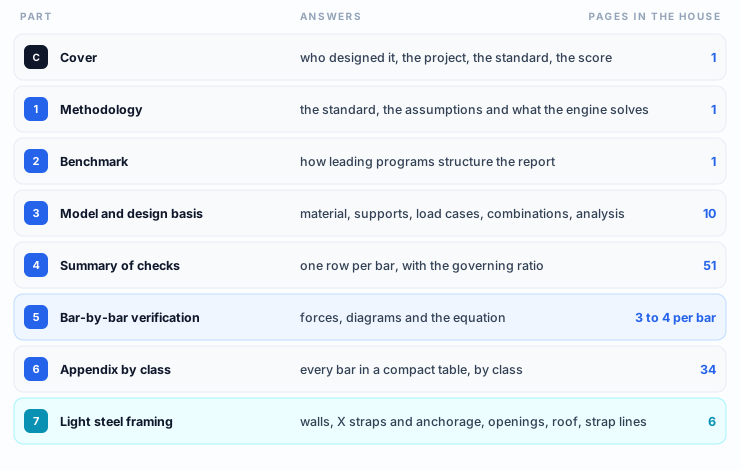
Section 5 is the body of the report. Each bar gets a sheet with the forces of the governing combination, the diagrams and one box per check, with the NBR 14762 formula and the numbers already substituted. In the house, it is the part that takes the document past a thousand pages.
Section 7 comes with section 5. It only comes out when the report carries the bar-by-bar verification and the project has light steel roles in the calculation.
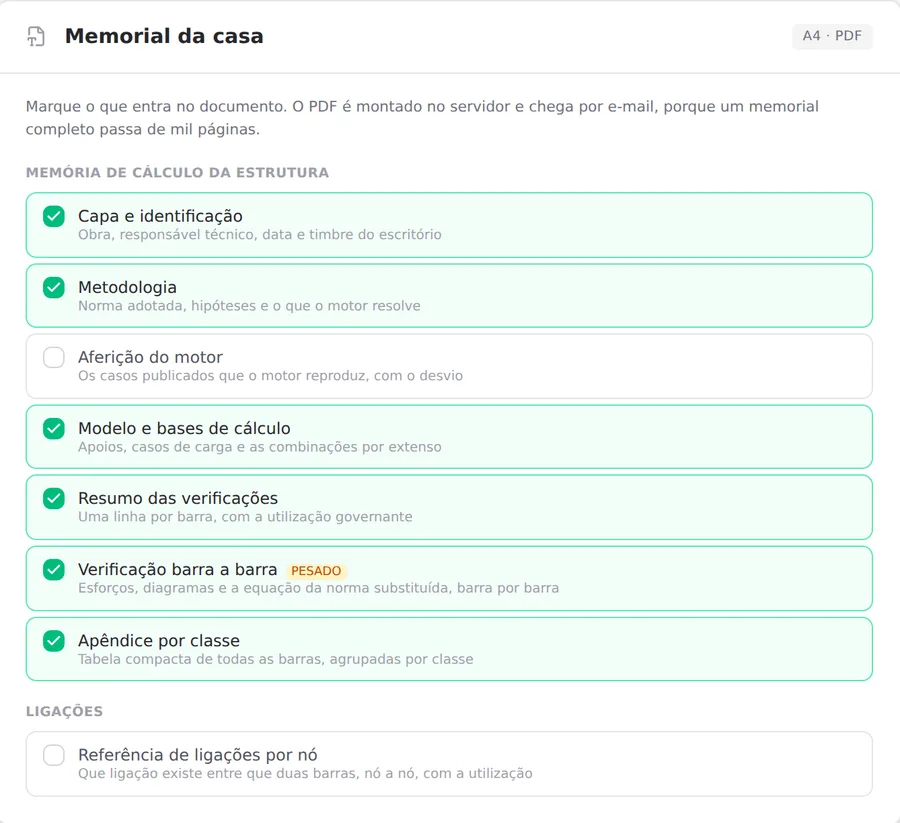
The numbering is continuous. Only a part that comes out gets a number, and the numbers on this page are those of the full project report, like the one for the house. Two parts come in only when the project has them: floor vibration, when the calculation did it, and the connection schedule by node, which comes through the composition in the Prints tab, when the project has connections. The example house has neither. In the composition, the numbering follows the checked parts.
Language and units are those of the screen. The report comes out in the language and the unit system chosen in the gear at the moment you generate it.
What the standard says
The minimum content, item by item
NBR 16970-2 lists, in item 4.7, what the calculation report of a light steel framing structure must contain at a minimum. The table sets each clause beside the part of the CalcSteel report that meets it.
| NBR 16970-2, 4.7 | Where it is in the report |
|---|---|
| a) overall 3D arrangement | Section 7: the walls with length, height and strap segments, the openings, the roof and the horizontal straps. Section 3: the supports. |
| b) material properties | Section 3: the steel with fy, fu and E, and the partial factors. |
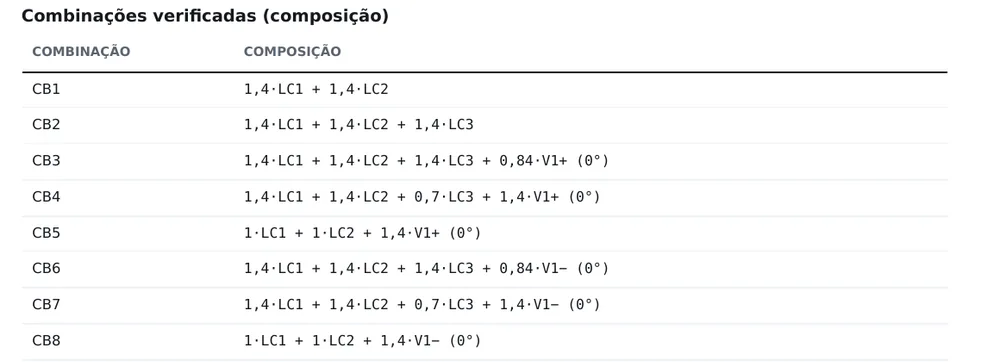
| c) actions and loads | Section 3: the load cases, with the number of loads in each, and the verified combinations, written out. |
| d) schemes and identification | Section 7: the assumptions (strap in tension only, assumed diaphragm, stud pinned about the strong axis). Sections 4 to 6: each member by the same label as on screen. |
| e) structural analysis | Section 1 and the end of section 3: the type of analysis and the model notes. |
| f) member design | Sections 4 and 5: the ratio of each bar and the calculation of each check. |
| g) splices, joints and connections | The connection schedule by node, through the composition in the Prints tab, when the project has connections. In section 7, the anchorage of the X corners. |
| h) software used | The footer of each page names the software, and the cover carries the date. |
NBR 16970-2, 4.5.
All load combinations, in ultimate and serviceability limit states, according to NBR 14762. Section 3 of the report lists the combinations the calculation verified.
NBR 16970-2, 4.6.
The conformity assessment, when contracted, is done by a professional independent of the designer, before construction. The report is what that professional reads.
NBR 16970-2, 4.8.
Components carry the same identification in the drawings and in the report. The label M1012 is the same on screen, in the report and on the sheets.
The report does not sign. It records the calculation; the technical responsibility belongs to the engineer who checks and signs it, with the professional registration. That is why this page ends with a check against the screen, and not with the download button.
Design recommendations
Where the PDF comes out
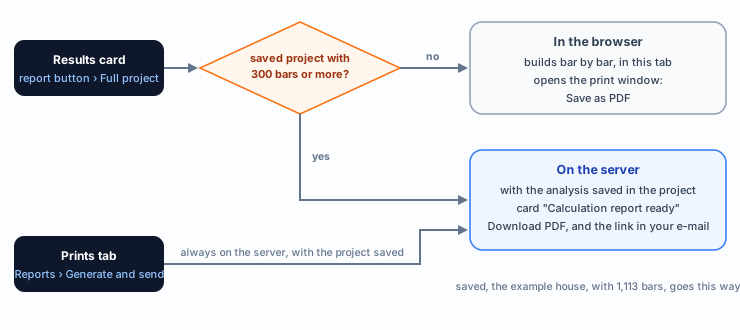
The report always comes out with the same content. What changes is where it is built, on the server or in this browser tab, and that depends on the path you choose, the size of the project and whether it is saved:
What to do before generating
- Check language, units and title block in the gear.
- Save the project with the name that goes on the cover.
- Calculate again after any change to the model.
- Resolve the failed bars before the report that is going to be signed.
Step by step
Before generating: language, units and title block
The report reads three things that do not live in the project: the language, the unit system and the office title block. All three are in the gear at the top right of the screen and apply to every document generated after they change.
1. Language and units
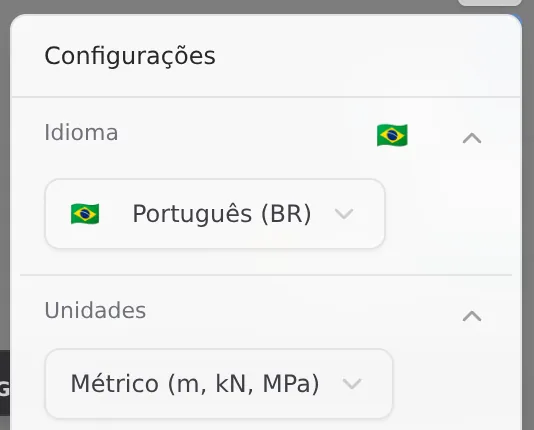
In the gear, the first block is the language and the second, the units. The report comes out in the language and units the screen has at the moment you generate it: if the document goes to a client in another country, change them first.
In Metric, as in the house, everything comes out in m, kN and MPa. In Imperial, the tables switch to kip, ft and psf, and the check equations stay in kN and cm, as the standard writes them; the report notes this in the design basis.
2. Title block and technical team
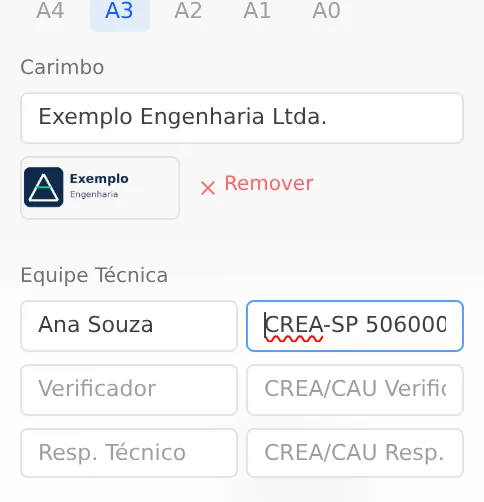
In the same gear, open Sheet. Under Title Block, type the office name and use Upload Logo to add the mark; Remove takes it off. Under Technical Team, the Designer is the name the report cover carries as engineer. The professional registration, beside it, goes to the signature on the title block of the sheets, in LSF sheets.
Office, logo and team are yours, not the project's: they are kept in this browser and go into every report generated in it. On another computer, fill them in again.
With office or logo filled in, the header of each report page carries the mark, the office and the engineer of record, and the footer carries office · project. Without them, the header is the CalcSteel one.
- Free: each page of the report carries the CalcSteel watermark
- Starter: no watermark, with the CalcSteel header
- Pro: no watermark, with your logo and your office in the header and on the cover
The designer name goes in on any plan. What the plan decides is the mark: the watermark on Free and the office mark on Pro.
3. Report button › Full project
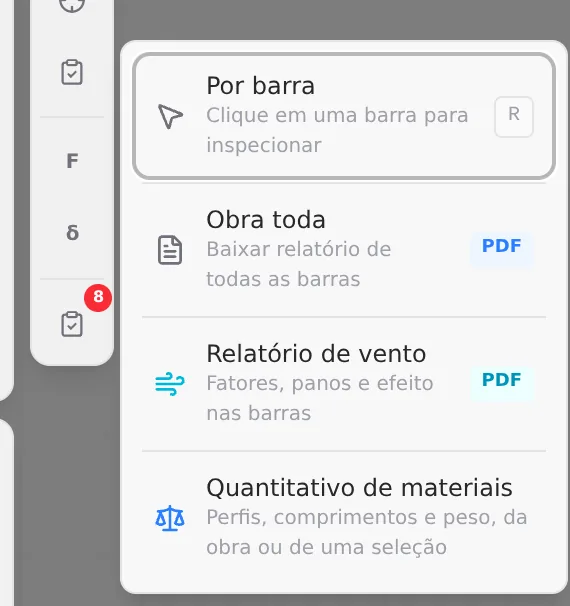
Calculate the project. In the button column beside the left panel, the clipboard without a number opens the report menu. The one below, with the red number, is the Bar Verification list, with the 8 failed bars of the house.
If the calculation flagged a mechanism, the app asks for confirmation before generating, because the numbers of a model with a mechanism may not hold.
Where the document is built
Saved project, with 300 bars or more: the PDF is built on the server, with the analysis saved in the project. The card Generating the calculation report… appears; you can click Keep working or even close the tab. At the end, the card turns into Calculation report ready, with the number of pages and Download PDF, and the link also goes to your e-mail. If it asks Save the project and run the analysis, the server found no saved analysis in the project: save, calculate and generate again.
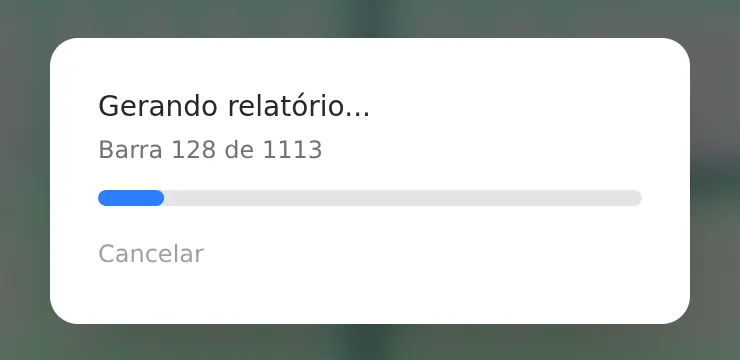
Smaller project, or not saved yet: the report is built in this tab, bar by bar, with the progress on screen and the Cancel button. At the end, the browser print window opens: choose Save as PDF.
The Free plan includes three full reports; paid plans have no limit. The count is the same on both paths.
4. Add report and choose the parts
In the Prints tab, in the Reports section, click Add report, give it a name (the field suggests "Report 1") and confirm with the blue button beside Cancel. The report goes into the list and opens the composition, with one box per part of the report.
5. Generate and send
Below the boxes, the Generate document block sums up the request: modules, verified bars, connections and estimated pages. The next line says which e-mail the PDF goes to. Click Generate and send and follow the status line:
| The line says | What to do |
|---|---|
| Sending the request to the server. | Wait a few seconds. |
| Building the PDF. This takes a few minutes on a large project. | Keep working, or close the tab: generation goes on on the server. |
| Done. The e-mail with the link is out. | Click Download the PDF, or open the link in the e-mail. |
| The server has no saved analysis for this project. | Save the project, calculate again and generate. |
On this path the report is always built on the server, whatever the size of the project. That is why this path needs the project saved, with the analysis kept in it.
Reading the report: design basis and summary
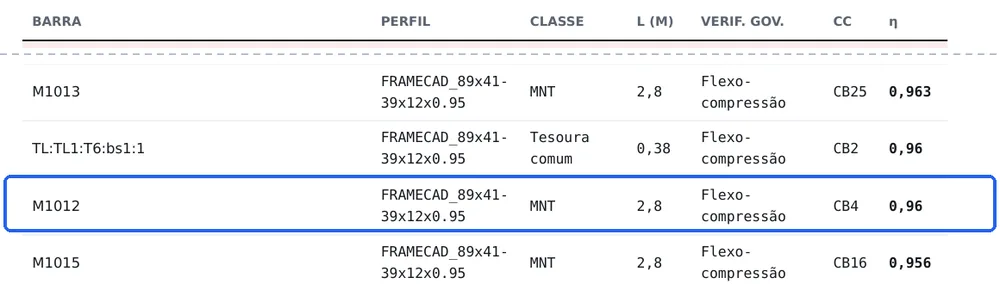
With the PDF open, read in the reviewer's order. Section 3 says with which loads each bar was checked and what the engine assumed; section 4 says what governs.
One bar inside: stud M1012
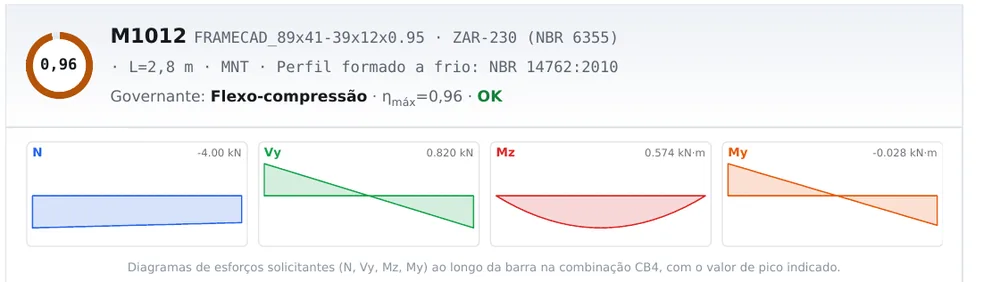
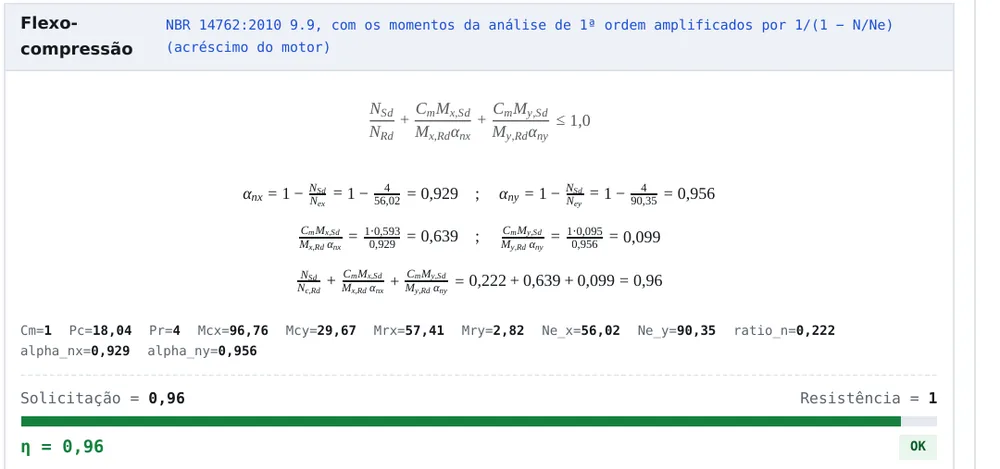
In section 5, each bar gets a sheet: the header with the profile and the governing ratio, the diagrams of the governing combination and one box per check, with the formula and the numbers.
How to read the sum
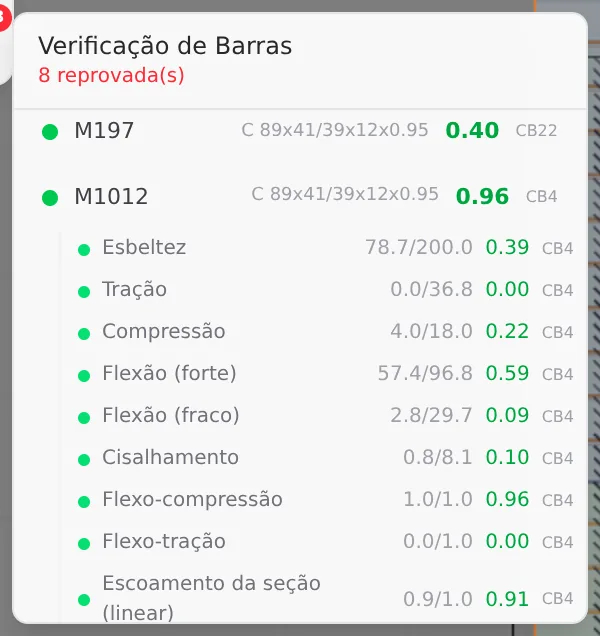
0.222 is compression alone, 4 kN against 18.04 kN. 0.639 is strong-axis flexure, 0.593, divided by αnx = 0.929, which accounts for the effect of compression on the moment. 0.099 is the weak axis, by the same path with αny = 0.956.
And on screen
The bar report shows Compression 0.22, Flexure (strong) 0.59 and Flexo-compression 0.96, in CB4. The 0.59 is flexure alone; the report shows the same 0.593 and, inside the sum, the value already divided by αnx.
Section 7: light steel framing
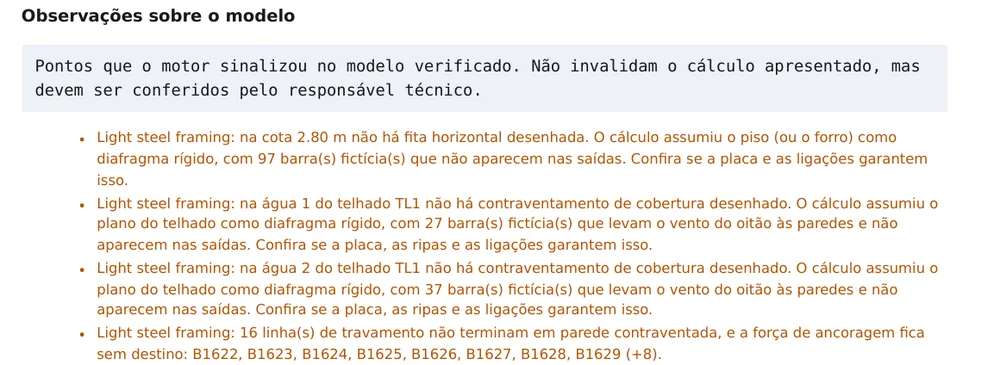
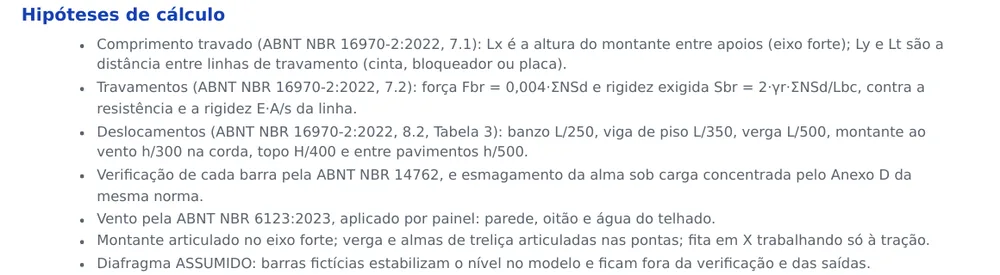
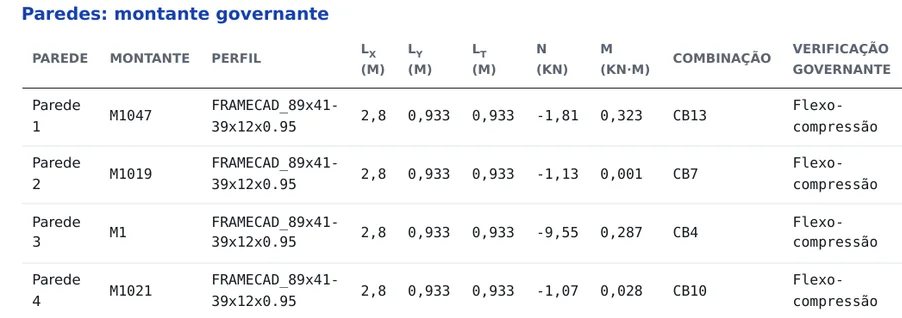
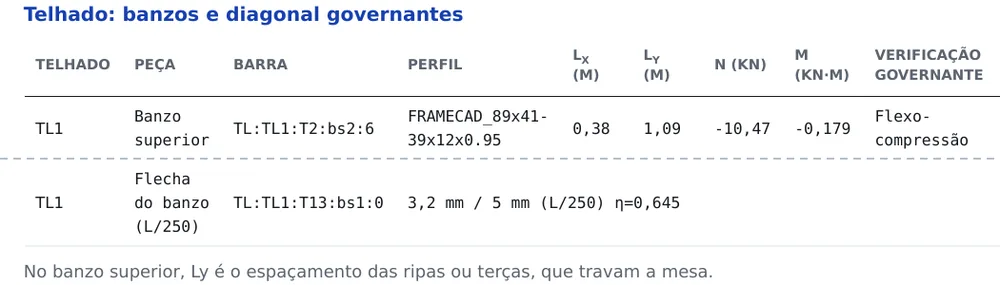
Section 7 belongs to light steel framing and carries the numbers of the engine result, with no recalculation. It opens with the LSF warnings, the same as in the notes of section 3, and goes on with the design assumptions and the walls.
What each assumption asks of you
Braced length.
Lx = 2.8 m is the stud height; Ly = Lt = 0.933 m is the distance between the drawn bracing lines. If the project does not have the lines, the stud does not have the calculated resistance.
Strap in tension only.
In each X, the diagonal in tension does the work; the one in compression does not count. Both diagonals must exist and be connected at the corners.
Pinned stud.
About the strong axis, the stud is calculated pinned at the ends, between the bottom and the top track. Its strong-axis flexure comes from that span.
Assumed diaphragm.
The fictitious bars stabilize the level in the model and stay out of the verification and of the outputs. On site, the sheathing does that job, with the battens and the connections.
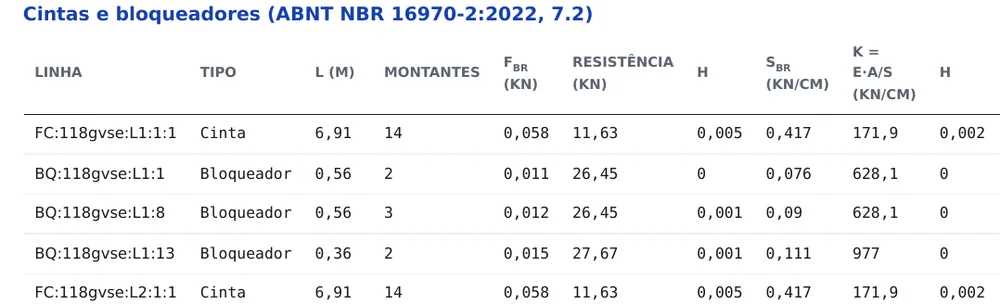
Straps, roof and horizontal straps
Failed bars and assumed hypotheses
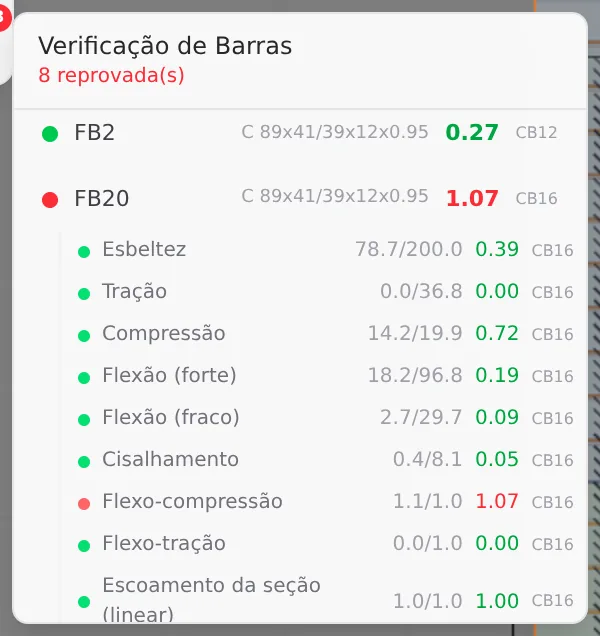
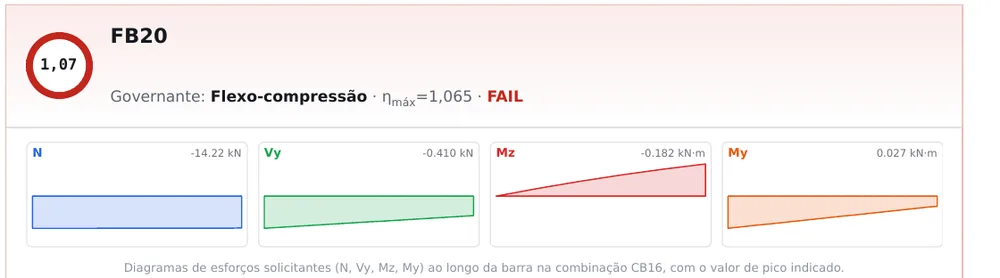
The report shows the failed bars in three places: in the score on the cover, "8 of 1113 bars fail verification"; at the top of the summary, because the order is decreasing η; and in the sheet of each one, with the ring and the FAIL in red.
One of them is FB20: 1.07 on screen and 1.065 in the report, both by flexo-compression in CB16. FB20 is a stud segment: the calculation splits the stud at the node where another member touches it mid-span, and each segment gets an FB label, the same on screen and in the report.
Do not sign with a bar in red. The report records the calculation as it stands. The fix is in the model, the profile, the bracing or the load, followed by a new calculation and a new report.
The assumptions the engineer of record accepts
Diaphragm
The floor at 2.80 m, with 97 fictitious bars, and roof planes 1 and 2, with 27 and 37, were treated as a rigid diaphragm. That holds if the sheathing, the battens and the connections ensure it.
Anchorage destination
16 bracing lines end outside a braced wall. Their force has to reach a wall with straps: check and record how that happens on site.
Braced lengths
Ly = Lt = 0.933 m in the studs assumes the drawn bracing lines. They have to be on the sheets and on site.
Shortcuts
- Ctrl+Enter
Calculate the project
Sends the project to the engine, like the Calculate button.
- MC↵
Calculation report
Generates the full calculation report.
after analysis
- R
Insert reports
Opens the reports menu to put on the sheet.
- Shift+N
New report
Starts an A4 project report: type the name and Enter.
What the engine checks
What goes into the report
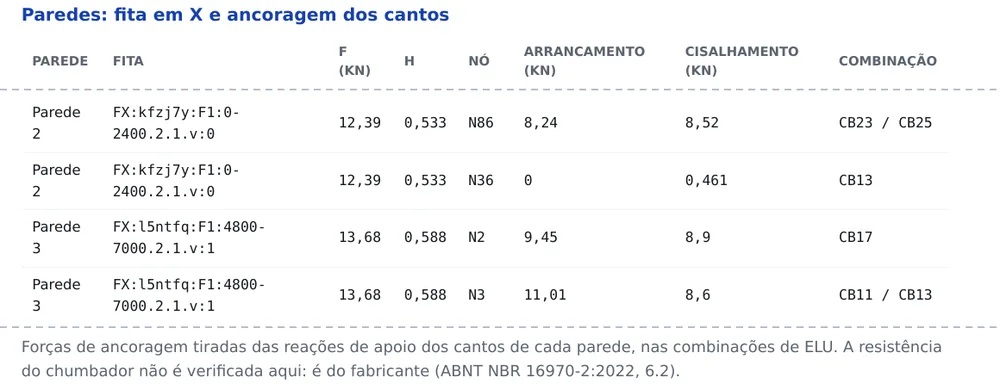
The report is built from the result of the last calculation, with no recalculation. It carries each bar of the model, checked in the combinations of the calculation, with the NBR 14762 formula and the numbers already substituted; the summary in order of ratio; and, in section 7, the walls, the straps with the corner anchorage, the roof and the horizontal straps, with the assumptions the calculation made.
Same bar, same number
Before signing, open the report beside the screen and check a few numbers that must match. The screen rounds to two decimals; the report shows three in the governing ratio. A difference in the third decimal is rounding. A larger difference means the report comes from another calculation: save, calculate and generate again.
| Item | On screen | In the report |
|---|---|---|
| M1012 | 0.96 · CB4 | 0.96 · CB4 |
| compression | 0.22 | 0.222 |
| strong-axis flexure | 0.59 | 0.593 |
| FB20 | 1.07 · CB16 | 1.065 · CB16 |
| bars | 1,113 | 1,113 on the cover |
| failed | 8 failed | 8 of 1113 |
| combinations | CB1 to CB26 | CB1 to CB26 |
What stays with the designer
- The signature. The report records the calculation; the technical responsibility belongs to whoever checks and signs it, with the professional registration.
- The assumed hypotheses. Diaphragm, anchorage destination of the bracing lines and braced lengths hold if the project ensures them. Check and record how each one happens on site.
- The anchor bolt. The report gives the anchorage forces at each corner of the X; the anchor bolt resistance stays with the manufacturer, by NBR 16970-2, 6.2.
- The connections. Screws, plates and joints are detailed separately, with the forces the calculation delivers (see Lateral system and diaphragm).
- The date of the document. The report is a snapshot of the moment of the click. If the model, the title block, the language or the units changed, generate again.
Shortcuts
- Ctrl+Enter
Calculate the project
Sends the project to the engine, like the Calculate button.
- R↵
Bar report
Arms the report: click a bar to open its own.
Common mistakes
What usually goes wrong
- Generated with the old calculation. The server uses the analysis saved in the project. Changed the model? Save, calculate again and only then generate.
- Changed the title block after generating. The report is a snapshot of the moment: office, logo and engineer go in as they were at the click. Changed the title block, generate again.
- Cover with the default title. The title is the name of the saved project. A project not saved comes out with the app default name: save it with the right name before generating.
- Language or units for another destination. The report comes out as the screen was. Check the gear before generating, not after.
- Bar without a class. A bar drawn without a class comes out in the group of bars without a class, and with no declared steel the report adopts one and marks it as adopted. Give a class to every bar before calculating.
Summary
The path, in one line
Gear: language, units and title block → save the project with the cover name → calculate → report button › Full project, or Prints › Reports › Generate and send → read design basis, summary, sheets and section 7 → check against the screen → sign.
The example so far
- 1,113: bars verified, 26 combinations
- 0.96: stud M1012, flexo-compression in CB4
- 8: failed, the same on screen and in the report
- 0.59: the most stressed strap, in tension