LSF (Light Steel Framing)
New project wizard
Before the first wall, an LSF project needs four answers: the size of the building, the sections and the steel, the weight of what hangs on the panels and the wind of the site. This page walks through the four tabs of the Project settings wizard with the single-story 9 x 7 m house and its 2.80 m ceiling height, with what each field does in the calculation and what the standard asks for.
Overview
Four tabs before the first wall
In LSF, almost everything the calculation needs is decided once for the whole project: the ceiling height of each story, the section of each role (stud, track, header, floor joist, chord), the steel, the stud spacing, the weight of the boards and the wind. CalcSteel gathers these decisions in a single wizard, Project settings, opened by the first button of the LSF panel.
The wizard has four tabs: Building envelope, Structure · sections, Loads and Wind action. None of them draws or calculates anything. They store the configuration that the drawing and the calculation read later.
The example house starts here: single story, 9 x 7 m, 2.80 m ceiling height, a roof, no intermediate floor. A new LSF project in Brazil already starts roll-formed on the FRAMECAD F325iT, and this page follows that setup.
- 4: tabs: Envelope, Structure, Loads, Wind
- 2.80 m: ceiling height of the house, on a single story
- 600 mm: stud spacing, matched to the 1.20 m board
- 89 kgf/m²: dynamic wind pressure in class A, V₀ = 40 m/s
| Question | Short answer |
|---|---|
| Where | LSF tab, Project settings button, the first on the panel |
| When | before the first wall; you can come back at any time |
| Saves | on every change; goes with the project once it has a wall |
| Finish | only with every field filled in; in Brazil the market fills in everything |
| In the calculation | everything goes in: sections, steel, loads and wind are read when you click Calculate |
What it is for
One decision per project, not per wall
An LSF house has hundreds of pieces, and almost all of them repeat the same choices: the stud is the same section in every wall, so is the track, and there is a single spacing. Asking for this on every wall would be a mistake. The wizard asks once and every drawing tool uses the answer: the wall starts with the ceiling height of its story, the studs at the project spacing and the section of the role.
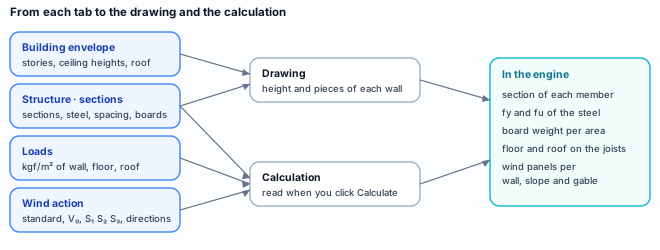
| Tab | What it decides | Who uses it |
|---|---|---|
| Building envelope | how many stories, the ceiling height of each, whether there is a roof and an intermediate floor | the wall height; changing the dimension redraws the walls already drawn |
| Structure · sections | the section of each of the 14 roles, the steel, the spacing, the maximum bar, the boards, the joints | the drawing (section and spacing) and the engine (fy, fu, section) |
| Loads | the weight of boards and finishes, the floor and roof live loads | the engine, per area of wall, floor and roof |
| Wind action | standard, basic speed and the factors S₁, S₂, S₃, enclosure, directions | the engine, which builds the pressure panels |
The wizard has no required order. The tabs can be clicked in any order, and everything is saved on every change. The Finish button only closes the wizard; it confirms nothing that is not already saved.
What the standard says
Modulation, loads and wind
The wizard does not cite a standard in each field, but each field answers to one. Four matter as soon as the project is created:
NBR 16970-2:2022.
Part of the Brazilian LSF standard, it describes LSF as sections on a module that is a submultiple of the sheathing boards. A 1.20 m board calls for a 400 or 600 mm spacing: every board joint falls on a stud. The field hint says so: "usual: 400 / 600 mm".
NBR 14762 and NBR 15253.
NBR 14762 is the Brazilian standard for cold-formed steel design, and the engine checks each cold-formed section by it; NBR 15253 is the Brazilian standard for the coated cold-formed sections of LSF, and the LSF sections follow it. The chosen steel enters the calculation as fy and fu, and the design standard does not change with the market.
NBR 6120.
The Brazilian standard for design loads gives the dead loads by the weight of the materials and the live loads by use. For bedrooms, living rooms and kitchens in a residence, the live load is 1.5 kN/m².
NBR 8800 · Annex B · B.5.1.
In the Brazilian steel structures standard, an ordinary roof takes a minimum live load of 0.25 kN/m² in horizontal projection, which already covers services and small pieces hung from it, up to 0.05 kN/m².
Wind by NBR 6123:2023
NBR 6123 is the Brazilian standard for wind loads on buildings.
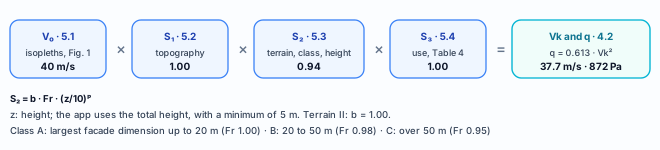
| Item | What it asks | In the wizard |
|---|---|---|
| 5.3.1 terrain | category I (sea, lakes) to V (center of a large city) | Terrain field, default II |
| 5.3.2 class | A, B or C by the largest dimension of the facade | Class (dimension), default B |
| 5.4 Table 4 | group 3: residences, hotels, retail, industries, S₃ = 1.00 | Importance (S₃), default group 3 |
Recommendation
The setup of the 9 x 7 m house
Almost everything stays at the Brazil default that a new project already brings. Two things change, both in the wind: the class of the house and the terrain of the site. This is the setup the other LSF pages use.
| Tab | Field | Value | Why |
|---|---|---|---|
| Header | Fabrication | Roll-formed, FRAMECAD F325iT | the default of a new project; pieces cut and punched on the roll former |
| Envelope | Stories | 1 | single-story house |
| Roof · Intermediate floor | With · Without | it has a roof; it has no mezzanine | |
| Ceiling height | 2.80 m | the wall height; the default of a new project | |
| Structure | Sections | FRAMECAD F325iT default | 0.95 mm C 89x41 in the walls; the machine section |
| Steel | ZAR-230 | the default; change it only with the purchased steel in hand | |
| Spacing · Maximum bar | 600 mm · 6000 mm | the spacing matches the 1.20 m board; the bar is the 6 m stock length | |
| Loads | all | default | check the boards against the manufacturer data sheet (see Common errors and refusals) |
| Wind | Standard · V₀ · S₁ | NBR 6123 · 40 m/s · 1.00 | V₀ from the map for the municipality of the project; flat terrain |
| Terrain | II | that of the site; when in doubt, II is on the safe side | |
| Importance | S₃ = 1.00 | residence: group 3 | |
| Class | A | the largest dimension of the house, 9 m, does not exceed 20 m | |
| Enclosure · Directions | Closed · 0, 90, 180, 270 | closed house; wind on all four faces |
Terrain: choose the one of the site
A neighborhood of houses is category III or IV; open country, II. The rougher the terrain, the lower S₂ and the lower the wind. Without knowing the terrain, II is the safe side: it gives more wind than a suburb would.
Class: the house is A
A new project comes in class B, for buildings between 20 and 50 m. The 9 m house is A, and class A gives slightly higher wind: 89 kgf/m². A short gust catches the whole house at once.
Step by step
1. Start a blank project
In the editor, the first screen asks how you want to start. To follow the example, choose New blank model: an empty workspace. The project by AI and the DXF or IFC import are other starts; the AI one has its own page (see Build by chat).

2. Go to the LSF tab and open Project settings
In the bottom bar, switch to the LSF tab. The LSF panel appears on the left, and the first button, in blue, is Project settings. Below the panel, the hint gives the order: start in Project settings, then Exterior wall. The wizard also opens from a shortcut in the strap, bracing, column and header boxes.
3. Read the header: market and fabrication
The dark strip at the top shows the project market, Brazil · NBR 14762, and the fabrication. In a new project, Roll-formed is already selected and the machine is the FRAMECAD F325iT. The market and what it fills in are in Market and catalog.

4. Check stories, roof, intermediate floor and ceiling height
The first tab opens with the example house: 1 story, roof With, intermediate floor Without, total height 2.80 m. The drawing is only a diagram; the dimension on the left is the ceiling height, and it is clickable: click, type in meters, Enter saves and Esc cancels. Changing the dimension after the walls exist redraws the walls of that story, in a single Ctrl+Z step.
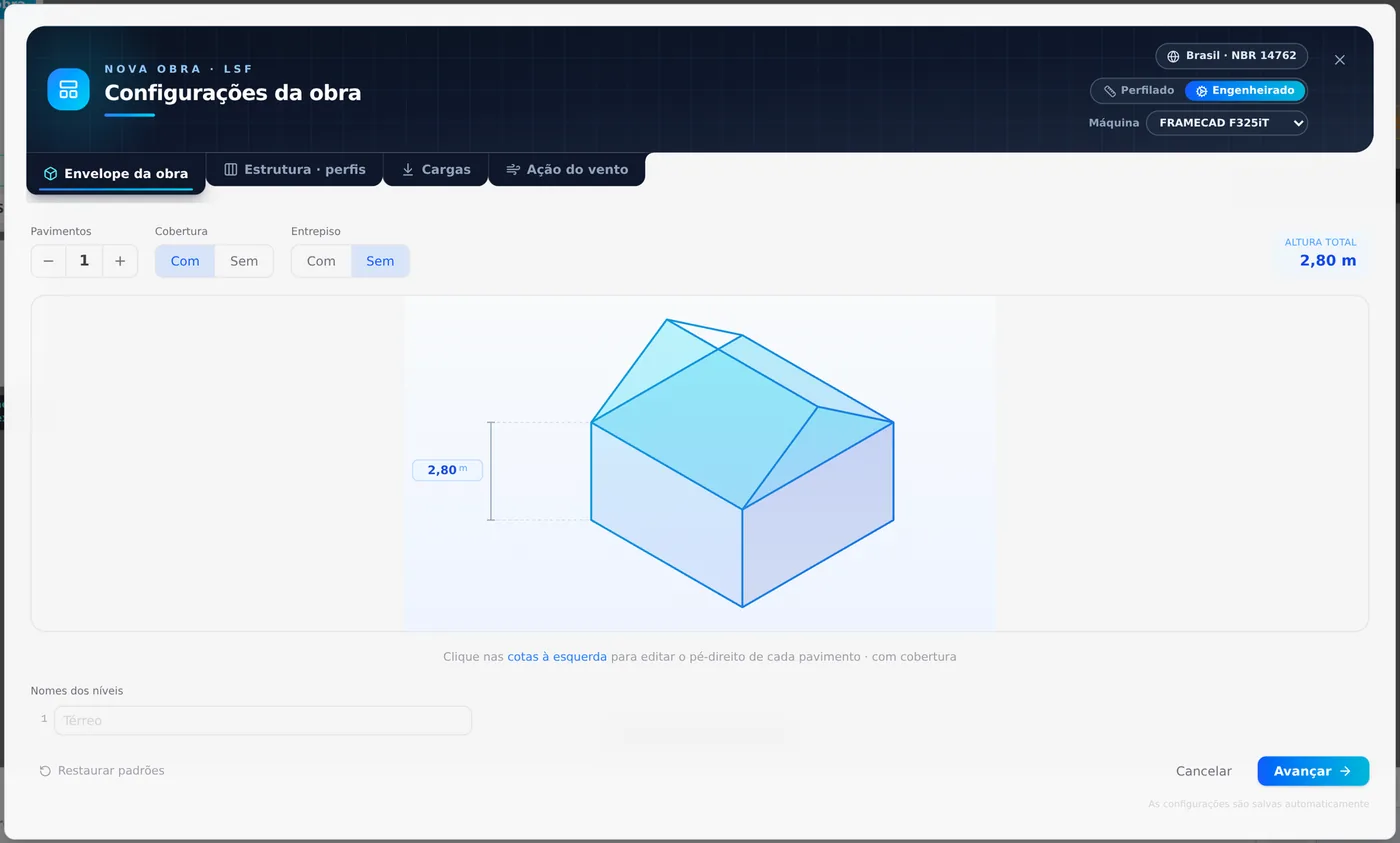
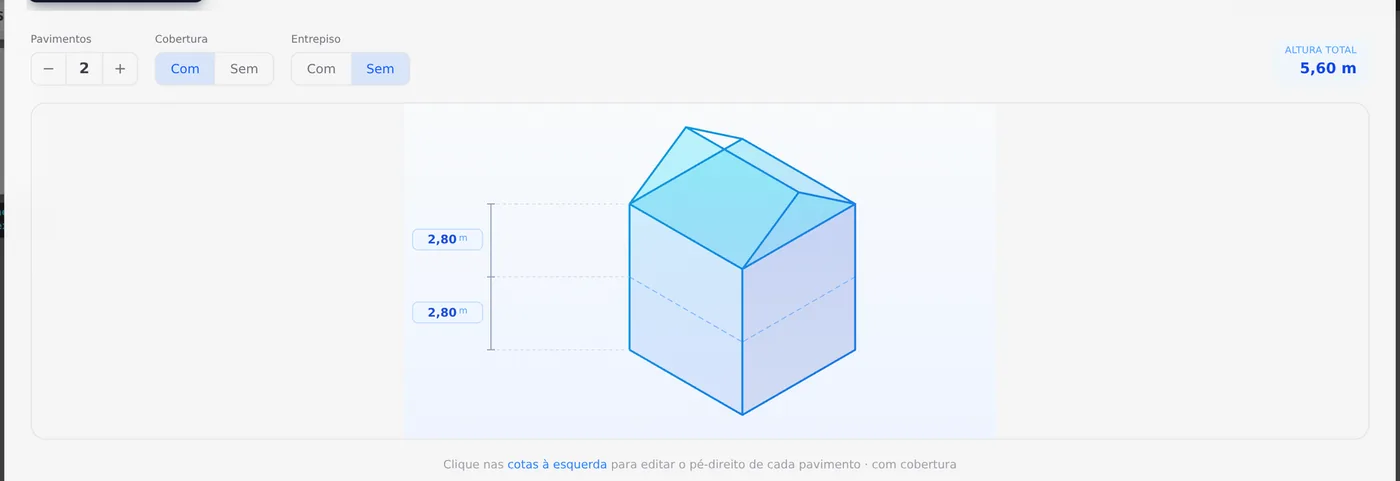
The + button adds one more story, with the ceiling height of the last one; each gets its own dimension in the drawing and a field in Level names (up to 24 characters; left empty, it keeps the default name, such as "Térreo", the ground floor). For the house, go back to 1 with −.
5. Check the section of each role
The Structure · sections tab lists the 14 roles in three groups, each with its own illustration: walls, intermediate floor, and roof and truss. The strip at the top says where they came from, Perfis de FRAMECAD F325iT (FRAMECAD F325iT sections), and the Default button resets all of them at once. In the walls, stud and track come out in C 89x41/39x12x0.95, 1.38 kg/m; the header, in 1.15 mm.
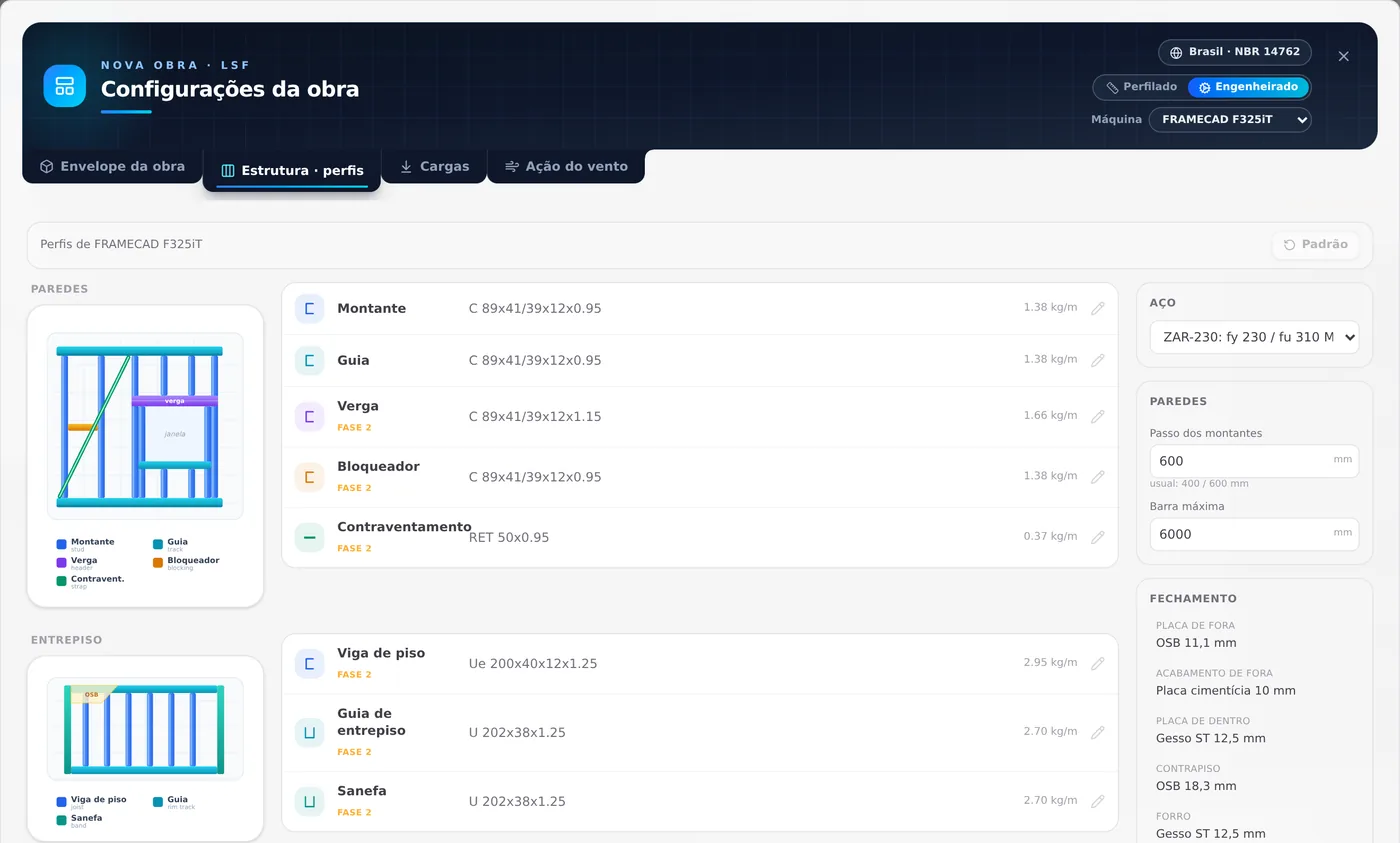
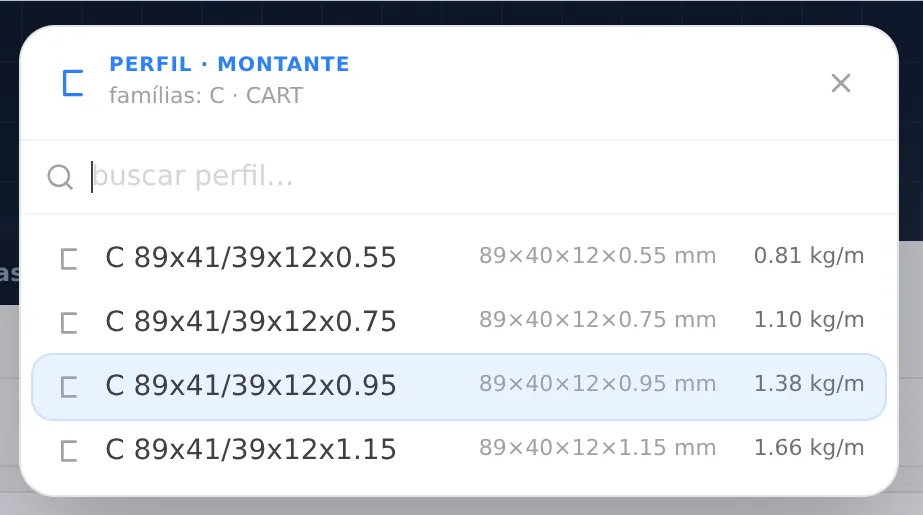
Clicking a row opens the picker for that role. In a roll-formed project it only shows the sections the machine forms: for the F325iT stud, the same C 89x41 in four thicknesses, from 0.55 to 1.15 mm.
Stick-built, steel, spacing and boards
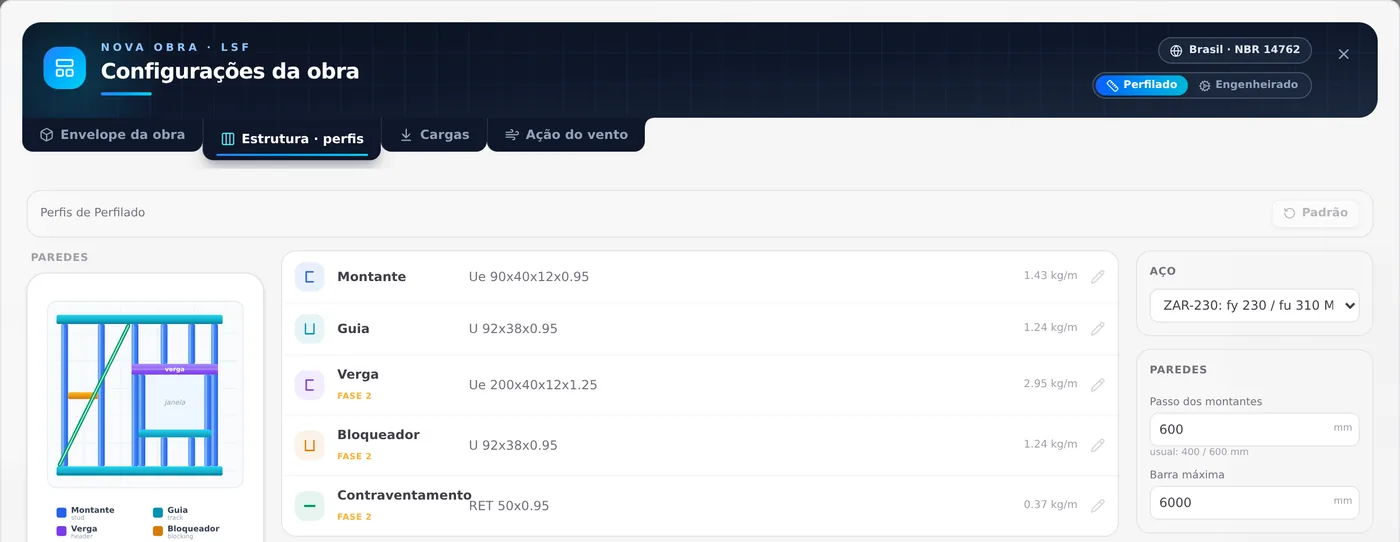
To see the difference, select Stick-built in the header: the machine list disappears and the sections change together, to the stock-bar ones. Go back to Roll-formed and the machine sections come back identical, including any you edited: each model keeps its own.
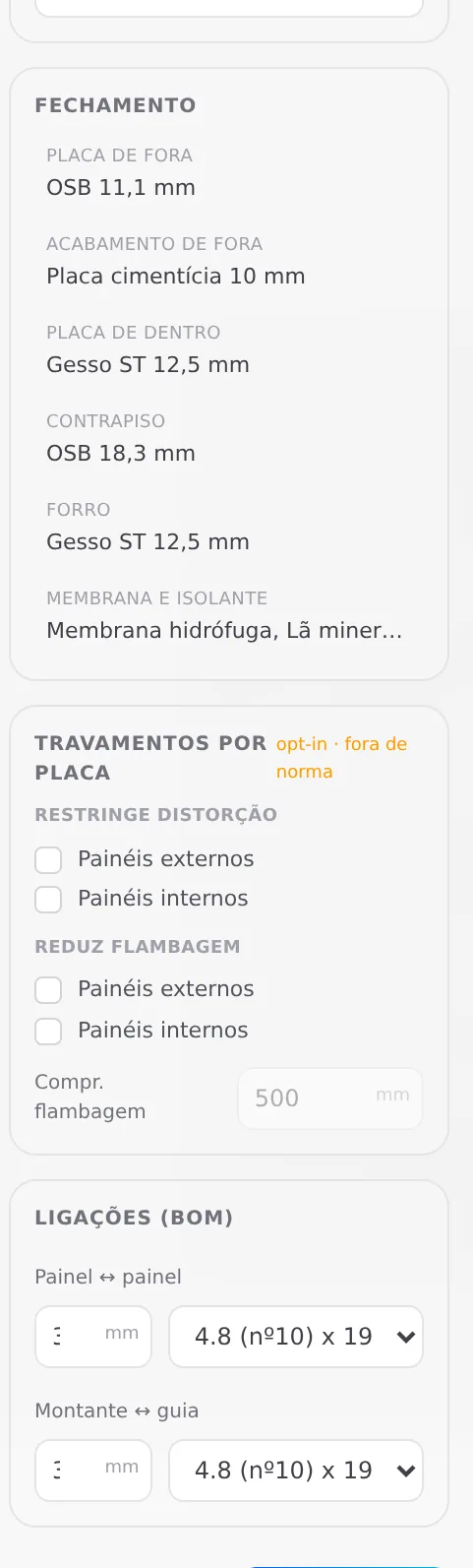
The right-hand column completes the tab:
| Block | In the house |
|---|---|
| Steel | ZAR-230: fy 230 / fu 310 MPa. The list goes up to ZAR-345. |
| Stud spacing | 600 mm, with the hint "usual: 400 / 600 mm" |
| Maximum bar | 6000 mm, the stock bar; one value sets both track and stud |
| Sheathing | 11.1 mm OSB outside, 10 mm cement board as finish, 12.5 mm ST gypsum inside; 18.3 mm OSB subfloor; gypsum ceiling; water-resistive membrane and 50 mm mineral wool |
| Board bracing | off, and they stay that way: "opt-in · fora de norma" (outside the standard) |
| Joints (BOM) | spacing and size of the screws for panel to panel and stud to track |
Changing the fabrication opens the Envelope. When you select Stick-built or Roll-formed, the wizard goes back to the Building envelope tab. Nothing is lost: click Structure · sections again to see the new sections.
6. Check the loads, in kgf/m²
Three groups, each with its sum in the corner. PP Parede (wall dead load) is the weight of the boards and finishes on both sides. Entrepiso (intermediate floor) is grayed out, because the house has none. Telhado (roof) applies because the roof is set to With; once a roof is drawn, the tile weighs what that roof chose. The fields go from 0 to 1000.

| Group | Fields and default (kgf/m²) | In kN/m² |
|---|---|---|
| PP Parede | inner board 12, outer board 10, inner finish 1, outer finish 12, extra 0 | Σ 0.34 |
| Entrepiso | slab 80, flooring 30, ceiling 20, live load 150, extra 0 | live load 1.47 |
| Telhado | tiles 15, insulation 5, ceiling 15, services 0, live load 25 | live load 0.245 |
1 kgf/m² = 0.00981 kN/m². The floor live load of 150 gives 1.47 kN/m², and the roof live load of 25 gives 0.245 kN/m². To reach the 1.5 and 0.25 kN/m² of What the standard says, type 153 and 26.
7. Fill in the wind and change the class to A
On the left, the standard fields; in the middle, the isopleth map, clickable, which fills in V₀; on the right, the coefficients of each face by wind angle and the blue box with the dynamic pressure q. Check the V₀ of the municipality, the terrain and the residence group (S₃ = 1.00), and click A in the class.
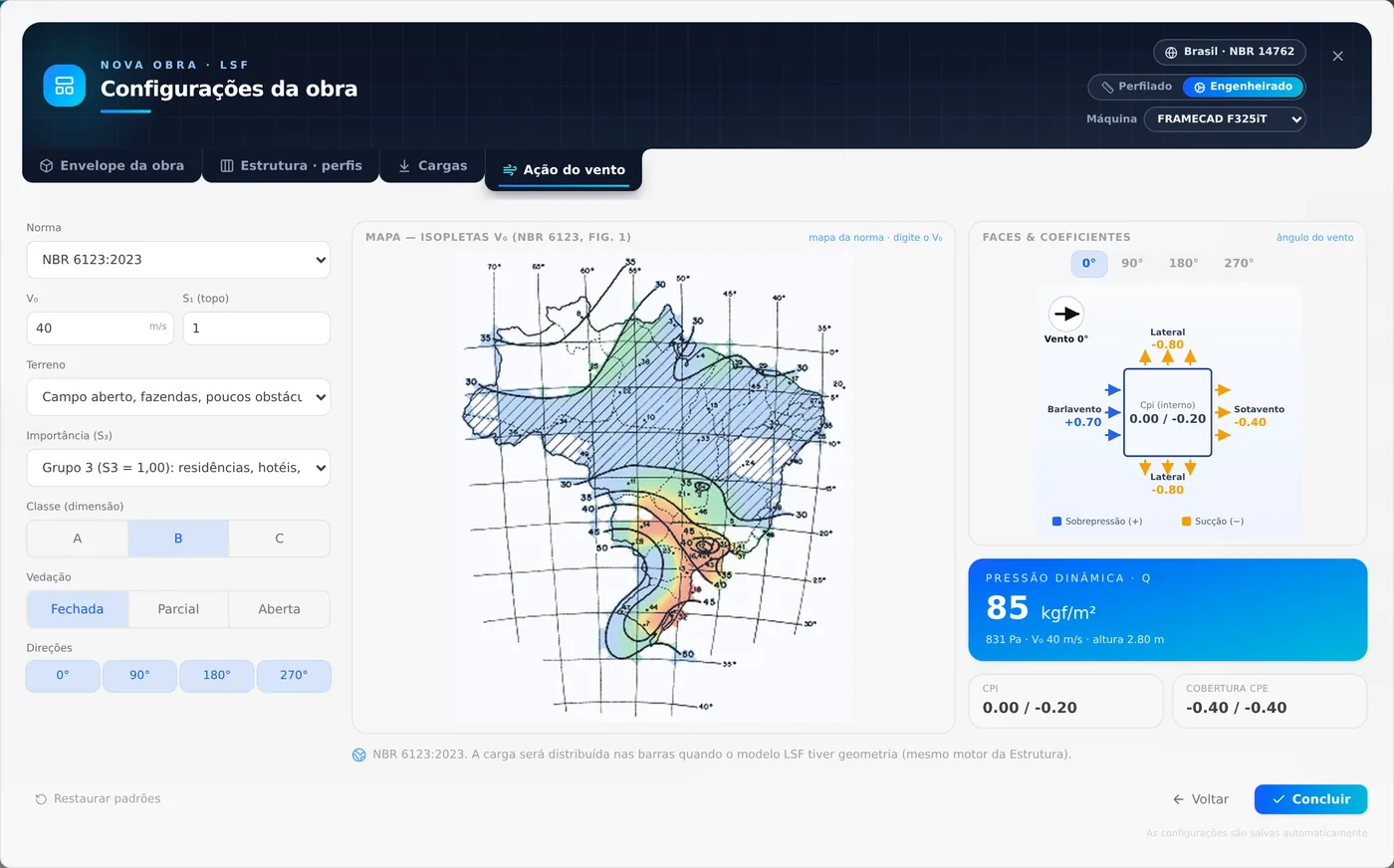
Class A
Largest facade dimension up to 20 m, with Fr = 1.00 (NBR 6123, 5.3.3). The 9 m house falls in it, and the q in the box is the one from the hand calculation.
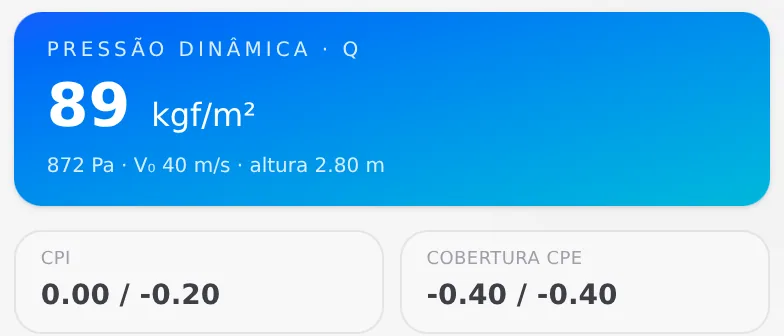
The box uses the total height of the project (here, 2.80 m; below 5 m the calculation uses 5 m) and shows Cpi 0.00 / −0.20 for the closed house. The footer sentence says the rest: the load only goes to the members once there are walls.
8. Finish
On the last tab, the right-hand button becomes Finish. It closes the wizard and brings back the plan, still empty. Nothing was drawn and nothing was written into the project: the configuration is saved and goes with the project when it gets its first wall.
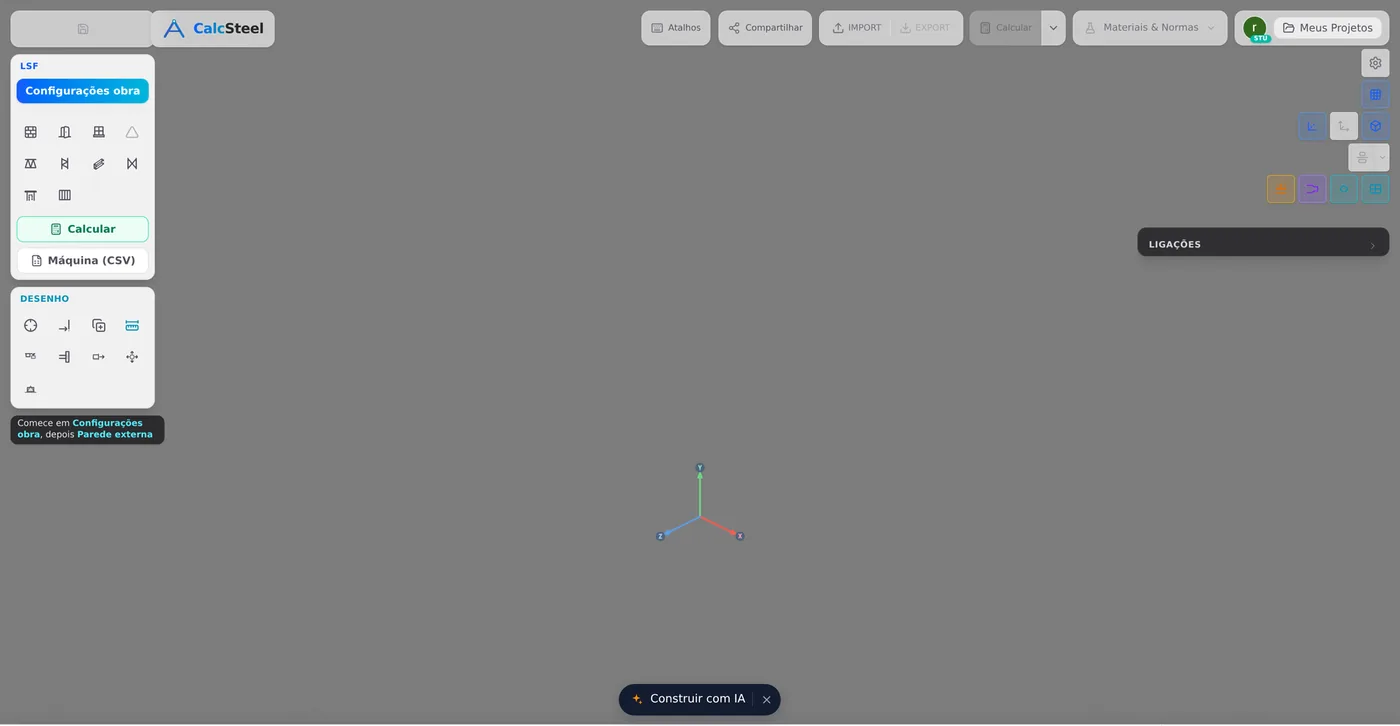
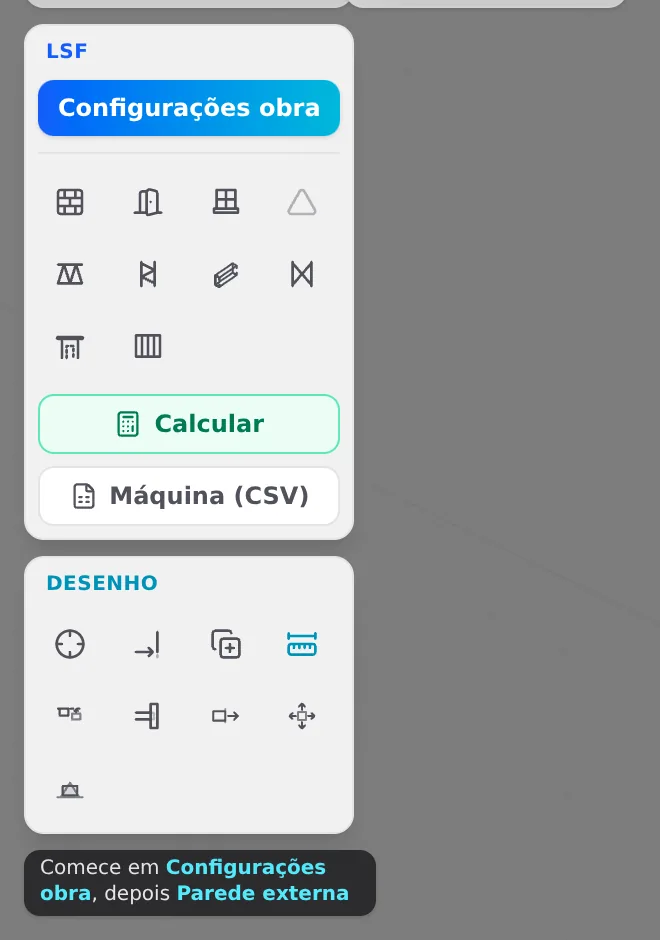
The hint below the panel already points to the next step: start in Project settings, then Exterior wall. The first wall of the house is in Exterior walls. Market and catalog explains where the defaults you just checked came from, and Plan and 3D shows the plan and the 3D where the house will be drawn.
Coming back is the same button. Project settings reopens the wizard on the Building envelope tab, with everything as you left it. Cancel, the X or clicking outside close it without undoing anything.
Shortcuts
- CFG↵
Project settings
Opens the project wizard: envelope, structure, loads and wind.
- 1
Envelope tab
Goes straight to the Envelope tab of the wizard.
in the project wizard
- 2
Structure tab
Goes straight to the Structure tab of the wizard.
in the project wizard
- 3
Loads tab
Goes straight to the Loads tab of the wizard.
in the project wizard
- 4
Wind tab
Goes straight to the Wind tab of the wizard.
in the project wizard
- Ctrl+Enter
Next or finish
Goes to the next step. On the last one, finishes.
in the project wizard
- Esc
Close the wizard
Closes the project wizard.
in the project wizard
Wizard parameters
Field by field
| Field | Range | Brazil default | What it does |
|---|---|---|---|
| Fabrication | Stick-built · Roll-formed | Roll-formed | changes the sections of every role; each model keeps its own |
| Machine | F325iT · Howick FRAMA 3200 | FRAMECAD F325iT | roll-formed only; the section picker shows only its sections |
| Stories | 1 to 20 | 1 | a new one inherits the ceiling height of the last |
| Roof | With · Without | With | turns on the Telhado group in the loads |
| Intermediate floor | With · Without | Without | turns on the Entrepiso group; height from 200 mm to the ceiling height − 100 |
| Ceiling height | 2000 to 6000 mm | 2800 | per story, through the drawing dimension; redraws the walls |
| Level names | up to 24 characters | empty | name of the level |
| Sections | 14 roles | the machine ones | Default resets all; "editado" (edited) marks a change |
| Steel | ZAR-230 to ZAR-345 | ZAR-230 | fy and fu of every piece |
| Stud spacing | 200 to 1200 mm | 600 | distance between studs in a new wall |
| Maximum bar | 1000 to 12000 mm | 6000 | length of track and stud |
| Sheathing | boards from the list or "Outra placa" (other board) | OSB, cement board, gypsum | outer and inner boards, subfloor, ceiling, membrane |
| Board bracing | exterior, interior | off | opt-in, outside the standard; buckling length 100 to 2000 mm |
| Joints (BOM) | spacing 50 to 1000 mm | 4.8 x 19 screw | screw list; sizes from 4.2 x 13 to 5.5 x 25 |
| Loads | 0 to 1000 kgf/m² | Step by step, step 6 | 15 fields in three groups |
| Wind standard | NBR 6123, EN 1991-1-4, ASCE 7-22, AS/NZS 1170.2, IS 875-3 | NBR 6123:2023 | changes the factors it asks for |
| V₀ · S₁ | 20 to 200 m/s · 0.5 to 2 | 40 · 1.00 | basic speed and topography |
| Terrain · S₃ | I to V · groups 1 to 5 | II · residence, S₃ = 1.00 | roughness and use |
| Class | A · B · C | B | NBR 6123 only; the house uses A |
| Enclosure | Closed · Partial · Open | Closed | internal pressure, Cpi |
| Directions | 0, 90, 180, 270 | all four | where the wind blows from in the calculation |
Restore defaults, in the footer, resets every field of the four tabs to the market and machine defaults at once, including the class A of the house, which goes back to B.
Shortcuts
- Shift+R
Restore defaults
Returns every project field to the factory values.
in the project wizard
Common errors and refusals
Where people go wrong in the wizard
- Leaving class B on a house. A new project comes in B, for buildings between 20 and 50 m. The house is A: click A before you finish.
- Roof "Without" with a roof drawn. The wizard warns in amber: the roof stays in the calculation with its weight. To take it out, delete the roof.
- A spacing that does not match the module. The spacing accepts any value from 200 to 1200 mm. With 500 mm and a 1.20 m board, the joints end up with no stud behind them.
- Loads copied without checking. The default board weights come from the app itself, not from a standard table. Check them against the data sheet of the board that goes into the project.
- Board bracing turned on. The block says "opt-in · fora de norma" (outside the standard). When on, it uses the board to restrain distortion and shorten the buckling length of the stud. The example house is braced with blocking and straps (see Straps and blocking).
- Finish grayed out, with "N missing". It is the only refusal of the wizard: the project market does not define some field, and its tab gets an amber count. In Brazil nothing is missing. Market and catalog covers this.
What the engine does
What the wizard hands to the engine
The wizard does not calculate. When you click Calculate, the engine reads the configuration and uses it like this: the steel becomes fy and fu; the section of each role becomes the section of the members; PP Parede multiplies the gross wall area and goes down through the upright pieces; the intermediate floor goes to the floor joists; a roof with no drawn structure goes to the top tracks of the eave walls (or to the loose trusses); and the wind becomes pressure panels per wall, slope and gable. The self-weight of the steel is not in the loads: the engine computes it from the members.
| Question | Answer |
|---|---|
| Does the design standard change? | No. The engine checks by NBR 14762 and NBR 16970-2 in any market. |
| What if wind data is missing? | No standard, no direction, a gable with no panel or an open outline become a warning, and the rest of the calculation goes on. |
| Does it pick V₀ from the address? | No. The map helps, but the number is yours. |
| Does it draw anything? | No. Only the ceiling height dimension changes walls already drawn. |
| Does it save the project? | No. Finish does not save the project; the configuration only goes with it once there is an LSF wall. |
Check the tabs before calculating. Loads, wind, steel and spacing are what the engine reads. A look at the four tabs before the first calculation saves redoing the analysis.
Shortcuts
- Ctrl+Enter
Calculate the project
Sends the project to the engine, like the Calculate button.
Summary
The path, in one line
New blank model → LSF tab → Project settings → Roll-formed, FRAMECAD F325iT → Envelope: 1 story, 2.80 m, roof With → Structure: machine sections, ZAR-230, spacing 600 → Loads checked → Wind: V₀ of the site, terrain, residence S₃, class A → Finish.
The example so far
- 1: story, with a roof
- 2.80 m: ceiling height
- 600 mm: between studs
- 89 kgf/m²: of q, class A