LSF (Light Steel Framing)
Bracing
A 2.80 m stud with nothing at mid-height buckles over its full height, and a line of strap and blocking cuts that length. This page shows the Blocking type of the Strap and blocking tool: how many lines the rule asks for, where the blocking goes, how to brace the whole project at once and what the engine checks on the line itself.
Overview
Lines that shorten the stud
Every wall of the example house has a bracing line at mid-height (see Exterior walls). It is created with the wall, and it is what gives the stud a buckling length of 1.40 m instead of 2.80 m.
The Brazil market rule asks for more: lines at most 1.25 m apart, counting the tracks. On a 2.80 m wall that means two lines, at 0.93 m and 1.87 m from the base.
The lines are redone by the Blocking type of the Strap and blocking tool. One click on a wall replaces its bracing; one button replaces it on all of them.
In the example house: the two lines on the front wall, and then on the other five.
Stick-built or roll-formed. The screens on this page show a stick-built project, where the blocking is made from U 92x38x0.95. In a roll-formed project, the default for a new project, the blocking is made from the C 89x41, 0.95 mm section the FRAMECAD F325iT forms. The RET 50x0.95 strap, the line rule and the way to brace are the same in both.
What it is for
A strap that runs, a section that holds
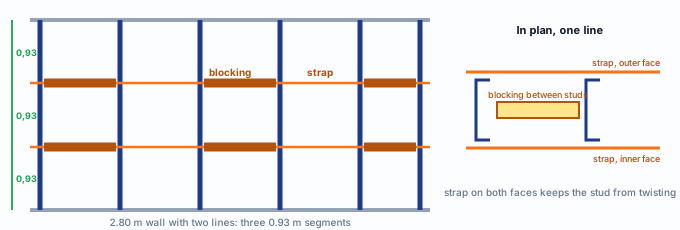
A stud in compression tends to buckle toward its weak side, in the plane of the wall, and to twist. A bracing line holds it both ways with two pieces that work together:
| Piece | Label | What it does | Section (Brazil market) |
|---|---|---|---|
| Strap | FC | Horizontal strap on the stud flanges, from end to end. It stops at doors and windows and at a beam running inside the wall. | Bracing role: RET 50x0.95 |
| Blocking | BQ | A piece of section between two neighboring studs, from face to face. It anchors the strap: without it, all the studs on the line could move together to the same side. | Blocking role: U 92x38x0.95 in a stick-built project; C 89x41, 0.95 mm in a roll-formed one |
Strap, bracing strap, horizontal strap: in the app and on site, the three names are used for the same piece, the FC. On this page, strap.
What the standard says
Only blocking and strap count as restraint
| Where | What it says | What changes in the bracing |
|---|---|---|
| NBR 16970-2, 7.1 | The effective lateral restraint of the stud is the one given by blocking and strap. | Sheathing board alone does not reduce the buckling length in the standard calculation. |
| NBR 16970-2, 7.2 | Minimum strength and stiffness of each restraint: Fbr = 0.004 · NSd and Sbr = 2 · γr · NSd / Lbc, with γr = 1.35. | The engine checks the strap and the blocking against these two values (see What the engine does with it). |
| NBR 14762, 9.6 and 9.7 | Cold-formed members in tension and in compression. | The strap is checked in tension, the blocking in compression. |
NBR 16970-2 · 7.2.
Lbc is the distance between restraints of the stud. The more lines, the smaller Lbc, the higher the stiffness required of each one, and the shorter the buckling length of the stud: that is the trade made when a line is added.
What the standard does not say
The two values in the box, 1.25 m between lines and blocking every 3.60 m, come from the app's market rule: the recipe of CBCA, the Brazilian Steel Construction Center, approved by CalcSteel as the source of the rule. The single mid-height line a wall is created with comes from example 6.4 of the CBCA engineering manual.
The standard as a variable. The bracing rule comes from the project market. In a project from another market without a rule, the tool refuses and the wall is created without the default line.
Design recommendations
Two lines on a 2.80 m wall
- 1.25 m: maximum between lines, counting the tracks
- 2: lines on a 2.80 m wall, at 0.93 and 1.87 m
- 3.60 m: between blocking pieces, besides the ends
- 2 faces: strap on both sides
- Bring the project to the market rule. The mid-height line leaves 1.40 m between restraints, above the 1.25 m of the rule. One click on "Brace all walls" puts all of them on the rule.
- Strap on both faces. On one face only, the strap pulls the stud to one side and it twists. The box warns you when that option is cleared.
- Every line has to reach an anchor. The force from each stud adds up along the line until a point that takes it to the ground. For the engine, a line is anchored when its wall has an X strap or a truss diagonal, or when the end of the line reaches a wall that has one. Without that, it warns you.
- More lines before a thicker section. If the stud fails in compression about the weak axis or in torsion, one more line usually solves it with less steel than a larger section.
- Board only with backing. Board bracing (step 5) is optional and outside the standard: use it only with testing or the board manufacturer's recommendation.
Step by step
1. Arm the tool on the Blocking type
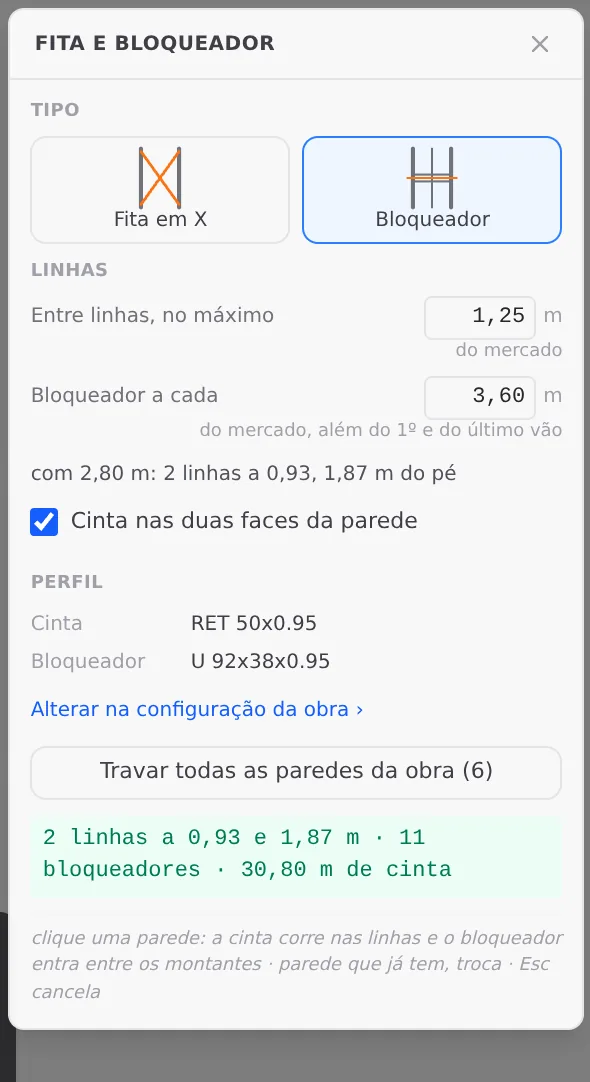
In the view of the front wall, click Strap and blocking on the LSF card and choose the Blocking type. The box changes its content: the two market values, the count of lines for the wall height, the strap on both faces, the sections and the button to brace all walls.
2. Move the cursor over the wall
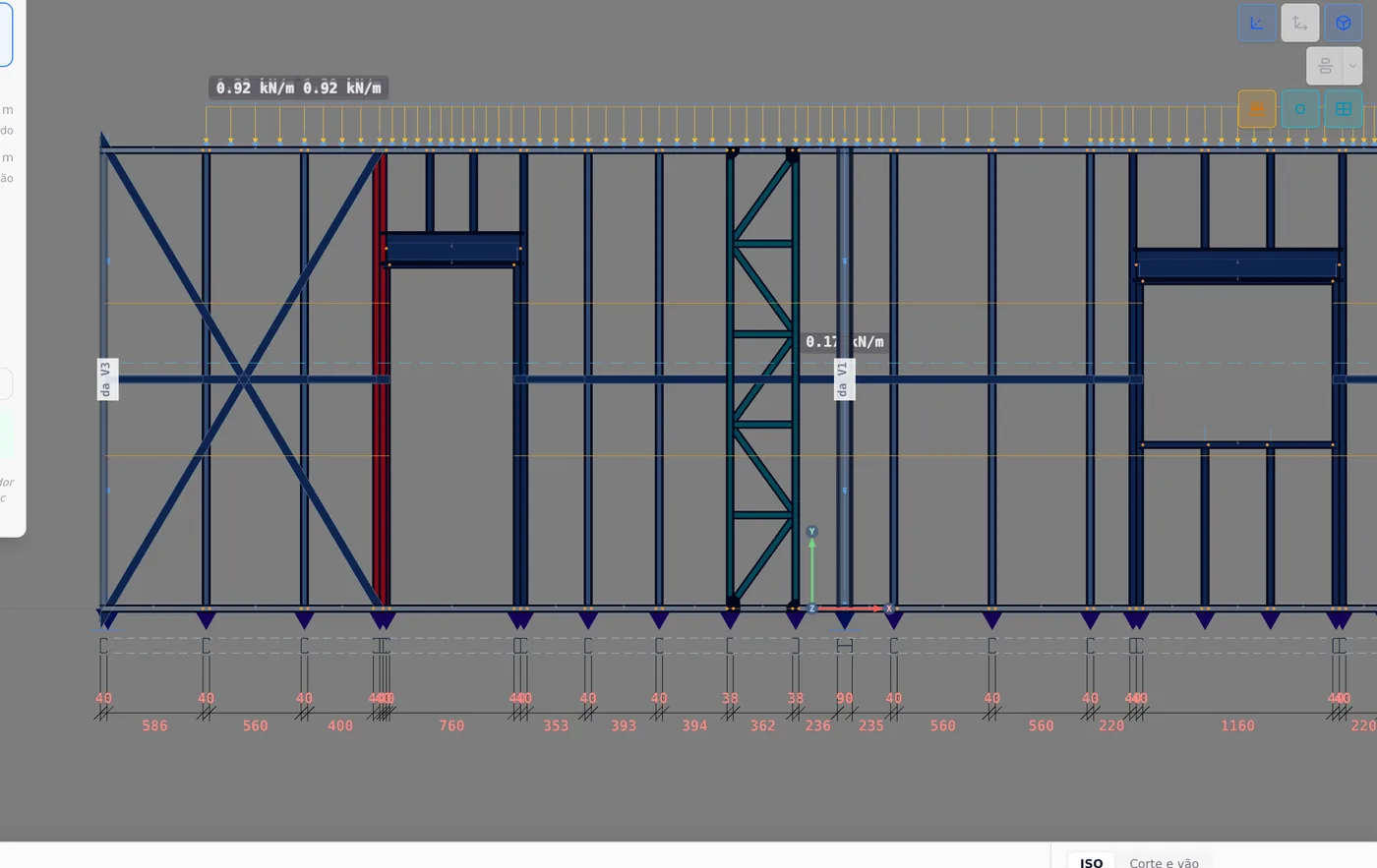
The amber ghost shows the two new lines, at 0.93 m and 1.87 m. The mid-height line the wall already had stays drawn until the click: a wall that already has bracing replaces it with the one in the box.
3. Click and check
Click the wall. The mid-height line goes away and the two new ones come in orange: the strap from end to end, interrupted at door P1, and the blocking in the bays of the rule. The strap passes through the lattice column; inside it, where the studs sit against each other, the blocking moves to the nearest valid bay.
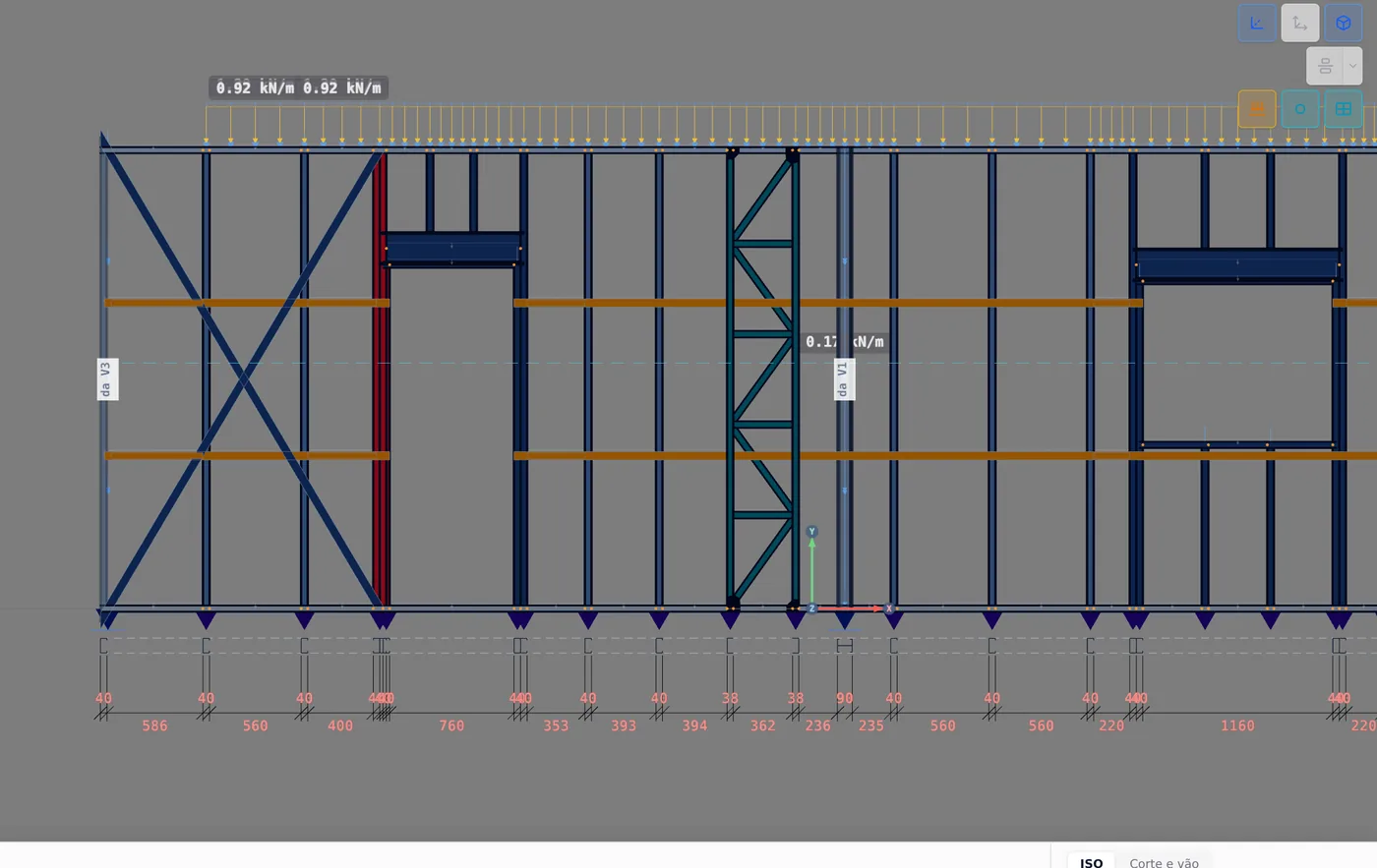
Click one of the lines to select the bracing of the wall. The footer sums up what was saved and lets you change the values without reopening the box.

4. Brace the other walls at once
With the tool armed, click Brace all walls in the project (6), in the box. The six walls of the house get the lines from the box in a single Ctrl+Z step. With a story active in the view, the button says "in the story" and braces only the walls of that story.
The request also works through the AI chat: "brace the walls with lines every 1.25 m".
5. Get to know board bracing, and leave it off
In the project wizard (see New project wizard), Structure step, the Board bracing block is marked "opt-in · outside the standard". It has two groups of options, each with exterior and interior panels:
| Group | What it does in the calculation |
|---|---|
| Reduces buckling | With exterior and interior panels both checked, the buckling length of every stud is capped at Buckling length (default 500 mm, from 100 to 2000). Only one of the two changes nothing. |
| Restrains distortion | It is saved with the project. It does not change the buckling length of the stud. |
Why to leave it off.
NBR 16970-2 only recognizes blocking and strap as restraint. Turning the board on reduces the buckling length of the stud without the standard to back it, and the report starts showing "board" as the reason for the length. Use it only with testing or the board manufacturer's recommendation, and document it in the design report.
Shortcuts
- BL↵
Strap and blocking
Places bracing strap and blocking between studs.
- AV↵
Wall view
Opens the elevation of the selected wall, seen from outside. Again, goes back.
with one wall selected
- PL↵
Plan view
Goes to plan view. With the wall view open, closes it and keeps the wall selected.
- Home
3D view
Goes to 3D at the last camera pose. With the wall view open, closes it.
- 2
Structure tab
Goes straight to the Structure tab of the wizard.
in the project wizard
Parameters
The bracing box and footer
The box (applies to the next click)
| Field | What it is | Default (BR) |
|---|---|---|
| Maximum between lines | The largest distance between two lines, counting the tracks. The app divides the height into equal parts: n = H ÷ maximum, rounded up, and each division is a line. | 1.25 m |
| Blocking every | Along each continuous run of strap: one blocking in the first and in the last bay, and another at this distance from the start of the run. | 3.60 m |
| Count line | "with 2.80 m: 2 lines at 0.93, 1.87 m from the base". Read only. | |
| Strap on both faces of the wall | Cleared, the box warns that the stud twists. | yes |
| Section | Strap and blocking, from the project roles. They change in "Change in project settings". | RET 50x0.95 strap. U 92x38x0.95 blocking in a stick-built project, C 89x41, 0.95 mm in a roll-formed one |
| Brace all walls | Applies the box to every wall of the story or of the project. The number in parentheses is the count. |
The footer (applies to the selected bracing)
| Field | What it is |
|---|---|
| Lines, blocking and strap | The summary of what was saved: heights, number of blocking pieces and meters of strap. |
| Between lines, Blocking every, Strap on both faces | The same fields as the box, applied to this wall. |
| Delete | Removes the bracing from the wall. The default line does not come back by itself. |
One bracing per wall. The lines apply to the whole wall. There is no line on just one stretch.
Shortcuts
- BL↵
Strap and blocking
Places bracing strap and blocking between studs.
- CFG↵
Project settings
Opens the project wizard: envelope, structure, loads and wind.
Common mistakes
The refusals, and what to do
- "Esta parede é baixa o bastante para não pedir linha de travamento" (this wall is low enough not to need a bracing line). The wall does not exceed the maximum between lines, and the message gives the wall height and the distance between the tracks: they are enough. Nothing to do.
- "A cinta trava montante, e esta parede ainda não tem nenhum" (the strap braces studs, and this wall has none yet). The wall has no studs, for example because its structure was not generated. Fix: generate the wall structure and click again.
- "O mercado desta obra ainda não tem regra de travamento com fonte" (this project's market has no sourced bracing rule yet). The project is in a market that does not define the line rule. Fix: check the project market (see Market and catalog); in the Brazil market the rule exists and the tool braces.
- Old project with a single line. The wall is created with the mid-height line, at 1.40 m on a 2.80 m wall. It is valid, but it is above the 1.25 m of the rule. Nothing changes it without the click: use "Brace all".
- Deleted it and waited for the line to come back. The default line is placed once, when the wall appears. Removed by hand, it does not come back: the stud then buckles over its full height.
- Strap on one face only. The box accepts it, but warns: "on one face only, the strap pulls the stud to one side and it twists".
What the engine does with it
Stud length, and the line as a piece
On the stud. Strap and blocking do not enter the bar model. The app reads the heights of the lines and saves the buckling length of each stud they cross: the full height about the strong axis, and the longest stretch between lines (or between a line and the track) about the weak axis, for lateral-torsional buckling and for torsion.
| 2.80 m wall | Lx (strong axis) | Ly, Lb, Lt |
|---|---|---|
| No bracing | 2.80 m | 2.80 m |
| Default line, mid-height | 2.80 m | 1.40 m |
| BR rule, two lines | 2.80 m | 0.93 m |
On the line. Each strap and each blocking piece goes back to the engine as a member, checked by NBR 16970-2, 7.2:
| Check | How |
|---|---|
| Strength | Fbr = 0.004 · ΣNSd: the line adds up the compression of the studs it braces, per combination, up to the anchor. The combination with the largest sum governs. |
| Stiffness | Sbr = Σ 2 · 1.35 · NSd / Lbc, against E·A/s. On the strap, s is the stretch between two studs; on the blocking, its own length. |
| Strap | Tension only, NBR 14762, with N = Fbr. |
| Blocking | Compression with N = Fbr and its own length about all three axes. |
Warnings. Line without anchorage: the accumulated force reaches the end of the line with nowhere to go, and the detail says so. Bracing not checked: a piece without a section, or without model studs to add up, is left out, with the list.
The line is checked, the connection is not
The engine checks the strength and stiffness of the strap and the blocking. The pieces that fasten them and the anchor of the line stay with the design.
| Stays with the design | What to do |
|---|---|
| Strap screws at each stud | Design the connection for the Fbr accumulated on that stretch, which is larger near the anchor. |
| Blocking to stud connection | Clip or bent tab: design it separately. |
| Line anchor | The engine checks whether the line reaches a strap or a truss. The connection of the line to it, and the path from there to the foundation, are up to you. |
Reading the result: if the stud fails about the weak axis, shorten the distance between lines. If the strap fails in stiffness, the line is long with no anchor: add an X strap on the wall, or blocking at a shorter spacing. If the blocking fails, the section is thin for its length: change the Blocking role in the settings.
Shortcuts
- Ctrl+Enter
Calculate the project
Sends the project to the engine, like the Calculate button.
Summary
The path, in one line
LSF card → Strap and blocking → Blocking type → check the line count → click the wall (amber ghost) or Brace all → bracing footer → calculate and read the Ly of the studs and the strap and blocking checks.
The example so far
- 2: lines per wall, at 0.93 and 1.87 m
- 0.93 m: buckling length about the weak axis of the stud
- 11: blocking pieces on the front wall
- 30.80 m: of strap on the front wall