LSF (Light Steel Framing)
Roof trusses
The walls of the house are standing, braced and blocked. The truss is the piece that spans from wall to wall and gives the roof its shape. This page shows the single truss on the LSF card: the click on the wall, the distance from the end and the span, the sheet with the types, and what the engine checks on a truss placed by hand.
Overview
A truss from wall to wall
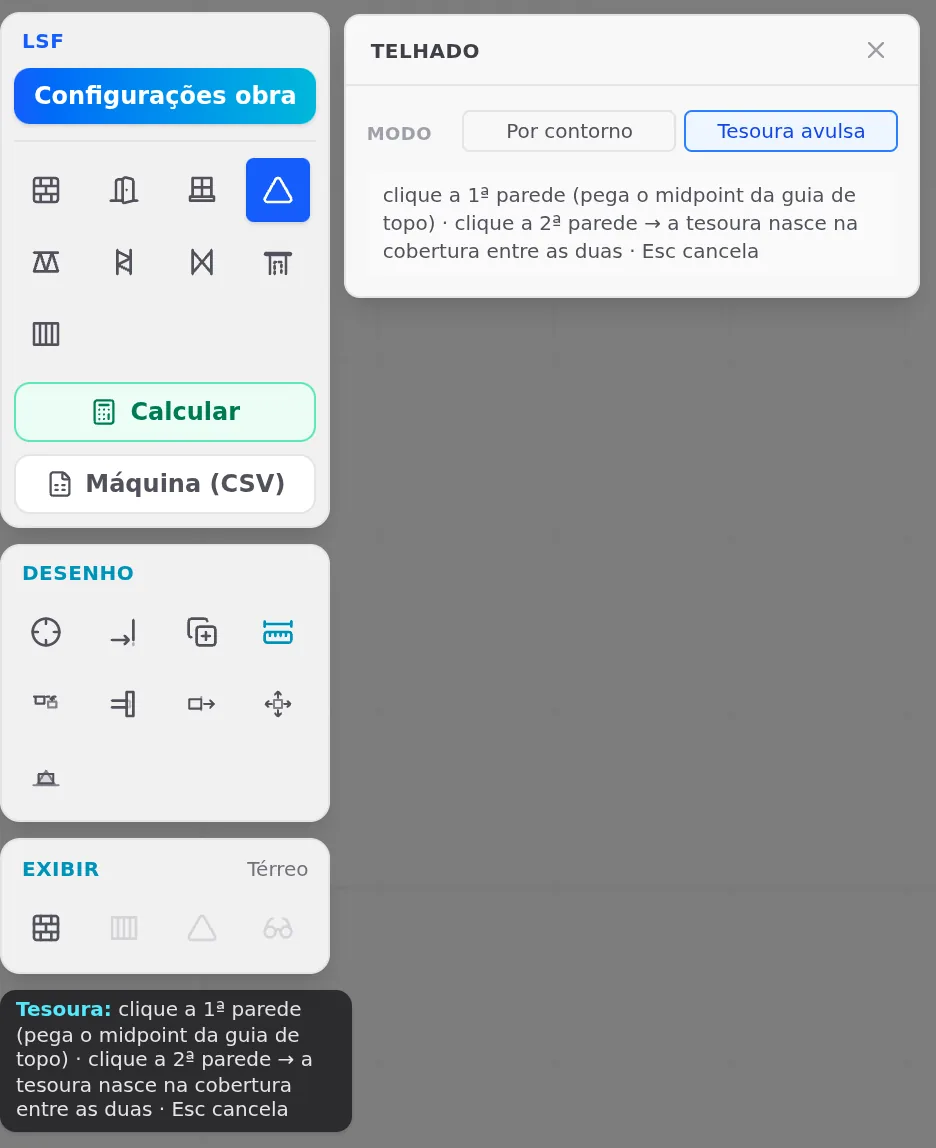
The truss is the roof piece that spans between two walls. On the LSF card it has no button of its own: it lives in the Roof box, in Single roof truss mode. One click on the wall, the distance to its end, the span to the opposite wall, and the sheet opens with the type, the pitch and the panels. Generate truss writes the bars on top of the walls.
The single truss is a one-piece truss: to study a span, compare types, cover an annex. The roof of the whole house, with eave, battens and tiles, comes from By outline mode, shown on the Roof page. What the calculation does with the single truss is in What the engine does with it.
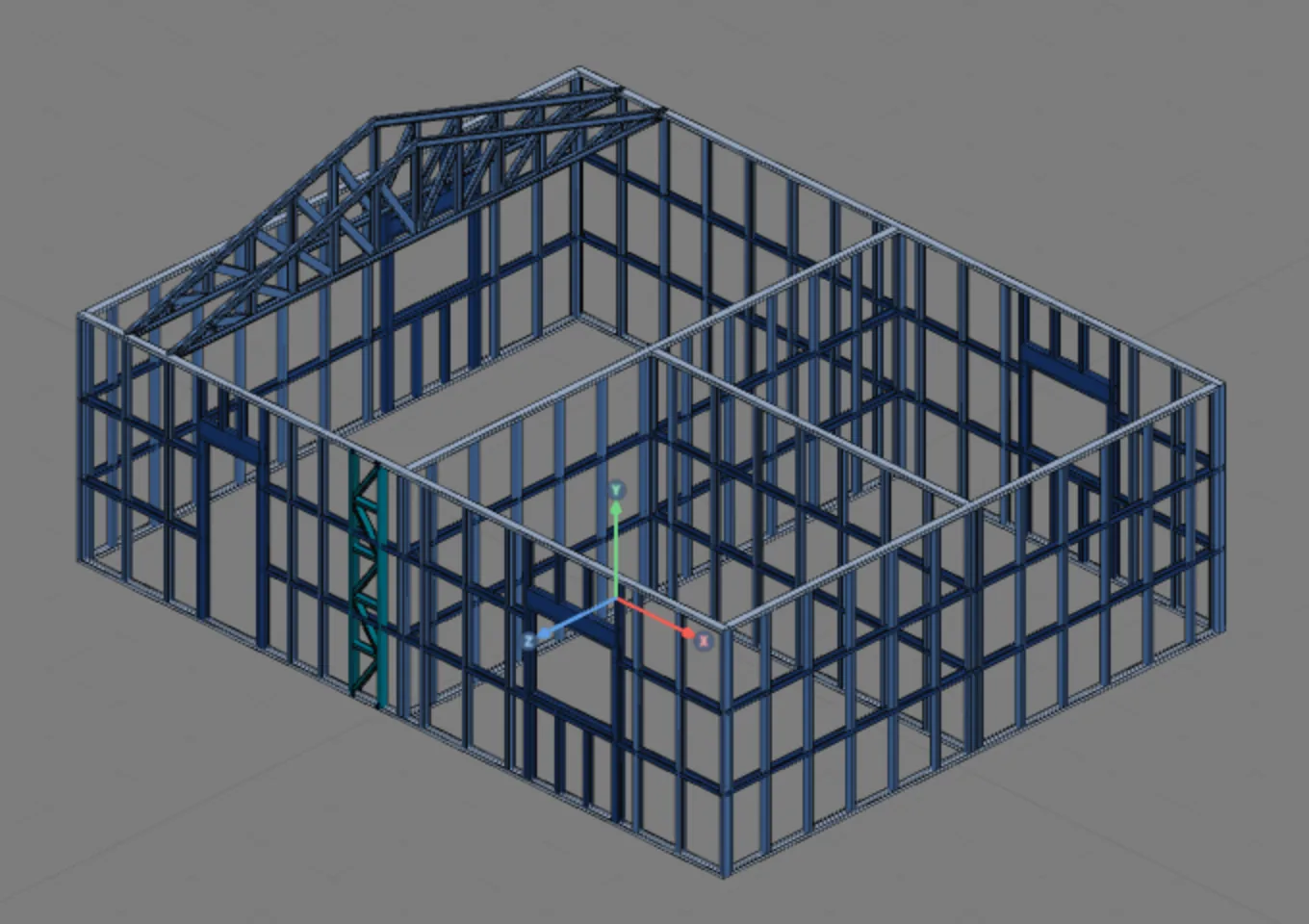
In the example house: T1 on the stud 0.60 m from the left front corner, with a 7.00 m span to the back, trapezoidal at 30%; T2, copied 0.60 m further along, on the next stud.
Stick-built or roll-formed. The screens on this page show a stick-built project, where the chord and the vertical of the truss are Ue 90x40x12x0.95 and the diagonal is Ue 90x40x12x0.8 (on the sheet, with the catalog name: C_90x40x12x0.95 and C_90x40x12x0.8). In a roll-formed project, the default for a new project, chord, vertical and diagonal come from the C 89x41: 0.95 mm on the chord and the vertical, 0.75 mm on the diagonal. The tool, the sheet, the types and what the engine checks are the same in both cases.
What it is for
Chord, vertical and diagonal
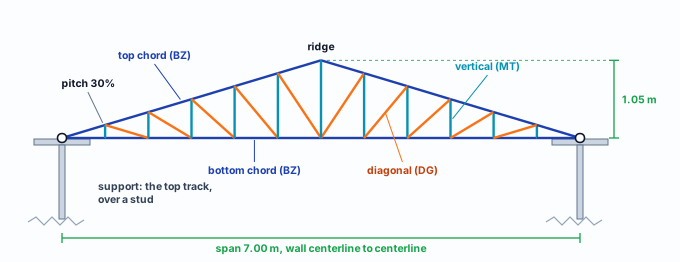
The truss is a flat, upright lattice. The top chord takes the roof and slopes down in two pitches to the ends; the bottom chord is straight, from support to support, and the ceiling hangs from it. Between the two, verticals and diagonals close triangles, and the load travels through the bars as axial force to the two supports, on top of the walls. T1 of this house, as the sheet generates it:
| Piece | Label | What it does | Section (Brazil market) |
|---|---|---|---|
| Top chord | BZ | Takes the roof, from the support to the ridge, in one-panel segments. | Chord role: C_90x40x12x0.95 in a stick-built project; C 89x41, 0.95 mm in a roll-formed one |
| Bottom chord | BZ | Straight, from support to support, at the height of the top of the walls. Closes the truss and holds the ceiling. | The same as the chord |
| Vertical | MT | Vertical, joins the two chords at each panel node; the middle one rises to the ridge. | The wall stud section: C_90x40x12x0.95 in a stick-built project; C 89x41, 0.95 mm in a roll-formed one |
| Diagonal | DG | Closes each panel into two triangles. | Web member role: C_90x40x12x0.8 in a stick-built project; C 89x41, 0.75 mm in a roll-formed one |
| Beam | VG | Only in the Portal type: two sloped beams, with no vertical or diagonal. | The chord one |
The sections appear on the sheet with the catalog name (C_90x40x12x0.95 is the Ue 90x40x12x0.95 of the other boxes). They come from the project roles, and the sheet only shows them.
Five types, and one truss at a time
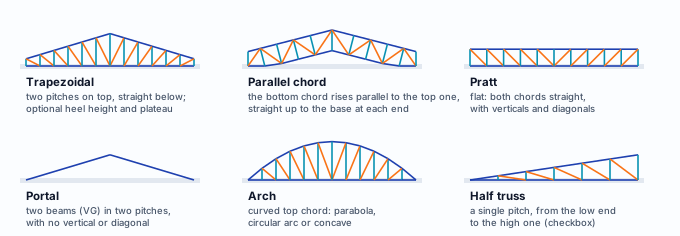
The sheet generates five types, and the Half truss box turns any of them, except the Portal, into a single pitch, from end to end of the span. All of them are created in the vertical plane that runs from one wall to the other, with the bottom chord on top of the walls:
Single truss or By outline
Both come from the same Roof box, and both draw trusses. The difference lies in who decides where each one goes and in what the engine knows about them:
| Single roof truss (this page) | By outline (Roof) | |
|---|---|---|
| Who places it | You, one truss at a time: wall, distance from the end, span. | The roof, all at once, from the outer ring of walls. |
| Eave | None: the truss runs from wall centerline to wall centerline. | Yes. |
| Tiles, ceiling, wind | They arrive through the truss strip: tiles and live load on the top chord, insulation and ceiling on the bottom one, and the wind on the same strip, out to the eave. | They arrive at its trusses. |
| Battens | The ones you draw. Without them, the top chord buckles out of plane over its whole length. | The roof ones, which brace the top chord. |
| Spacing | Yours: by the distance from the end, or by Copy. | The roof one. |
When to use the single truss. To look at one truss up close, compare types on a real span of the project, or place the piece for a span the roof outline does not reach. To cover the house, use By outline, and delete first the single trusses on the same pitch: both in the same place are two trusses in the model.
What the standard says
Truss on a stud, and L/250 deflection
| Where | What it says | What it changes in the app truss |
|---|---|---|
| NBR 16970-2, 4.1 | Studs are aligned with the floor joists and with the roof structure (in-line framing). | The truss lands on a stud when the distance from the end is the stud one. Check it in 3D. |
| NBR 16970-2, 4.2 | Members of the same line with no misalignment; up to 20 mm between web axes is tolerated. | In the model, nodes less than 1 cm apart merge: beyond that, the truss lands on the track. |
| NBR 16970-2, 4.3 and 4.4 | The roof structure and its elements. | Truss: chords, verticals and diagonals. |
| NBR 16970-2, 4.8 c and g | The design shows the top view of the roof with the trusses identified, and the typical truss joints. | Each truss has its number (T1, T2) and the bars have their own label. |
| NBR 16970-2, 4.9 | Analysis and design by NBR 14762 and NBR 8800. | Cold-formed section: NBR 14762. |
| NBR 16970-2, 8.2 | Table 3: roof beams, L/250; the note asks to avoid ponding on low-slope roofs. | The engine checks each chord segment, node to node, at L/250 of the segment, on the single truss and in By outline. |
| NBR 14762, 9.6 to 9.8 | Tension, compression (global and distortional buckling, slenderness limit) and bending of cold-formed sections. | The checks on each truss bar. |
| NBR 6120 and NBR 6123 | Dead and live loads, and wind. | The roof loads in the project wizard; the wind on the roof. |
NBR 16970-2 · 4.2.
The tolerated eccentricity is a construction tolerance, not a design one: the drawing puts the truss web on the axis of the stud web, and the 20 mm are the site allowance. With an external web stiffener, the gap between the beam web and the stud drops to 3 mm.
What the standard does not say
These come from the product, not from ABNT: the chord, vertical and diagonal sections, the 600 mm spacing and the roof loads of the Brazil market (tiles 15, insulation 5, ceiling 15 and utilities 0 kgf/m², live load 25 kgf/m²), all from the CalcSteel market conditions table, which reproduces mCalcLSF; the 10% pitch the sheet opens with; and the panels per half proposed from the span, one every 1.20 m, between 3 and 12.
Design recommendations
On the stud, across the shorter span
- 0.60 m: between trusses: the wall stud spacing
- 1.05 m: of height at 30% on the 7.00 m span: half the span times the pitch
- 28 mm: L/250 of the whole 7.00 m truss, a hand reference: the engine checks the chord segment by segment
- 20 mm: between the truss web and the stud web, at most
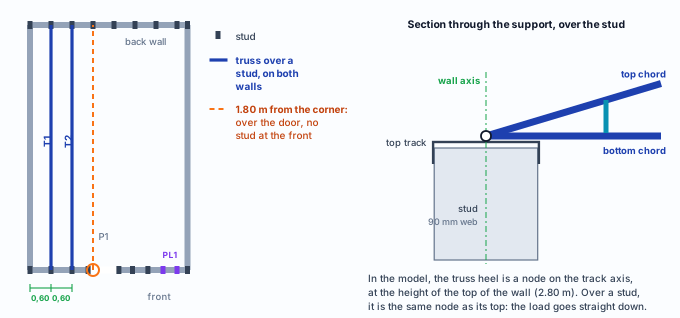
Put the truss on a stud, on both walls. The distance the tool asks for is measured from the nearest end of the wall, centerline to centerline. Read the studs first: on the front of this house they are 0.60 m and 1.20 m from the left corner, and the back follows the same 0.60 m grid. At 1.80 m the front has door P1, and a truss there would land on the track, with no stud below.
Span the shorter direction. In the house, the 7.00 m side is the shorter one that runs from outside to outside; the interior wall of the right room cuts the span to 3.50 m. A shorter span is a lower, lighter truss.
Choose the pitch by the tile. The standard gives no number; the tile does. The Roof box shows the minimum pitch of each market tile (ceramic asks for 30%; see Roof). The sheet opens at 10%; the house uses 30%.
Step by step
Two trusses over the house
The house is the one from Bracing: a 9 x 7 m perimeter, two interior walls, door P1, the windows, the headers, column PL1, strap F1 and the blocking. If you followed Floors, first undo the three floors with Ctrl+Z: the house is single-story, and the truss sits on top of the walls.
1. Open the Roof box in plan view
In Plan, click Roof on the LSF card. In 3D the button is greyed out, with the hint "Abra a planta: o telhado se lança sobre as paredes" (open the plan view: the roof is placed over the walls). In the box, under Mode, choose Single roof truss.
2. Hover the front track
The tool picks the wall within 0.30 m of the cursor. Over it, a cyan strip shows the truss that would be created: from the cursor point, into the house, up to the first wall that line crosses. In the left room it crosses the house to the back. The hint next to the cursor is the usual one: the piece underneath (V6 · top track), the section and the length of the piece.
3. Notice where it stops
In the right room, the same gesture gives a 3.50 m truss: the line hits the interior wall before the back. The proposed span is always up to the first wall, and step 5 lets you change it.
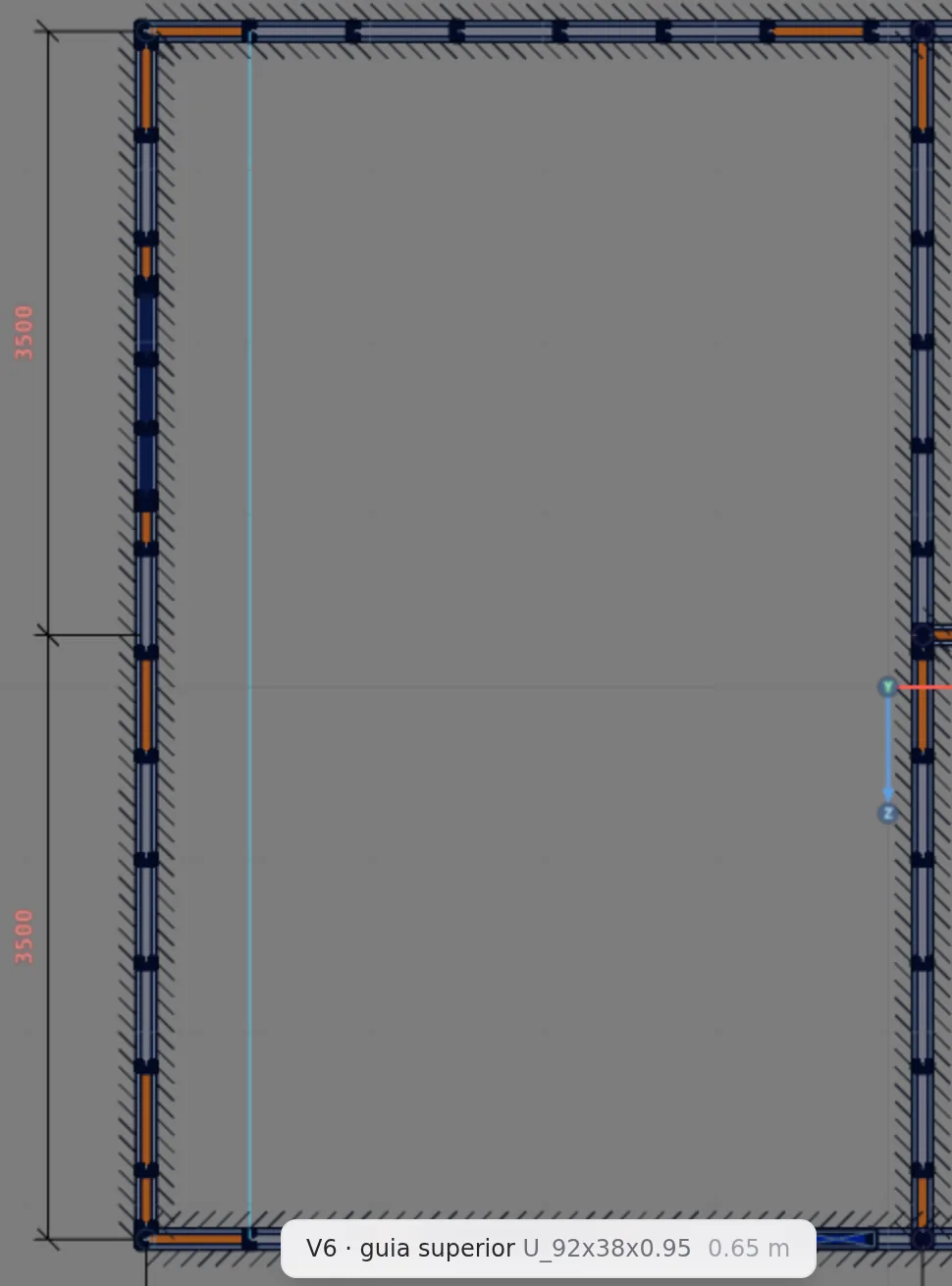
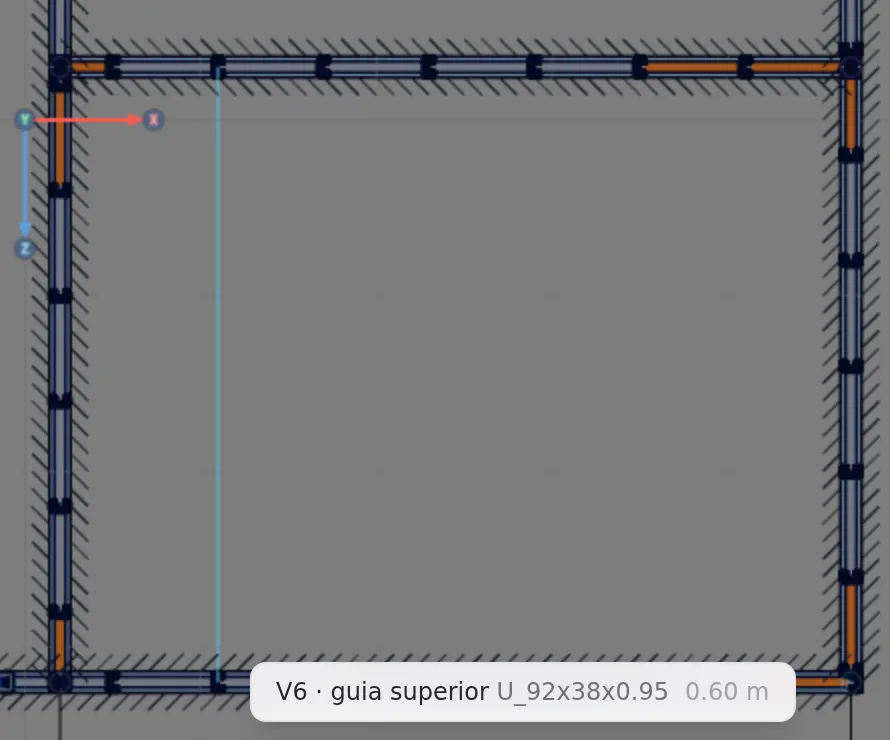
4. Click, and give the distance from the end
The click fixes the wall and its end nearest the cursor, here the left corner. Next to the cursor the offset m from the end box opens, with the click distance (0.72 m in this example). Type 0.6 and Enter: the truss moves onto stud M1001, 0.60 m from the corner. Without typing, the distance follows the cursor along the wall, and a second click sets it. It always stays between zero and the wall length.
5. Check the span and confirm
The box changes to span m, with 7.00: the distance to the back, wall centerline to wall centerline. Moving the cursor, the truss stretches or shortens, and within 0.30 m of the far wall it snaps back to it. Enter or a click confirm; Esc cancels everything and disarms the tool. Once the span is confirmed, the truss sheet opens.
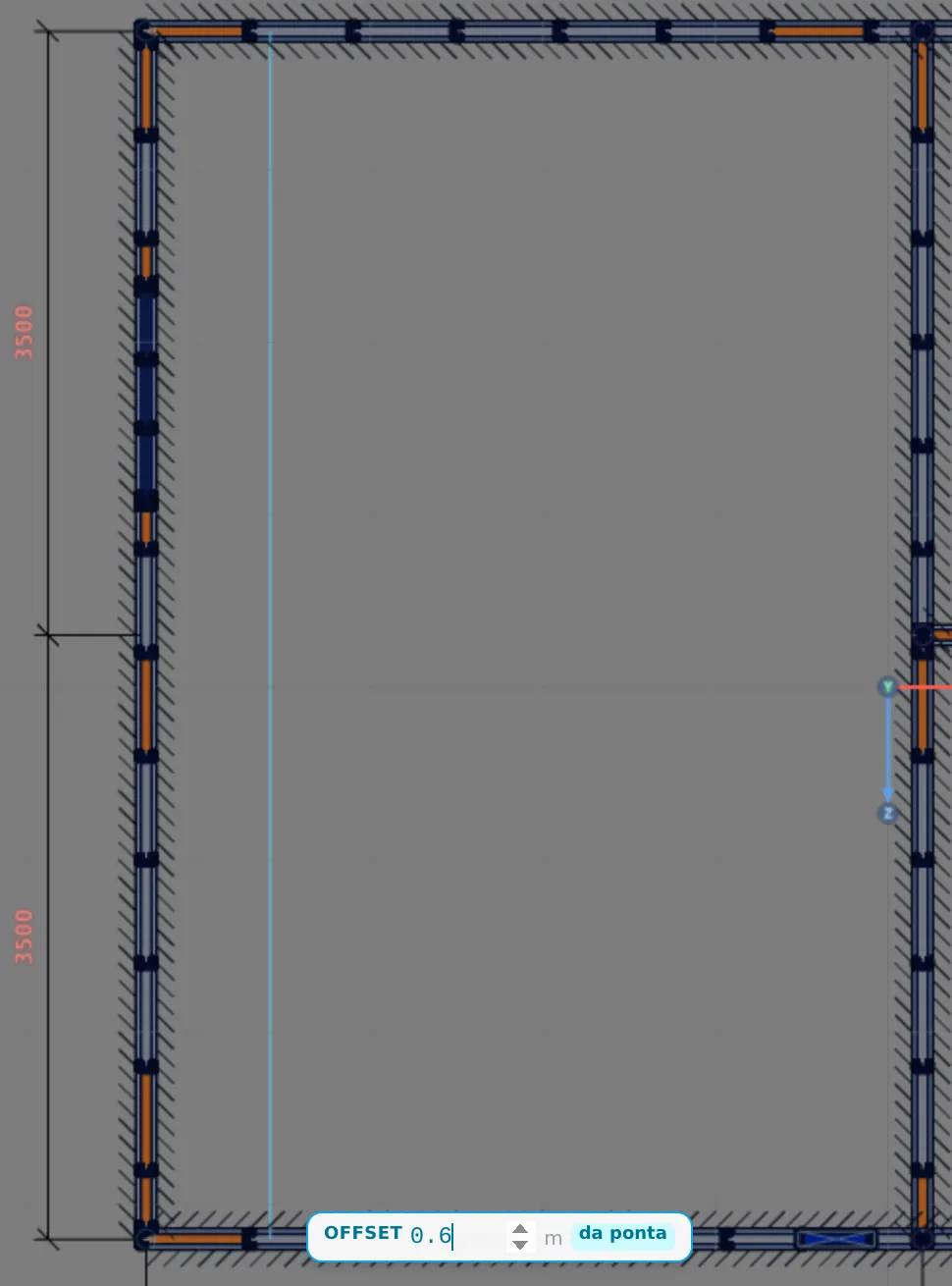
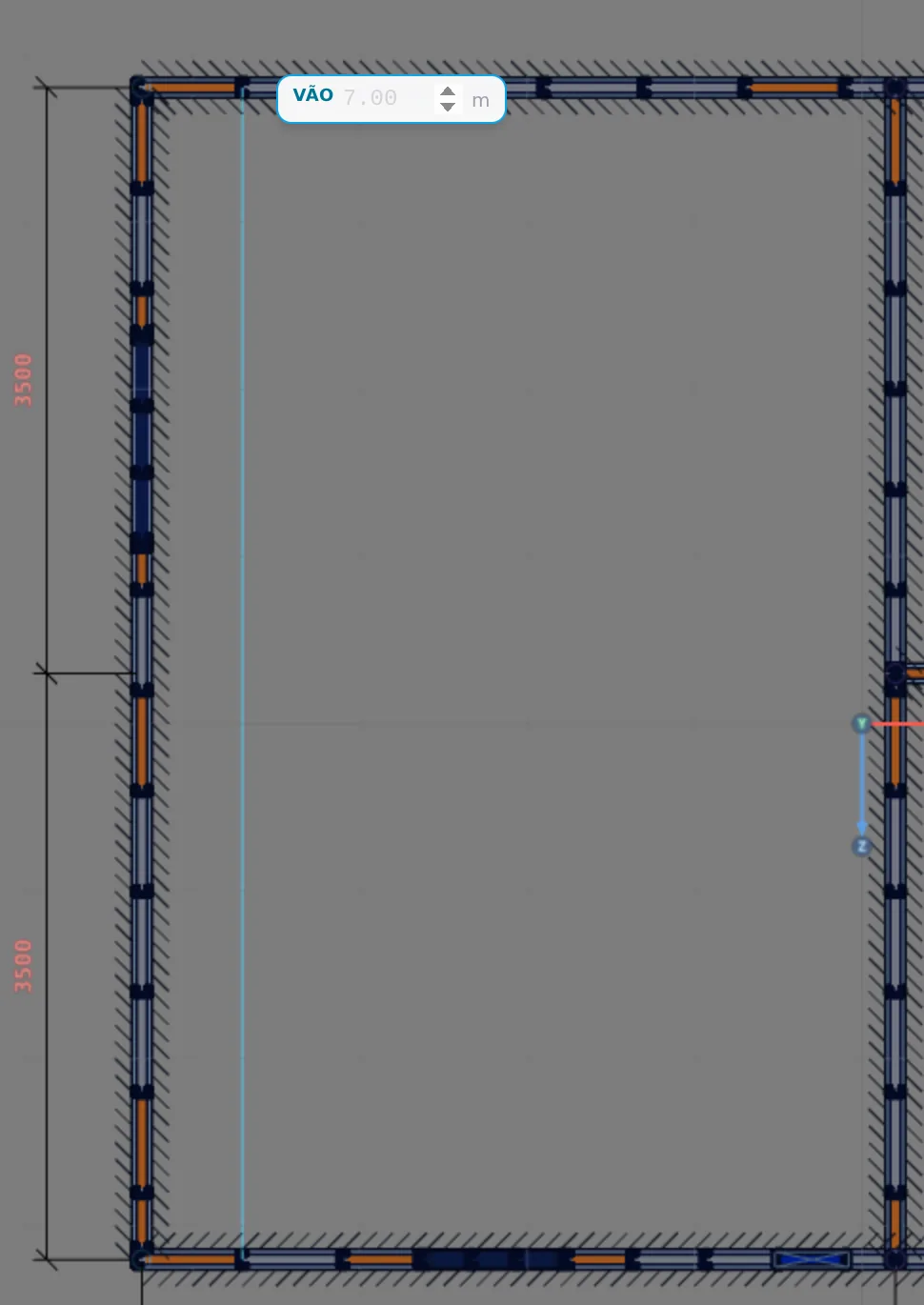
Know where the studs are first. The distance runs from the end of the wall, on its centerline, to the truss centerline. On this front the studs are 0.60 m and 1.20 m from the left corner; 1.80 m is already door P1. At the back, the grid is the same.
6. Choose the type and the pitch on the sheet
The sheet opens with the 7.00 m span in the header and a Trapezoidal truss: 6 panels per half (one every 1.20 m of span), heel height 0 and a 10% pitch, which on the 7.00 m span gives 0.35 m of height. The sections come from the project roles, read-only, and the preview below counts the bars. For the house, change only the pitch to 30: the height goes to 1.05 m.
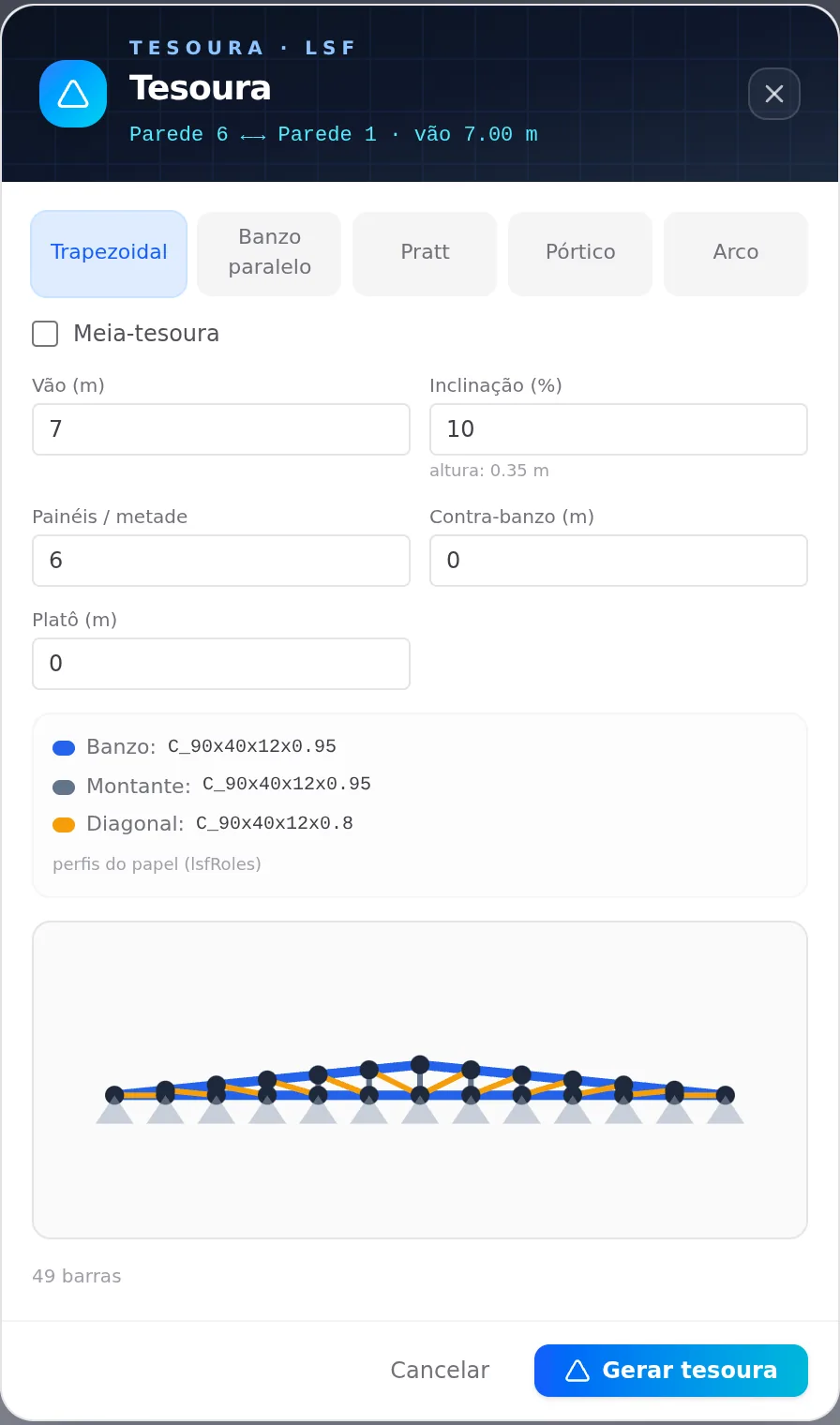
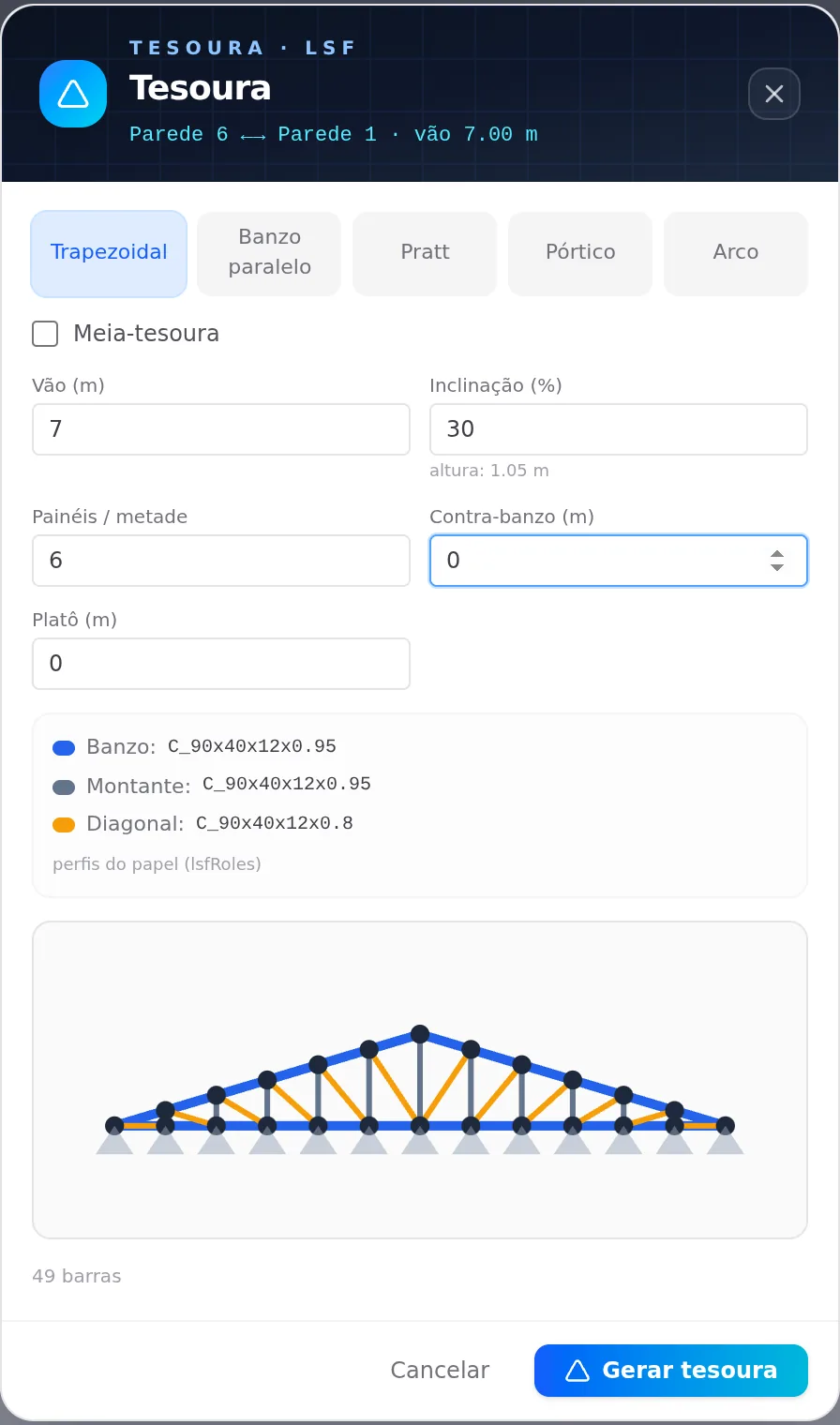
Clicking a type applies its defaults, and Trapezoidal too: the button gives 5 panels and a 0.6 m heel height, not the 6 and 0 the sheet opened with. The span stays, and the height is always the one from the pitch. To go back to the start, cancel and redo the clicks on the wall.
The span is what counts. Check the 7.00 m from front to back in the header before generating.
7. Generate
Generate truss writes Truss 1 on top of the walls, already selected, and the footer becomes its own: Copy, the trash can, and the readings of bars, Span 7.00 m and Base 2.80 m, the height of the bottom chord, which is the top of the walls. One Ctrl+Z undoes the whole truss.

8. Copy 0.60 m further along
Copy, in the footer, arms the Copy tool. Click Truss 1: the click point becomes the anchor, and a ghost of the truss starts following the cursor. Take it 0.60 m toward the door and click: Truss 2 lands on M1002 at the front and M1013 at the back, 1.20 m from the corner. Each copy is one Ctrl+Z.
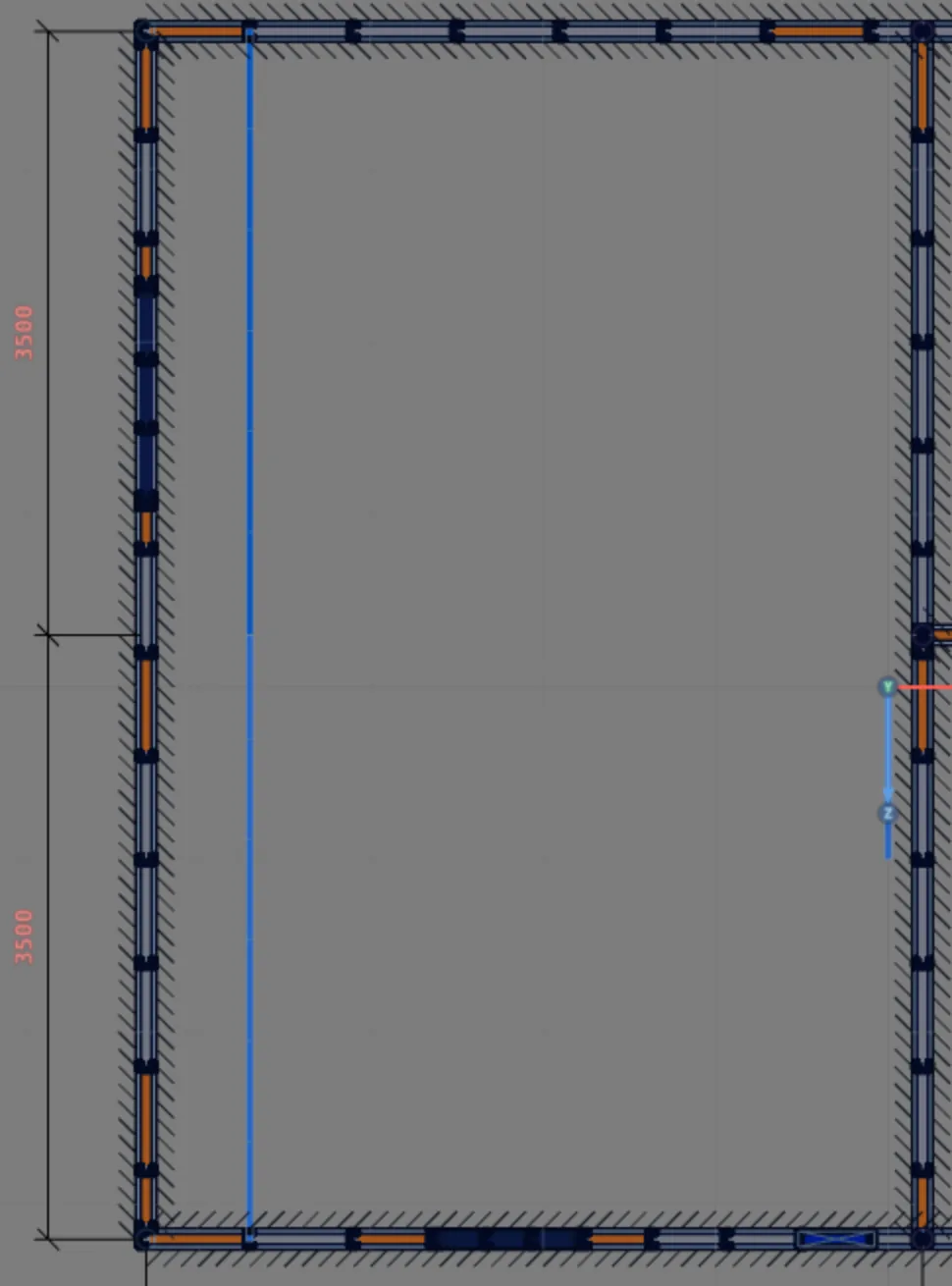
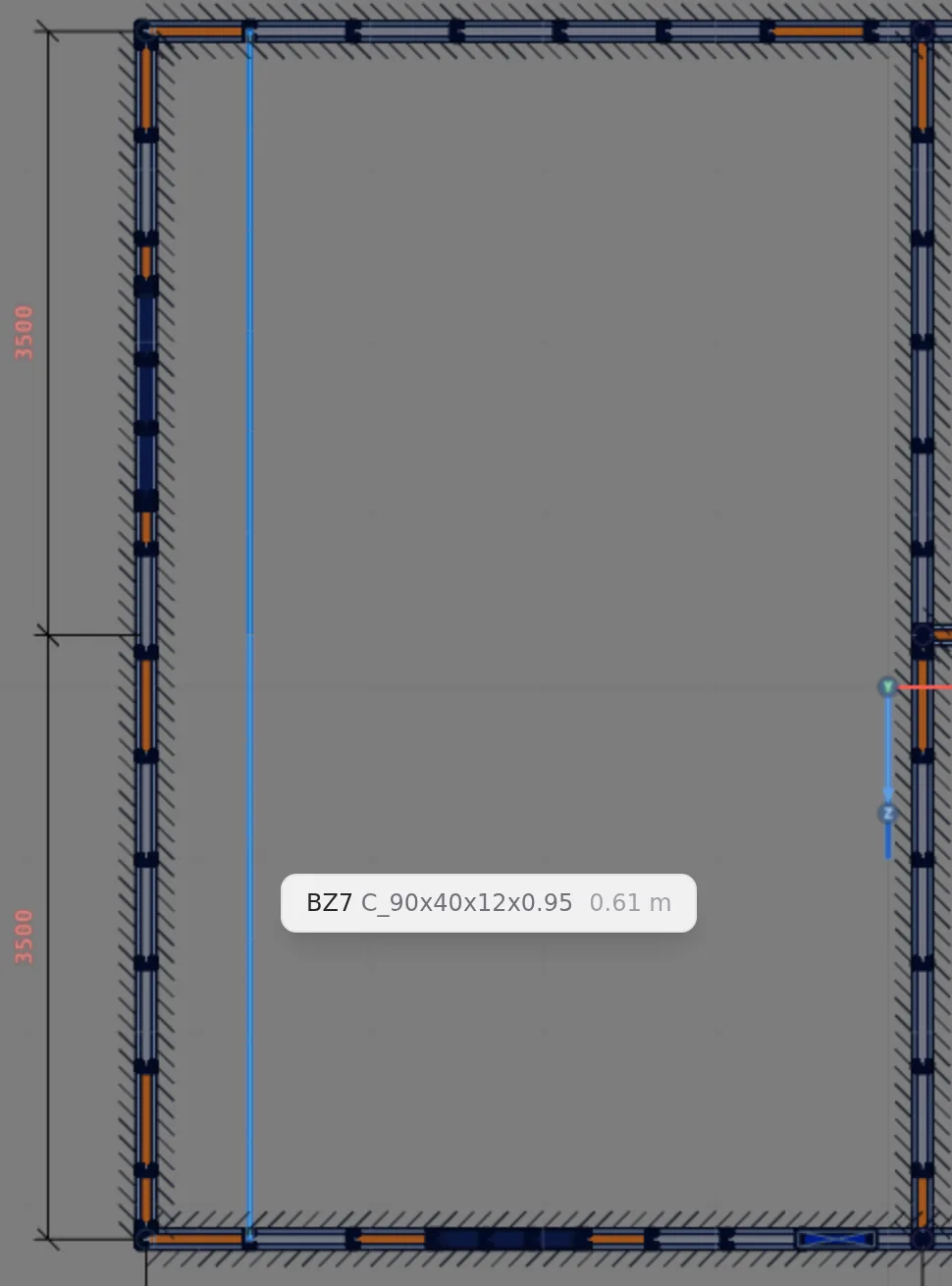
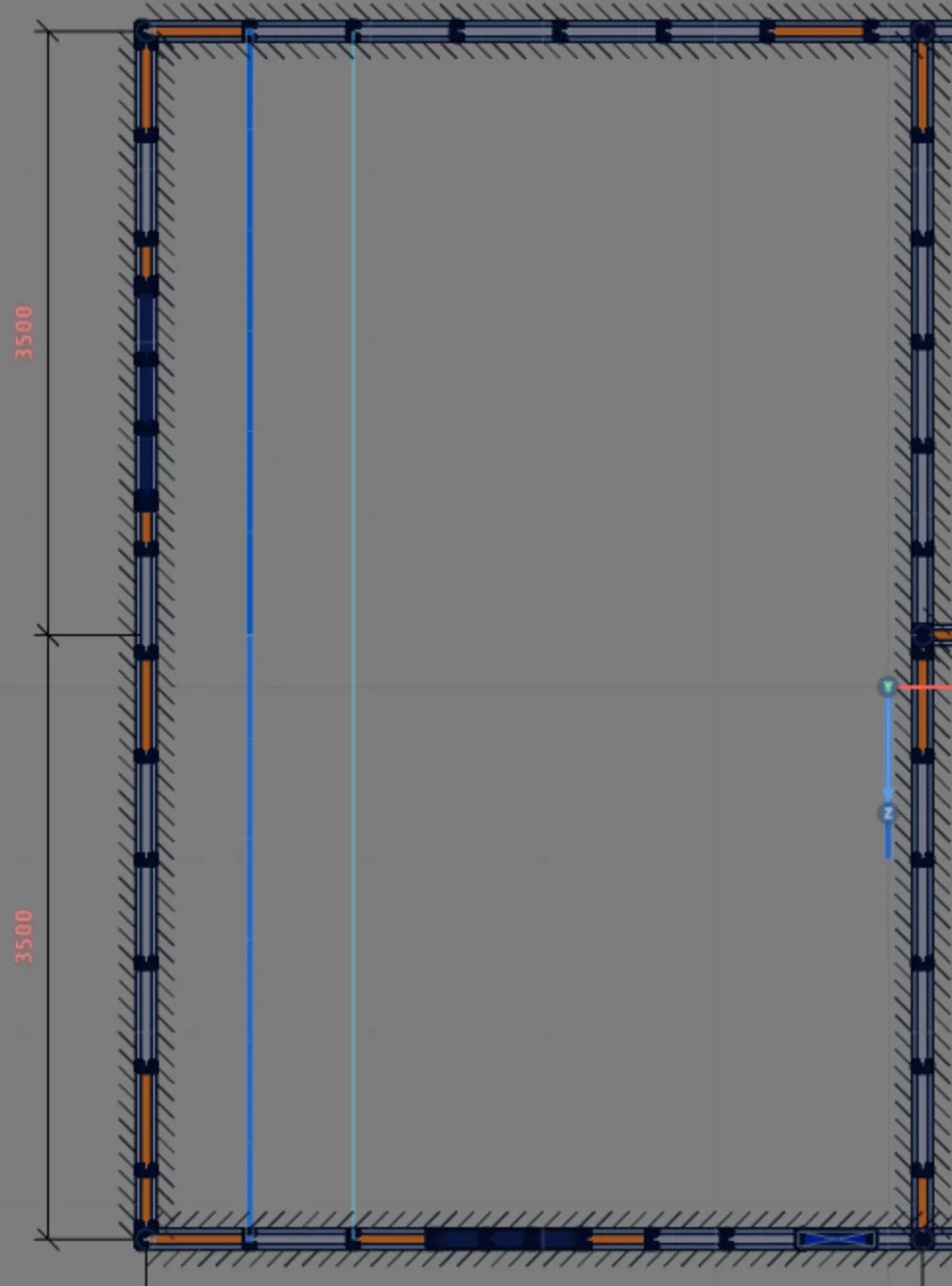
The copy lands where the cursor is. Zoom into the plan before the second click, and check in 3D that it landed on the studs. With copy multiple on, each click pastes one more; Esc ends it.
9. See both in plan and in 3D
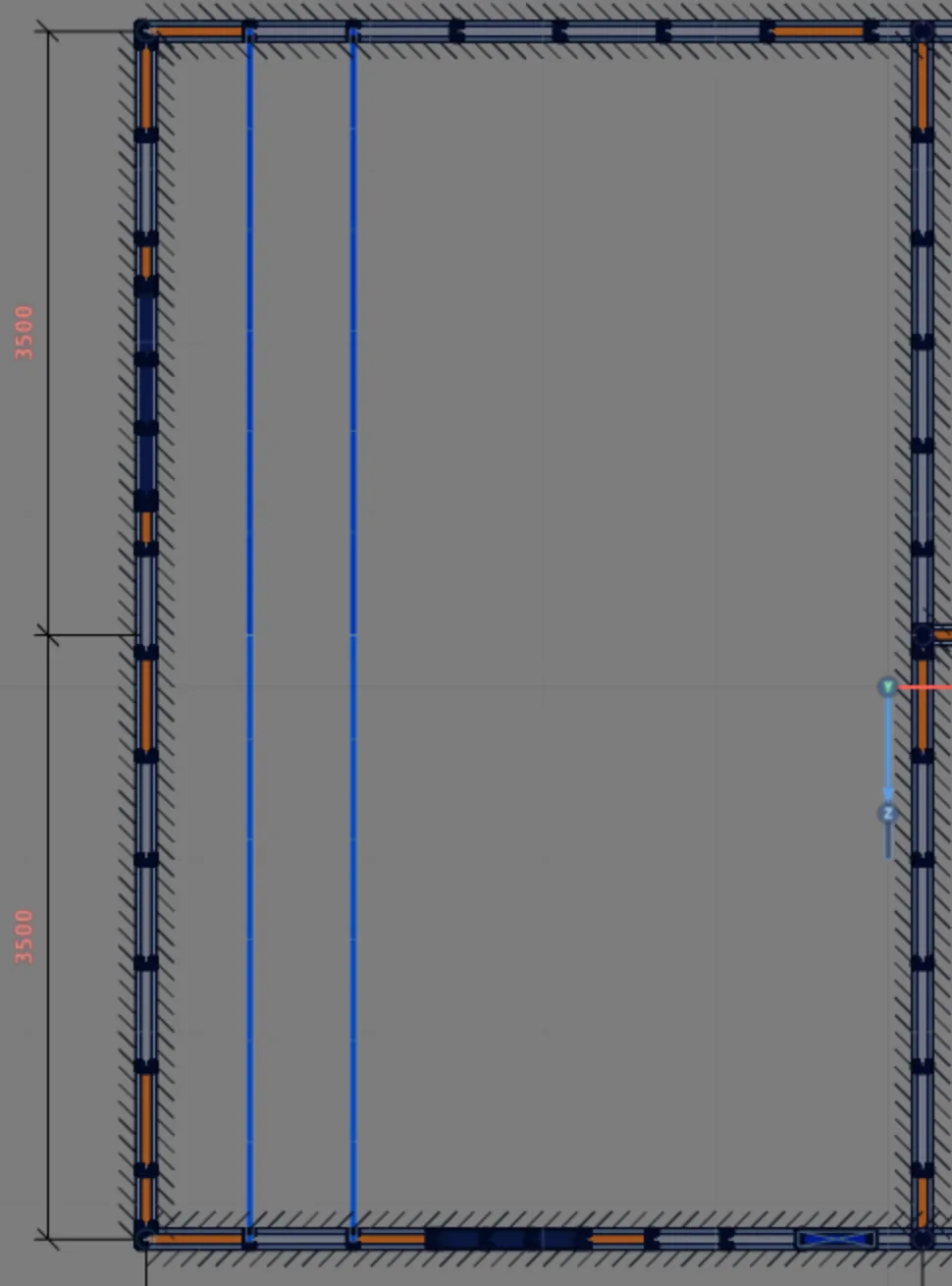
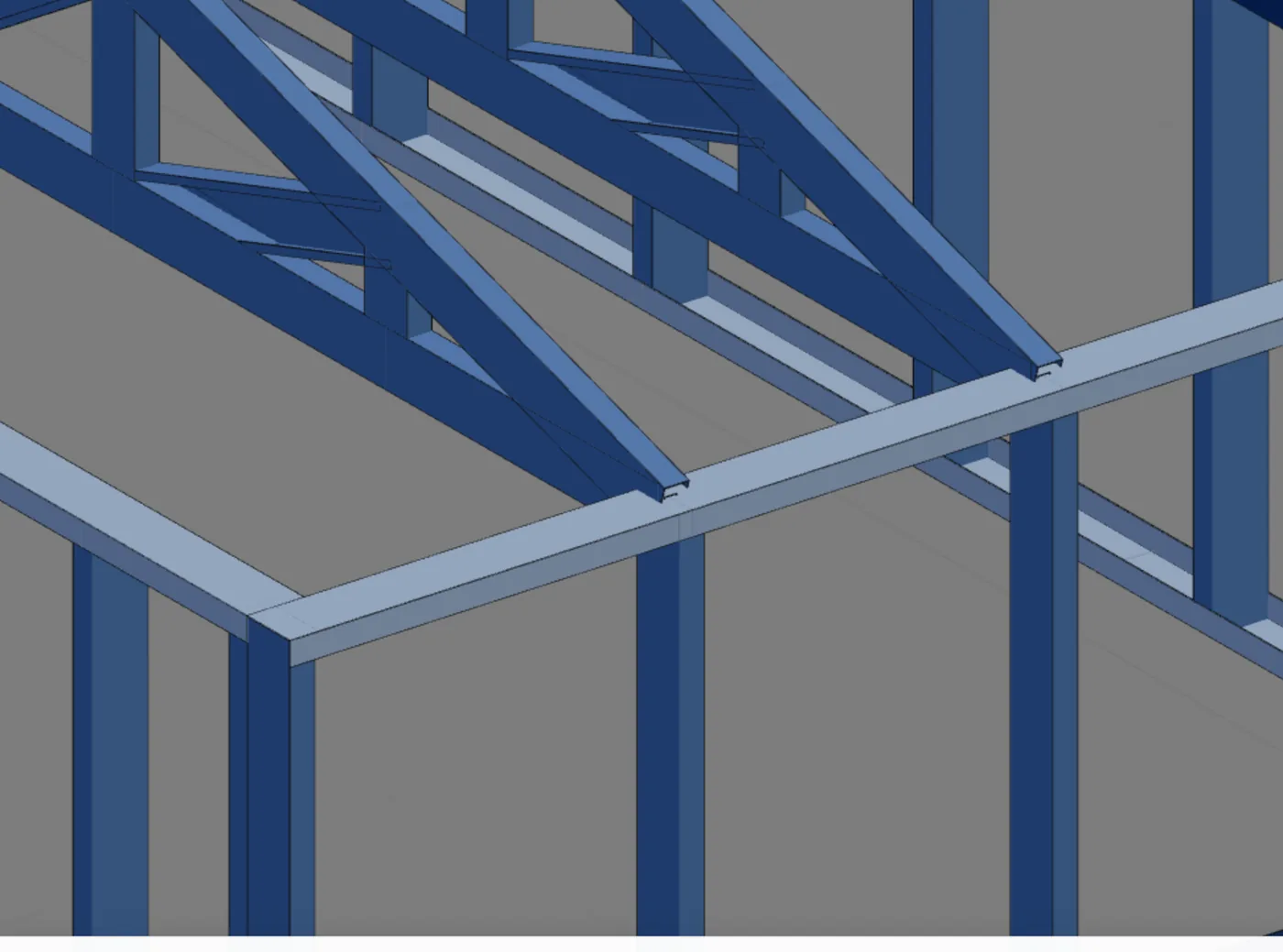
In plan, each truss is a line over the studs, from front to back. In 3D, it is an upright lattice, with the bottom chord on top of the walls and the ridge 1.05 m above. Up close, the truss heel is the track node, on top of the stud: the load goes straight down.
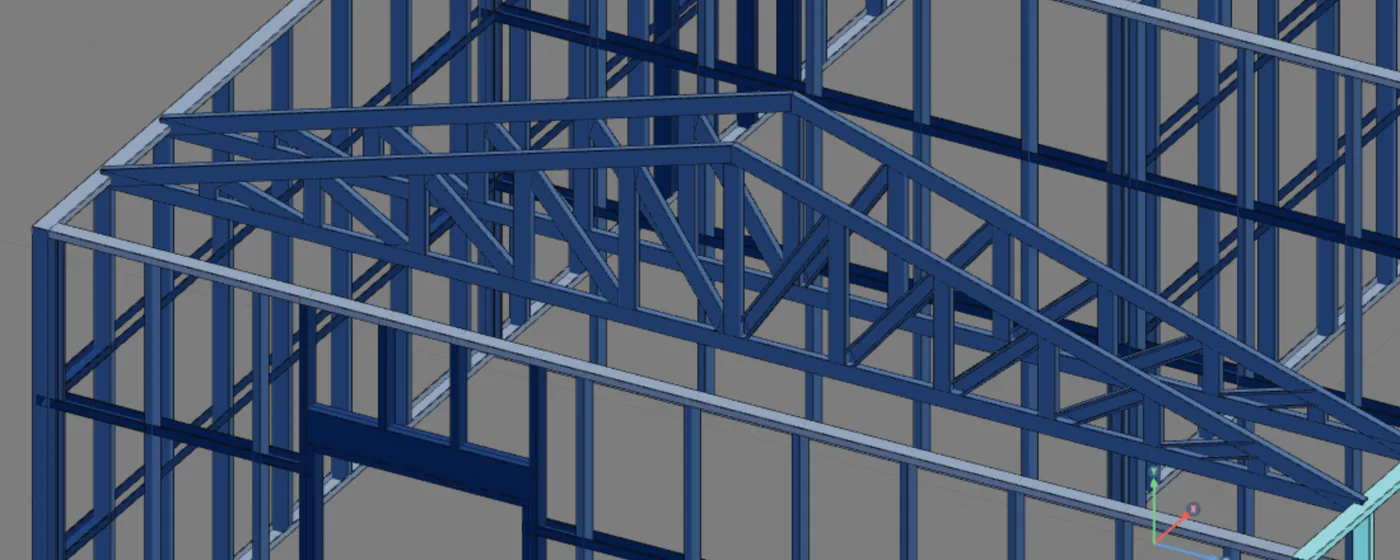
10. Read a bar with Tab
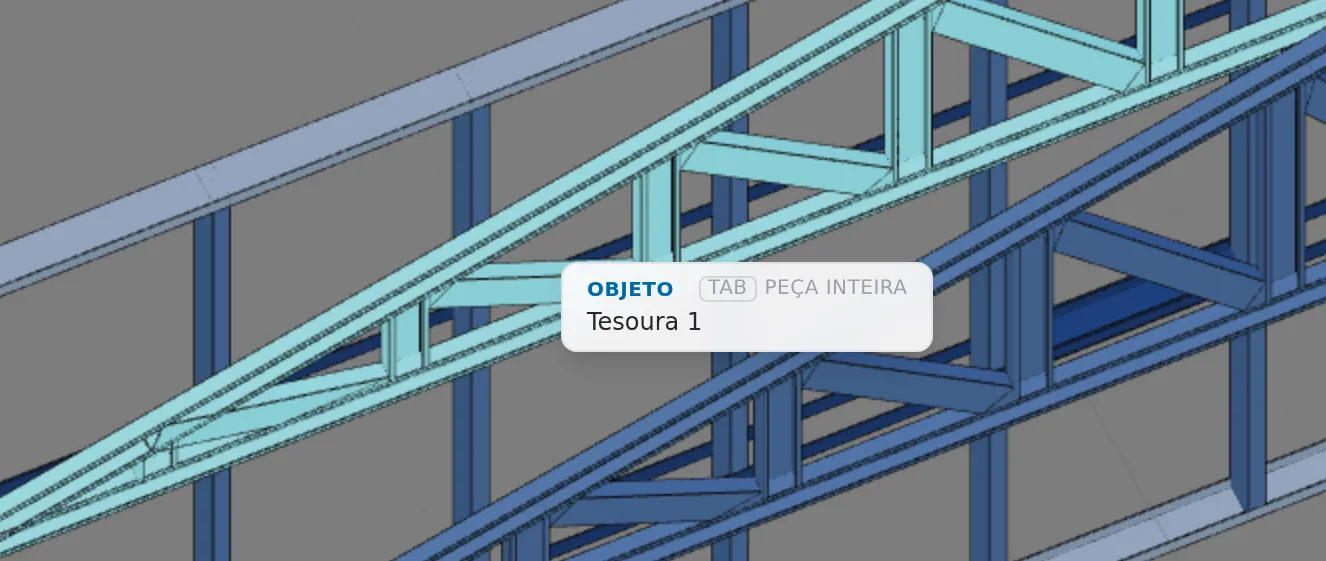
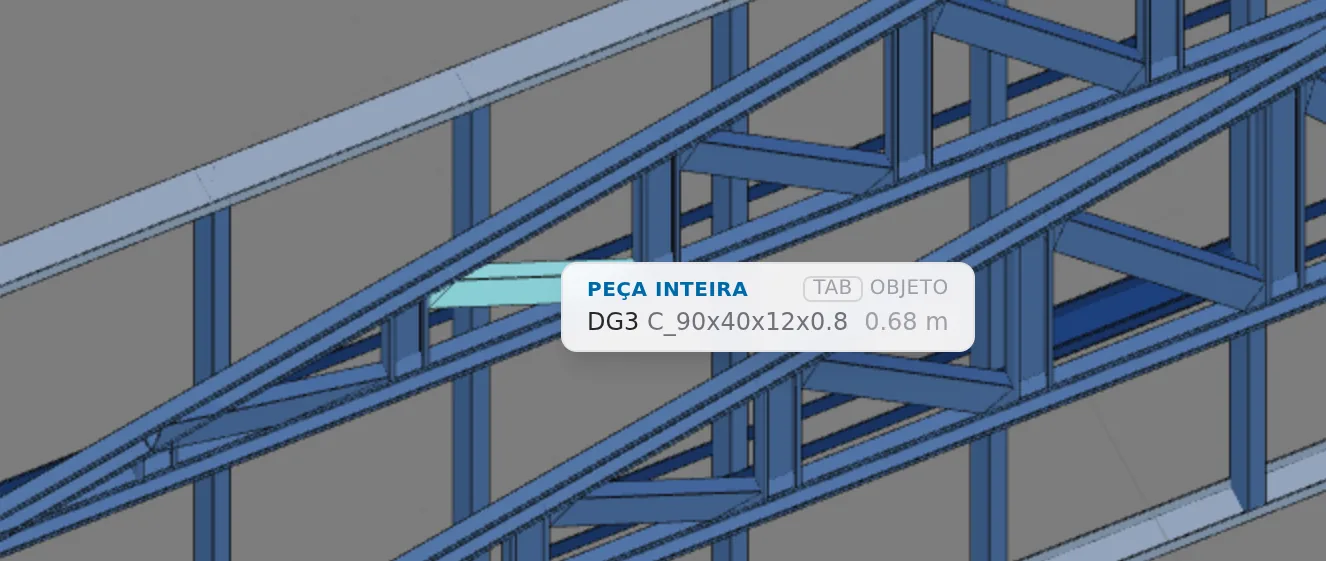
In 3D, the cursor over the truss says OBJECT Truss 1: the truss is a single object. Tab goes to the piece, and the hint says WHOLE PIECE DG3 C_90x40x12x0.8 0.68 m: the diagonal, the section and the length. Another Tab goes back to the object. Clicked, the bar lights up; its section and length are the ones in the hint.
Shortcuts
- T↵
Roof
Arms the roof: click the outer ring of walls and Enter. When armed, disarms.
in plan view
- TS↵
Single roof truss
Places a truss between two walls, the single mode of the roof box.
in plan view
- O↵
Copy truss
Click a truss and paste the copy with an offset.
- CM↵
Copy multiple
Toggles pasting several copies in a row, until Esc.
with Copy armed
- PL↵
Plan view
Goes to plan view. With the wall view open, closes it and keeps the wall selected.
- Home
3D view
Goes to 3D at the last camera pose. With the wall view open, closes it.
Sheet parameters
What each field does
| Field | Range | Opens with | What it does |
|---|---|---|---|
| Type | five buttons | Trapezoidal | The click applies the type defaults (table below). The span stays. |
| Half truss | checkbox | unchecked | A single pitch, from end to end of the span, with the height of the full truss. Not for the Portal. |
| Curve | Arch only | Parabola, Circular arc or Concave: the shape of the top chord. | |
| Span (m) | 1 to 50, step 0.5 | the one from the clicks | Wall centerline to wall centerline. |
| Pitch (%) | 0 to 100, step 1 | 10 | The sheet shows the height it gives: half the span times the pitch, never less than 0.30 m. |
| Panels / half | 2 to 32 | span ÷ 1.20 m, from 3 to 12 | How many triangles on each pitch. |
| Heel height (m) | 0 to 5, step 0.1 | 0 | Vertical at the end, which raises the top chord above the bottom one. |
| Plateau (m) | 0 to 0.8 of the span | 0 | Trapezoidal only: flat stretch at the top. |
| Base (m) | 0 to 0.4 of the span | Parallel chord only: straight stretch of the bottom chord at each end. | |
| Sections | read-only | the project ones | Chord, vertical and diagonal, from the project roles. |
Each field works within the range in the table.
The defaults of each type, and the sheet previews on this 7.00 m span
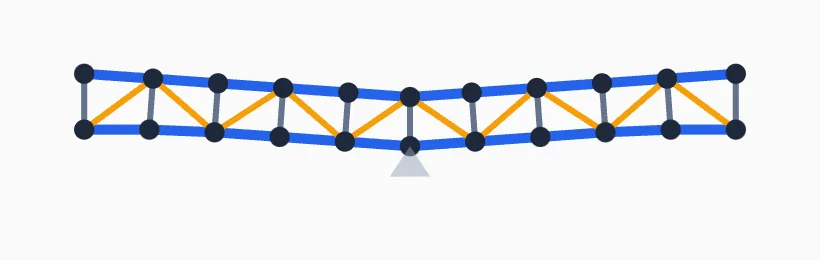
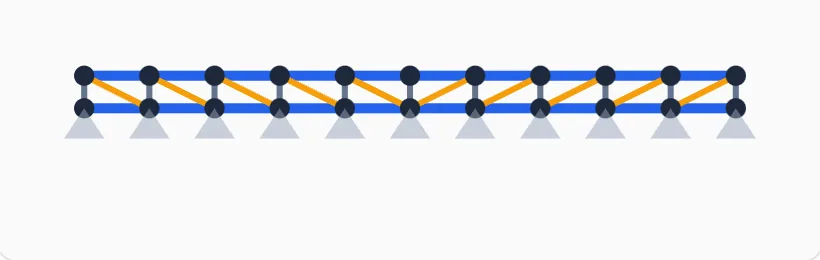
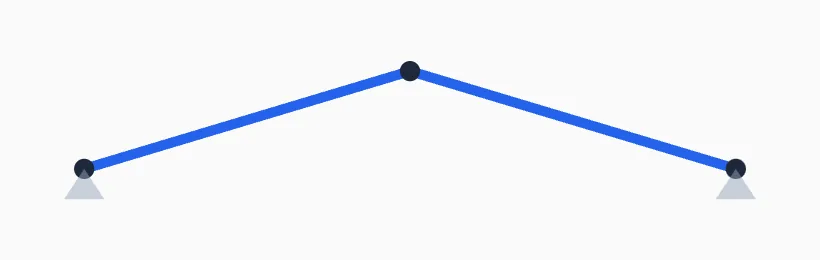
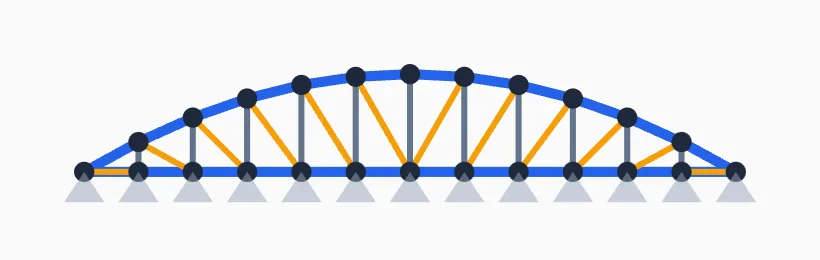
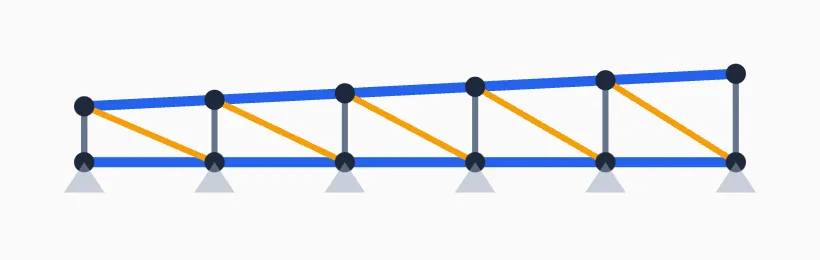
Trapezoidal from the button: 5 panels, heel height 0.6, plateau 0, 10%, 43 bars. From the freshly opened sheet: 6 panels, heel height 0.
Common mistakes and refusals
Where people go wrong with the truss
- Nothing lights up under the cursor. The cursor is more than 0.30 m from any wall. Bring it closer to the track.
- I closed the sheet and the truss vanished. Esc or a click outside the sheet close it without generating. Redo the clicks on the wall.
- Truss over the door. At 1.80 m from the corner, the front has P1: the truss lands in the middle of the track, with no stud below, and the track starts to bend. Skip the door opening, or check the track and the header (Headers).
- Parallel chord upside down. From the button, at 10%, the height (0.35 m) is smaller than the heel height (0.6 m), and the bottom chord drops in a V. The height has to exceed the heel height: on this span, a pitch above 18%, or a smaller heel height.
- Double truss. The single truss and the By outline roof are independent pieces. Both on the same pitch are two trusses in the model: delete the single trusses before generating the roof (Roof).
What the engine does with it
A lattice in the model, with its own roof strip
The engine calculates the whole house as a single model, and the truss enters it together with the walls. It recognizes the truss by the type of its bars (BZ, MT, DG), not by the label.
How the truss enters the model
| Piece | Assumption |
|---|---|
| Vertical and diagonal | Web members: pinned at both ends, axial force only. |
| Chords | Continuous from node to node, along each chord. |
| Truss heel | On the track, the chord end releases rotation in the plane of the truss: it sits pinned, without fixing into the wall. |
| Top track | Split at the heel node. Truss, track and stud share the node, and the load goes down through the stud when it is below; without a stud, the track bends. |
Where each load enters
| Load | Where | How |
|---|---|---|
| Steel self-weight | bars | All bars. |
| Tiles and roof live load (NBR 6120) | top chord | With Roof ticked in the project wizard (the default): the load per m² of plan times the truss strip times the span. The strip reaches half the distance to the neighboring truss on each side; with no neighbor, the edge of the plan. |
| Insulation, ceiling and utilities (NBR 6120) | bottom chord | The same strip, on the chord that holds the ceiling. |
| The rest of the roof | tracks | The area no truss covers goes to the top tracks of the eave walls, the ones on the long side (front and back). The total does not change. |
| Wind on the roof (NBR 6123) | top chord | Through the truss strip, extended out to the eave edge. |
Combinations · NBR 14762 and NBR 8681.
At the ultimate limit state, 1.4 on the dead load and 1.4 on the main variable load, with ψ0 of 0.5 on the live load and 0.6 on the wind when they accompany.
Single truss or By outline. The single truss is for one truss or one span. For the whole roof, with eave, battens and tiles, generate the By outline roof (Roof): its battens brace the top chord.
What the engine checks
| Effect | NBR 14762 | On the truss |
|---|---|---|
| Tension | 9.6, slenderness 9.6.3 | Bottom chord, diagonals in tension. |
| Compression | 9.7.2 global, 9.7.3 distortional, slenderness 9.7.4 | Top chord, verticals, diagonals in compression. |
| Bending | 9.8.2 (yielding, lateral-torsional, distortional) | The chords, continuous between nodes. |
| Shear and combination | 9.8.3 and 9.8.4 | The chords. |
| Axial force with bending | 9.9 | The chords. |
Buckling length: in the plane of the truss, that of each bar, node to node. Out of plane, the top chord goes up to the largest gap between the battens, purlins or rafters that cross it, including those drawn by hand; with none, it is the whole chord, and the screen warns. The bottom chord goes up to the largest gap between braced nodes: the walls the truss sits on, the bottom-chord bracing line or a diaphragm bar. With a ceiling screwed underneath, it drops to the fastening spacing of the market ceiling board, when that is smaller; the torsional length stays that of the braced nodes. Diagonals and verticals are pinned, K = 1.
Negligible compression: a bar with compression up to 1% of its resistance does not trigger the compression slenderness limit (the case of many diagonals under self-weight only).
Deflection: L/250 of each chord segment, node to node (NBR 16970-2, 8.2), on the single truss and in By outline.
What stays with the designer
| Stays with the design | What to do |
|---|---|
| Truss connections | Chord, vertical and diagonal screws, and the heel-to-track connection (Connections panel). |
| Web crippling at the support | The chord and track webs at the truss heel. |
| Out-of-plane bracing | Battens, purlins and the bottom-chord bracing line: the buckling length comes from them; detail them in the design (Roof). |
Reading the result: the truss bars show up in the table like the others, each with its own effect. A top chord with no batten or purlin, or a bottom chord braced only at the supports, buckles out of plane over its whole length, and the screen warns: draw the bracing, or generate the By outline roof, and calculate again.
Shortcuts
- Ctrl+Enter
Calculate the project
Sends the project to the engine, like the Calculate button.
Summary
The path, in one line
Plan → LSF card → Roof → Mode Single roof truss → cursor on the track → click → distance from the end and Enter → span and Enter → sheet: type and pitch → Generate truss → Copy in the footer for the next ones → 3D.
The example so far
- 2: single trusses, T1 and T2
- 6: panels per half, in each one
- 7.00 m: of span, from front to back
- 1.05 m: of height, at 30%