Display Options
Toggle visual helpers in the top-right corner of the editor to customize what you see while modeling.
3D Viewer
Toggle 3D profile rendering to see the real shape of each member. When enabled, bars are displayed with their actual cross-section geometry. When disabled, they are shown as simple lines for faster navigation.
Grid
The reference grid provides visual guidance for modeling. Toggle it on/off with the grid button. The grid adapts to the current zoom level and helps align elements in 3D space.
Reference Lines
Reference lines show the global X, Y, and Z axes passing through the origin. Use the dropdown arrow to toggle individual axes. Useful for orienting yourself in 3D space and aligning structures to global directions.
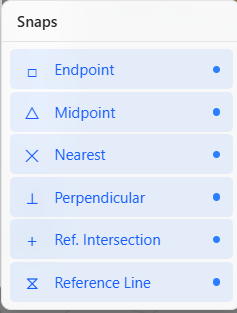
Snaps
Snaps control how the cursor locks to geometric points when creating or moving elements. Available snap modes: Endpoint (node centers), Midpoint (bar centers), Nearest (closest point on a bar), and Intersection (where two bars cross). Toggle each mode independently.
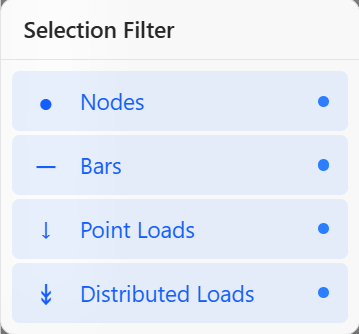
Selection Filter
The selection filter controls which element types can be selected. You can enable or disable selection of nodes, bars, point loads, and distributed loads. When a filter is active (not all types selected), the filter icon turns amber.