LSF (Light Steel Framing)
Connections panel
The Connections panel on the LSF tab lights up the spots in the project where members meet, tells you which connection applies at each one and counts the fasteners by the market rule. Here you walk through the types on the example house and see what is a product choice, what is the standard and what stays with the designer.
Overview
One card per type, one lit spot per click
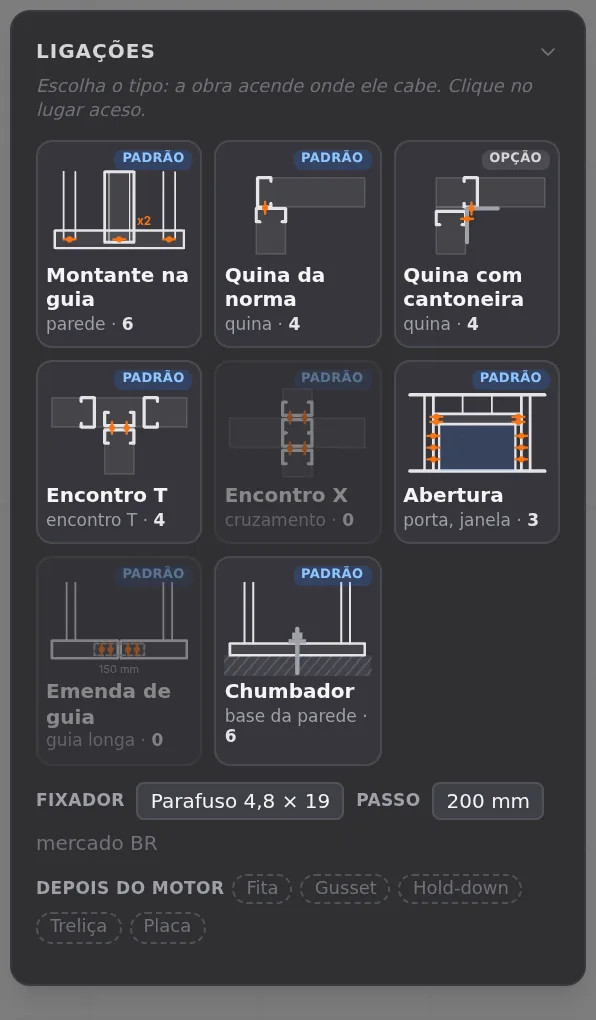
The Connections panel sits on the LSF tab, to the right of the plan, where the Structure tab shows the Classes. It opens expanded; the arrow in the title collapses it. Each card is a connection type, with its drawing, the default or option badge, the kind of spot where it fits and how many spots in this project accept it.
Clicking a card arms the type: the project dims and lights up where it fits. Clicking a lit spot applies it. Selecting a joint shows its connection in the footer, with the fastener, the spacing and how many fasteners it takes.
The example house has its six walls, the door P1 and two windows (see Exterior walls and Doors and windows). The project is new: it starts roll-formed, on the FRAMECAD F325iT machine, with the Brazil market. There is nothing to change to follow along: the defaults the panel shows are already the connections this house uses.
| Question | Short answer |
|---|---|
| Where | LSF tab, Connections drawer to the right of the plan (desktop only, with the wall view closed) |
| How you choose | click the card to arm it, click the lit spot to apply it; Esc disarms |
| What it saves | the type chosen at each spot and, if you change it, the spacing; the rest comes from the market rule |
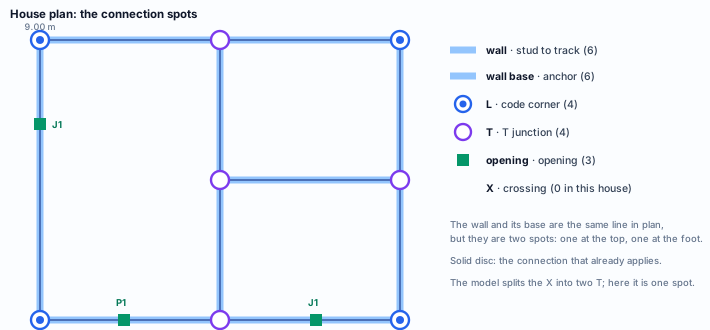
| In this house | 4 corners, 4 T joints, 3 openings, 6 walls and 6 bases; no crossing and no track splice |
| Ctrl+Z | one step per change; applying what already applies adds nothing to the stack |
| In the calculation | the engine checks the members and web crippling; screws and anchor bolts stay with the designer (see What the engine checks) |
What it is for
The spot comes from the geometry; the connection, from you and the market
The panel does not ask you to draw connections. It reads the walls that already exist and finds the spots where members meet: the whole wall (stud to track), the wall base (the anchor bolt), each L, T and crossing joint, each opening and, on a long track, the splice. Each spot has a type that applies. If you have not chosen anything, the default applies.
Market numbers (fastener, spacing, quantity) do not live in the spot. They come from the project market rule, which is copied into the project on the first choice. That way, the project keeps the rules it was made with.
| Kind of spot | Default type | Where it lights up on screen |
|---|---|---|
| wall | Stud to track | band along the top track |
| wall base | Anchor | band at the foot of the wall |
| L | Code corner (option: Corner with angle) | ring at the top of the joint |
| T and X | T junction, X junction | ring at the top of the joint |
| opening | Opening | ring at the middle of the opening |
| long track | Track splice | ring at the splice point |
A connection here is a detailing item. The panel says how the members join and how many fasteners they take by the market rule. It does not calculate the fastener strength. What the standard says shows what the standard requires, and What the engine checks, what goes into the calculation.
What the standard says
Drawing, screw and anchor bolt, each with its own item
NBR 16970-2 · 4.8 f) and g).
NBR 16970-2 is the Brazilian standard for the structural design of light steel framing. The drawings show the calculated connections: the anchorage to the foundation and the connections between members, with screw type, diameter, number and spacing. They also show splices and reinforcements.
NBR 16970-2 · 5.2.
Sections with a minimum nominal thickness of 0.80 mm (furring channels, 0.65 mm). That is the sheet the screw goes through.
NBR 16970-2 · 5.3, Table 2.
Self-drilling and self-tapping screws to ISO 1478 and ISO 10666, with a diameter of 4.2 to 4.8 mm. The table pairs a 13 mm length with Φ 4.2 and 19 mm with Φ 4.8.
NBR 16970-2 · 5.5.
Connections between members according to NBR 14762, the Brazilian standard for cold-formed steel, item 10.5. The forces Fss,Rk and Fts,Rk come from the manufacturer or from testing, with the partial factor.
NBR 16970-2 · 6.1 to 6.3.
The structure is fixed to the foundation by anchor bolts, anchored by chemical bond or by mechanical anchorage. In both cases, the strengths come from the manufacturer and from testing.
NBR 14762 · 10.5 and 10.5.1.
Self-tapping screws: center to center, at least 3d; from the center to the edge of any connected part, at least 1.5d.
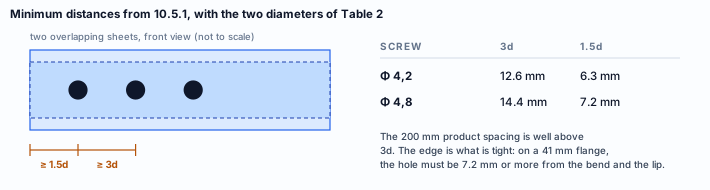
NBR 16970-2 asks for a calculated connection, detailed on the drawing. None of its items sets a fastener spacing at a corner, a T or an opening, or a number of anchor bolts. Those numbers belong to the design.
Design recommendations
Keep the defaults, check the numbers, design the base
In a roll-formed project, every end that touches another member is a FRAMECAD connection, and the panel defaults follow those connections: the stud goes into the track; at the corner and at the T there are two studs, one from each wall; the opening has its framing. That is why the recommendation for this house is to change no type at all. The work is in checking what the panel counts and in closing the calculated connection in your design.
| Spot | What to do in this house |
|---|---|
| Wall | keep Stud to track; check the flange fastener with the manufacturer |
| Corner (L) | keep Code corner; 200 mm spacing, or the one from your calculation. Corner with angle is the market option, with the angle at the inside corner |
| T junction | keep it; same fastener and spacing as the corner |
| Opening | keep it; 600 mm spacing, at least 2 per side of the framing |
| Base | design the anchor bolt (16970-2, 6): the Brazil market has no rule for it |
The 200 mm spacing is a product default
The Brazil rule comes from the IFSul LSF handbook. The 200 mm zigzag spacing at the corner and at the T is not in the standard: it was approved as an editable product default on 26 Sep 2026. It fits comfortably within the 3d of NBR 14762, but it is a practice, not a calculation.
Screw length
The rule uses a 4.2 × 19 wafer-head screw in the flange and a 4.8 × 19 hex-head screw through the web. Table 2 of NBR 16970-2 pairs 13 mm with Φ 4.2. Check the length with the manufacturer and against the sum of the sheets the screw goes through.
Stick-built or roll-formed: the panel is the same
No line of the panel, the rule or the fastener count reads the project fabrication mode. The cards, the spots, the defaults and the numbers come out the same in a stick-built and in a roll-formed project. What changes is outside the panel:
| Topic | Stick-built | Roll-formed (FRAMECAD) |
|---|---|---|
| House section | the one from the market catalog | C 89x41, 0.95 mm, single section |
| Stud to track | same card, same rule | same card; the member is cut by the machine, with a swage at the end (see Roll-former file) |
| Typicals on the sheet | L1 to L9 | L1 to L9, plus typicals DT27 to DT29 with the machine numbers |
The panel does not replace the calculated detail. NBR 16970-2, 4.8 f), asks for the calculated connection on the drawing. The panel delivers the detailing connection and the count. Screws, anchor bolts and edge distances stay in your calculation.
Step by step
1. Open the plan on the LSF tab
With the house open, go to the LSF tab and stay in the plan, with the wall view closed. The Connections panel appears on the right, open. If it is collapsed, click the Connections title. It does not appear on a phone.
2. Read the cards
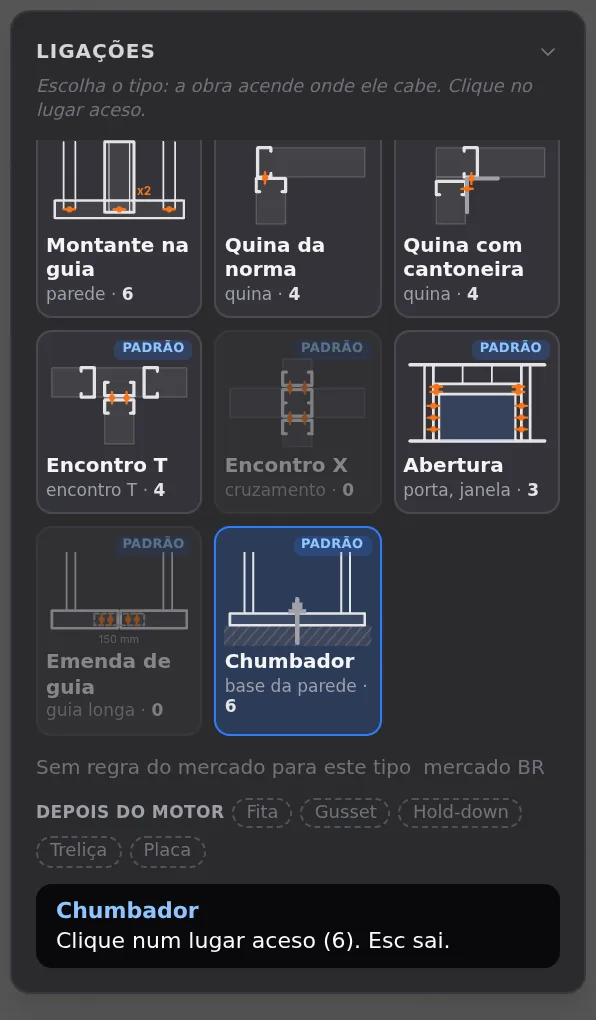
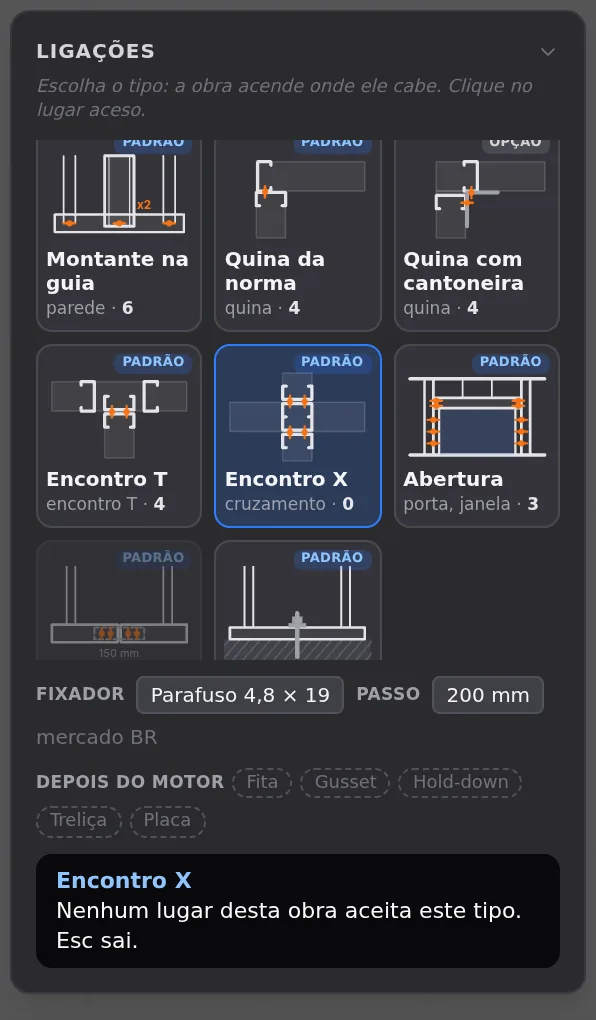
Each card shows the name, the badge, the kind of spot and the number of spots in this project. A card with zero is grayed out. In this house, in panel order: Stud to track, wall · 6; Code corner, corner · 4; Corner with angle, corner · 4; T junction, T joint · 4; X junction, crossing · 0; Opening, door, window · 3; Track splice, long track · 0; Anchor, wall base · 6.
Corner with angle carries the option badge: it fits the same corners as Code corner, which is the one that applies by default. The After the engine row (Strap, Gusset, Hold-down, Truss, Board) holds labels, not buttons: the strap and the column have their own tools (see Straps and blocking and Columns).
3. Arm Code corner
Click the card. It turns blue, the project dims and the four corners light up with a disc: it is already the type that applies there. An empty ring means the type fits but is not the one that applies. The spot under the cursor turns amber. At the foot of the panel, the hint: "Click a lit spot (4). Esc exits."
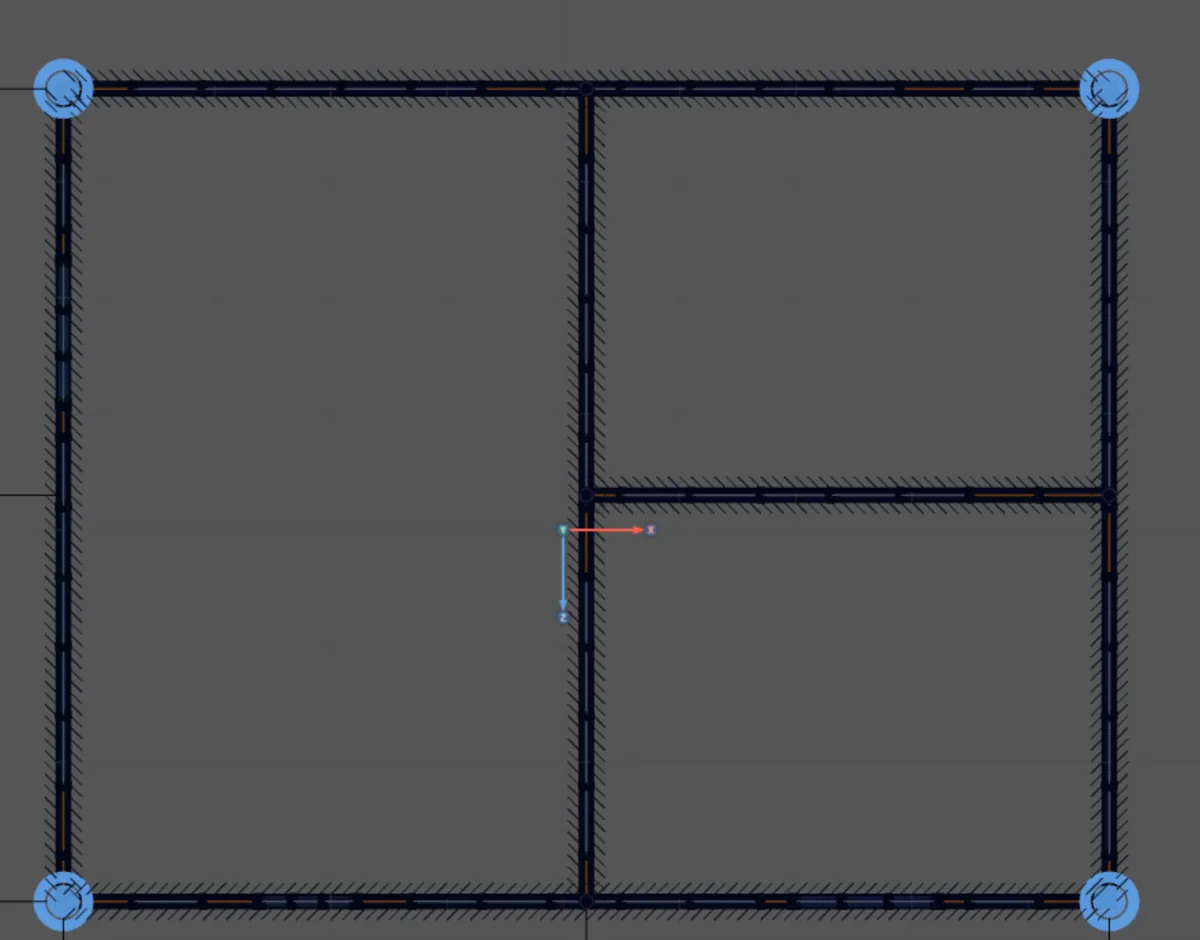
Arming turns off drawing. When you arm a type, the drawing tool that was on turns off and wall editing closes. And the other way round: turning on a drawing tool disarms the connection.
Disc or ring. A disc means "already applies here"; applying again changes nothing and takes no Ctrl+Z step. A ring means "fits here": the click swaps the connection at that spot.
4. Stud to track: the whole wall
The wall lights up as a band along the top track, because the spot is the whole wall: all of its studs in the track. The six walls light up, and the disc at the middle of each band shows that the type already applies. The panel footer switches to the fastener of this rule: 4.2 × 19 screw, no spacing, because the count is per stud.
5. T junction
The four T joints light up: two at the back and front ends of the middle wall, two at the ends of the wall that divides the bedrooms. Same fastener and spacing as the corner.
6. Opening
It lights up at the middle of each opening: the window in the left wall, the door P1 and the front window. The rule spacing goes up to 600 mm.
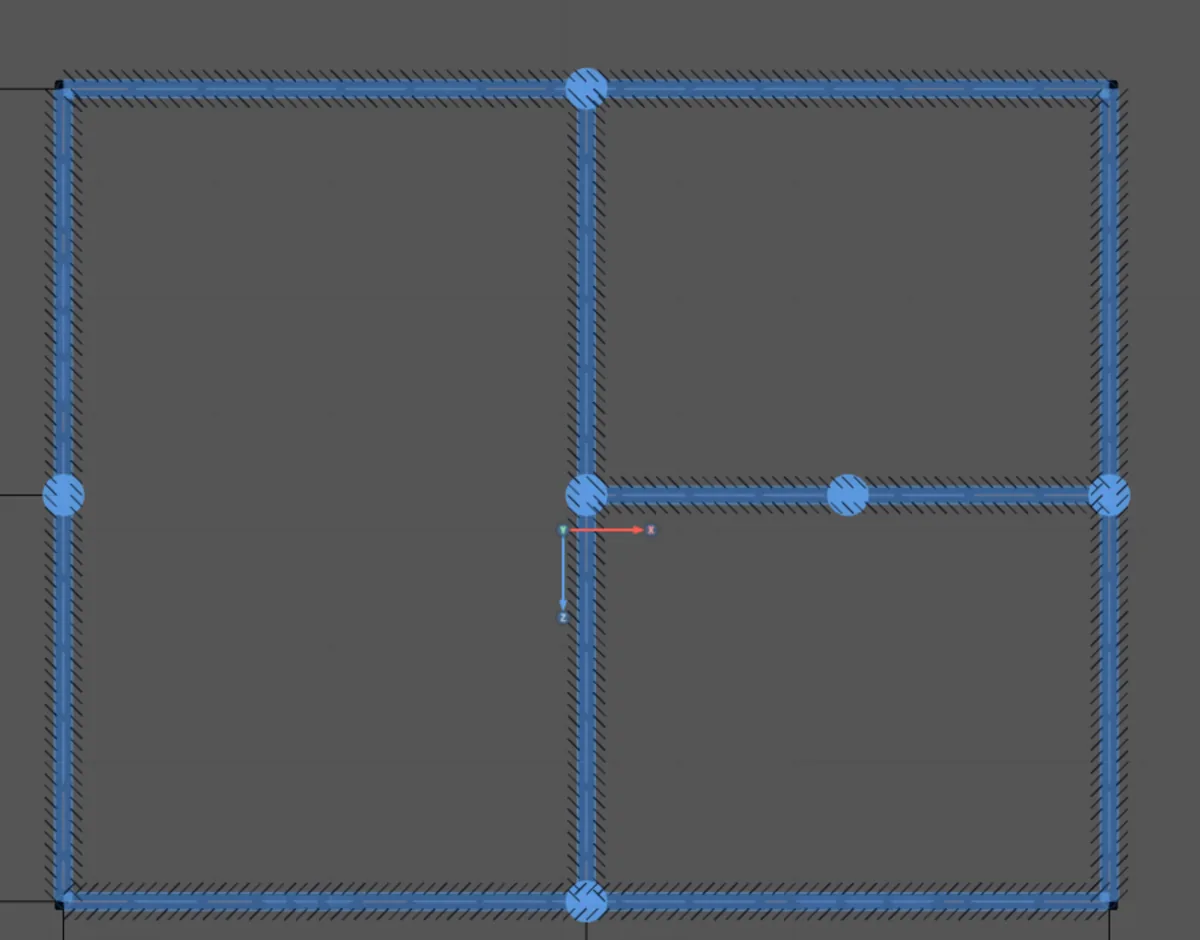
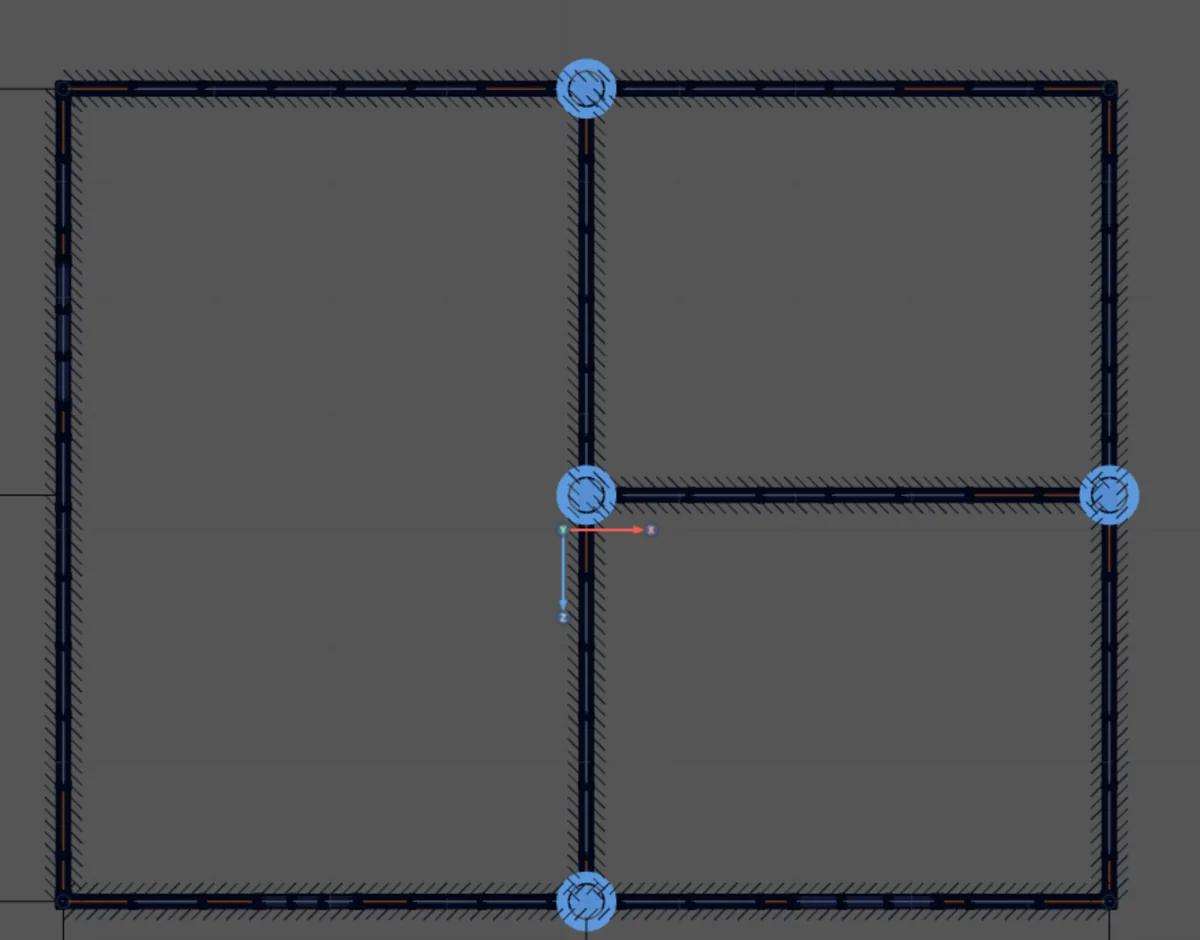
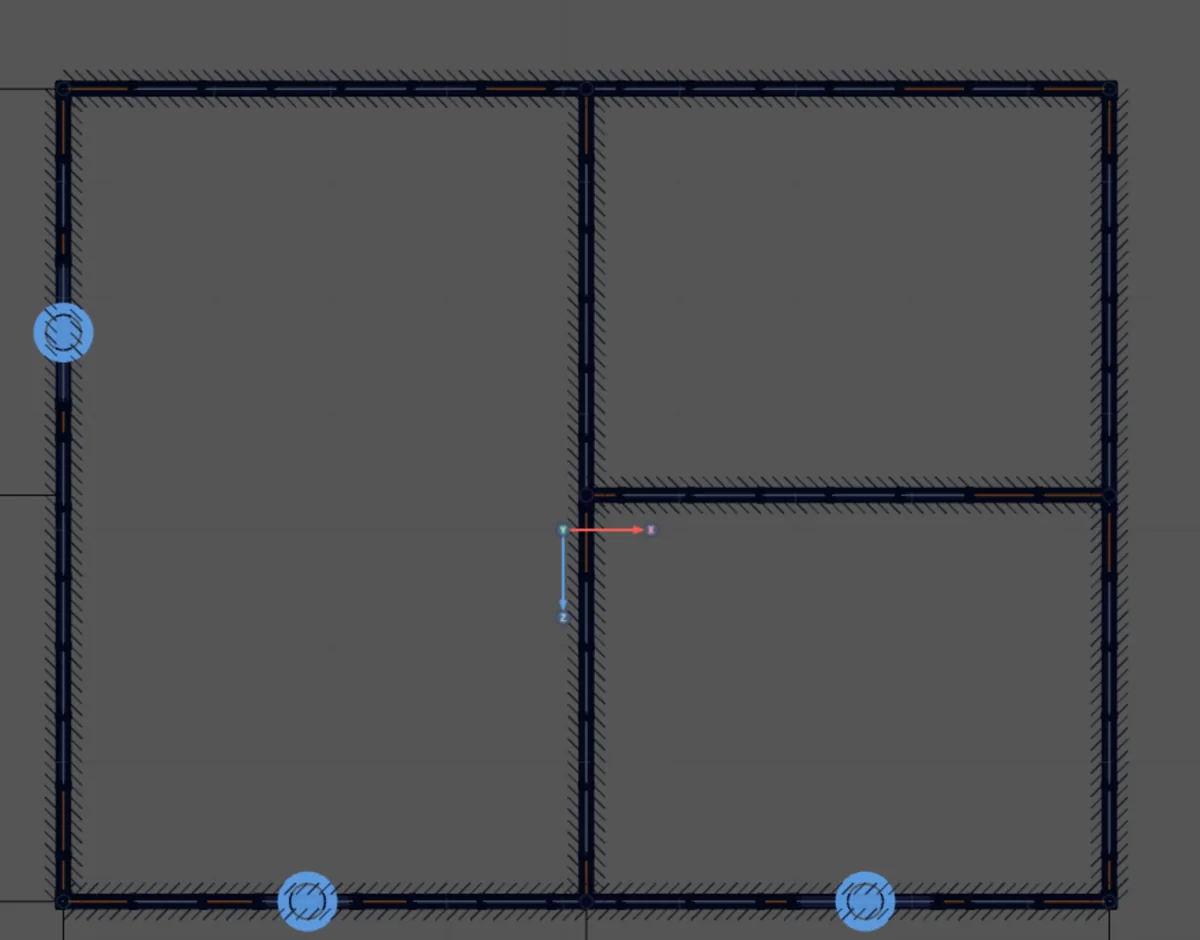
The front is at the bottom. In the plan in these frames, the front of the house, with the door, is on the lower side. The middle wall runs from back to front; the wall that separates the two bedrooms leaves it to the right.
7. Anchor
The six bases light up at the foot of the walls. The panel footer reads "No market rule for this type": the Brazil market has no fastener or spacing for the anchor bolt. The spot exists and the type applies, but there is no count. It stays with the designer, by NBR 16970-2, item 6.
8. X junction
This house has no wall that crosses another. The card shows 0, and when armed it reads "No spot in this model takes this type. Esc exits." In a project with a crossing, the X is a single spot, even if the model splits it into two T joints.
9. Disarm
Click the armed card again, or press Esc. The veil lifts and the plan goes back to normal. Leaving the LSF tab also disarms.
Arming changes nothing. Only a click on a lit spot applies the type; arming, looking and disarming leave the project as it was.
10. Select the front left corner
With nothing armed, click 20 cm inside the room, near the corner. On the centerline, the click picks the bracing. The footer opens the joint inspector (see Wall joints); the bottom line is the connection of the spot: the type, the fastener, the spacing and the count.
At a corner, the type is a list with the two that fit the L: Code corner and Corner with angle. Changing it there changes the connection of this spot only.

11. Change the spacing, if your calculation calls for it
The Spacing field accepts 50 mm and up, in steps of 10. At 150 mm the count goes up to 19 and Back to default appears. The change applies to this spot only.

12. Go back to the default, or undo
Back to default removes everything chosen at the spot. Ctrl+Z also undoes: each spacing change is one step.
13. Check a T
The front T, on the middle wall, shows T junction with no choice list, because it is the only type that fits a T. Same fastener and spacing as the corner: 14 fasteners.

Shortcuts
- PL↵
Plan view
Goes to plan view. With the wall view open, closes it and keeps the wall selected.
- Home
3D view
Goes to 3D at the last camera pose. With the wall view open, closes it.
Parameters
The Brazil market rule, type by type
The panel has no parameter box. What you can change is in the joint footer: the type, when there is more than one, and the spacing. The rest comes from the market rule, saved in the project:
| Type | Fastener | Rule | Through |
|---|---|---|---|
| Stud to track | 4.2 × 19 wafer head | 2 per stud end, at both ends | flange |
| Code corner and Corner with angle | 4.8 × 19 hex head | 200 mm spacing, in a zigzag | web |
| T and X junction | 4.8 × 19 hex head | 200 mm spacing, in a zigzag | web |
| Opening | 4.8 × 19 hex head | 600 mm spacing, at least 2 | web |
| Track splice | 4.2 × 19 wafer head | 4 on each side, 150 mm overlap | track |
| Anchor | none | no rule: chemical or expansion anchor, spacing from the calculation | base |
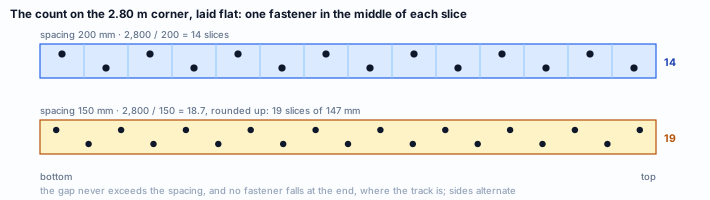
- 14: fasteners per corner and per T, at 200 mm
- 4: fasteners per stud to track: 2 at the top, 2 at the bottom
- ≥ 2: fasteners at the opening, at no more than 600 mm
The rule is saved in the project the first time you apply or adjust a connection. A later change in the market catalog does not change the count of a project that already has its own copy.
Common mistakes
What usually goes wrong
- Reading the count as a calculation. "Takes 14 fasteners" is the market rule applied to the height. It is not the quantity the force calls for. The screw is checked in the connection design (see What the engine checks).
- Expecting a number on the anchor bolt. In the Brazil market, the anchor bolt has no rule: the footer reads "No market rule for this type". Diameter, anchorage type, spacing and end distance come from your calculation (16970-2, 6.1 to 6.3).
- Clicking on the centerline to open the joint. There the click picks the bracing. Click about 20 cm inside the room, near the corner.
- Clicking outside the lit spot. With a type armed, only a lit spot takes the click. Outside it, the click goes to normal selection and nothing is applied. Drag the view freely: dragging does not apply.
- Looking for the footer of the wall, the base or the opening. The connection line exists only in the joint inspector (L, T and X). For wall, base and opening, the rule appears in the panel footer, with the type armed.
- Changing the spacing expecting it to change the whole house. The footer spacing applies only to the selected spot. The other three corners stay at 200 mm.
- Looking for the panel on a phone or in the wall view. It only appears on desktop, in the plan or the 3D view of the LSF tab, with the wall view closed.
- Trusting the screw length without checking. The rule uses 19 mm for both diameters. Check it against Table 2 of NBR 16970-2, with the manufacturer and against the sum of the sheets it goes through.
- Reading the "After the engine" labels as tools. Strap, Gusset, Hold-down, Truss and Board are just labels. The strap (see Straps and blocking) and the column (see Columns) have their own tools.
What the engine checks
The connection members enter the calculation; the fastener stays with the designer
The engine calculates the LSF members node to node, on the centerline. What the connection changes in the calculation is the member: the corner adds one more stud at the corner, and the support assumptions follow the type of each joint. Screws, anchor bolts and spacing are detailing. CalcSteel versions the calculation, and the result of an older project does not change on its own.
What the engine checks
| Topic | In the engine |
|---|---|
| Stud to track | included the end is pinned about the strong axis; rotation in the plane of the wall is restrained. The wind reaction at the foot and at the head becomes a web crippling point |
| Web crippling | checked by NBR 14762, Annex D, with γ = 1.35, at the foot and head of the stud and at the header end on the supporting stud. A section outside the annex goes to a warning, never to a silent "OK" |
| Code corner and Corner with angle | included the second stud (QN) is a real member, with its own nodes, tied into the tracks. The angle of the option is a drawing piece, in the 3D view |
| Spacing and quantity | on the sheet they go to the sheet and to the list; changing the spacing does not change the calculation result |
What stays with the designer
- The screws. At the corner, the T, the opening and the splice: shear, base metal, tension, spacing and edge distance by NBR 14762, 10.5, with the manufacturer strengths (16970-2, 5.5), and the 3d and 1.5d distances.
- The anchor bolt. The anchorage and the uplift at the base belong to the foundation design, by NBR 16970-2, 6.1 to 6.3. The calculation delivers the reactions at each stud foot.
- The calculated detail. The calculated connection goes on the drawing, as NBR 16970-2, 4.8 f), requires.
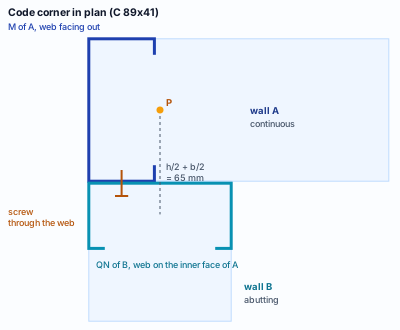
The continuous wall (A) closes the corner with its own stud, web facing out. The abutting wall (B) ends with its own stud, the QN, at h/2 + b/2 from the joint, with its web against the inner face of A. The fasteners go through the web of the QN into the flange of the stud of A.
In the engine, each wall at the corner ends with its own stud, oriented in its own plane. That is what FRAMECAD calls for at the L and the T: both studs stay, one from each wall.
From the panel choice to the details sheet
The choice at each spot does not stay on screen only. The LSF sheet set reads the same saved data, with the same spots, and builds an A3 Joint details sheet: one standard detail per type the project has, and the marks on the panel plans. Each type code is fixed; a type the project does not have does not appear, and its number is left empty.
| Code | Type | Family and mark on the plan | In this house |
|---|---|---|---|
| L1 | Anchor | base · triangle | yes, 6 bases |
| L2 | Stud to track | wall · circle | yes, 6 walls |
| L3 | Code corner | wall · circle | yes, 4 corners |
| L4 | Corner with angle | wall · circle | no |
| L6 | T junction | wall · circle | yes, 4 T joints |
| L7 | X junction | wall · circle | no |
| L8 | Track splice | wall · circle | no |
| L9 | Opening | opening · square | yes, 3 openings |
The machine typicals
In a roll-formed project, the sheet set also brings the typical details DT27 (stud to track: socket with swage), DT28 (nogging over the stud) and DT29 (web member on the truss chord), with the same numbers as the roll-former file (see Roll-former file). DT27 shows the dimpled hole on the track centerline, on both flanges, and the fastener from the stud to track rule.
The note that comes with it
Each typical carries a note marking it as a detailing item, with the fastener by the market rule. It is the same message as this section: the drawing is a detailing item, and the calculated connection stays with the designer.
Shortcuts
- Ctrl+Enter
Calculate the project
Sends the project to the engine, like the Calculate button.
- DL↵
Joint details
Creates the typical detail of each missing joint type and marks it on the plans.
with walls selected
- TP↵
Typical details
Creates the A3 sheets of the typical details the project needs and lacks.
with walls selected
Summary
The path, in one line
Plan on the LSF tab → panel open → arm each type and see where it lights up → disarm → open each joint and read the connection → spacing from your calculation, if different → anchor bolts and screws designed in your project → Joint details sheet in the sheet set.
The example so far
- 23: spots, 6 walls, 6 bases, 4 L, 4 T, 3 openings
- 14: 4.8 × 19 fasteners per corner and per T
- 4: 4.2 × 19 wafer-head screws per stud to track
- 0: types changed, because the defaults already follow the FRAMECAD connections