LSF (Light Steel Framing)
Wall joints
A wall that stopped short of the corner, a wall that ran past it: two clicks and both reach the joint. Then the joint becomes a design item: corner, T or crossing, with the connection type, the screw and the spacing that go on the sheet.
Overview
Every corner closed, every connection stated
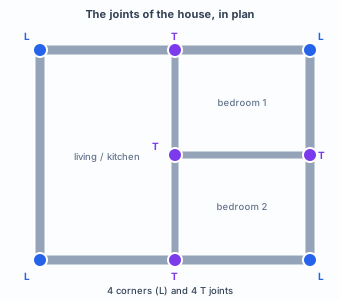
In Exterior walls and Snap and interior walls, the house got its 9 x 7 m perimeter and the two interior walls. In a carefully typed drawing, the corners close by themselves. In real life they do not always: the plan came from CAD with a gap, one wall was shortened, another ran past the point.
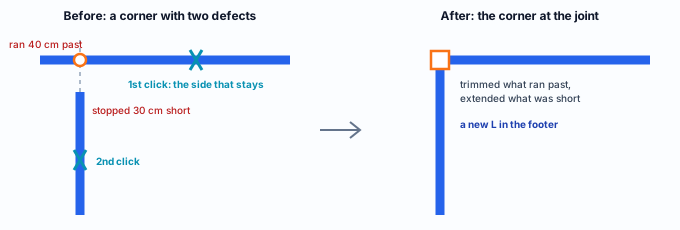
The Join walls tool fixes this like the trim and extend command in CAD programs: you click the two walls and they run to the point where their lines cross. The corner closes, and the joint is born.
A closed joint is more than drawing. It is where the board of one wall ends, where the studs of the two are screwed together and where the calculation connects one wall to the other. That is why the second half of this page is about the joint inspector.

What it is for
Trim, extend and square, in two clicks
The tool finds the point where the lines of the two walls cross, as if each one went on forever. That point is the corner. Then it decides, for each wall, what to do with it:
| Where the corner falls | What happens to the wall |
|---|---|
| Outside the wall (it stopped short) | The end closest to the corner extends to it. |
| Inside the wall (it ran past) | The side you clicked stays, and the piece on the other side of the corner is trimmed. |
| Parallel walls | There is no corner. The tool does nothing. |
Automatic squaring
A wall traced over an imported plan, without ortho, often comes out at 89° or 88.5° at the corner. When the two walls are already within 8° of a right corner, the tool corrects them: if both are within 8° of the plan axes, each one is straightened onto its axis; if the drawing is rotated on purpose, the first wall clicked stays as it is and the second rotates until it is perpendicular to it, pivoting on its end away from the corner. A deliberate angle, such as 45°, stays as it is.
It closes an L; the T belongs to Snap. The tool always closes an L. Used on an interior wall that meets the middle of an exterior wall, it trims the exterior wall at the joint and opens the house. For the T, use Snap (see Snap and interior walls), which sticks the end onto the line of the neighboring wall. If you get it wrong, Ctrl+Z undoes both walls at once.
What the standard requires
The standard asks for the connection, not the spacing
NBR 16970-2, the Brazilian standard for the structural design of light steel framing, treats the joint as a connection between sections. It asks for the connection to be detailed in the design and says how it is calculated, but it has no table of screws per joint. The everyday number comes from site practice.
| Where | What it says | What changes at the joint |
|---|---|---|
| NBR 16970-2, 4.8 f | The design details the connections between members: screws, diameter, number and spacing. | Each joint has to come out with fastener, spacing and quantity. The joint inspector is where you choose them. |
| NBR 16970-2, section 7 | Connections between sections calculated by NBR 14762, the Brazilian standard for cold-formed steel (item 10.5, self-tapping screws), or with a strength given by the manufacturer or by testing. | The screw number is a calculation result. The app's 200 mm spacing is a detailing default, and it can be edited. |
| NBR 16970-2, screws | Self-tapping screws of 4.2 to 4.8 mm diameter between sections. | The app uses the 4.8 x 19 hex head screw at joints, within that range. |
| NBR 16970-2, 4.1 | Studs aligned with whatever bears on them; a non-structural element does not interrupt the structure. | The joint must not cut the stud, the track or the bracing line of a member that carries load. |
Where the 200 mm default comes from
The most cited Brazilian practice, the LSF handbook from IFSul (Soares and Tessmann, 2021), builds the corner with two studs and the T with three, and connects the sections with 4.8 x 19 hex head screws in a zigzag, one every 20 cm. That is the default the app starts with in the Brazil market. On a 2.80 m wall this gives 14 screws per joint, the number you will see in the inspector.
NBR 16970-2 · 4.8 f.
The detail of the connections is part of the design. A joint that does not say which screw, how many and at what spacing is not detailed, however good the 3D looks.
The standard as a variable. The spacing and the fastener belong to the project market, not to the app: in a US project the app uses another rule, and in an Australian project yet another. Change the market in Project settings and the joint numbers change.
Design recommendations
Close, choose the continuous wall, detail
Four numbers explain almost everything that happens at a joint.
- 15 cm: an end within this distance of another wall becomes a joint; farther away, it stays loose
- 8°: a corner within this of 90° is squared by the tool
- 20 cm: click reach in the plan (30 cm in 3D)
- 200 mm: spacing of the joint screws in the Brazil market
- No open corners. An open corner is a room that does not close. The floor (see Floors) cannot find where to start, the wind does not know which face is the outside one, and the two walls are calculated loose. Check the footer: in a rectangular house, 4 L.
- The continuous wall is the one that holds. In the L, the continuous wall (the one that "runs through") takes its track to the outer face, and the other abuts it. The app picks the longer one. Switch when the other is the load-bearing one, or when the outer board needs to run whole along one of the faces.
- Code corner by default. Two studs, one from each wall, screwed together. The corner with angle adds a 40 x 40 x 0.95 angle at the inside corner, which the IFSul handbook uses to give the inner board something to fasten to and to stiffen the corner.
- In the T, back to back. The stud of the continuous wall is doubled, two sections back to back, and the interior wall abuts it. Box [] closes the section; None leaves a single one, for a light partition that carries no load.
- Crossing only when needed. A wall that crosses another is framed in pieces, with the track cut at the crossing. The crossed wall stays whole. Prefer two T joints a little apart to one crossing: less track cutting and fewer studs at the same point.
In the example house: if you followed Exterior walls and Snap and interior walls typing the dimensions, the corners are already closed. This page opens one on purpose, so you can watch the tool work, and then uses the inspector to check the corner and the T.
Step by step
For the example, the perimeter was drawn with the Exterior wall tool (see Exterior walls), but with two defects at the top left corner: the left wall is 6.70 m long and stops 30 cm short of the corner, and the top wall is 9.40 m long and runs 40 cm past it.
1. See the defect, and count it in the footer
In the plan, the open corner shows up close: one wall runs past, the other does not reach. From far away it is misleading, which is why the footer helps: with no wall selected, the chip reads 3 joints · 3 L. A closed rectangular house has 4.
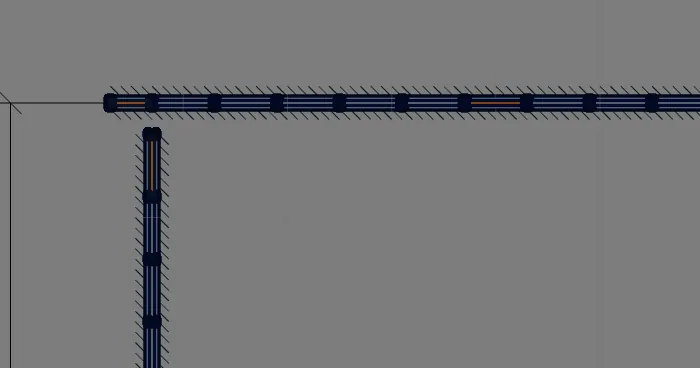
2. Turn on the tool: F key
On the Drawing card, the Join walls (TR) button, or the F key. The name TR comes from Revit's trim and extend command, which works the same way. The same key turns it off; Esc drops the chosen wall and leaves the tool.
3. Click the first wall on the side that stays
Click the top wall on the house side, away from the corner. The clicked side is the one that stays: the 40 cm that ran past the corner are on the other side, and will be trimmed. The chosen wall is highlighted in yellow. Clicking the same wall again does nothing.
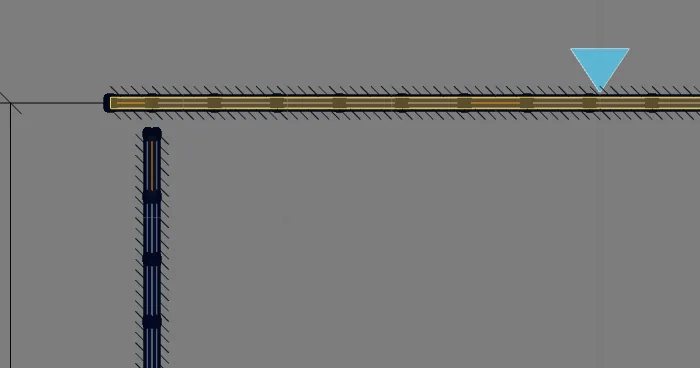
4. Click the second wall
Click the left wall. Both walls go to the joint at once: the top one loses the 40 cm, the left one gains the 30 cm, and both are framed again, with studs at the wall spacing. The footer changes to 4 joints · 4 L.
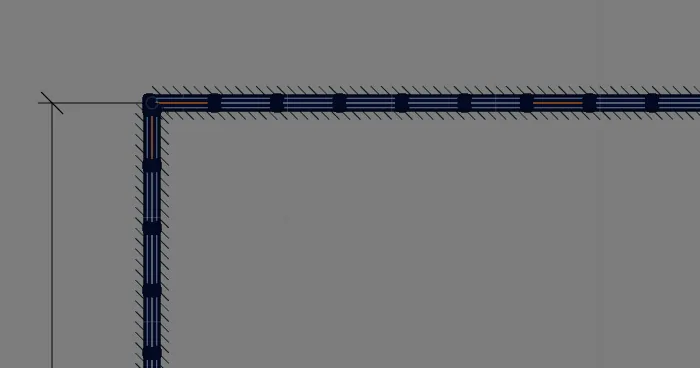
It also works in 3D: there the click picks the wall by its face, with a 30 cm reach. A truss or column that was on the wall stays attached to it, but does not move: check both afterwards.
5. Open the corner joint
Leave the tool (Esc) and click near the corner, a little inside the room. The footer swaps the summary for the Joint inspector: the Corner (L) chip, the two walls, which one runs through and the connection.

Why a little inside? The bracing line runs along the wall centerline (see Exterior walls), and a click there selects the bracing. The joint takes the click up to 35 cm from the corner: 20 cm inside the room is safe.
6. Place the interior walls and open a T
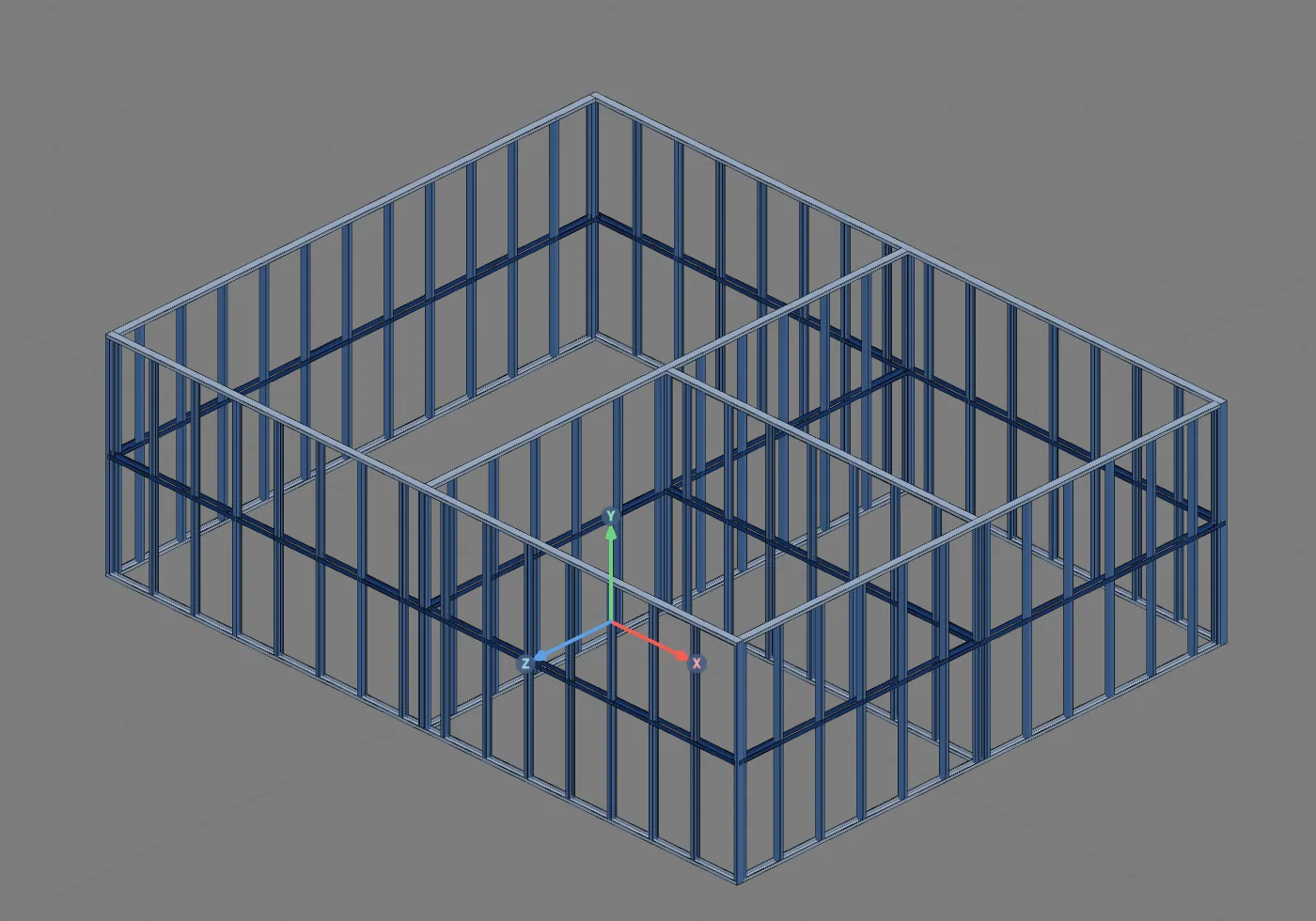
The interior walls go in with Snap, as in Snap and interior walls: middle of the top wall to the middle of the bottom one, and middle of the right wall to the middle of the interior one. Click near the top joint. The chip now reads T, the wall that runs through is the exterior one (the continuous wall) and the Stud field appears, which in the T starts as Back to back ][.

7. A wall that crosses another
To see the crossing, use Snap to place a wall from the left to the right, cutting through the interior wall. It is framed in pieces, with the track cut at the crossing, and the crossed interior wall stays whole. Click near the crossing.
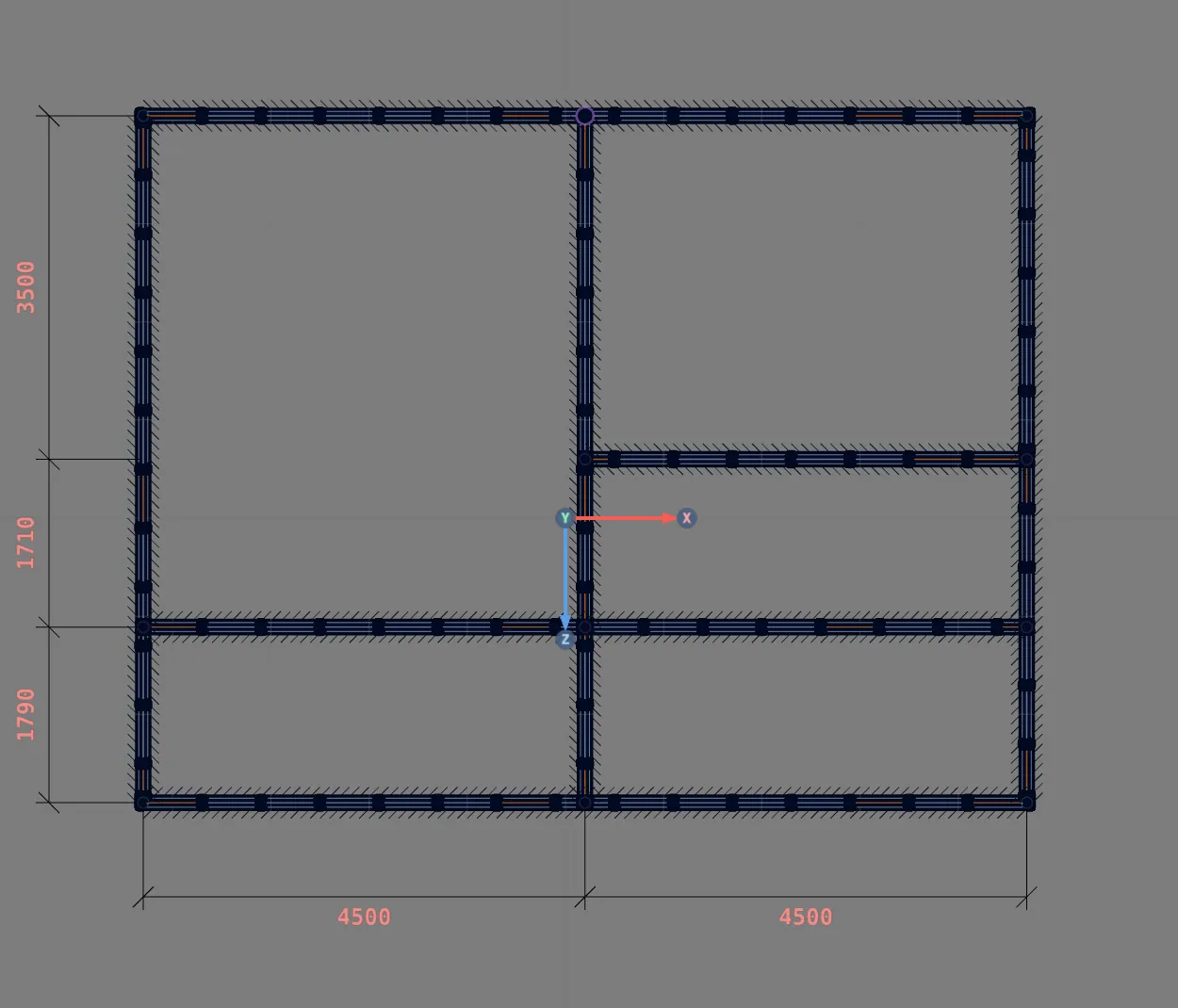
At the crossing, the app shows a T: the two pieces end at the same point on the centerline of the crossed wall, and the joint is counted only once. The connection library has the X junction type, which joins two T joints, one on each side of the wall, when the ends are within 40 cm of each other.
In site practice, avoid crossings: two T joints a few centimeters apart mean less track cutting and fewer sections at the same point, and the detail of each one is clear on the sheet.

Shortcuts
- F
Join walls
Toggles the wall join: click both walls.
- CA↵
Snap
Arms snapping and shows the reference: drawing, DXF or IFC mask.
- PL↵
Plan view
Goes to plan view. With the wall view open, closes it and keeps the wall selected.
- Home
3D view
Goes to 3D at the last camera pose. With the wall view open, closes it.
Parameters
The joint inspector, field by field
The Join walls tool has no card: it is just two clicks. What has parameters is the joint it creates.
| Field | What it is | Default (Brazil market) |
|---|---|---|
| Chip | Corner (L) or T. Tells you which joint the app recognized. | from the geometry |
| Runs through | The continuous wall: its track goes to the face, the other abuts it. | the longer one (L); the crossed one (T) |
| Flip | Switches the continuous wall. Only in the L: in the T the continuous wall is always the one the other abuts. | n/a |
| Connection | The connection type. In the L: Code corner or Corner with angle. In the T: T junction. If you changed it, the inspector shows what it was before ("was: ..."). | Code corner; T junction |
| Fastener | The screw, from the market catalog. | 4.8 x 19 hex head |
| Spacing | Distance between screws along the height, in mm. Editable. | 200 mm |
| Takes | How many fasteners the joint takes: the height in slices of at most one spacing, one screw at the middle of each. | 14 on a 2.80 m wall |
| Stud | How the doubled stud is built: Box [], Back to back ][ or None. Appears in the T (and in an older project that already had the box). | Back to back ][ in the T |
| Start with stud | Adds an extra stud at the start of each wall that reaches the joint, besides the doubled one: 2 in the L, 3 in the T, 4 at a crossing. With the box checked, choose [ ] aligned or rotated 90°. | off |
The tool, inside
| Value | What it governs |
|---|---|
| 20 cm in the plan, 30 cm in 3D | Maximum distance from the click to the centerline (plan) or to the face (3D) of the wall. |
| 5 cm | An end within this distance of the corner already counts as at the corner. |
| 8° | Range of automatic squaring, against the right corner and against the plan axes. |
| 35 cm | Radius of the click that selects a joint in the plan. |
Shortcuts
- F
Join walls
Toggles the wall join: click both walls.
Common mistakes
What goes wrong, and how it shows
- Joining at a T and opening the house. The tool always makes an L. Clicked on an interior wall and on the exterior wall it meets, it trims the exterior wall at the joint. How it shows: the footer gains an L and loses a T, and the exterior wall gets shorter. Fix: Ctrl+Z, and make the T with Snap.
- Clicking the wrong side. On the wall that ran past the corner, the clicked side is the one that stays. Clicking the leftover piece keeps that piece and removes the wall. Fix: Ctrl+Z and click on the house side.
- Squaring you did not want. An 84° corner is squared to 90°, and the second wall rotates about its far end. If the angle is part of the design, draw it more than 8° off or adjust the wall afterwards from its card.
- Parallel walls. Two aligned walls with a gap between them do not make a corner. The tool does nothing. To join them, delete one and stretch the other, or redraw.
- Clicking right on the joint and picking the bracing. A click right on the centerline selects the bracing line, and the footer shows its card. Click about 20 cm inside the room.
- Truss and column out of place. When extending or trimming, the wall is framed again. A truss or column stays attached to it, but at the same distance as before, which may no longer be the right one. Check after joining.
- Loose end more than 15 cm away. A wall that stops far from its neighbor does not become a joint, and the footer does not count it. If that is a mistake, Join walls fixes it; if it is on purpose (a low wall, a freestanding panel), leave it.
What the engine does with it
The joint connects the walls in the calculation
Shared nodes. At the joint, the two walls share nodes. That is what makes the calculation see one wall supported by the other: the load that reaches one has a path into its neighbor. An open corner is two loose walls, each with its own free end, and the result changes.
Doubled stud. The stud of the continuous wall in the T, back to back or boxed, goes into the calculation as a double section, and not as a single section drawn twice.
Code corner. The two corner studs exist as members: the second one, from the abutting wall, is a real member, standing with its web against the inner face of the continuous wall. The joint node stays in the same place, so the span of each wall still runs from corner to corner.
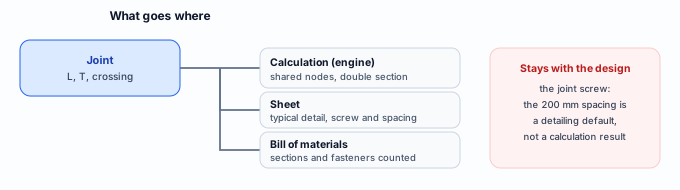
Screws. The joint screw is detailing, not a calculation result: fastener, spacing and quantity go on the sheet, in the typical detail of the connection (see Connections panel), and into the bill of materials. Checking the screw by NBR 14762 is up to the engineer, when the joint transmits a design force.
Where this is used later: the floor (see Floors) is created by clicking inside a closed room, and the roof (see Roof) reads the outline. Both depend on every corner being closed. The detail of each joint shows up again in the Connections panel.
Shortcuts
- Ctrl+Enter
Calculate the project
Sends the project to the engine, like the Calculate button.
- DL↵
Joint details
Creates the typical detail of each missing joint type and marks it on the plans.
with walls selected
Summary
The path, in one line
F → click the first wall on the side that stays → click the second → check the footer → Esc → click near the joint, a little inside → check the connection, the fastener and the spacing.
The example so far
- 6: walls, 4 exterior and 2 interior
- 3: closed rooms
- 8: joints, 4 L and 4 T
- 14: 4.8 x 19 screws per joint