LSF (Light Steel Framing)
Editing tools
The five editing tools on the Drawing card change what is already placed: Copy repeats a truss, while Align by face, Continuity, Extrude end and Move in section adjust where the profile sits and where it ends. This page uses each one on a piece of the example house, with what it writes, what Ctrl+Z undoes and what changes in the analysis.
Overview
Stick-built or roll-formed. The screens on this page show the stick-built project: the truss chord in Ue 90x40 and the track in U 92x38. In the roll-formed project, which is the default for a new project, both start as C 89x41, and the measurements that come from the section (the Continuity cutback, the Move snap) change with it. The gestures of the five tools are the same in both cases.
Changing what is already placed
All five live on the LSF Drawing card. Copy is in the first row, next to Snap, Join walls and Dimensions. The other four are in the grid below: Align by face, Continuity, Extrude end and Move in section. The same grid holds Double plate, which draws a pair of plates at the node and is outside this page.
Four of them are drawing tools: they change where the profile sits and where it ends, not the analysis model. Only Copy creates new members, nodes and supports.
The example house arrives here with the bracing done (see Bracing) and one single truss, T1, placed over the front wall (see Roof trusses), and without the roof by outline (see Roof). The reason is practical: Copy works on the single truss, and the roof would cover the pieces we are about to adjust.
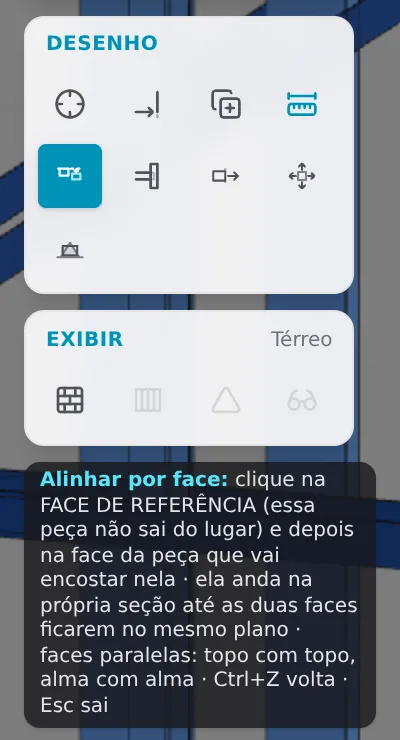
| Tool | What it writes | Node and analysis | Ctrl+Z |
|---|---|---|---|
| Copy | a new truss: members, nodes and supports | change: the model gains the truss | one per copy |
| Align by face | the section offset of the piece that moves | stay | one per alignment |
| Continuity | the end cut of the piece that stops, and the rule for the pair | stay | one per pair |
| Extrude end | where the end stops, in mm from the node axis | stay | one per drag |
| Move in section | the section offset, in Y or in Z | stay | one per drag |
What it is for
Drawing on one side, analysis on the other
Every LSF member has two lives. For the engine, it is a line from node to node, on the axis of the piece. For the drawing, it is a profile with a section, a rotation and two ends: that is what the 3D view, the sheet and the assembly show. The two usually match. When they do not, someone has to decide where the steel really goes.
That is what four of the five tools are for. Move and Align take the section off the axis. Extrude and Continuity change where the steel ends, along the axis. In all four, the analysis line and the nodes stay where they were. Copy belongs to another family: it repeats a whole truss, and the copy is new model.
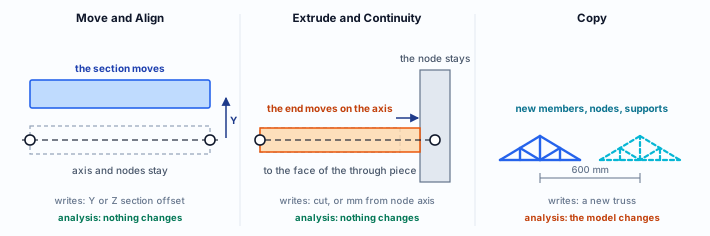
The three families. On the left, the section moves off the axis. In the middle, the end travels along the axis to the face of the neighboring piece. On the right, a whole truss repeated 600 mm further on. Schematic drawing.
Where and how
All five work on the project canvas, in Plan and in 3D. With one of them armed, the dark balloon next to the card shows its hint. Every gesture that writes is one Ctrl+Z step. Esc leaves the tool altogether; it does not go back just one step.
The messages
When the gesture writes, a green message comes up with the Undo (Ctrl+Z) button. The first-click message and the refusals come in amber, without that button. With Copy, the answer is the copy itself, which appears where you clicked.
The engine receives nodes, members, supports and loads. The section offset, the end cut and the end position in mm from the node stay in the drawing. The part what the engine checks shows this tool by tool.
What the standard says
Plumb line, eccentricity and drawing
NBR 16970-2 does not talk about drawing tools, but three of its items say what these tools help you meet, and what they cannot meet on their own.
NBR 16970-2 · item 4.1.
The studs of one story line up with those of the story above, with the floor joists and with the roof structure: this is in-line framing. A non-structural element must not break that continuity. In the house, this is what asks for a truss over each stud, and it is why Copy repeats T1 at the stud spacing.
NBR 16970-2 · item 4.2.
Profiles in the same plumb line must not be misaligned unless there is a transfer beam between them, and they face the same way. The standard tolerates small site eccentricities, depending on the beam web stiffener: internal, up to 20 mm between the axis of the beam web and that of the stud web; external, up to 20 mm between those axes and up to 3 mm between the beam web and the stud.
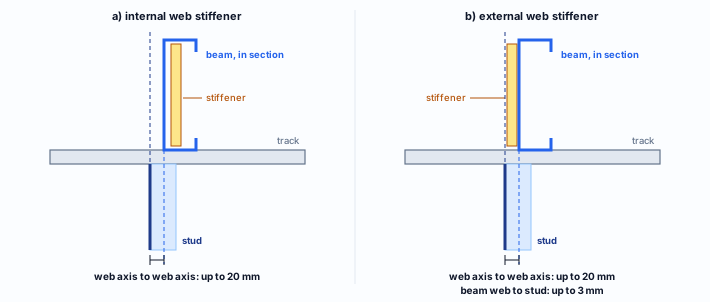
Item 4.2 seen from the face of the wall: the beam arrives in section over the track, with the stud below. The dashed lines are the web axes. Our sketch, not to scale; the numbers are those of item 4.2.
NBR 16970-2 · item 4.8.
The drawings and the design report use the same piece identification. The project shows the roof from above, the panels with each component, the connections, the splices, the reinforcements and the typical truss nodes. Which piece runs through and which stops at a node, and where an end finishes, are drawing decisions: Continuity and Extrude exist to record them.
The item 4.2 tolerance stays with the design. The five tools adjust where the piece appears. The eccentricity between beam and stud is checked on the plan and on the sheet.
Recommendation
Model first, drawing second
The order matters, because the wall is rebuilt whenever an opening changes. In the example house, go like this:
1. Copy before adjusting
Copy is the only one that changes the model. Make the copies first, check the distance of each one with Dimensions and the supports of each copy. Only then run the analysis.
2. Settle the openings before fine adjustment
Moving a door or a window rebuilds the wall and its pieces. Adjust a piece of an opening once the opening is in its final place.
3. Adjust last, one at a time
Continuity, Align, Extrude and Move are finishing work. Read the message of each gesture before the next: it says which piece moved and by how many millimeters. If that was not it, Ctrl+Z.
4. Leave the corner stud alone
The corner stud is recomputed by the corner rule at every wall change: its rotation and offset are rewritten. A manual adjustment there lasts until the next wall edit.
5. Do not trade checking for offsetting
Offsetting the section fixes the drawing, not the analysis. If the beam or the truss ended up off the plumb line beyond item 4.2, the way out is to revise the layout, not to push the profile.
In the example house: which tool for which case
| What shows up | Tool | Where, on this page |
|---|---|---|
| a single truss, and the span asks for several | Copy, with Copy multiple | T1 repeated as T2 and T3, every 600 mm |
| header face off the plane of the king stud | Align by face | P1 header brought to the plane of the king stud |
| two pieces crossing at the same node | Continuity | T1 top chord runs through, vertical stops |
| end far from the face where it should stop | Extrude end | header end at the face of the king stud |
| one profile running into another, side by side | Move in section | T1 bottom chord on top of the track |
Step by step
Copy: T1 every 600 mm
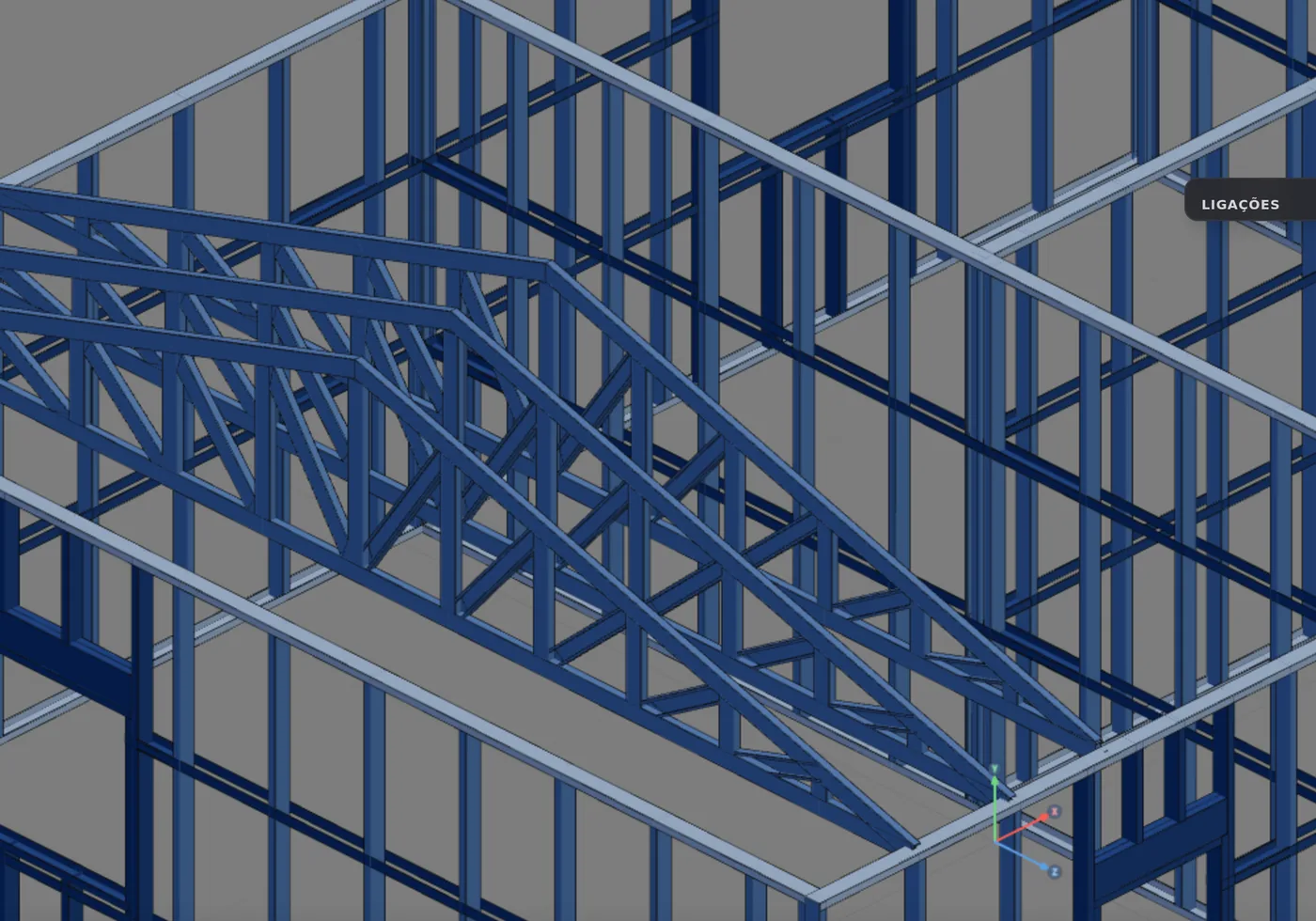
T1 is at x = -3.70 m. The task is to repeat the truss at the stud spacing, 600 mm, going forward. With Copy multiple on, it takes one source and two clicks.
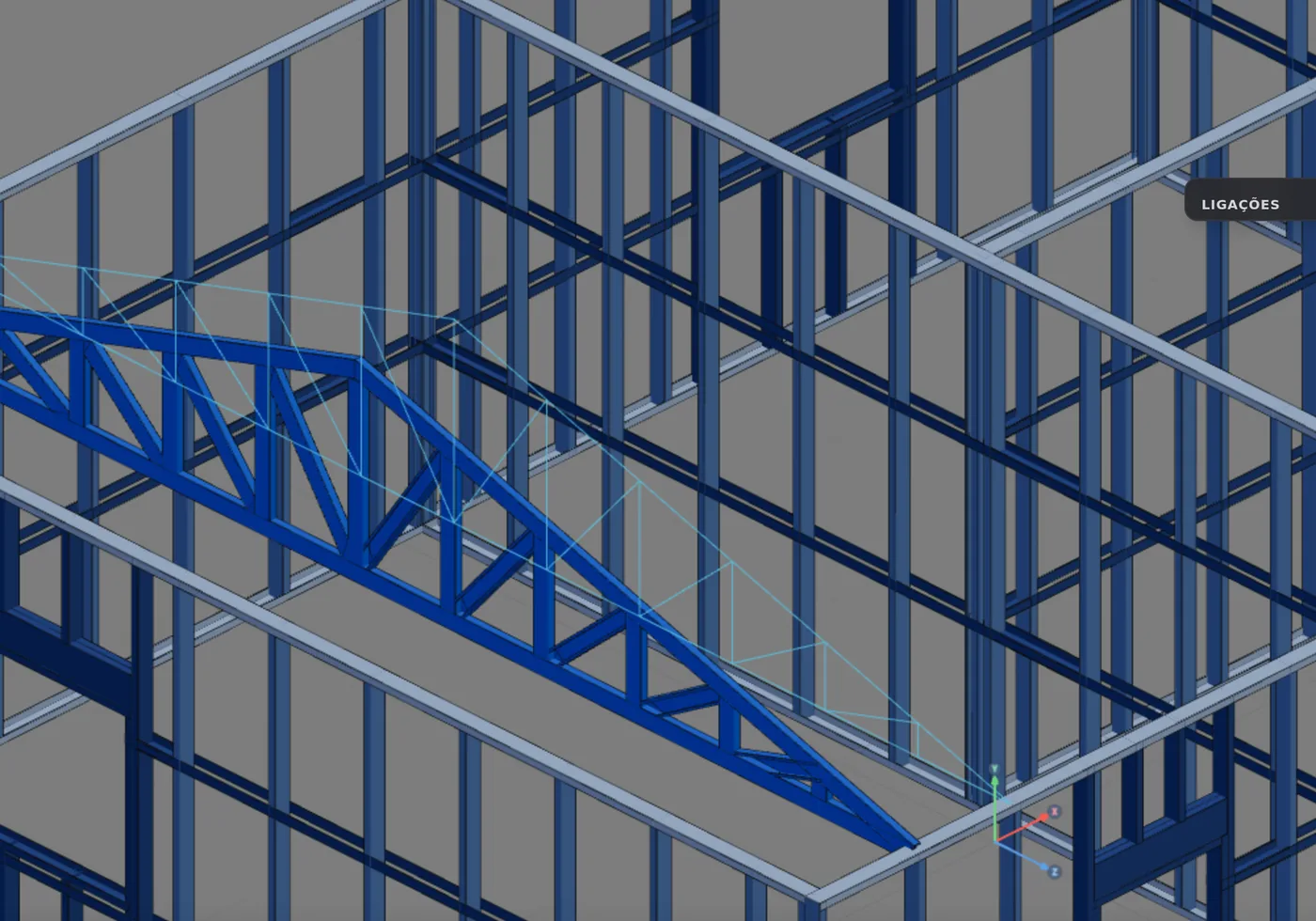
1. Arm it and turn on Copy multiple
Copy is the third button in the first row of the card. Once armed, it shows the Copy multiple box on the card, off by default. When it is on, the caption says you can paste several copies in sequence and that Esc ends it.
2. Pick the source
Hover over the truss: the one within 0.3 m of the cursor lights up. Click, and it becomes the source; a ghost of it follows the cursor.
3. Paste
Click where the copy goes. It moves as far as the cursor moved since the point where you picked the source, in plan only: it is born at the same height. A copy node less than 1 cm from an existing node merges with it.
4. Keep going, and leave with Esc
With the box on, each click pastes one more; with it off, it pastes one and asks for a source again. The Copy button at the foot of the truss box only arms the tool: the source is picked on the canvas.
- -3.70 m: T1, the source
- -3.10 m: T2, first copy
- -2.50 m: T3, second copy
- 2: Ctrl+Z steps, one per copy
Check the distance and the supports. The copies in the figure are exactly 600 mm apart; by hand, measure the distance with Dimensions before moving on. Before running the analysis, check the supports of each copy.
Align by face: the header in the plane of the king stud
At door P1, the face of header VG:lgd1xi:P1 (C 200x40) was not in the plane of the outer face of king stud KO:lgd1xi:P1:L (C 90x40). Align brings one face to the plane of the other, sliding the piece within its own section.
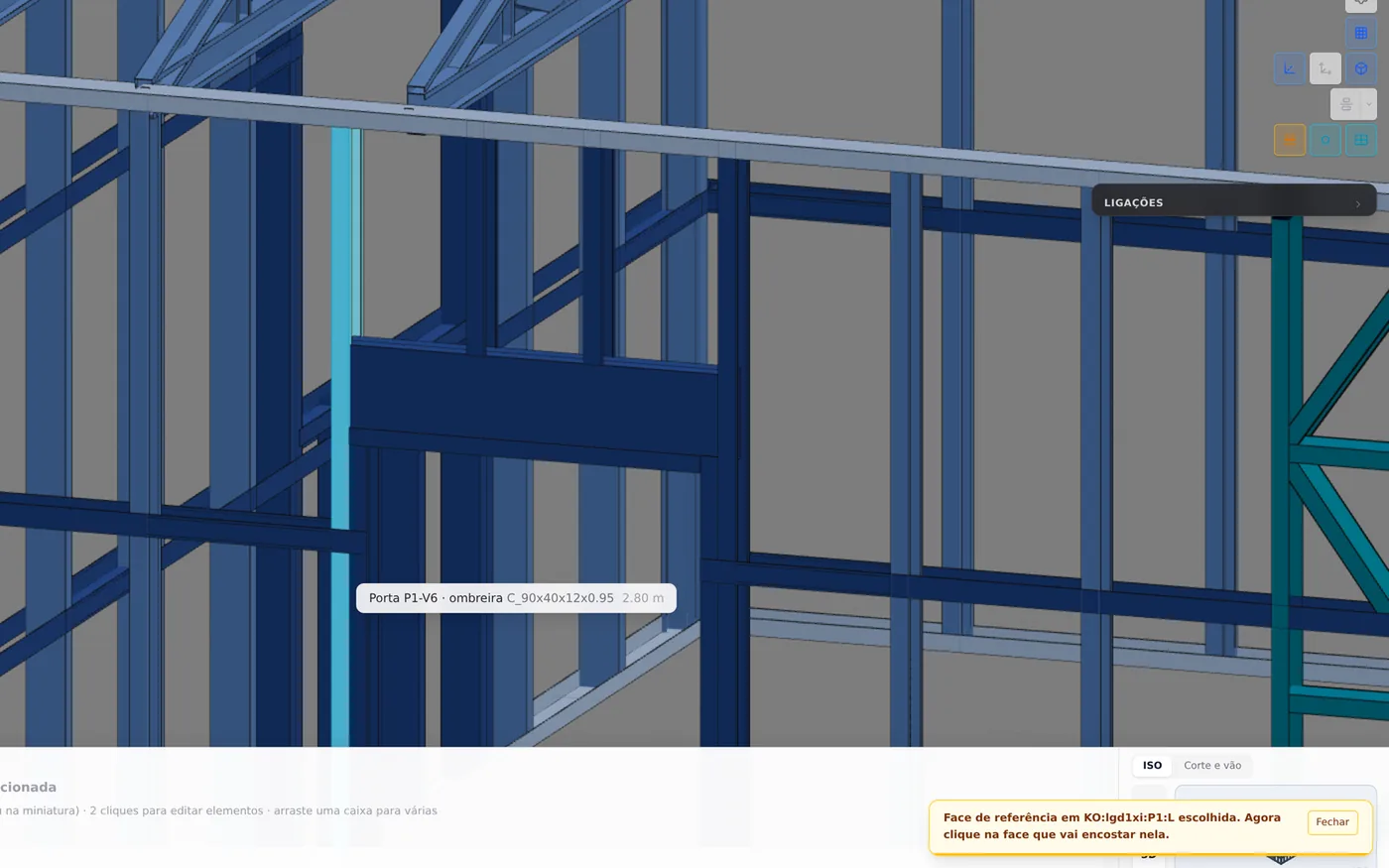
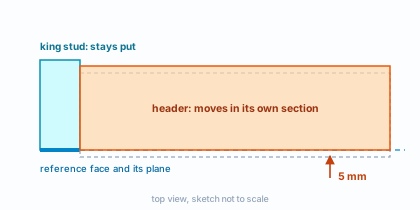
Dashed, the header before; in orange, after. The nodes and connections do not change.
1. Arm it and hover
With Align by face armed, the face under the cursor lights up. The click has to land on the face itself: near the edge, without hitting the steel, the tool refuses.
2. Click the reference face
It is the face that stays put: here, the outer face of the king stud. The message asks for the second face: "Reference face on KO:lgd1xi:P1:L picked. Now click the face you want brought to it." Clicking the same piece again only brings the message that it is the reference.
3. Click the face that will come to it
The header face, parallel to the first. The header moves until both faces are in the same plane. In the example house, 5 mm: "VG:lgd1xi:P1 moved 5 mm: its face is now flush with KO:lgd1xi:P1:L. Nothing was cut or shortened."
Faces parallel within 2°: top with top, web with web. The side the face points to does not matter. The piece moves only in the plane of its own section: no steel is created or cut, and the length stays. One Ctrl+Z undoes the whole alignment.
Continuity: the chord runs through, the vertical stops
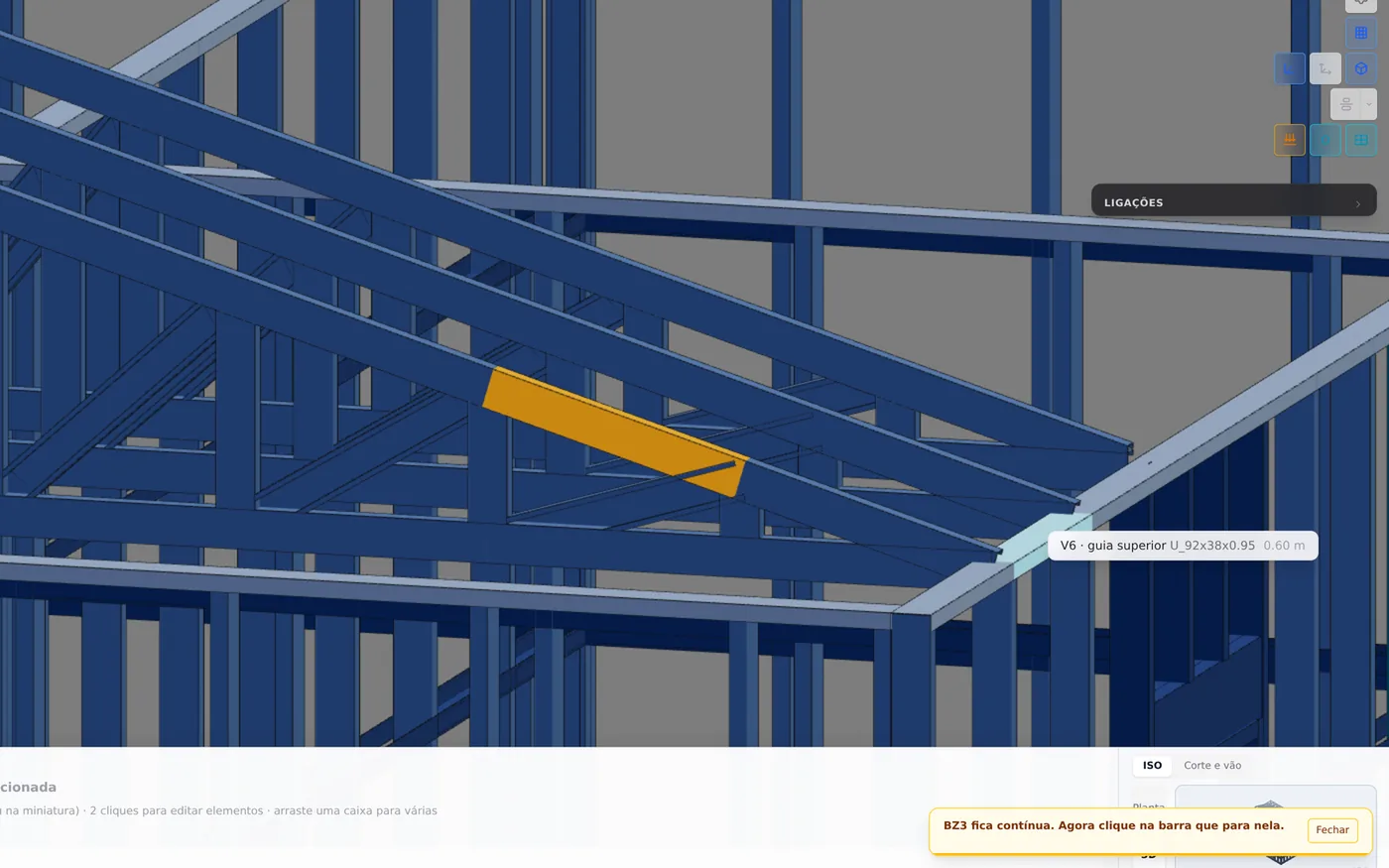
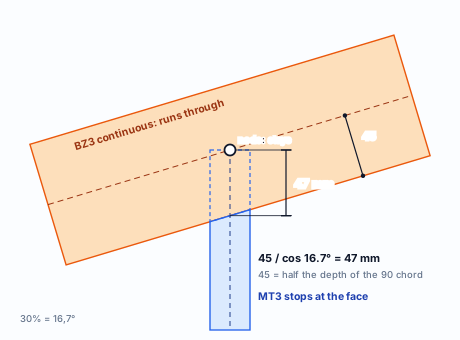
At the T1 node where vertical MT3 meets top chord BZ3 (30%), both pieces reach the axis and overlap in the drawing. Continuity decides which one runs through whole and cuts the end of the other at its face.
1. Click first the one that runs through
BZ3, the chord. It lights up, and the message asks for the second: "BZ3 stays continuous. Now click the member that stops at it."
2. Click the one that stops at it
MT3, the vertical. Its end moves back from the node to the underside of the chord, measured along the vertical axis: 45 mm divided by the cosine of the slope, 47 mm. The message confirms: "MT3 now stops at the face of BZ3, which runs through. The end was cut back 47 mm; the node and the analysis stay as they were."
The continuous piece has to cross the end of the other one, within the section of both pieces. The rule is stored by the pair of labels and comes back on its own after the wall is rebuilt; a label that repeats, like that of a common stud, only finds the piece again within 0.5 m of where it was. Marking the same pair in reverse order swaps the rule; marking the same pair again just rewrites the same rule.
Extrude end: the header to the face of the king stud
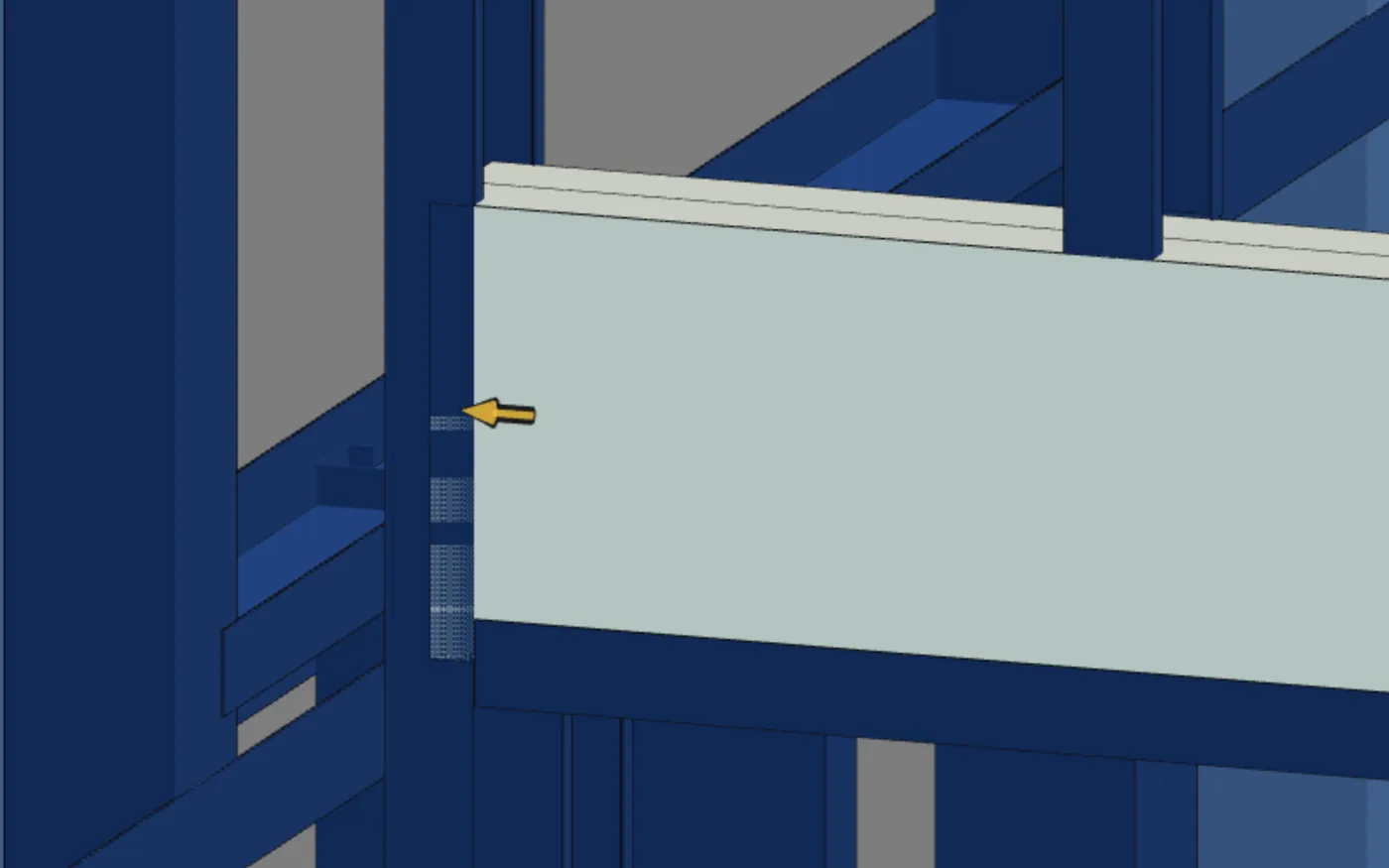
The end of header VG:lgd1xi:P1 reached the node axis, inside the king stud. Extrude takes the end along the piece as far as you want, and the measurement is always the distance to the node axis.
1. Click the member, near the end
An amber arrow appears at the end nearest the click, where the end is now.
2. Drag along the piece
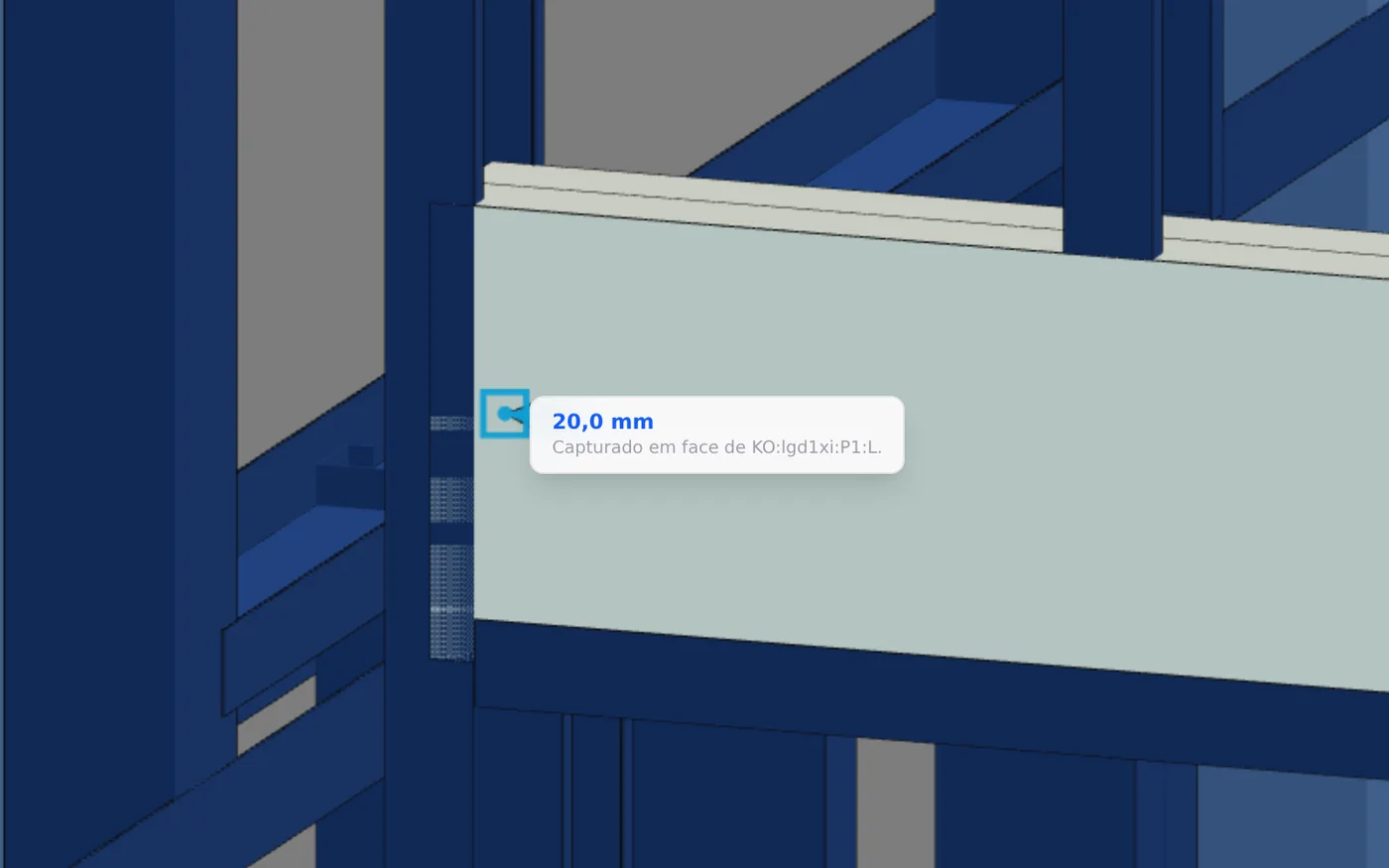
The balloon shows the end in mm from the node axis. Near the face of a piece, the node axis or where the connection model puts the end, it snaps: the arrow turns blue and the balloon says "Snapped to ...". A negative value is the end going past the node (up to 1.5 m beyond); the maximum is the member length.
3. Release on the right snap
Here, on the face of the king stud, 20 mm from the node axis: half of its 40 mm flange.
What gets written
The header end, 20 mm, in the node connection. If the node had no connection, one is created just to hold that number. Any cut at that end is removed. Releasing at the same value writes nothing. The node does not move.
Exact end value. On the canvas, the drag stops at the snaps. To type the end in mm, use the node connection editor (see Connections panel).
Move in section: the chord on top of the track
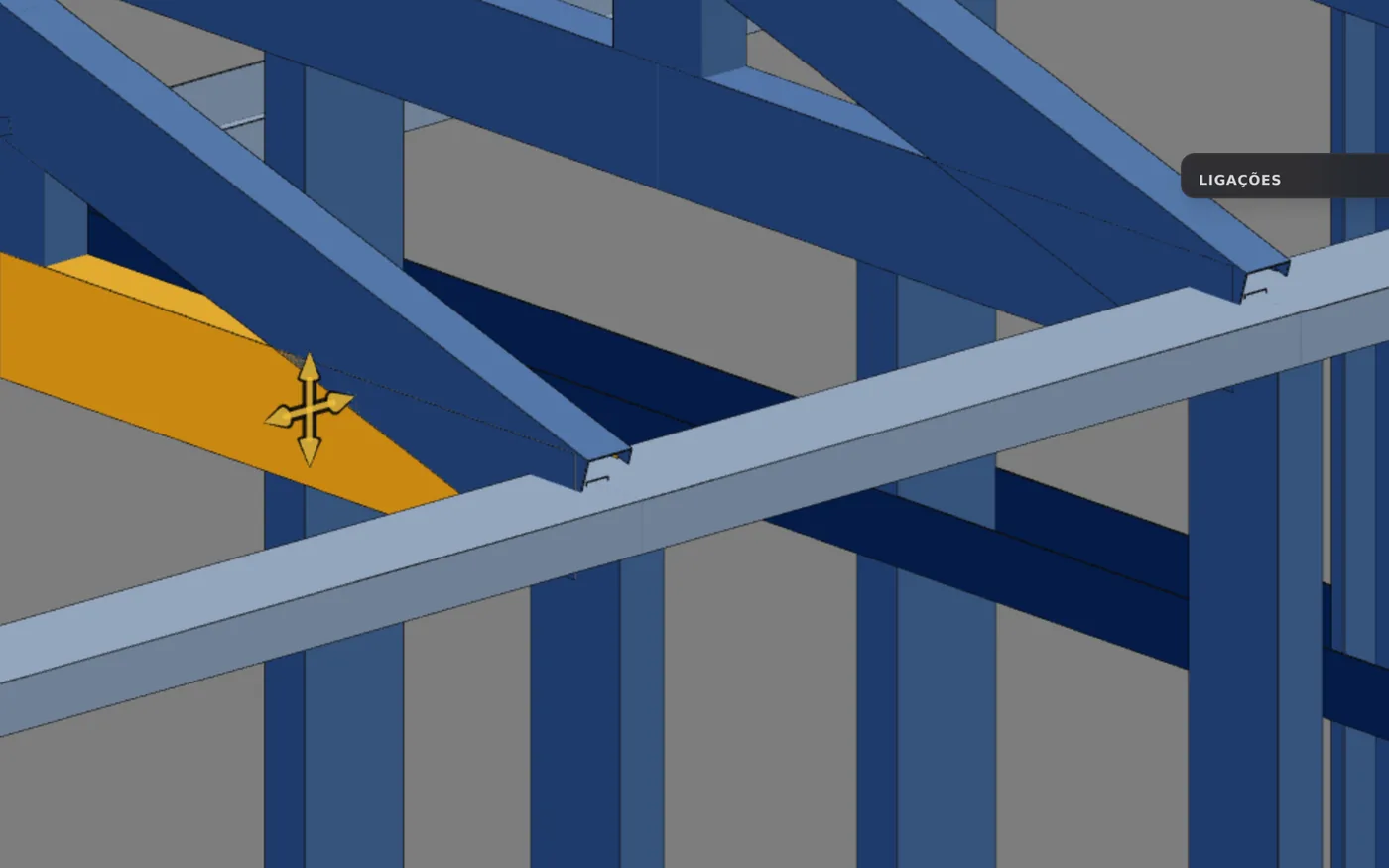
The first segment of the T1 bottom chord, BZ2 (Ue 90x40, 0.583 m), passes over the front wall with its axis at the height of the axis of top track M64 (U 92x38). In the drawing, one profile runs into the other. Move raises the chord until its face sits on the top face of the track.
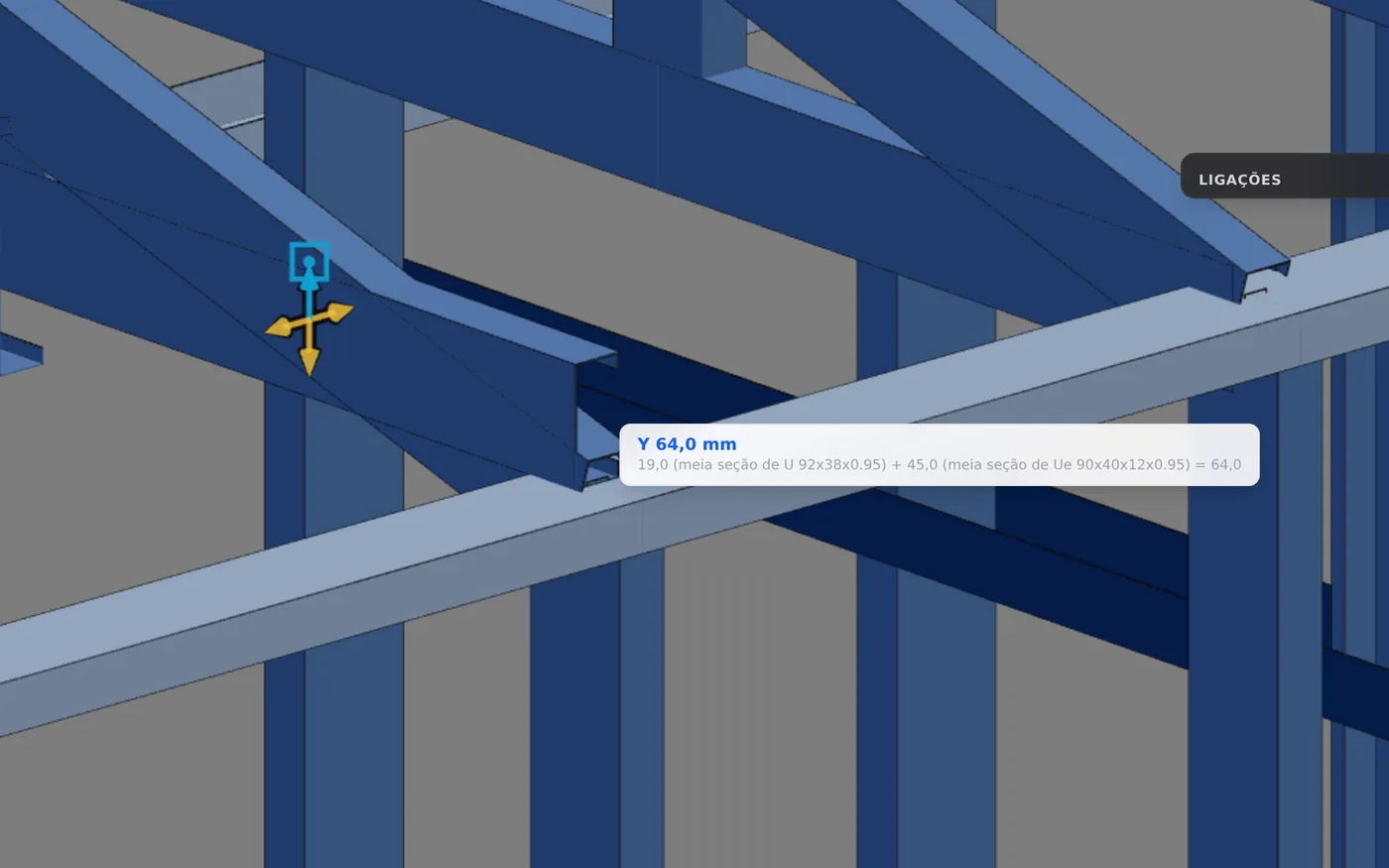
1. Click the member
The arrows appear up to 0.4 m from the end nearest the click. On BZ2, which is short, they sit in the middle: 0.29 m.
2. Drag the +Y arrow
The balloon says "Free offset. Near a face it snaps." Near a face, the arrow turns blue. On the way it snapped at 26, 40 and 48 mm before 64: read the balloon before releasing.
3. Release
Only the clicked member moves; the other chord segments stay.
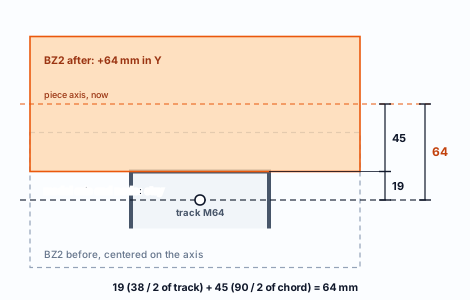
In section, looking along the front wall. Schematic, not to scale.
The length and the nodes do not change: the model still supports the chord at the node, on the axis. Releasing where you grabbed writes nothing, and a whole drag is one Ctrl+Z step. If the arrow axis points at you, the tool refuses: orbit the view.
What survives when the wall is rebuilt
Any change to a wall, such as moving an opening, rebuilds its pieces. The adjustments of the five tools do not live in the same place, so they do not react the same way.
Continuity
The rule is stored by the pair of labels and applied again after each rebuild. As long as both pieces exist with the same label, the cut comes back.
Align and Move
The offset comes back if the piece is reborn in the same place, with the same type and the same rotation. A piece reborn elsewhere comes back without it.
Extrude
The end lives in the node connection. If the node disappears in the rebuild, the connection goes with it, and so does the end.
Measured in the example house
| Change | Header: Align, 5 mm | Header: end, 20 mm | Adjustments on T1 |
|---|---|---|---|
| J1 moved 10 cm and back | kept | kept | kept |
| P1 moved 10 cm and back | lost | lost | kept |
Moving window J1 rebuilt the front wall, but P1 and its pieces were reborn in the same place: everything came back. Moving P1 itself made the header and the king stud reappear 10 cm further on in the first step. On the way back, the pieces were different ones, without the earlier adjustment. The T1 adjustments (the Continuity of BZ3 and MT3, the Move of BZ2) were not touched: the single truss is not a wall piece.
Rule of thumb. Fine adjustment only once the openings are in their final place. If you need to move an opening afterwards, redo the Align and the Extrude of its pieces: two clicks each.
Corner stud. The corner rule rewrites the rotation and offset of the corner studs at every wall change, and clears the offset of a stud that is no longer a corner. An adjustment there does not last.
Shortcuts
- O↵
Copy truss
Click a truss and paste the copy with an offset.
- CM↵
Copy multiple
Toggles pasting several copies in a row, until Esc.
with Copy armed
- CT↵
Dimension style
Opens and closes the section dimension panel: colors, background, size, terminator.
- A↵
Align by face
Brings a piece flush against another one's face.
- CN↵
Continuity
Click the bar that runs through, then the one that stops at it: its end pulls back to the face.
- X↵
Extrude end
Pulls the bar end by the typed value.
without the floor tool
- M↵
Move in section
Shifts the piece in the section plane.
- Home
3D view
Goes to 3D at the last camera pose. With the wall view open, closes it.
Card parameters
One field only, and fixed tolerances
Of the five, only Copy has an option on the card: the Copy multiple box, which appears when Copy is armed and starts off. When it is off, Copy pastes one copy and goes back to picking the source. The other four have no field: what they do is decided by the click and the drag, within the tolerances below.
The five, one line each
In all five, Ctrl+Z undoes the last gesture and Esc leaves the tool.
| Button | The gesture |
|---|---|
| Copy | click a truss, the source; move and click to paste the copy; with Copy multiple, paste several in sequence |
| Align by face | click the reference face (that piece stays put), then the face of the piece that will come to it; it moves within its own section until both faces are in the same plane: top with top, web with web |
| Continuity | click first the member that runs through, then the one that stops at it; the end of the second moves back to the face of the first, and the rule holds after the wall is rebuilt |
| Extrude end | click the member, near the end: an arrow appears at the end nearest the click; drag to lengthen or shorten, and only the length changes |
| Move in section | click the member: four arrows appear up to 0.4 m from the end nearest the click; drag one of them to offset the profile in Y or in Z, and the length does not change |
The tolerances, fixed in the app
| Tool | Value | What it decides |
|---|---|---|
| Copy | 0.3 m | cursor distance for the truss to light up |
| Copy | 1 cm | a copy node closer than this to an existing node merges with it |
| Align by face | 2° | up to this angle, the faces count as parallel |
| Align by face | 0.05 mm | a move smaller than this: "These faces are already flush." |
| Continuity | 0.5 m | distance within which a repeated label finds the piece again after the wall is rebuilt |
| Continuity | 0.5 mm | an end closer than this to its place: when the rule comes back, it rewrites nothing |
| Extrude end | -1500 mm to L | the end goes up to 1.5 m beyond the node, and up to the member length |
| Move in section | 0.4 m | maximum distance of the arrows from the end nearest the click (half the member, if it is short) |
| Move in section | 12 px | on-screen radius within which the drag snaps to a face |
Shortcuts
- O↵
Copy truss
Click a truss and paste the copy with an offset.
- CM↵
Copy multiple
Toggles pasting several copies in a row, until Esc.
with Copy armed
- A↵
Align by face
Brings a piece flush against another one's face.
- CN↵
Continuity
Click the bar that runs through, then the one that stops at it: its end pulls back to the face.
- X↵
Extrude end
Pulls the bar end by the typed value.
without the floor tool
- M↵
Move in section
Shifts the piece in the section plane.
Common mistakes
The messages
In braces, what changes each time: the piece, the measurement, the angle. In green, the messages of a written gesture, with the Undo (Ctrl+Z) button.
| When | Message |
|---|---|
| click away from a piece | Click on a piece. (Align, Continuity, Extrude and Move) |
| axis toward the camera | In this view the axis points at you, so dragging cannot set it. Orbit the view and try again. (Extrude and Move) |
| Align, 1st click | Reference face on {barra} picked. Now click the face you want brought to it. |
| Align, done (green) | {barra} moved {mm} mm: its face is now flush with {ate}. Nothing was cut or shortened. |
| Align, same piece | That is the reference piece. Click a face on the piece you want to move. |
| Align, no face | No steel face under that click. Click on the face itself, not past the edge of the piece. |
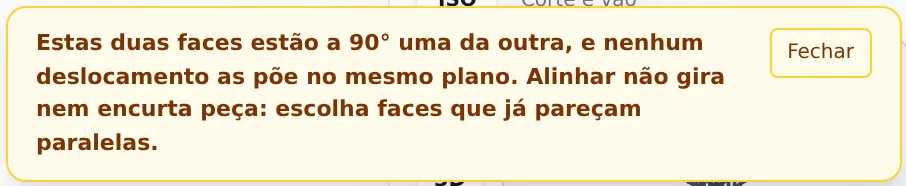
| Align, skewed faces | These two faces are {graus}° apart, so no move can make them flush. Aligning does not rotate or shorten a piece: pick faces that already look parallel. |
| Align, already flush | These faces are already flush. |
| Continuity, 1st click | {barra} stays continuous. Now click the member that stops at it. |
| Continuity, done (green) | {barra} now stops at the face of {ate}, which runs through. The end was cut back {mm} mm; the node and the analysis stay as they were. |
| Continuity, same member | That is the continuous member. Click the member that stops at it. |
| Continuity, no meeting | These two members do not meet: the continuous one does not reach this one. |
| Continuity, through the middle | The continuous member crosses this one in the middle, not at its end. |
| Continuity, no measurement | Could not measure this cut. |
| Extrude, done (green) | {barra} end at {mm} mm from the node axis. |
| Extrude, in the model (green) | {barra} back where the model puts it: {mm} mm from the node axis. |
| Move, done (green) | {barra} offset {eixo}: {mm} mm. With a snap, it ends in ", touching {apoio}." |

Where people go wrong with the five
- Using Esc to go back one step. Esc leaves the tool altogether, in all five, Copy included: it does not go back to picking the source. To undo the last gesture, Ctrl+Z; to keep going, arm the tool again on the card.
- Adjusting the corner stud. The corner rule rewrites its rotation and offset at the next wall change.
- Extruding a stud in Plan. In Plan, the stud axis points at you, and Extrude refuses. Move does the same with the arrow that points at the camera, like the Y of a beam seen from above. Orbit to 3D.
- Looking for the Move arrows in the middle of the member. They appear up to 0.4 m from the end nearest the click, and only on a short member do they sit in the middle. Click on the side of the end you want to see.
- Reversing the Continuity order. The first click is the piece that runs through whole. In the swapped order, the rule is stored the other way round and replaces the one for that pair.
- Releasing Move at the first snap. On the way to the right face, the drag snaps to other faces. On BZ2 it was 26, 40 and 48 mm before 64. Read the balloon before releasing.
What the engine checks
The drawing changes; the model, only with Copy
The engine receives the nodes, the members with profile and class, the supports and the loads, and analyzes each member from node to node, on the axis. The LSF assumptions (which ends are pinned, the buckling lengths) come from the role and type of each piece, and they are assembled for the analysis only, without changing the project. The fields that the four drawing tools write stay outside that assembly.
| Tool | What reaches the engine | In the result |
|---|---|---|
| Copy | members, nodes and supports of the new truss | the copy is analyzed like T1, with the single-truss assumptions (see Roof trusses). The copied members keep their type, and it is by type that the engine recognizes verticals and diagonals. The supports of the copy go into the analysis: check them first |
| Align by face | nothing: the section offset stays in the drawing | the member is still analyzed on the axis, from node to node |
| Continuity | nothing: the cut and the rule stay in the drawing | the pins come from the role of the piece, not from the rule |
| Extrude end | nothing: the end stays in the node connection, as drawing data | the analysis length is from node to node |
| Move in section | nothing: it is the same field as Align | the chord rests on the node, on the axis, as before |
Continuity is not a pin
On T1, the engine already treats the chord as continuous and the vertical and the diagonal as pinned at both ends: that is the engine assumption for every truss web member, taken from the type of the piece. With or without the Continuity rule, and whatever the order of the pair, those are the pins. The tool message itself says so: "the node and the analysis stay as they were".
These are the assumptions for a new project: CalcSteel versions the analysis, and the result of an older project does not change on its own.
And in the outputs
The span section on the sheet draws the section offset.
What stays with the designer
- The item 4.2 eccentricity, between the beam web and the stud web. The analysis takes each member on its axis, from node to node: if the drawing shows the truss 15 mm off the plumb line, the result still has it on the axis. The real distance is checked on the plan and on the sheet, against the item 4.2 tolerance.
- The supports of each copied truss, before running the analysis: they go into the analysis as they were written.
Shortcuts
- Ctrl+Enter
Calculate the project
Sends the project to the engine, like the Calculate button.
Summary
The path, in one line
Copy the trusses → measure with Dimensions → review supports → settle the openings → Continuity → Align by face → Extrude end → Move in section → read each message → Ctrl+Z if that was not it.
The example so far
- T1 to T3: trusses every 600 mm
- 5 mm: header in the plane of the king stud
- 47 mm: cutback of vertical MT3
- 64 mm: chord BZ2 on top of the track