LSF (Light Steel Framing)
Standard details
Standard details show how LSF pieces meet: the wall base on the raft slab, the stud in the track, the nogging over the stud and the board fixing. This page shows the two sheets CalcSteel draws with the project profile and the market numbers, the typicals sheet and the joints sheet, and how to check each detail against the 3D.
Overview
The detail groups, two sheets
The panel elevation shows every piece, but it does not show how two pieces hold together. That lives in the details: the section through the wall base, the fit of the stud in the track, the nogging crossing the studs, the meeting of two walls, the board screw 10 mm from the edge.
In CalcSteel these drawings come from two buttons in the wall footer. Typicals builds the "Typical details" sheet: only the ones the project needs, each at its own scale, six per A3. Joints builds the "Joint details" sheet with one drawing per joint type (L1, L2, L3...) and the mark of each spot on the plans.
Both sheets are live, like the ones in LSF sheets: they store only the detail code and redraw from the model every time they open.
- 5: typicals on the 9x7 house sheet: DT1, DT21, DT22, DT27 and DT28
- 1:5 to 1:25: fixed scale of each typical, from the wall base to the board
- 6 per A3: the seventh goes to sheet 2, without repeating the six
- 5 joints: on the house joints sheet: L1, L2, L3, L6 and L9
The screenshots on this page come from the app, on the roll-formed 9x7 house (FRAMECAD F325iT, C 89x41 of 0.95).
What it is for
What holds to what, group by group
The installer reads the panel in the elevation and the fixing in the detail. That is why the details are split the way the building is. The table shows what the app draws in the groups of the example house: base, wall and boards.
| Group | Standard detail | Joint (Connections panel) |
|---|---|---|
| Foundation | DT1 exterior wall base · DT27 stud in track | L1 anchor · L2 stud to track |
| Wall | DT28 nogging over the stud | L3 L corner · L6 T junction · L9 opening frame |
| Boards | DT21 outer board fixing · DT22 layered exterior wall | (not a steel joint) |

What lives on another page
The frame of each window at 1:20, the section through the header and the opening schedule come from the Details button (LSF sheets). The L and T joints spot by spot, with the marks on the plan, are in Connections panel. Here they appear only to close the group.
What is detailed in the design
Rafter and purlin, ridge, eave, hold-down, X bracing, double stud, header and sill as a typical, and the inner board stay off the typicals sheet. Those joints are detailed in the design, from the 3D with the purple button and from the machine file (Roll-former file).
Standard
What the standard asks on paper
NBR 16970-2:2022, the Brazilian standard for light steel framing design, lists the minimum content of an LSF structural design. Part 3, under development (2022 consultation), covers the interfaces: whatever touches the steel. Here we give only the item numbers; read the text in the standard.
NBR 16970-2 · 4.8 Design drawings.
Caput: components carry the same identification in the drawings and in the report. a) supports of the base panels. d) sections and cladding details. f) designed connections of the foundation anchorage and between pieces, with screws, diameter, number and spacing. g) splices, reinforcements and typical truss nodes.
NBR 16970-2 · 4.7 Calculation report.
f) and g): schematic detailing of the pieces and of the splices, unions and connections.
NBR 16970-2 · section 6, anchorage (6.1 to 6.3).
The fixing of the structure to the foundation and the resistances of each anchorage assembly.
NBR 16970-3 (draft) · 4.2.2, 4.2.4, 4.2.5, 4.3, 4.4, 4.5 and 5.3.
Interface of the wall with the foundation (recess, anchorage, waterproofing at least 50 mm high in dry areas and 200 mm in wet areas), with the slab, fixings, floor, ceiling, roof and the types of fixing.
| Item | What the app delivers | Where |
|---|---|---|
| 4.8 caput | the same profile and the same name as the 3D in every detail | DT and L |
| 4.8 a) and f) | anchor and stud in track, with fixing; the anchor reads "per the foundation design" | DT1, L1, L2 |
| 4.8 d) | section with boards, membrane, wool and gypsum | DT1, DT22 |
| 4.8 f) | screw by the market rule: not a designed connection | all notes |
| 4.8 g) | typical truss node, with the angled fit of the web in the chord: wall lattice column and, in a roll-formed project, roof truss and floor truss joist | DT29 |
| 16970-3, 4.2.2 | 50 mm recess and sealing tape under the track | DT1 |
The standard's connection is designed; the detail's is not. Every joints sheet carries "Construction detail, not a resistance check.", and the swaged joints state that the analysis engine does not check the joint. The designed anchorage belongs to the foundation design and the report.
Recommendation
Model finished first, details last
A typical only comes in if the project has what it shows. Requesting the sheet early gives an incomplete sheet, and requesting it again creates a sheet 2 with only what was missing. The order that gives the fewest sheets:
1. Close the model
Walls, joints, openings, noggings, roof and the market board layers. Each one switches on a typical.
2. Check in the 3D with the purple button
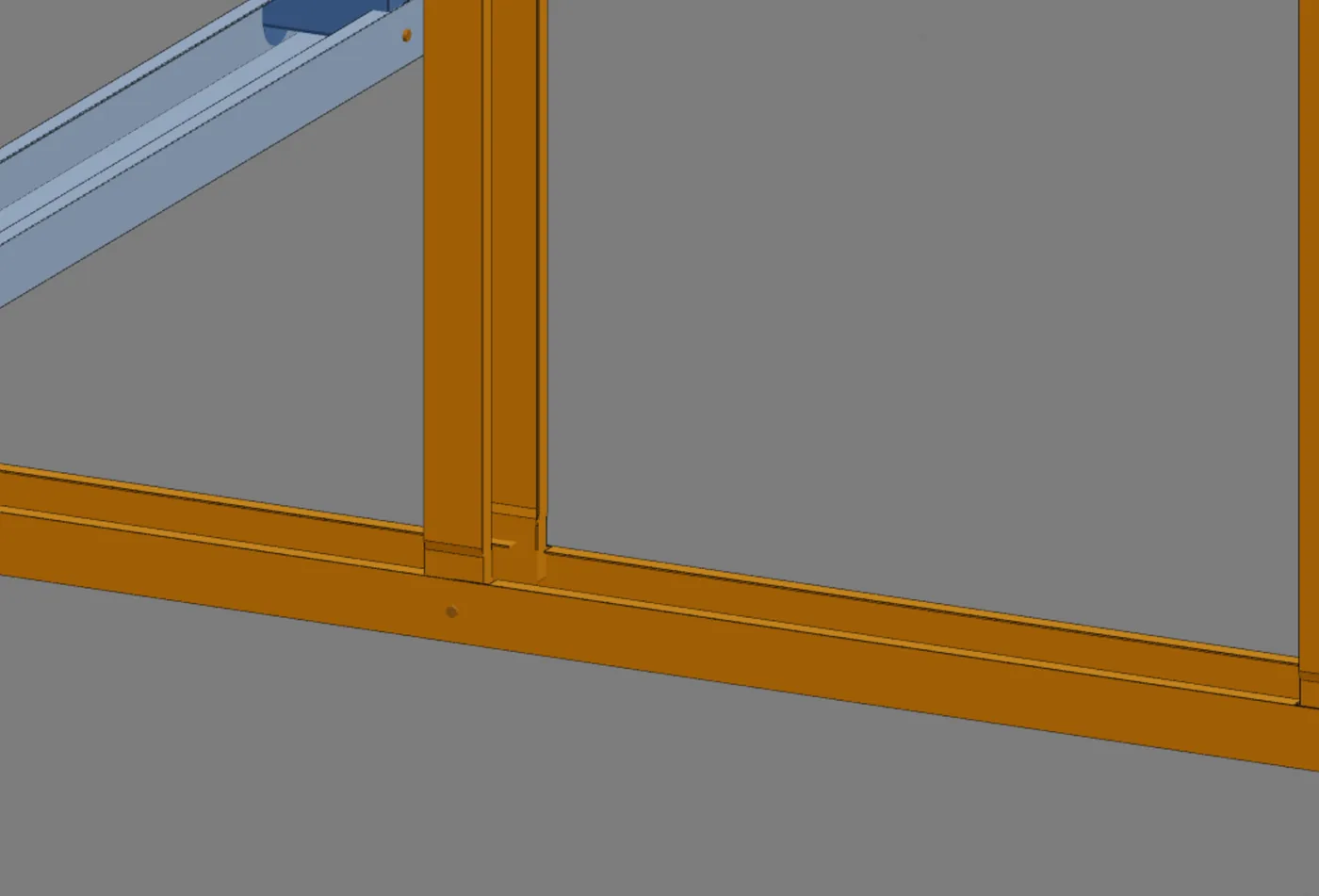
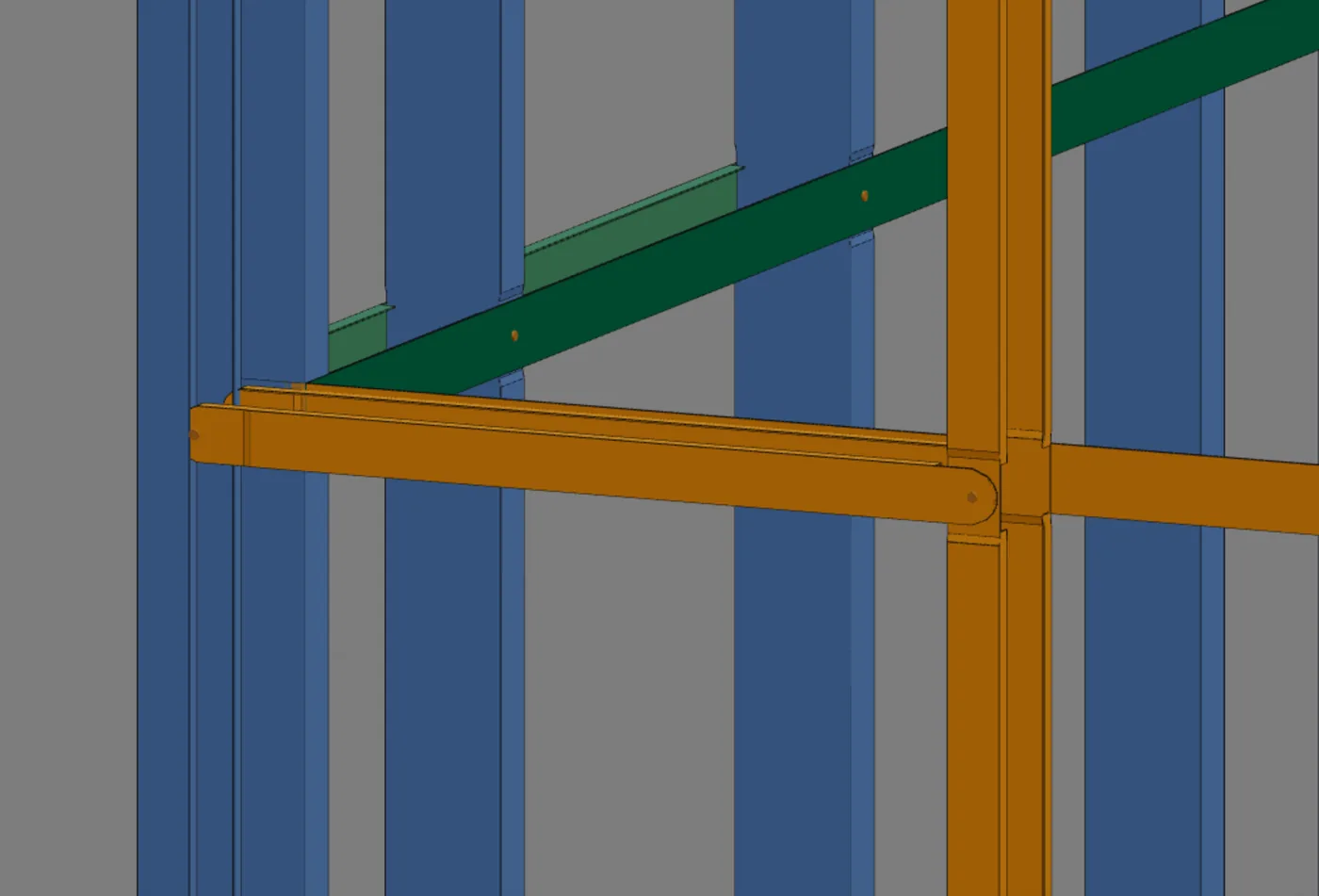
The purple button, "Show as the roll former makes it (swage, fit, dimple)", shows in the 3D or in the wall view the swage, the dimple and the half-moon cut of the roll former. The 3D is the truth: the detail must draw the same.
3. Joints, then Typicals
Joints places the L marks on the plan; the typicals give the rule that holds for every spot of the same type.
4. Black and white and PDF
The only toggle on the typicals sheet is black and white; the scale is fixed per detail. The PDF comes out as in LSF sheets.
The FRAMECAD rule of the example house
A roll-formed project is assembled by the machine. Every joint taught here is one of the documented FRAMECAD joints: fit of the stud in the track (DT27), overlap of the nogging (BQ, HT, SL) over the stud (DT28), angled fit of the web in the chord (DT29), L corner and T junction with one stud from each wall, without a box, and the truss with lipped chords, a half-moon cut at the heel and no plate. The only exception is the purlin lapped over the truss, which is not a machine joint.
On site, three sources go together: the 3D with the purple button, the typicals on this page and the machine file (Roll-former file). All three draw the same piece, with the project profile.
Step by step
The "Typical details" sheet
1. Select an LSF wall
Any one: the typical belongs to the project, not to the wall. The footer shows the six sheet buttons.
2. Click Typicals
The app reads what the project has, picks the typicals it needs that have a drawing, and creates an A3 with up to six, each at its own scale. The screen goes to Prints with the sheet open.
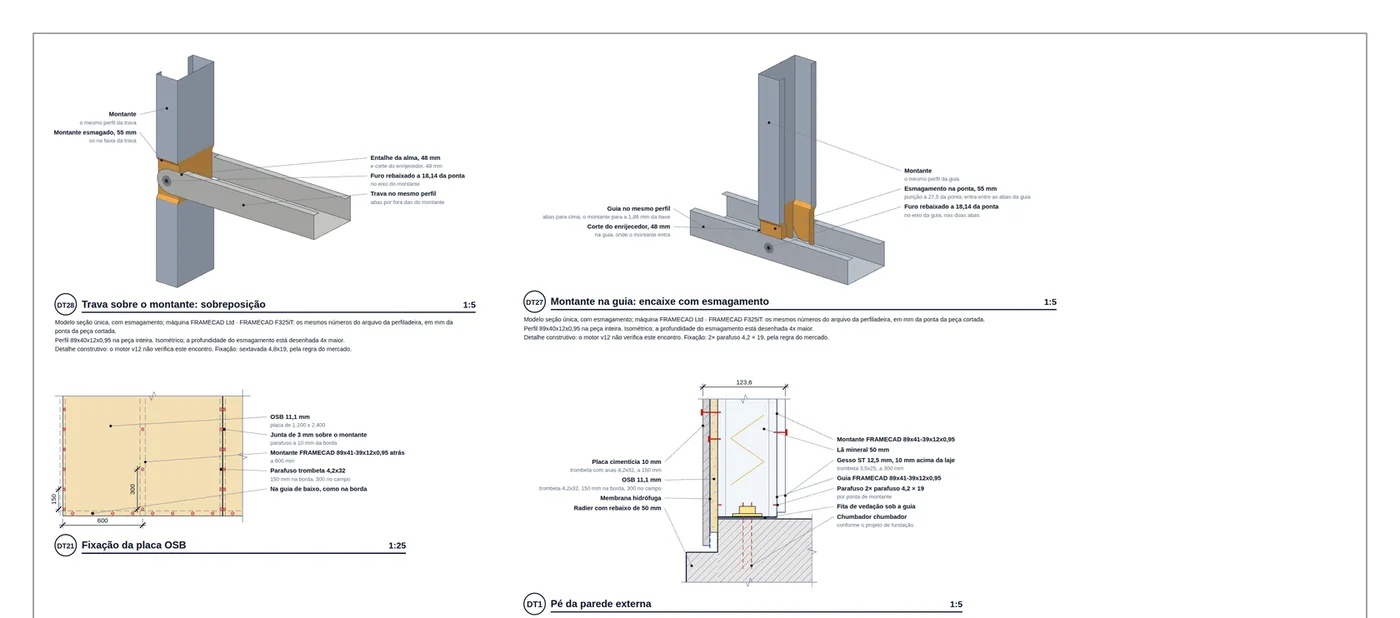
3. The model grew? Click again
When the model gains a piece that calls for another typical, the second click does not repeat the ones already on the sheet: it creates "Typical details, sheet 2" with only what was missing.
The wall base: DT1 and DT27
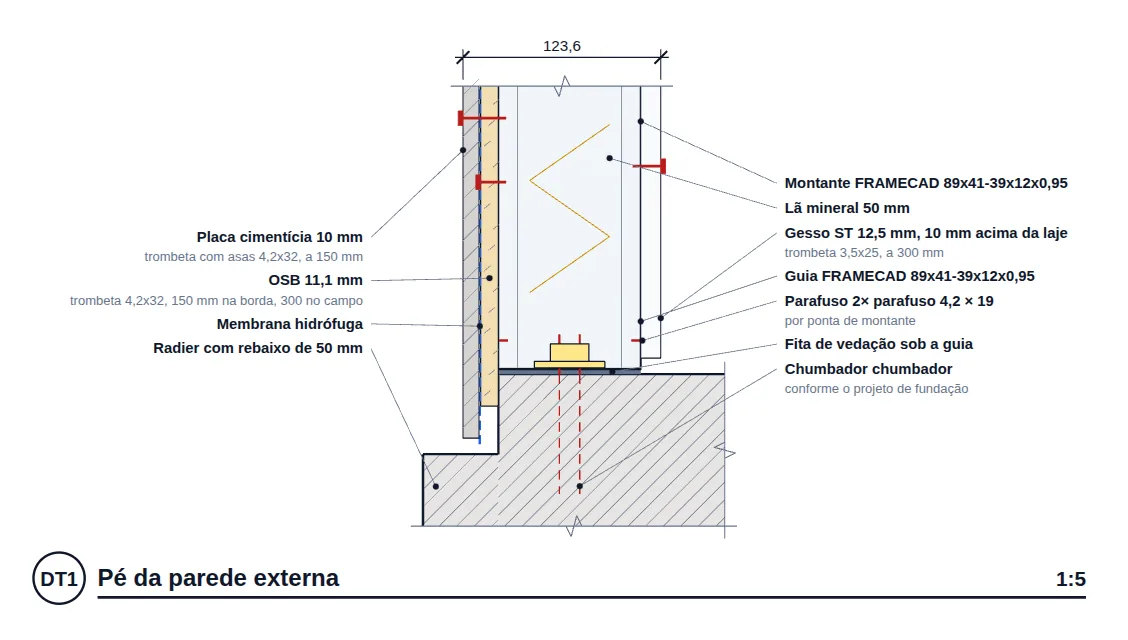
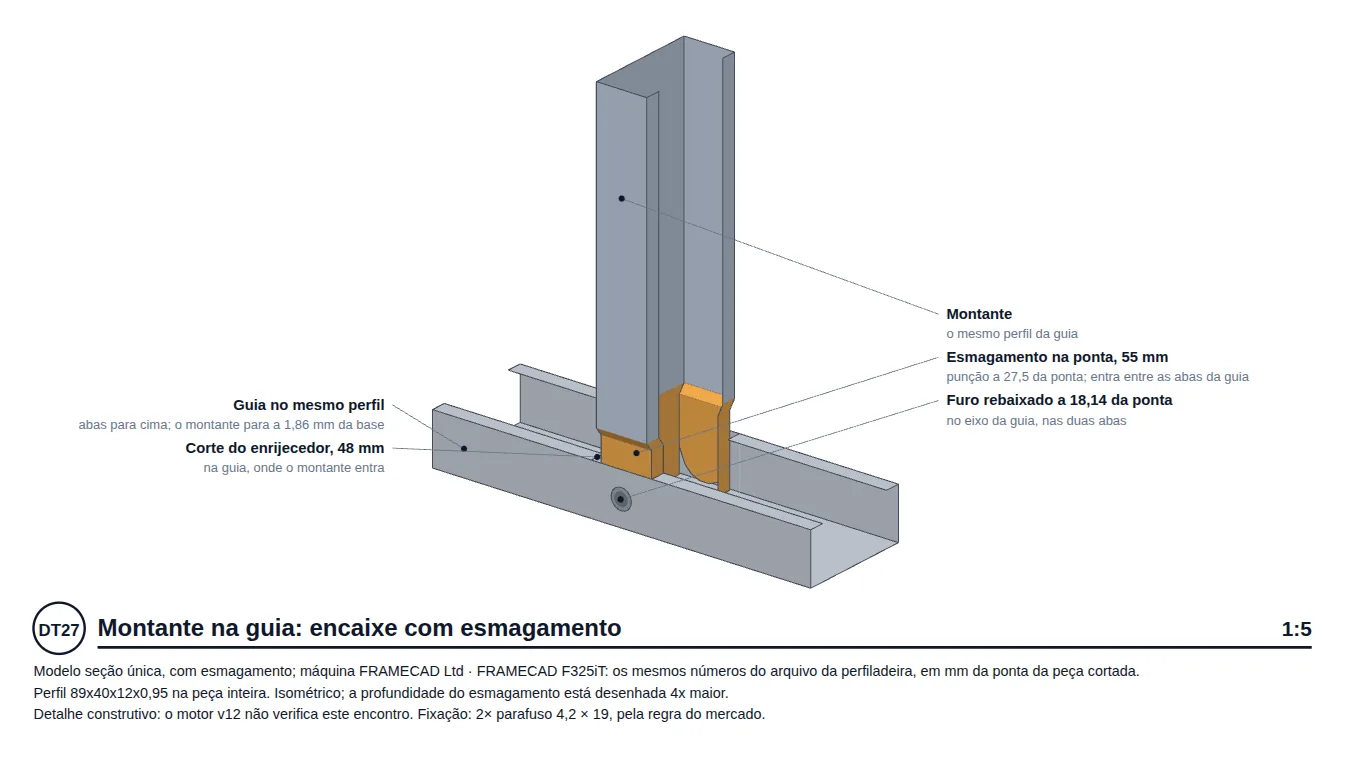
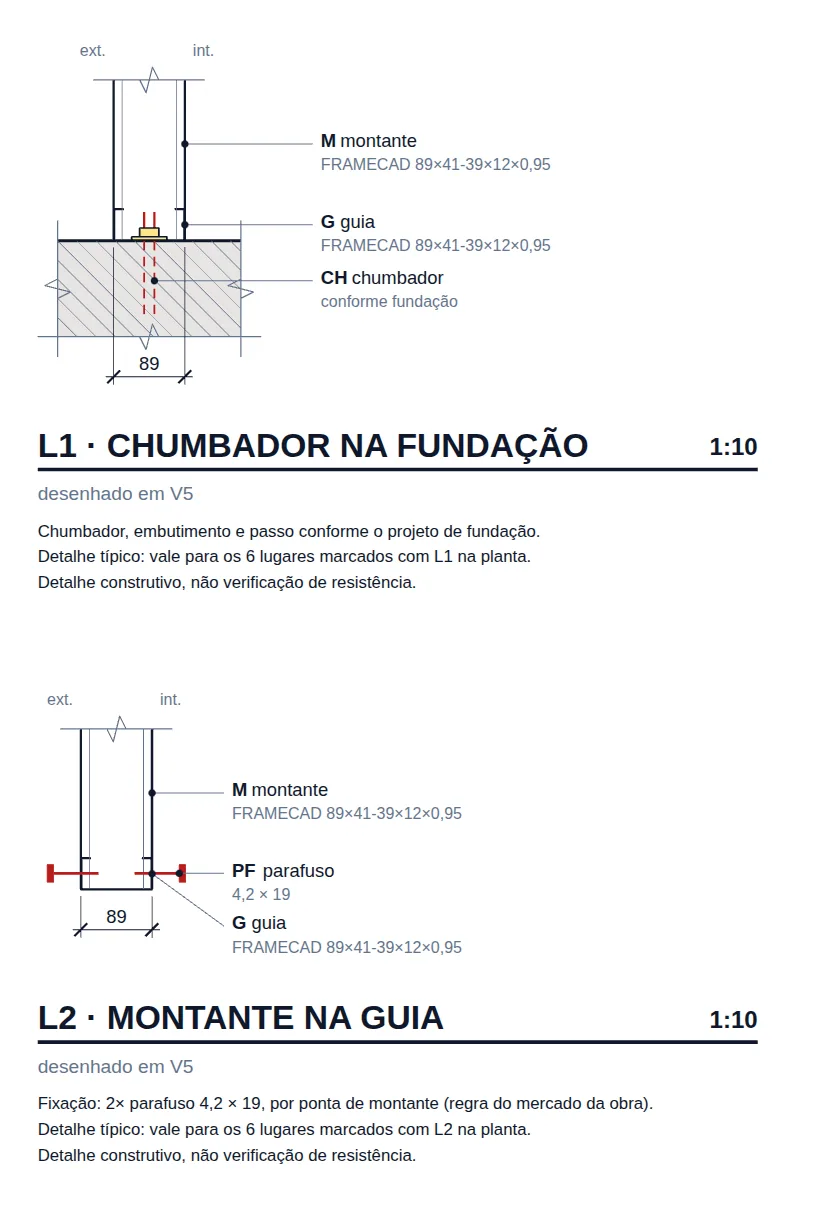
DT1 shows everything that is fixed and sealed at the base; DT27 shows the machine fit. Both use the project profile, with the same dimensions as the 3D, and the DT27 numbers are the same as in the roll-former CSV. On the joints sheet, L1 (anchor) and L2 (stud to track) mark each spot on the plan.
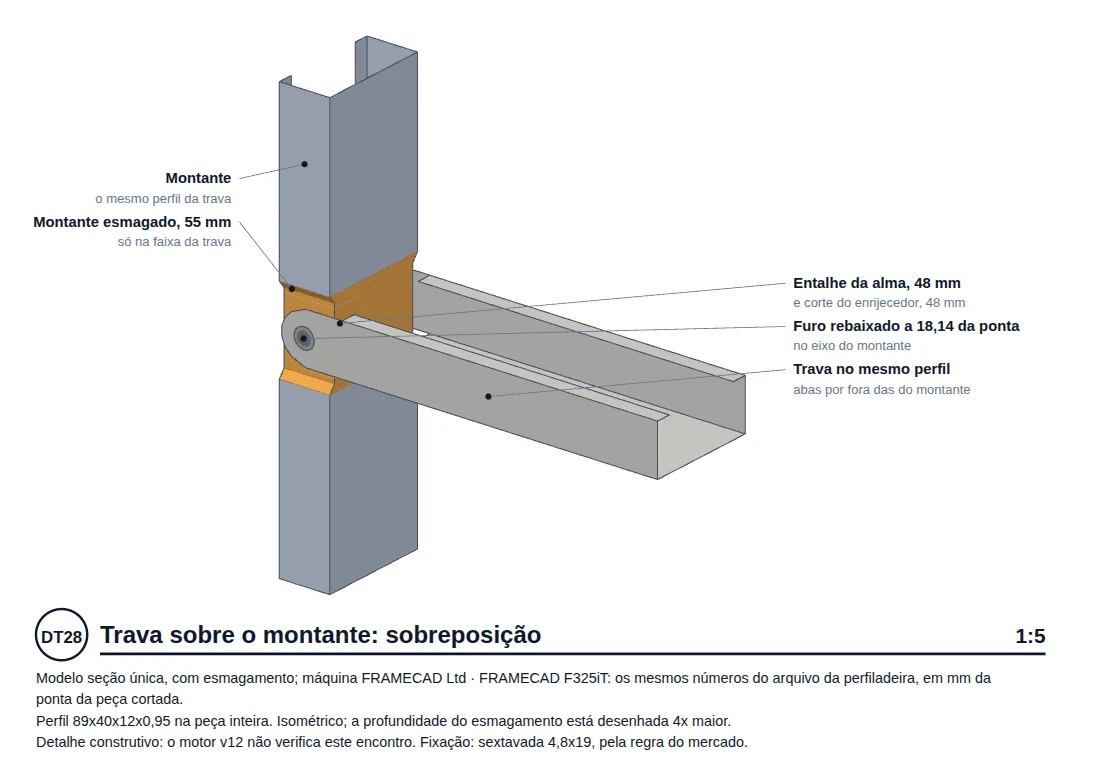
The nogging over the stud: DT28
Every wall nogging (the BQ blocking and the HT and SL tracks at the head and the sill) crosses the studs the same way: on the outside, lapped, with the stud swaged only within its band. DT28 draws that joint once, and it holds for every spot where a nogging crosses a stud. The position of each nogging is in the panel elevation (LSF sheets) and in the 3D.
How to read DT28
The drawing marks the stud, the swaged band, the web notch, the dimple and the nogging passing on the outside. The numbers are those of the roll-former file, the same as in the CSV (Roll-former file).
Checking in the 3D
Turn on the purple button, zoom in on a nogging and compare: the half-moon cut and the holes in the 3D fall where DT28 shows the swage. The strap that runs across the studs is in Straps and blocking.
The house joints sheet
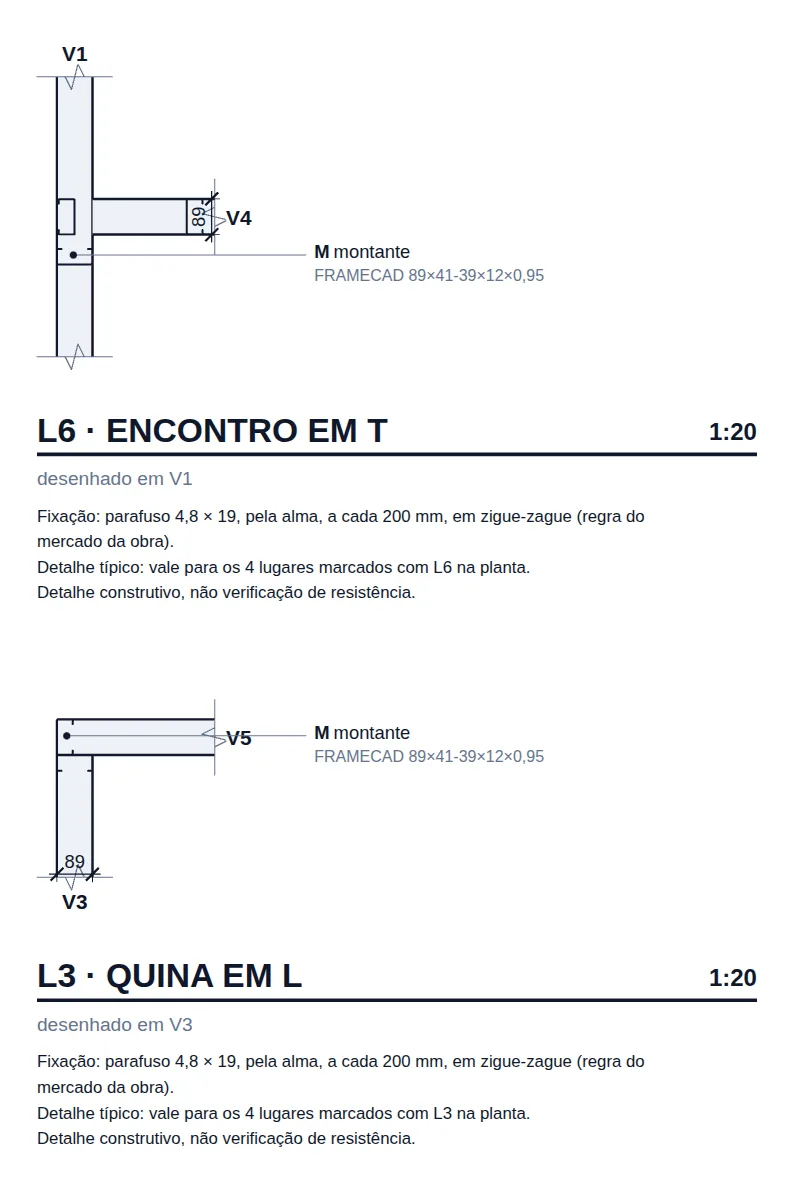
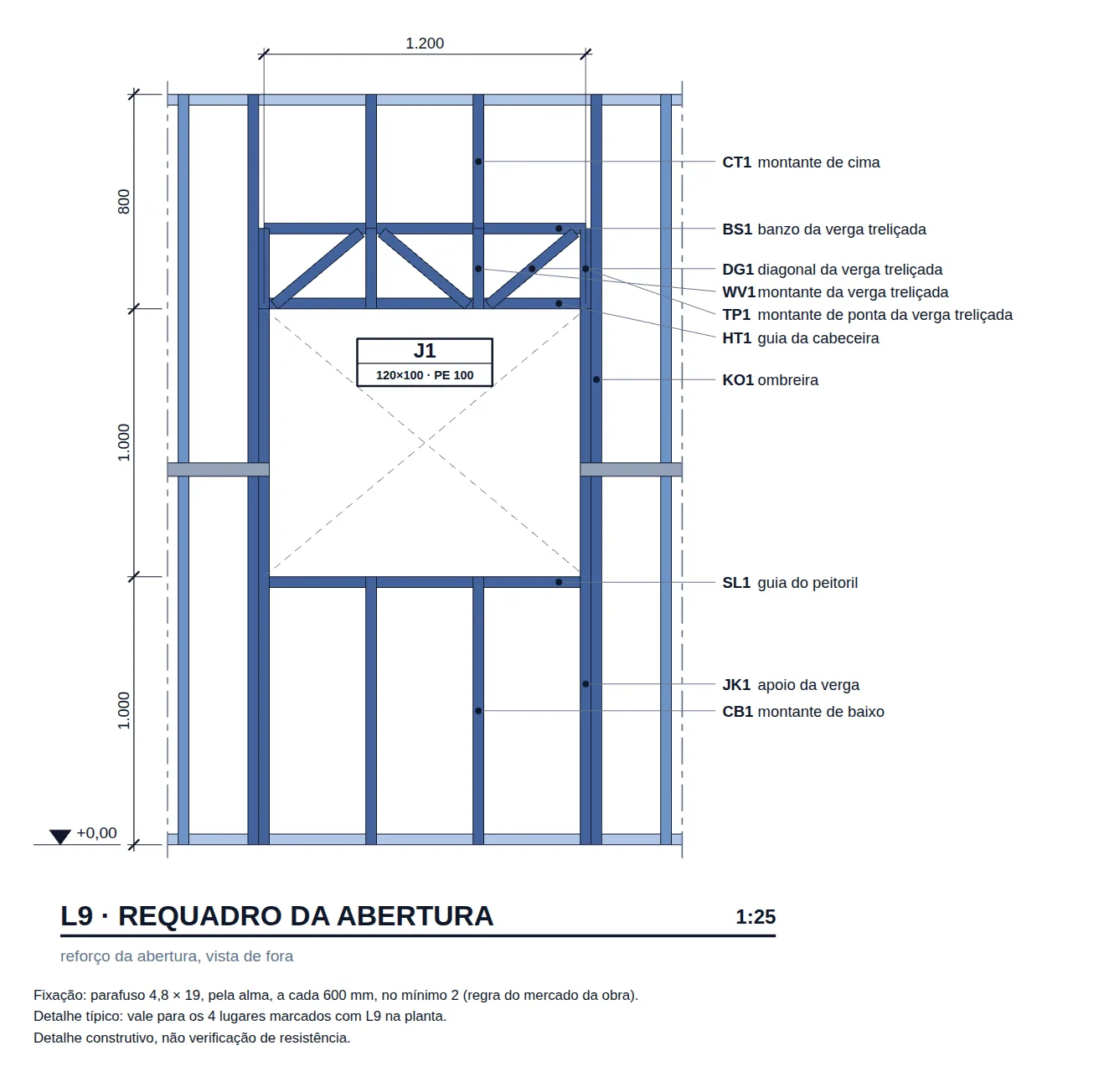
With the wall selected, Joints creates the "Joint details" sheet: one drawing per type, drawn on a real wall (the note says which) and valid for every spot with the same mark on the plan. Its step by step is in Connections panel; here is what it showed for the house.
| Type | Default scale | In the house | Fixing written |
|---|---|---|---|
| L1, L2 | 1:5 | 1:10 | anchor per the foundation design; 2× screw 4.2 × 19 per end |
| L3, L6 | 1:10 | 1:20 | screw 4.8 × 19 through the web, every 200 mm, staggered |
| L9 | 1:20 | 1:25 | screw 4.8 × 19 through the web, every 600 mm, at least 2 |
The scale drops one step when the drawings do not all fit on one sheet. That was the case for the house.
The truss at its support: the 3D and the machine
In the house, the roof comes from the Roof tool in plan: the two 7 m sides as gables, 30%, 600 mm eave, Generate. The box reports roof TL1 with 2 planes, the ridge 1.06 m above the wall top and 14 in-line trusses.
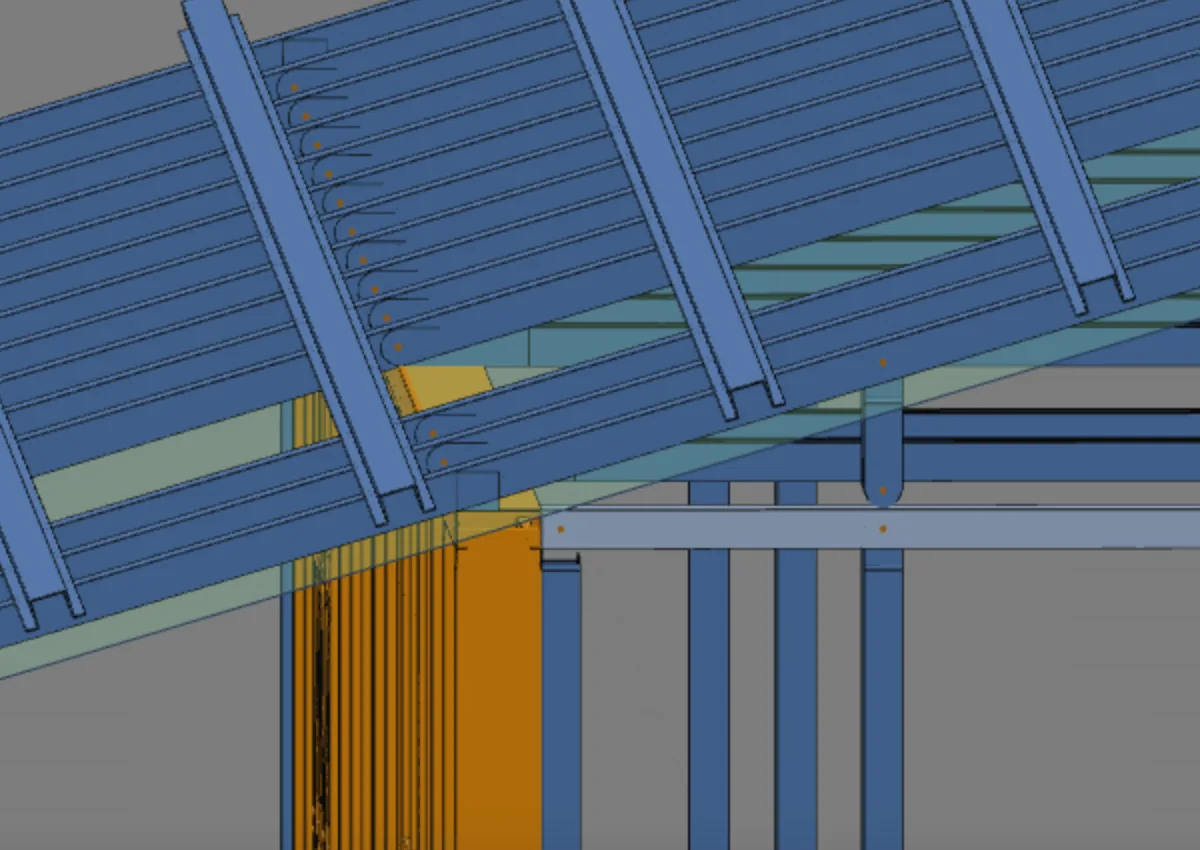
In a roll-formed project, the truss is a machine panel: lipped chords, a half-moon cut at the heel, screw holes and no plate. Its bearing on the top track is read in the 3D with the purple button, in the plane of the trusses.
The truss is a roll-formed truss, and the node of the web in the chord is DT29: with the roof generated, the project starts to call for this typical, and a new click on Typicals puts it on "Typical details, sheet 2". The dimensions of each piece, with the swage and the holes, come out in the roll-former file (Roll-former file). The purlins are lapped over the truss, the exception to the FRAMECAD rule (Recommendation).
Before generating the roof, clear the selection. With one wall selected, the box is set up with that wall only; with no selection, it takes the whole loop ("6 walls · closed loop").

OSB, fiber cement and gypsum: DT21 and DT22
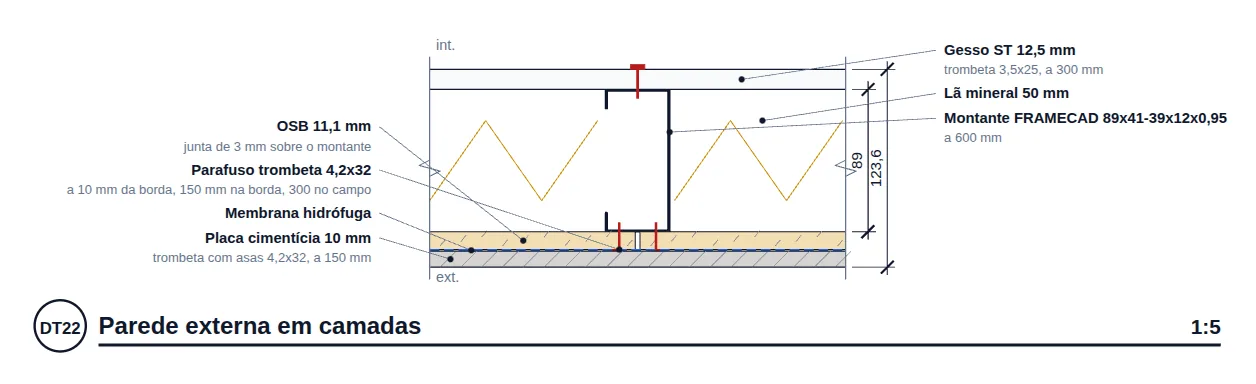
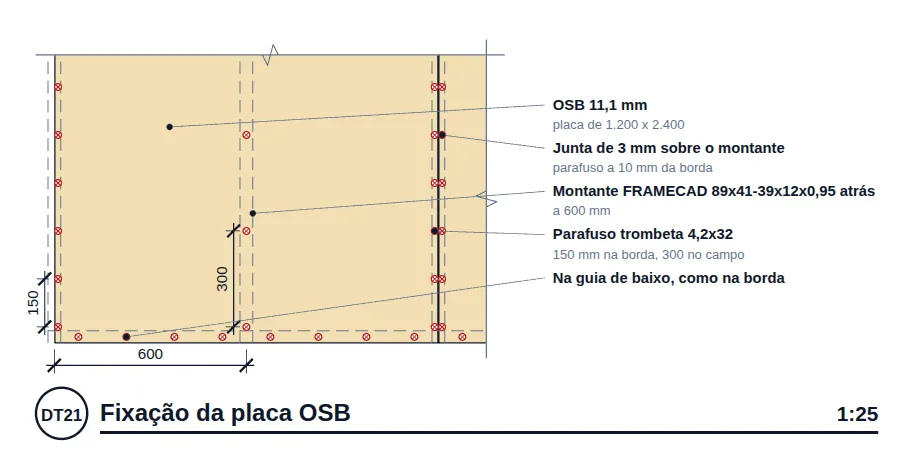
The layers come from the project market (Market and catalog), and each board brings its fastener and its spacings. If the outer board has a custom name, outside the catalog, DT21 does not come out and says why.
| Board | Edge | Field |
|---|---|---|
| OSB 11.1 | 150 | 300 |
| Fiber cement 10 | 150 | 150 |
| Gypsum ST 12.5 | 300 | 300 |
Spacings in mm, observed in the Brazil market of the house.
Shortcuts
- TP↵
Typical details
Creates the A3 sheets of the typical details the project needs and lacks.
with walls selected
- DL↵
Joint details
Creates the typical detail of each missing joint type and marks it on the plans.
with walls selected
- T↵
Roof
Arms the roof: click the outer ring of walls and Enter. When armed, disarms.
in plan view
- Ctrl+P
Export PDF
Generates the PDF of the open sheet.
Parameters
Scale, trigger and numbers of each typical
Nothing here is typed on the sheet. The trigger is the model; the numbers come from the project market; the profile is the project's. The sheet only chooses black and white.
| Typical | Scale | The project must have | Market numbers (house) |
|---|---|---|---|
| DT1 | 1:5 | exterior wall | recess 50, sealing 3, gypsum clearance 10; stud in track |
| DT21 | 1:25 | outer board | board, fastener, edge and field, joint, edge distance |
| DT22 | 1:5 | exterior wall and outer board | all layers and their fasteners |
| DT27 | 1:5 | wall and swaged joint in the market | swage 55, lip 48, hole at 18.14 |
| DT28 | 1:5 | nogging (BQ, HT, SL) and swage | same, only within the nogging band |
| DT29 | 1:5 | truss and swage | angled fit of the web |
Truss, for DT29, is the wall lattice column and, in a roll-formed project, also the roof truss and the floor truss joist. The sheet also draws DT4 (strap and blocking, 1:10), DT11 (floor joist on the rim joist, stick-built project, 1:10), DT30 (floor truss joist on the track, 1:10) and DT15 (truss bearing on the track, stick-built project, 1:10), when the project has what they show and the market has their numbers.
- 6: typicals per A3; the seventh opens a new sheet
- 1 toggle: black and white; each typical's scale is fixed
- 0: designed screws: the fixing is the market rule
Errors and refusals
When the detail does not come out
- "the project has no LSF wall". Typicals on a project without an LSF exterior wall. Draw the walls first.
- "the project market does not have ...". The typical is called for, but a market number is missing, such as the raft recess or the gypsum clearance. The message lists what is missing. If no typical comes out, the app refuses the sheet and gives those reasons.
- "the project market has no swaged joint model". DT27 to DT29 only come out when the project market has the swaged joint model and a machine with the swage tool.
- "the outer board is not from the market (custom name), or the market does not have its spacing". A board typed by hand has no screw spacing, and DT21 does not come out. Pick the board from the market catalog.
- "a standard detail does not fit on an A3". The app refuses the sheet: the drawing is larger than the paper.
- "The project no longer has what DT21 shows." Red warning on the sheet when the model loses what the typical draws, for example when the outer board is removed from the wall. Remove the view or put the piece back.
- A typical I expected does not appear. The project does not have the piece it shows, or the market does not have its numbers: DT27 needs the swaged joint, DT21 needs an outer board from the market, DT28 needs a nogging. Close the model and click again.
- I clicked again and got an almost empty sheet. That is correct: the new sheet only takes what was missing. The six on sheet 1 are not repeated. With nothing new, the click opens the sheet that already exists.
What the engine checks
It draws with the project profile; resistance stays in the calculation
The engine checks the limit states of each bar (see Reading the results). The detail draws the joint with the same piece the engine checked:
| The detail | Where it comes from |
|---|---|
| the profile | the same geometry as the 3D |
| the machine joint | the same numbers as the roll-former CSV |
| the screw | the market rule, written in the note |
| the L and T joint | the same section the 3D draws |
| the choice | the model, every time the sheet opens; the sheet stores only the code |
What stays with the designer
- Anchorage to the foundation. The anchor reads "per the foundation design". The resistances of each anchorage assembly (NBR 16970-2, section 6) come from the foundation design and the report.
- The designed connection. The screw in each note is the market rule. Where item 4.8 f) asks for a designed connection, it is sized separately and the number goes into the report.
- The swaged joint. DT27 to DT29 are construction details: the note on each one says the analysis engine does not check the joint. The bar resistance is the one the engine checks in the calculation.
- Checking against the 3D. Before sending the sheet to site, open each typical beside the 3D with the purple button, on the same wall. The 3D is the reference for every output.
- Foundation and interfaces. DT1 draws the base on a raft slab with a recess. Recess, waterproofing and slab height follow the foundation design and NBR 16970-3 (draft), 4.2.2.
Summary
The path, in one line
Model closed (walls, noggings, boards, roof) → 3D with the purple button → wall selected → Joints (L1, L2, L3, L6, L9) → Typicals (up to six per sheet) → black and white → PDF.
The house sheets
- 6: typicals per A3 sheet, at most
- 1: joints sheet, five types
- 1:5: base, joints and layers
- A3: every detail sheet
Quick check: open DT28 and the 3D with the purple button side by side, on the same wall. The swage, the notch and the hole fall in the same places in both: it is the same piece, with the same dimensions.