LSF (Light Steel Framing)
Headers
Every opening in the house already comes with a header. This page shows how to change the header of one opening (type, section, number of jack studs, clip support), how to create the rule that applies to every opening above a given width, and what the engine checks for each choice.
Overview
Four openings, four headers
In Doors and windows the example house got door P1 and windows J1, J2 and J3. Each one was created with the default header of a stick-built project in the Brazil market: a box of two Ue 200 x 40 x 12 x 1.25, resting on one jack stud on each side.
In most projects that default holds. When it does not, or when the supplier works with a different assembly, the Header tool changes the header of one opening without touching the rest of the frame.
The header is not a piece you draw. It comes from the opening, and the tool only changes the choices the opening stores. That is why each change is always one Ctrl+Z step, and Back to default restores the project header.
In the example house: P1 will become an I header with two jack studs, and a project rule will put an I header on every opening from 1.00 m up, which means the three windows.
Stick-built or roll-formed. The screens on this page show a stick-built project, where the header starts as a box of two Ue 200 and the header catalog is the stock one, from Ue 90 to Ue 200. In a roll-formed project, the default for a new project, a new header starts as a Lattice header, 300 mm deep, and a solid header, when you choose one, uses the C sections the machine forms. The Header box, the project rule and the refusals work the same way in both (see Steel and sections).
What it is for
The beam that carries the wall above to the sides
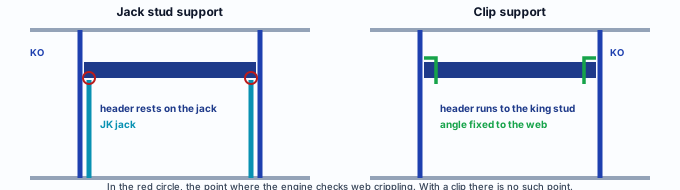
The studs that fell inside the opening were cut. Their load (roof, wall above, floor) reaches the header through the cripple studs, and the header delivers it to the sides. The header section decides how much it can carry; the support decides where it delivers.
| Type | What it is | When to use it |
|---|---|---|
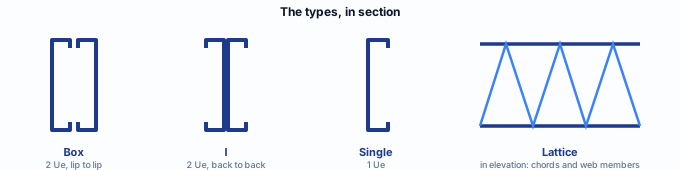
| Box | Two Ue facing each other, forming a closed box. | The default of a stick-built project in the Brazil market. Stiff in torsion, double web at the support. |
| I | Two Ue back to back, webs together. | Same area as the box, with open flanges to screw the head track and the cripple studs to. |
| Single | One Ue only. | Short span and little load above: an interior door, a small window in a wall with no roof on it. |
| Lattice | Chords and web members, with its own depth. | Wide opening, where a solid header does not fit or fails on deflection. It can be chosen when the opening is inserted or in the Header box. |
What the standard says
A beam, with the deflection of something that holds up a wall
NBR 16970-2, the Brazilian standard for light steel framing design, defines the header and sets its deflection limit. The resistance of the section, as for any cold-formed section, comes from NBR 14762, the Brazilian cold-formed steel standard. The CalcSteel engine applies both.
| Where | What it says | What it changes in the header |
|---|---|---|
| NBR 16970-2, 3.8 | A header is the beam that transfers forces, at the top of the opening. | It is a structural piece and enters the calculation as a beam. |
| NBR 16970-2, 4.2 | There can be no misalignment between members of the same vertical line without a transfer beam between them. | The header is what allows the stud above the opening to be cut. |
| NBR 16970-2, 8.2, Table 3 | Beams supporting columns or wall panels: deflection up to L/500. | Stiffer than the floor (L/350). Over a 1.20 m opening, 2.4 mm. |
| NBR 14762, 9.8 | Members in bending: bending moment and shear, with the reductions for local, distortional and lateral-torsional buckling. | The header is checked like every member of the model. |
| NBR 14762, Annex D | Web resistance to a concentrated force (web crippling), with γ = 1.35. | Checked where the header rests on the jack stud. In a built-up header (box or I), two webs. |
NBR 16970-2 · 8.2 · Table 3.
The header carries a wall: its deflection becomes a crack in the board and a door that sticks. That is why the limit is L/500, and not the L/350 of an ordinary floor beam.
What the standard does not say
The standard does not choose the header type, the section or how many jack studs it gets. That is a design and supplier decision. The app starts with the default of the project market and checks whatever you choose.
Standard as a variable. The default header section is the Header role in the project settings, and it comes from the market. In Brazil, in a stick-built project, Ue 200 x 40 x 12 x 1.25. Change the market and the default changes with it; a header chosen for one opening does not change.
Design recommendations
Start from the default and change what the engine asks for
- 2 × Ue 200: 1.25 mm box, the stick-built default
- 1 jack stud: per side of the opening, to start
- L/500: maximum deflection, 2.4 mm over a 1.20 m opening
- 200 mm: the depth the header takes above the opening
- Calculate before changing. The default holds for most openings of a single-story house. Calculate the project and change only the header that fails. Changing all of them "to be safe" bulks up the material list for no gain.
- Failed at the support? One more jack stud. If the engine flags web crippling, the header section is fine and the bearing is short. Two jack studs per side double the bearing area. Only then think about a thicker section.
- Failed on deflection or bending? Thickness, then depth. Going from 1.25 to 1.55 mm keeps the 200 mm depth and leaves the opening alone. A deeper section eats space above the opening; check that it still fits under the top track.
- Check the total height. Sill + opening + header depth must stay below the top track. In a 2.80 m wall: door, 0 + 2100 + 200 = 2300; window, 1000 + 1000 + 200 = 2200. There is room left for the cripple studs.
- Use the project rule for what repeats. If every window in the project needs the same header, one rule by minimum width solves it at once and applies to new openings too. Leave the per-opening choice for the exception.
- Clip only with the angle designed separately. Clip support saves jack studs. The angle and the screws of the clip are designed separately, with the supplier: use it when the supplier has the part tested for the load.
Step by step
1. Open the view and arm the tool
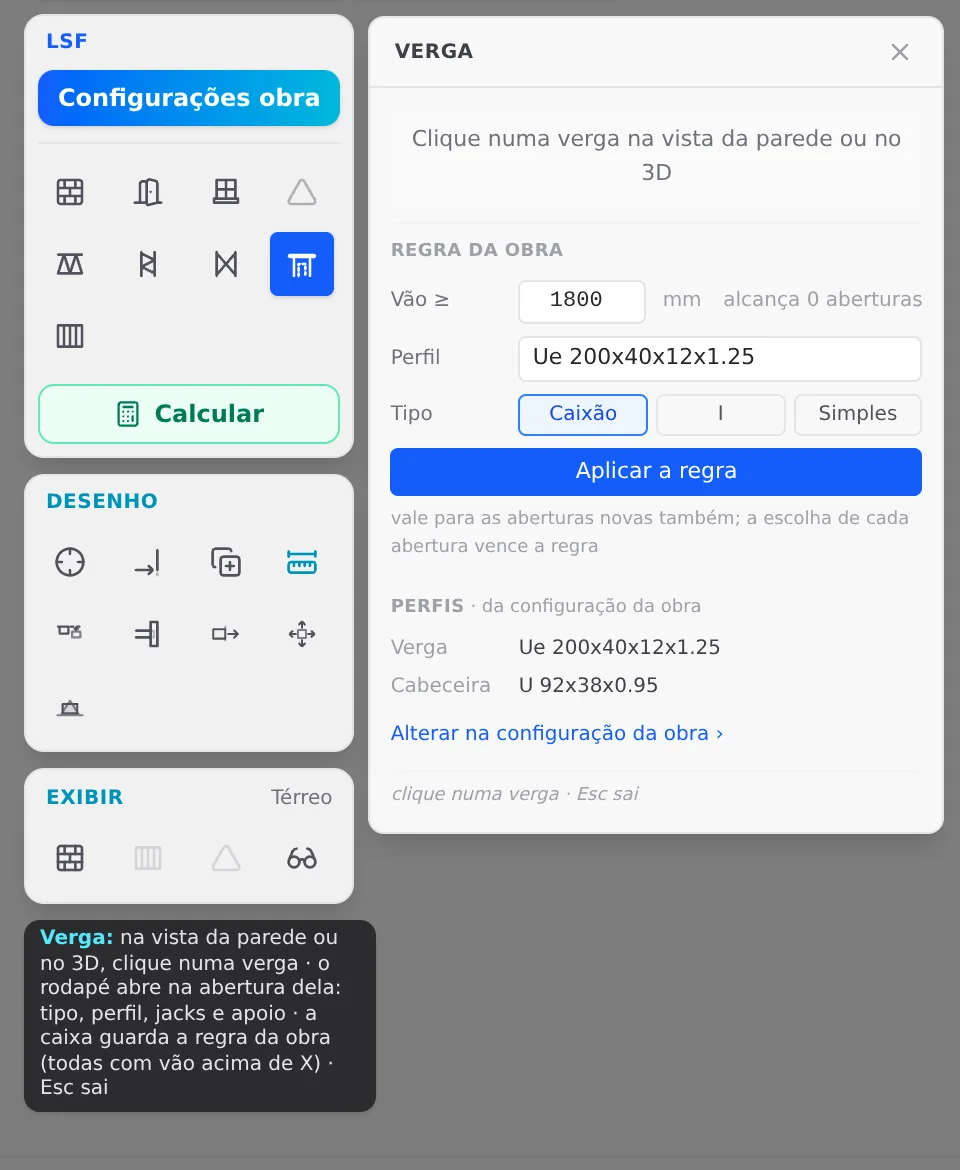
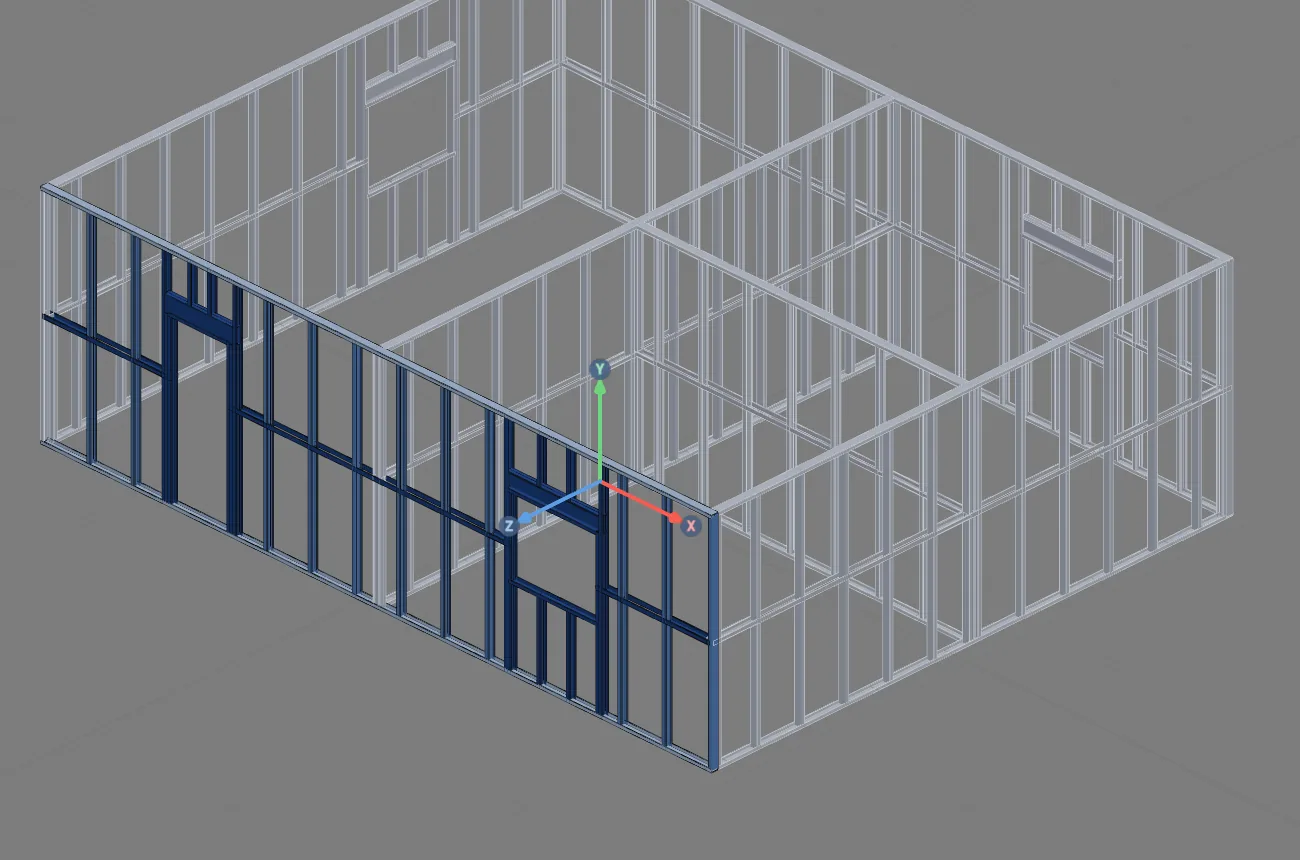
Select the front wall and click Open view on its card, in the footer. On the LSF card, click the Header button. The Header box opens next to the card. The tool works in the wall view and in 3D; in the view the header is bigger and easier to find.
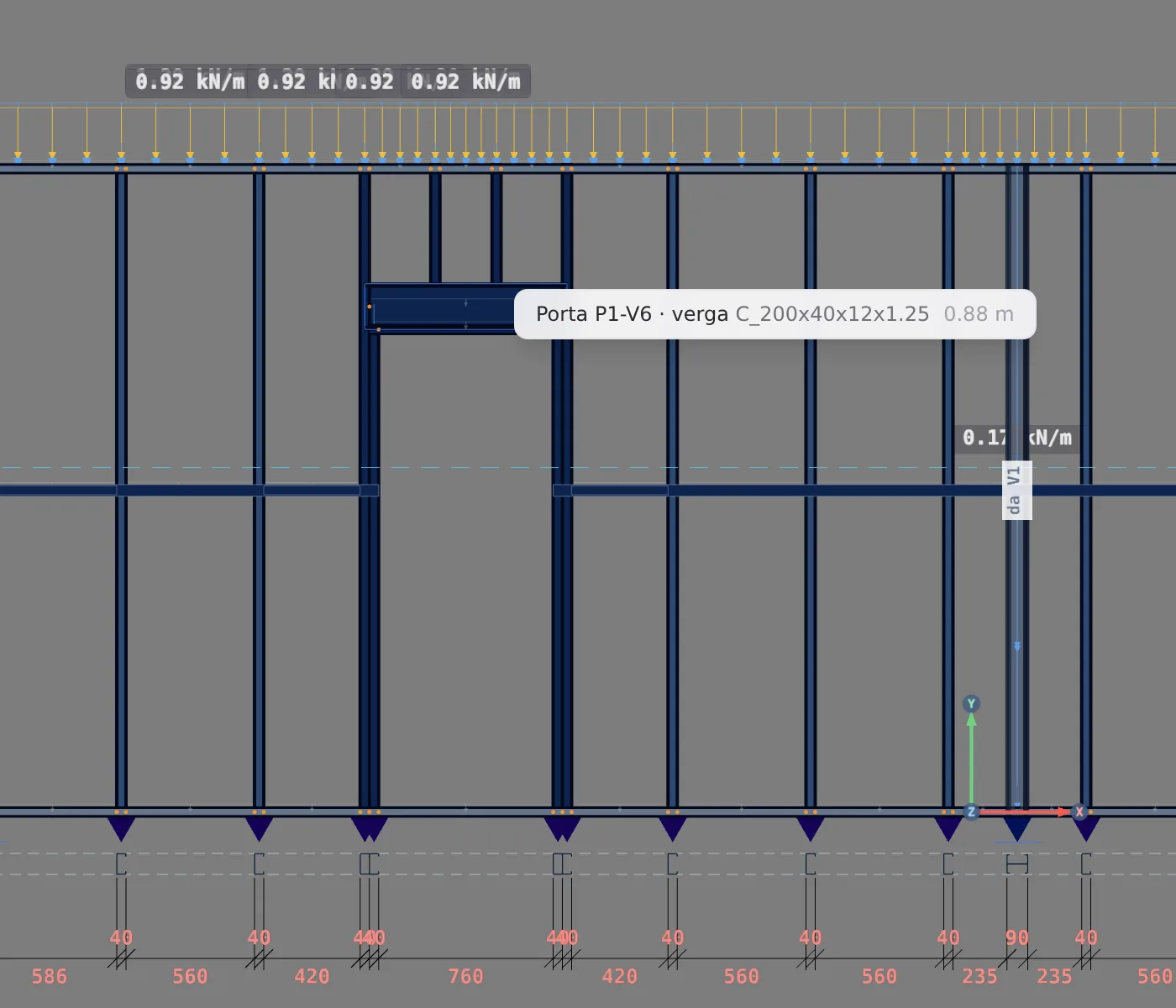
2. Hover over the header
The header under the cursor lights up and a label says which opening it belongs to and which section it has. Click.
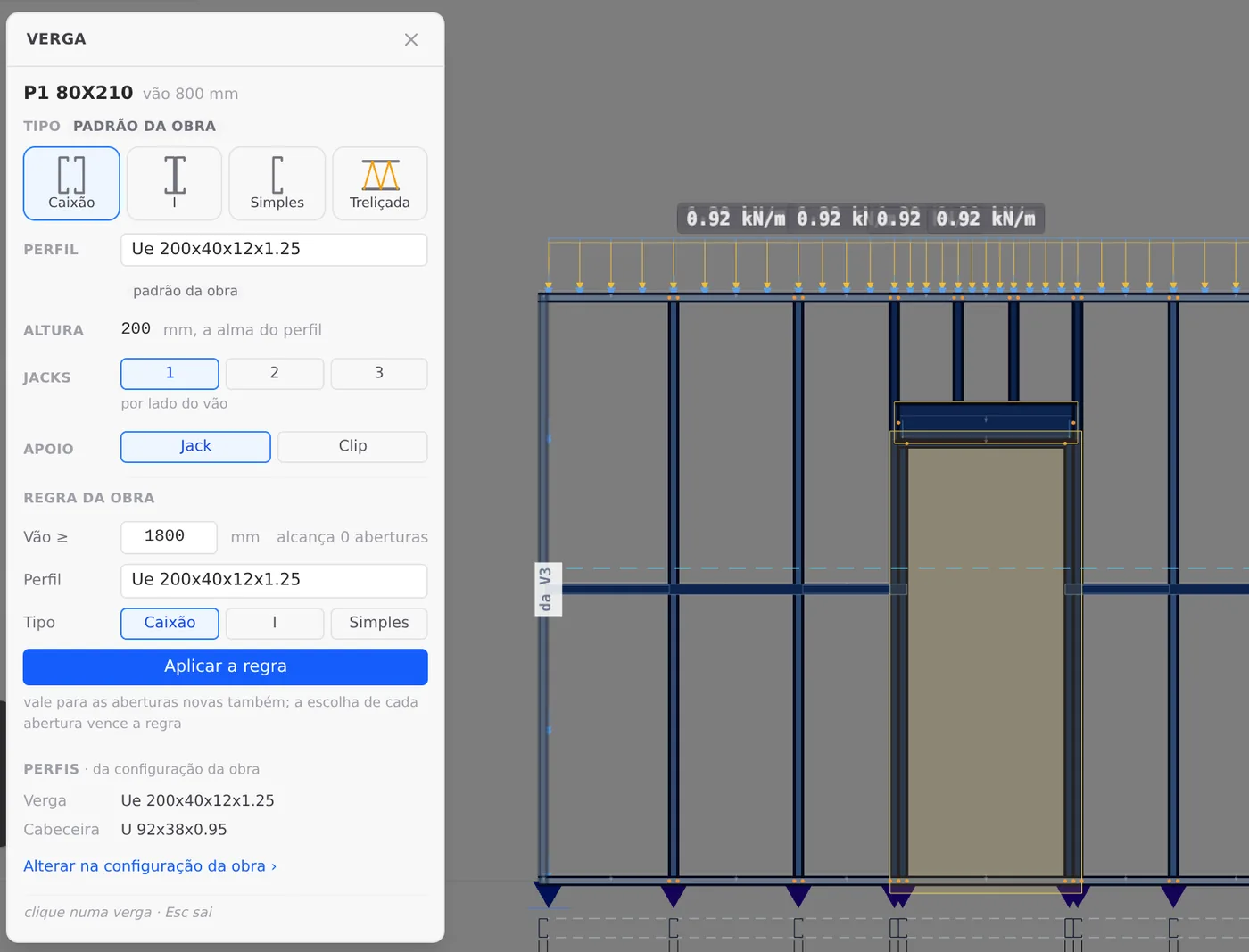
3. Change the type
In Type, click I. The header is rebuilt right away, with two Ue back to back, and the label next to the field changes from "project default" to "this opening". The Back to default link appears at the top of the box.
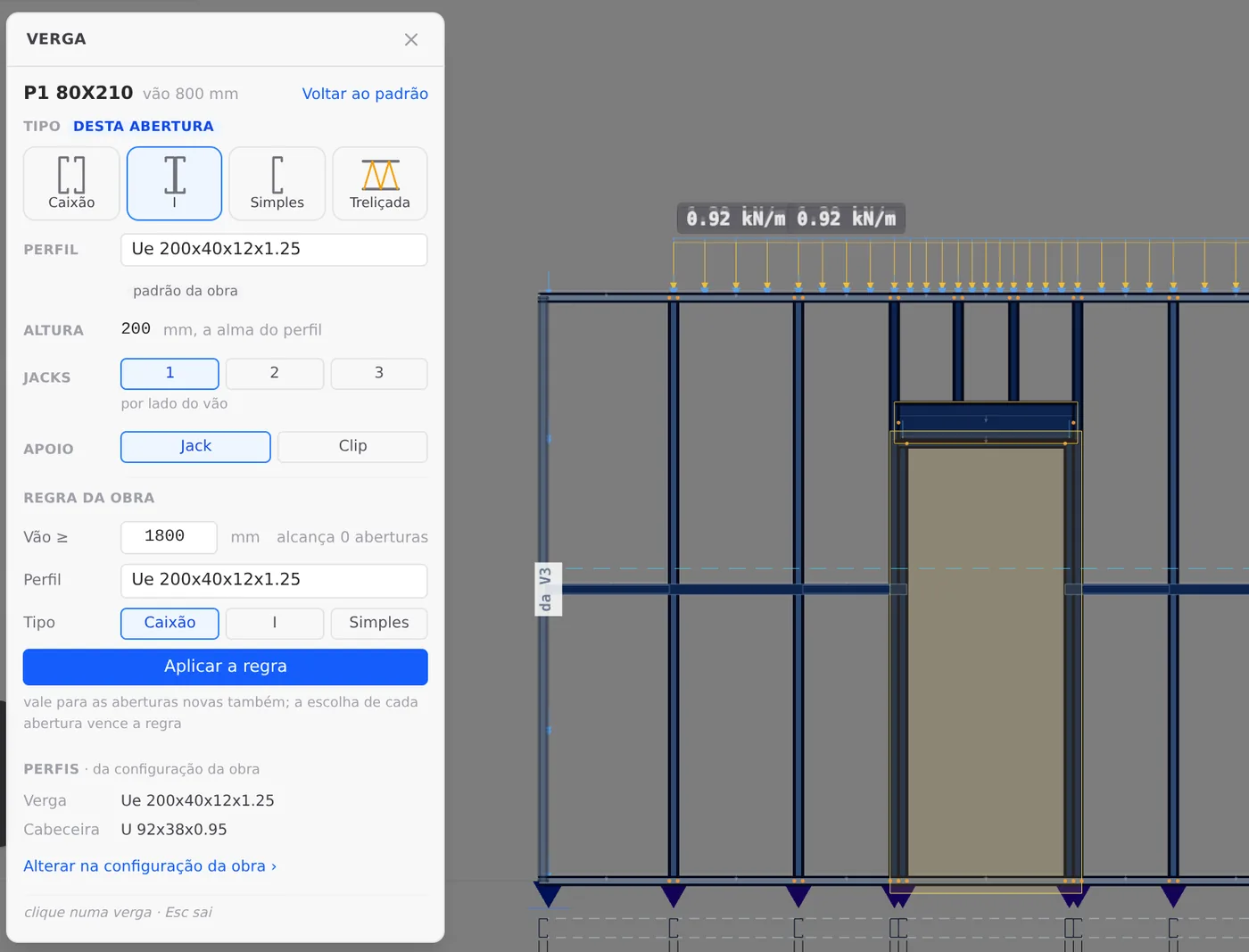
4. Two jack studs per side
In Jack studs, click 2. One more jack stud appears on each side, next to the first. If there is no room in the wall for the extra jack studs, the box refuses and says why.
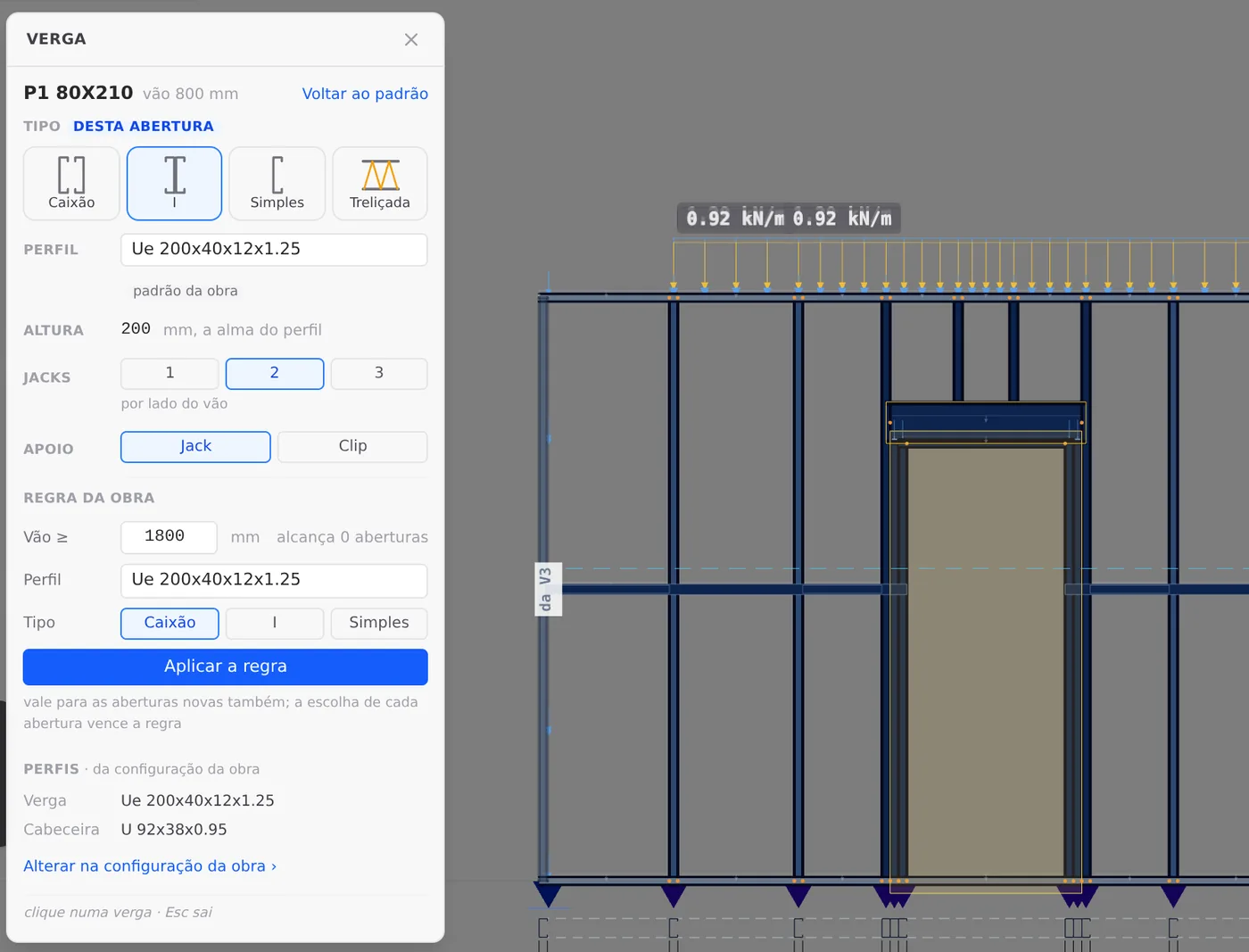
5. Clip support
In Support, click Clip. The jack studs go away, the header extends to the king studs and is now fixed with an angle. The Jack studs field is greyed out: "no jack stud with a clip". In the example, we go back to Jack right after.
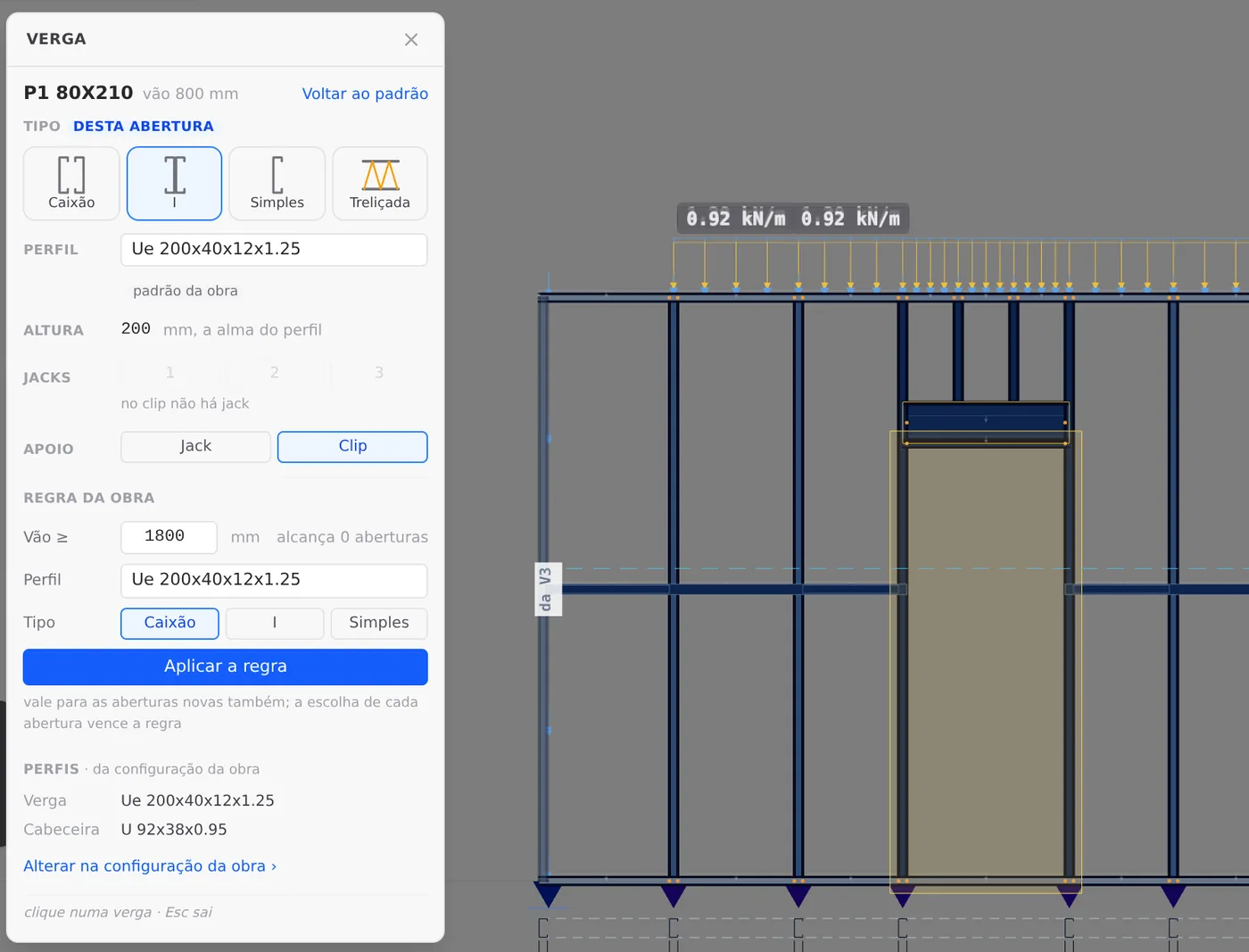
The footer follows along
The opening footer, at the bottom of the screen, sums up the header in one line after each change. It is the fastest way to check an opening without opening the box.


6. Change the section
Back on Jack support, click the Section field. The header catalog opens, with C family sections only: in a stick-built project, Ue of 90, 140 and 200 mm, from 0.8 to 2 mm, with the weight per meter. Choose Ue 200x40x12x1.55. The label changes to "this opening" and the depth stays at 200 mm, the web of the section.
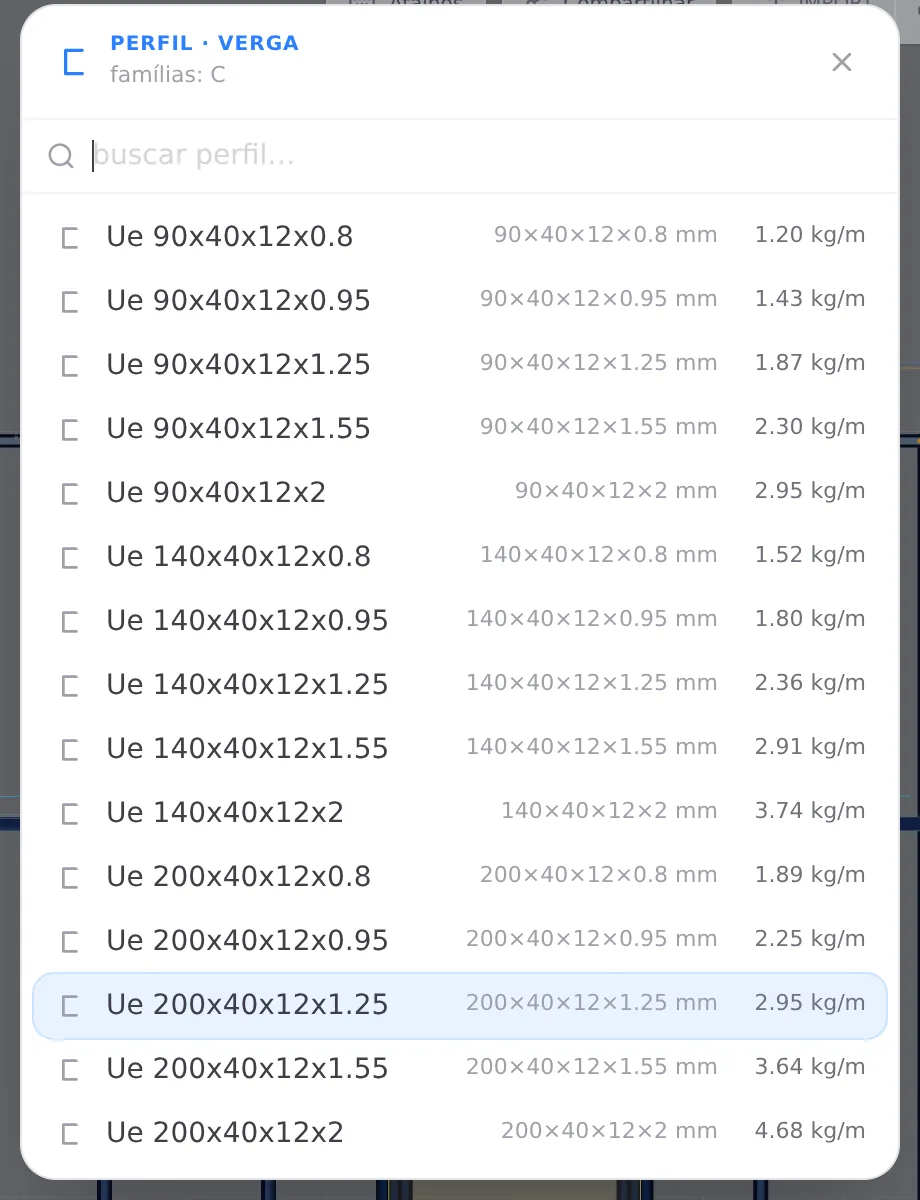
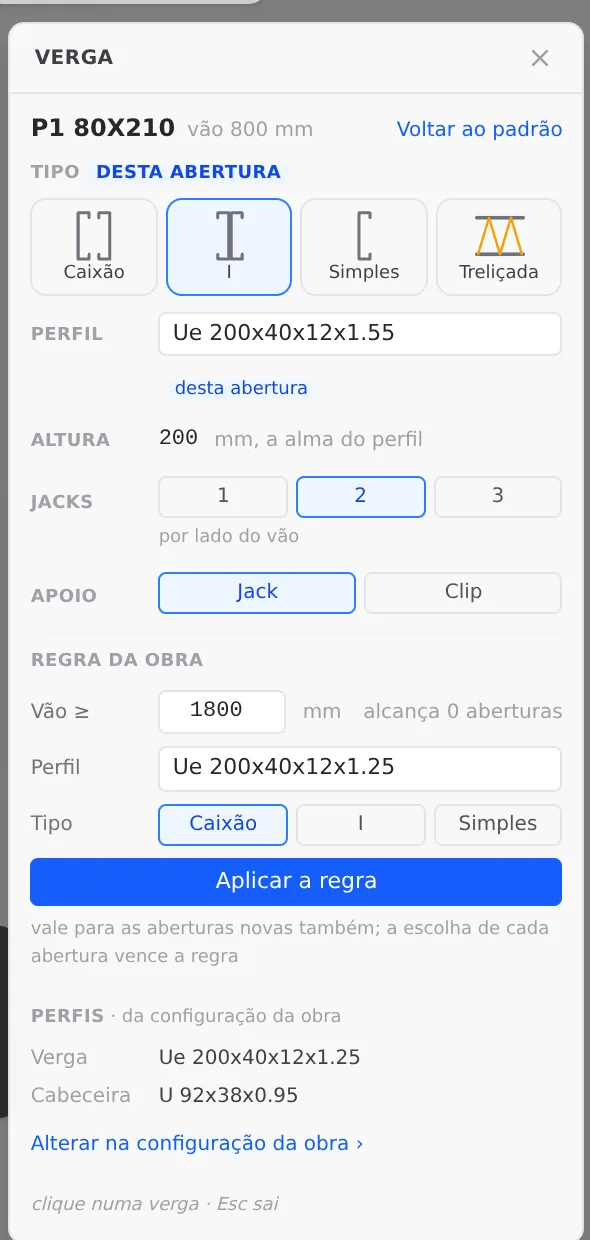
Why 1.55 and not Ue 250? In a stick-built project, the Brazil market catalog stops at a 200 mm web. More steel in the header comes from thickness, or from the type (box and I have two webs). An opening too wide for that calls for a lattice header.
7. Go back to the default and write the rule
Click Back to default: P1 goes back to a box, Ue 200 x 1.25, one jack stud. It is a single Ctrl+Z step.
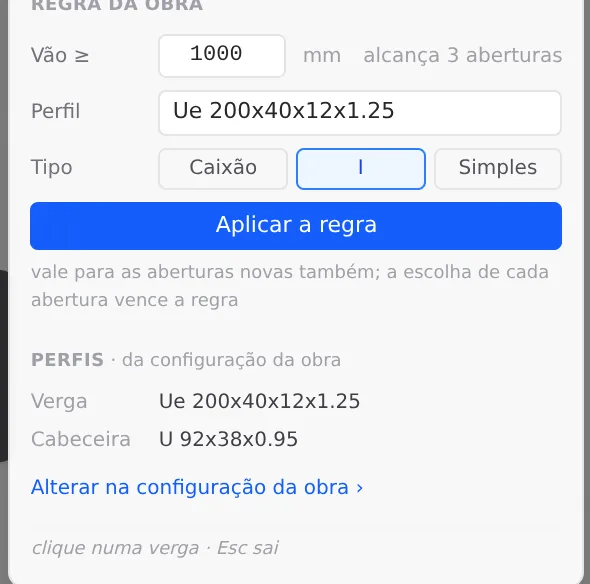
Now, the project. In the Project rule block, enter Opening ≥ 1000 mm and click I. Before applying, the box already counts how many openings the rule reaches: 3, the 1200 mm windows. The 800 mm door is left out.
Click Apply rule. The block gets the active tag and the button becomes Update rule.
8. Check it on a window
Click the header of J1. Type and section show the project rule label: its header is an I, and it came from the rule, not from a choice on the opening.
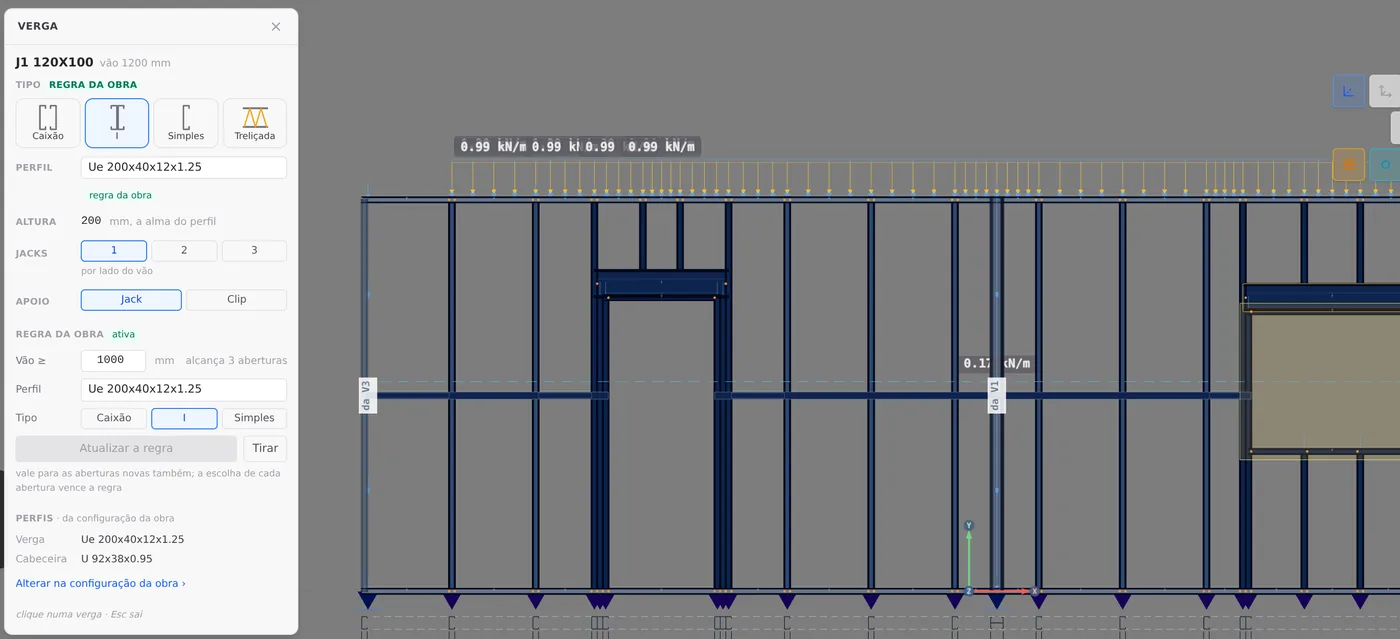

9. Exit and check in 3D
Esc closes the box and disarms the tool. In 3D, the front wall shows P1 with the box and J1 with the I header. The rule travels with the project: it opens the same on another computer and applies to every new opening from 1.00 m up.
The order of precedence
Each header field (type, section, jack studs, support) is decided separately, in this order. The label next to the field says where it came from.

The opening choice beats the rule. If J2 had been changed to Single before, the rule would not change it. For J2 to follow the rule, open its header and click Back to default.
Shortcuts
- G↵
Header
Click a header to open its opening in the footer.
- AV↵
Wall view
Opens the elevation of the selected wall, seen from outside. Again, goes back.
with one wall selected
- Home
3D view
Goes to 3D at the last camera pose. With the wall view open, closes it.
Parameters
The Header box
The header of the opening
| Field | What it is | Options | Default (stick-built) |
|---|---|---|---|
| Type | The make-up of the section. With Lattice, the section, depth and support fields leave the box. | Box, I, Single, Lattice | Box |
| Section | The header section, from the project catalog. | C family from the catalog; stick-built, Ue 90, 140 and 200, from 0.8 to 2 mm | Ue 200x40x12x1.25 |
| Depth | Read only: the web of the chosen section. | n/a | 200 mm |
| Jack studs | Short supporting studs per side of the opening. Greyed out with a clip. | 1, 2, 3 | 1 |
| Support | Where the header delivers the load. | Jack, Clip | Jack |
| Back to default | Clears the choices of the opening; the rule or the default applies. | n/a | n/a |
The project rule
| Field | What it is | Options | Default |
|---|---|---|---|
| Opening ≥ | Minimum opening width, in mm, from which the rule applies. | free | 1800 |
| Section | The section of the rule. | market catalog | the default one |
| Type | The make-up of the rule. | Box, I, Single | Box |
| reaches N | How many solid-header openings in the project the rule takes, counted before applying. | read only | n/a |
| Apply / Update | Saves the rule in the project. It also applies to new openings. | n/a | n/a |
| Remove | Deletes the rule; the headers go back to the default, except the ones chosen on the opening. | n/a | n/a |
Sections · from the project settings
Below the rule, the box shows the default section of the Header and of the Head track (U 92x38x0.95 in a stick-built project), with the Change in the project settings link. Changing it there changes every header that follows the default.
Outside the box
In the opening footer, the Header field sums it all up in one line, with "· project rule" when it came from the rule, and the Edit header › link opens the box with the opening already selected.
Shortcuts
- G↵
Header
Click a header to open its opening in the footer.
- CFG↵
Project settings
Opens the project wizard: envelope, structure, loads and wind.
Common mistakes
The box refusals, and what to do
The box only refuses a change that leaves the header worse than it was. The text appears in red below the field, and the header does not change.
- "The header with this depth goes past the top track." The deeper section does not fit between the opening and the top of the wall; the box says how many millimeters are missing. Fix: more thickness with the same depth, or a lower opening.
- "The header with this depth runs into the truss that passes over the opening." There is a truss bearing on the wall just above. Fix: a shallower section, or a lattice header that goes up to the chord.
- "With these jack studs the opening no longer fits in the wall." The extra jack studs run into the joint or the neighboring opening. Fix: slide the opening using the clearances, or keep fewer jack studs and check in the engine.
- "The header is a Ue section (C family)." A U track, a hat section or a strap do not work as a beam over the opening. The box catalog already filters them out; the refusal appears if the section comes from somewhere else.
- "This opening has a lattice header." Section and make-up belong to a solid header. Fix: change the type to Box, I or Single first.
- "No opening in the project has this width." It is not an error: the rule is saved and applies to the next ones. Check the number if you expected it to reach some.
- Load over the opening, away from the support. When a column or a truss bears on the opening more than 2 cm from the support, the box warns: "It lands over the opening, away from the support... The header takes this load: the stud below does not." It is the header that will bend under the point load. Calculate and check.
- Assuming a clip is checked. With a clip there is no jack stud, so there is no web crippling check, and the angle and its screws are designed separately. A header that passes with a clip does not mean the clip passes.
What the engine does with it
A simply supported beam, with three checks
Model. The header is a member of the model, pinned at both ends, like the head track, the sill and the cripple studs. The load comes in through the cripple studs and whatever else bears on the opening, and goes out through the jack studs (or the king stud, with a clip).
Section. The type becomes the section of the member: box and I are two Ue working together, Single is one. The section and the thickness come in with the catalog properties.
Checks.
| Check | How | Where it shows |
|---|---|---|
| Bending and shear | NBR 14762, like every member of the model. | report of the VG member |
| Deflection | L/500, NBR 16970-2, 8.2, Table 3 (beams supporting wall panels). | report of the VG member |
| Web crippling | NBR 14762, Annex D, γ = 1.35, bearing of at least 20 mm; box and I with two webs. Created only where there is a jack stud under the header. | at the support, one per side |
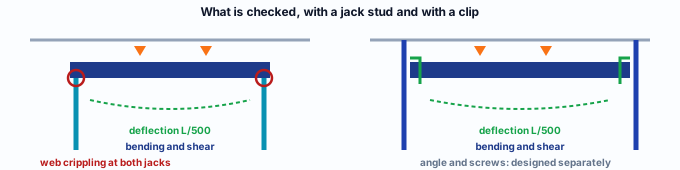
Reading the result: if the VG fails on deflection, the section is too small for the span: more thickness or another type. If it fails only on web crippling, the section is fine and the bearing is short: one more jack stud per side solves it without changing the section.
Shortcuts
- Ctrl+Enter
Calculate the project
Sends the project to the engine, like the Calculate button.
Summary
The path, in one line
Wall view → LSF card → Header → click the header → Type, Section, Jack studs, Support → (or) Project rule: minimum width, type, Apply rule → Esc → calculate and read the VG.
The example so far
- 4: headers, P1 box and J1 to J3 as I
- 1: project rule, opening ≥ 1000, type I
- 2 × Ue 200: 1.25 mm section in all four
- 1: jack stud per side in each opening