LSF (Light Steel Framing)
Doors and windows
An opening cuts studs that were carrying load. It only works because a frame is built around it: king studs, jack studs, header, head track and, in a window, the sill. The app builds that whole frame with each click, and the engine calculates every piece of it.
Overview
One door and three windows
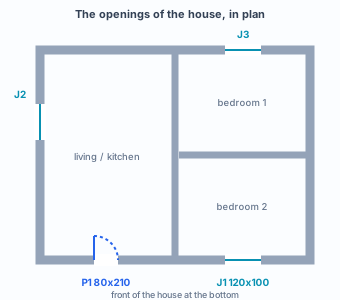
The example house is closed (see Exterior walls, Snap and interior walls and Wall joints): 4 exterior walls, 2 interior walls, 3 rooms and 8 joints. What is left is to open the house. On this page come the front door, in the living room, and one window per room.
For the app, opening a gap is not deleting studs. Each opening carries the structure that goes around it, and that structure is created with it, in the same click. You choose the size, the number of jack studs and the header type; the rest is drawn and calculated.
Door and window are the same tool. The difference is the sill: in a door it is zero, in a window it is the height from the floor to the opening, and short studs are created below it.
Stick-built or roll-formed. The screens on this page show a stick-built project, where a new header starts as a box of two Ue 200. In a roll-formed project, the default for a new project, a new header starts as a Lattice header, 300 mm deep. Placing doors and windows works the same way in both, and the header type is changed in the opening dialog itself (see Headers).
What it is for
The opening and the structure around it
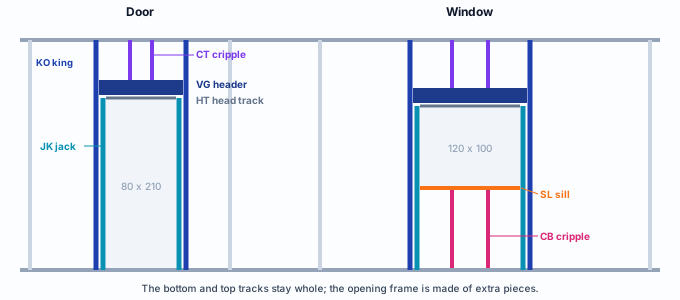
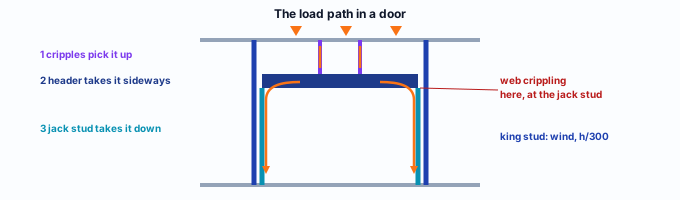
In an LSF wall the load goes down through the studs, one every 400 or 600 mm. The opening removes the studs that fell inside it. The load they carried needs another path: it is picked up by a header above the opening and handed to reinforced studs on both sides. The whole set is the opening frame.
| Code | Piece | What it does |
|---|---|---|
| KO | King stud | Full-height stud at the edge of the opening, from track to track. It takes the header from the side and holds the opening against the wind. |
| JK | Jack stud | Short stud, against the king stud, from the floor to the header. It is where the header bears. 1, 2 or 3 per side. |
| VG | Header | The beam over the opening. It takes the load of the studs above and delivers it to the jack studs. |
| HT | Head track | U track under the header, which closes the opening at the top and receives the window or door frame. |
| CT | Cripple above | Short studs between the header and the top track, at the wall spacing. |
| SL / CB | Sill and cripple below | Window only: the track that closes the opening at the bottom and the short studs from the floor up to it. |
What the standard says
The header is a transfer beam
NBR 16970-2, the Brazilian standard for the structural design of light steel framing, says little about the opening itself. It defines the header, requires that load does not jump from one vertical line to another without a beam to transfer it, and gives the deflection limit for that beam. The anatomy of the frame (king stud, jack stud, cripples) comes from site practice, and the calculation of each piece comes from NBR 14762, the Brazilian standard for cold-formed steel.
| Where | What it says | What changes at the opening |
|---|---|---|
| NBR 16970-2, 3.8 | The header is the beam that transfers forces, at the top of the opening. | The header is a structural member and is calculated as a beam; it is not a finish of the opening. |
| NBR 16970-2, 4.1 | The structure is aligned from top to base: studs sit in the vertical line of whatever bears on them. | The cripple studs (CT) follow the wall spacing, in the vertical line of the members above. |
| NBR 16970-2, 4.2 | Sections in the same vertical line must not be misaligned, unless there is a transfer beam between them. | The header is what allows the cut stud: without it, the opening is a forbidden misalignment. |
| NBR 16970-2, 8.2, Table 3 | Beam supporting a column or a wall panel: deflection up to L/500. Wall panel: horizontal displacement at mid-height up to h/300. | The header is checked at L/500, stiffer than the floor (L/350). The king stud, at h/300 under wind. |
| NBR 16970-2, 4.8 f and section 7 | Connections detailed in the design and calculated by NBR 14762. | In the Brazil market the frame connection comes out with a 4.8 x 19 screw, 600 mm spacing, at least 2 per connection. |
NBR 16970-2 · 4.2.
The rule that justifies the whole frame: the stud can only stop above the opening because there is a transfer beam, the header, that takes its load to the side.
What the standard does not say
No item of NBR 16970-2 sets how many jack studs the header takes, which section to use or how close the opening can be to a joint. Those values are design decisions. The app starts with a default (in a stick-built project, what Brazilian practice uses: a box header of two Ue 200, one jack stud per side; in a roll-formed one, a lattice header) and the engine checks whether it holds.
The standard as a variable. The header section and the frame connection come from the project market. In Brazil, in a stick-built project, the header starts as Ue 200 x 40 x 12 x 1.25; in another market, another section and another assembly.
Design recommendations
Market sizes, on the spacing, away from the top
- 80 x 210: standard door, in cm, with zero sill
- 120 x 100: standard window, in cm, with a 100 cm sill
- 10 cm: minimum gap between two openings, and from the opening to the top of the wall
- L/500: maximum deflection of the header, which holds wall above it
- Use the size of the window or door frame. The app opening is the clear opening of the frame. Check the frame and subframe clearance with the supplier, and enter the size they ask for. An 80 x 210 door and a 120 x 100 window are the off-the-shelf ones.
- Let the snap center the opening. An opening centered between two studs cuts fewer sections and keeps the module on both sides. The tool snaps to the center between studs, to a stud axis, to the grid and to the center of the wall, in that order.
- Check the total height. Sill + opening height + header height has to fit below the top track. On a 2.80 m wall, a 2.10 m door leaves 70 cm: enough for a 20 cm header and the cripple studs.
- More jack studs when the header carries more. Start with one jack stud per side. A wide opening, a roof bearing on the wall or a floor above call for two or three: web crippling of the header, where it bears on the jack stud, is usually what fails first.
- Near a joint, no stud pressed against another. The opening can reach the joint: if there is already a stud from the joint or from a column where the king stud would go, it becomes the king stud, and the app does not create another piece pressed against it. Even so, leave room for the board and for the corner screw.
In the example house: P1 of 80 x 210 at the front, in the living room; J1 of 120 x 100 at the front, in bedroom 2; J2 on the side wall of the living room; J3 at the back, in bedroom 1. All with one jack stud per side and a box header, the defaults of the Brazil market.
Step by step
1. Open the "Add opening" dialog
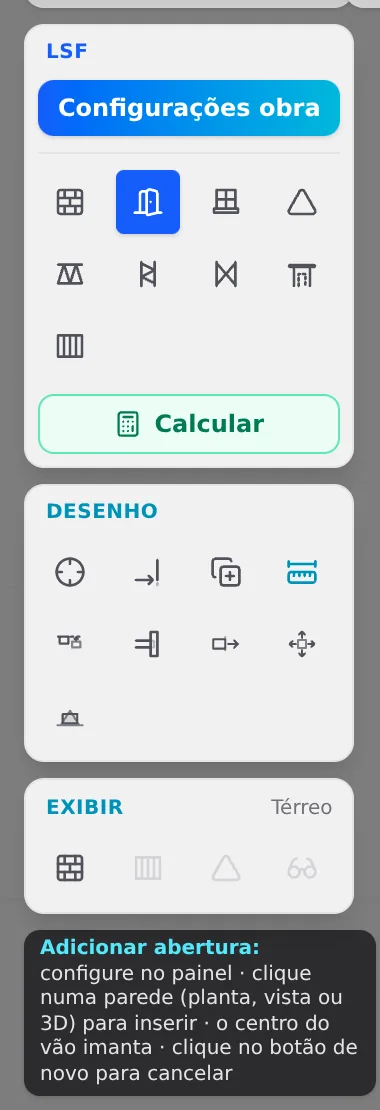
On the LSF card, next to Exterior wall, are the Add door and Add window buttons. Click the door one. The settings dialog opens. With a wall view open, its footer has the same path, through the Opening button.
2. Configure
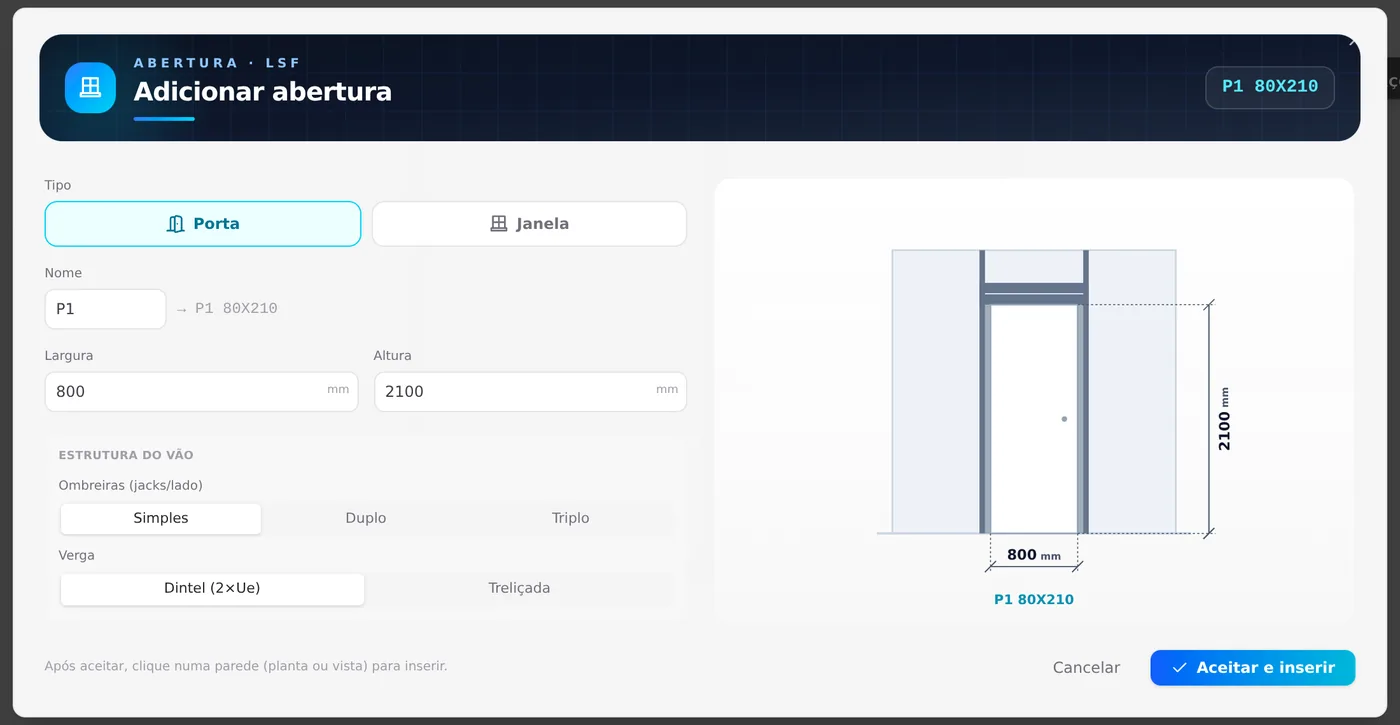
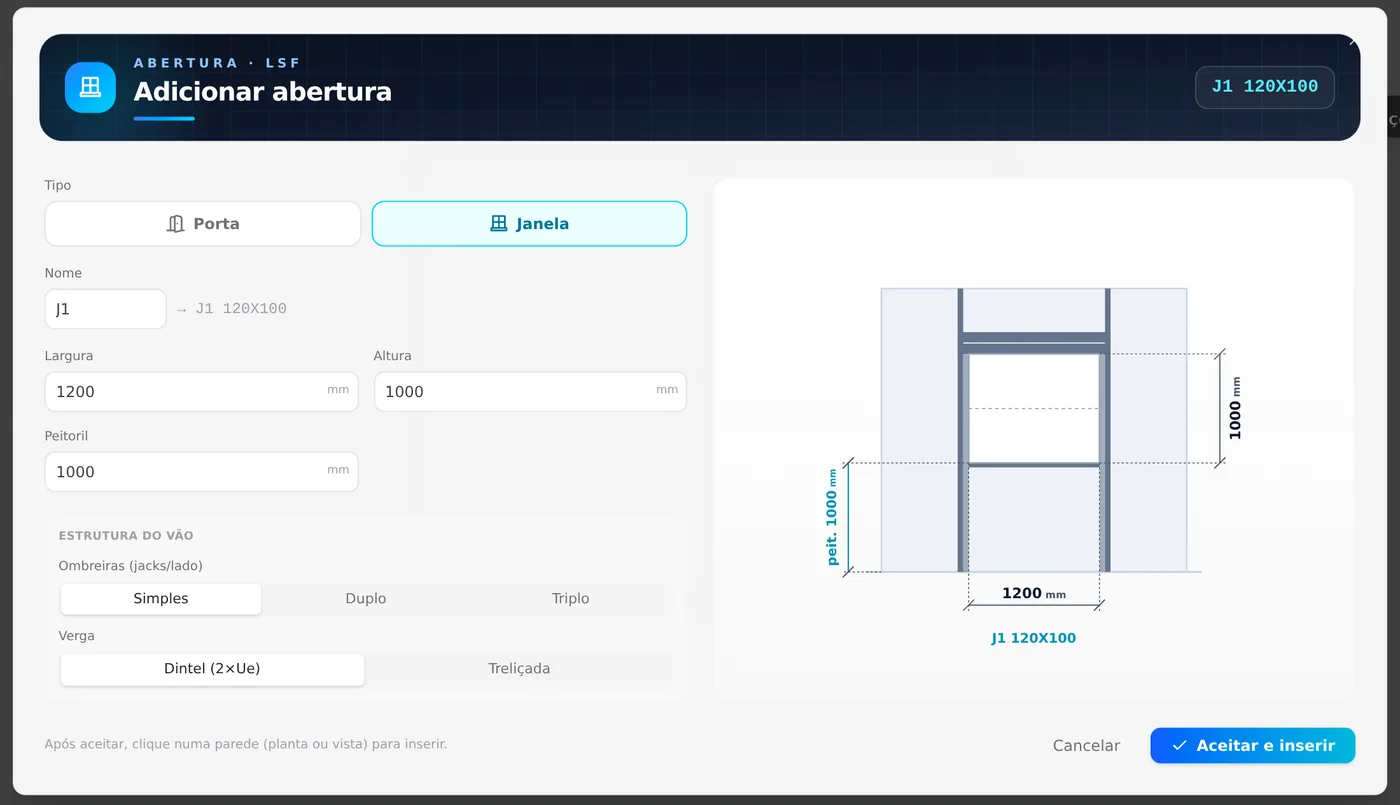
Type Door or Window. Name, short, which becomes the full label ("P1 80X210") on the sheet. Width and Height in millimeters. Under Opening structure: how many jack studs per side (Single, Double, Triple) and the header type: Box, the box header of two Ue, or Lattice, which asks for the lattice height. Check the drawing and click Accept and insert.
Before accepting: width and height cannot be edited once the opening is inserted. Changing the size means deleting and inserting again. Only the position and the sill can be adjusted afterwards.
3. Bring the ghost to the wall
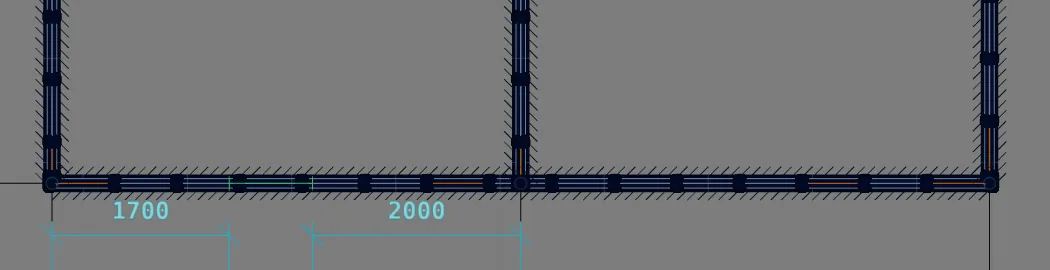
With the tool armed, a ghost outline follows the cursor. It works in the plan (the wall within 60 cm of the cursor), in the wall view and in 3D. While you move, two dimensions show the distance on each side to the nearest joint. The colors tell the state:
| Color | Means |
|---|---|
| cyan | Free: the opening goes where the cursor is. |
| green | Snapped: center between studs, stud axis, grid or wall center. Shift turns the snap off. |
| red | Blocked: the opening does not fit in the wall or falls under a truss. The click does not insert. |
4. Click to insert
One click, no dragging. The door goes in, the studs that fell inside the opening come out and the frame is created. The tool disarms: each Accept and insert is good for one opening. To place another, click the button again: the dialog reopens with the defaults of that type.
Esc or another click on the lit button cancels the tool without inserting anything.
5. The three windows
Add window button. The settings dialog gains the Sill field, the height from the floor to the bottom of the opening, and the drawing now shows the short studs below. With the defaults (1200 x 1000, sill 1000), insert J1 at the front of bedroom 2, J2 on the side of the living room and J3 at the back of bedroom 1, one at a time.
The name counts per wall. The automatic name is the sequence of the wall where the opening goes: the three windows, each the first on its wall, would all come out as J1. For the sheet and the window and door schedule, type J2 and J3 in the Name field before accepting.
6. Select the door
With no tool armed, click the opening. In the plan, the opening takes priority over the wall and the joint. The footer shows the opening: name, type, which wall, the clearances on each side (editable), the size and the header it received.

Changing a clearance slides the opening with the width locked. Delete is in the footer: the Delete key does not remove an opening. Edit header › takes you to the Header tool (see Headers).
7. Open the view of the front wall
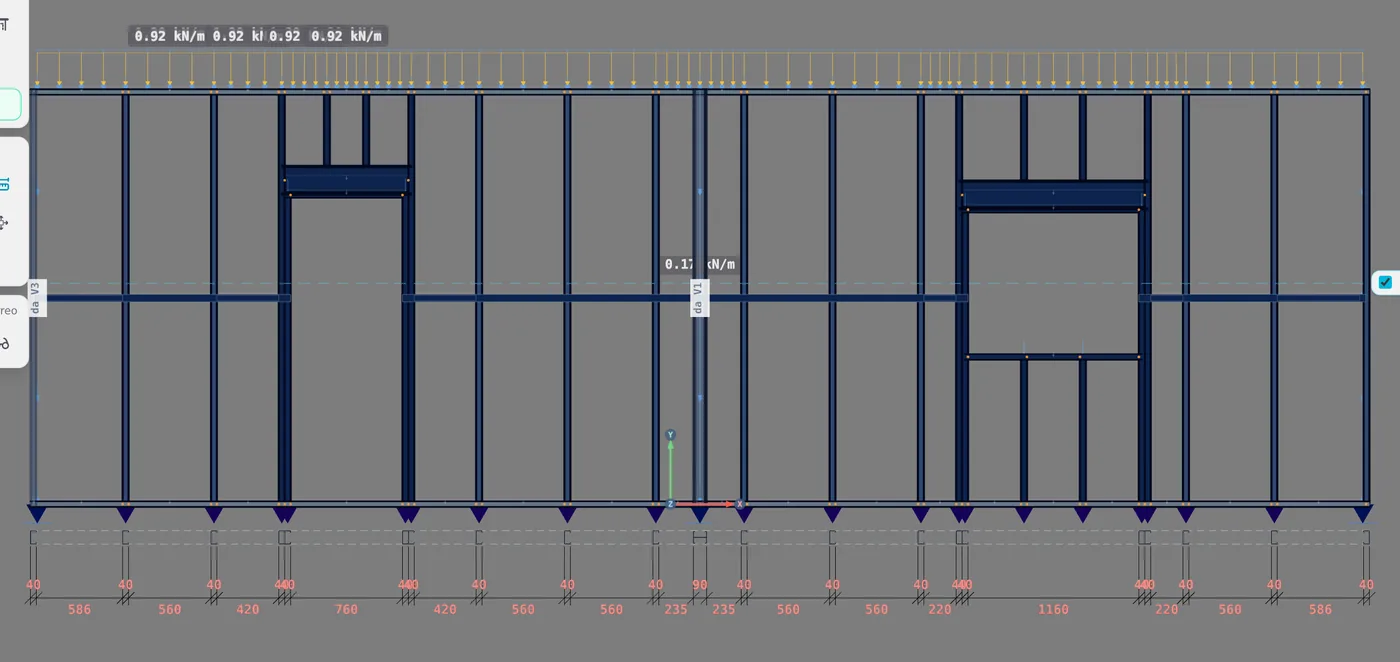
Select the front wall and click Open view on its card, in the footer. The elevation, seen from outside, shows the whole frame. On the left, the door: king stud and jack stud on both sides, box header, head track and two cripple studs above. On the right, the window: the same above, plus the sill and two short studs below.
8. Check in 3D
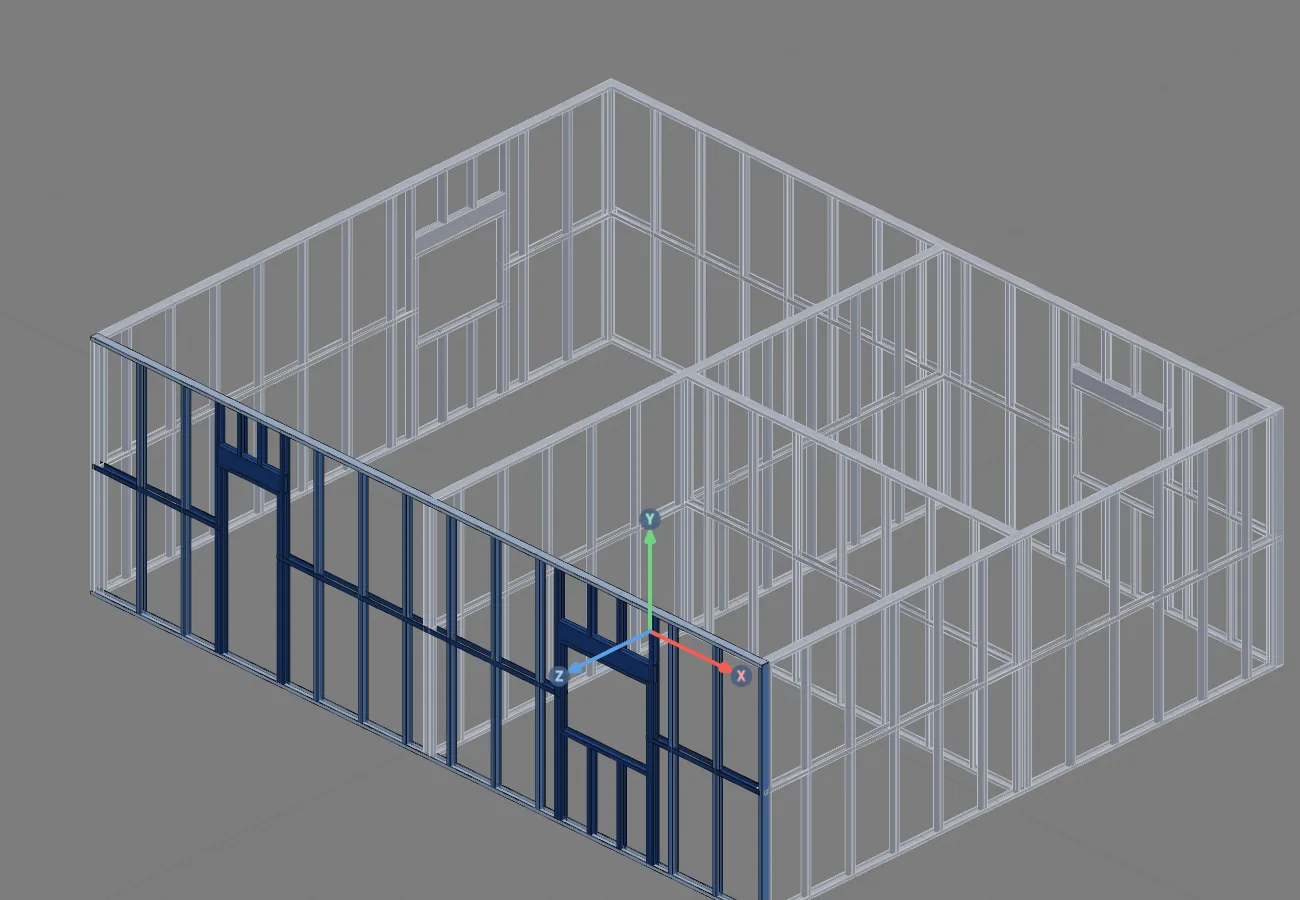
In 3D the four openings show up with their frames. The wall in blue is the one being edited.
Shortcuts
- D↵
Add door
Opens the door panel, then click the wall. When armed, disarms.
- J↵
Add window
Opens the window panel, then click the wall. When armed, disarms.
- AB↵
Opening in the wall
Opens the door or window panel for the wall open in the view.
wall view open
- AV↵
Wall view
Opens the elevation of the selected wall, seen from outside. Again, goes back.
with one wall selected
- PL↵
Plan view
Goes to plan view. With the wall view open, closes it and keeps the wall selected.
- Home
3D view
Goes to 3D at the last camera pose. With the wall view open, closes it.
Parameters
The insert dialog and the footer
Add opening
| Field | What it is | Range | Default |
|---|---|---|---|
| Type | Door or Window. A door has no sill. | n/a | the button's |
| Name | Short label; the full one adds the size in cm ("P1 80X210"). | free | P1, J1 in sequence |
| Width | Clear opening, in mm. | 400 to 6000 | 800 door; 1200 window |
| Height | Clear opening, in mm. | 400 to 3000 | 2100 door; 1000 window |
| Sill | From the floor to the bottom of the opening, in mm. Window only. | 0 to 2000 | 1000 |
| Jambs | Header jack studs per side: Single, Double, Triple. | 1 to 3 | Single |
| Header | Box (box of 2 Ue) or Lattice. | n/a | Box if stick-built; Lattice if roll-formed |
| Lattice height | Only with Lattice, in mm. | 100 to 1200 | 300 |
Opening footer
| Field | What it is | Editable? |
|---|---|---|
| Left clearance, Right clearance | Distance from the opening to the joint or to the neighboring opening on each side, in cm. | yes: slides the opening |
| Opening (W×H) | Width and height, in cm. | no |
| Sill | In cm, in a window. | through the dimension in 3D |
| Header | Composition, section and jack studs; "· project rule" when it came from a rule. | through the Header tool |
In 3D
With the wall being edited (two clicks on it) and the opening selected, the blue dimensions appear: left clearance, right clearance and, in a window, the sill. Click a number, type and press Enter. The sill has a ceiling: the wall height minus 10 cm minus the opening height.
Shortcuts
- ED↵
Edit the wall
Edits the elements of the selected wall. Again, finishes.
with one wall selected
- G↵
Header
Click a header to open its opening in the footer.
Common mistakes
What goes wrong, and how it shows
- Red ghost. The opening, plus the jack studs on both sides, does not fit in the wall; or a truss passes within the height of the opening. A truss above the header is allowed: the frame stops at its chord. Fix: a longer wall, a smaller opening or fewer jack studs.
- Two overlapping openings. Keep at least 10 cm between one opening and the next. How it shows: in the wall view, two frames fighting over the same stud.
- A window that breaks through the top. Sill + height has to stay at least 10 cm below the top of the wall, so that the header fits. If it goes over, the Header tool warns: "The header at this height runs past the top track." Fix: delete and insert with a lower sill or height.
- Trying to change the width in the footer. Width and height are read-only after inserting. Fix: Delete and insert again with the right size.
- Auto divide grayed out. On a wall with an opening, Auto divide for the whole wall is disabled: the opening breaks the division. Open the view and select 2 or more studs to divide just that stretch.
- Repeated names in the project. The automatic name restarts on each wall: J1 at the front, J1 on the side, J1 at the back. On the sheet and in the window and door schedule, three different windows with the same name. Fix: type the name in the Name field before accepting.
- Waiting for the second opening. Each Accept is good for one insertion; after the click the tool disarms. For the next one, click the button again.
Shortcuts
- AD↵
Auto divide
Spreads the studs evenly. With studs selected in the view, only that stretch.
with one wall selected
What the engine does with it
The load goes around the opening through the pieces
Member model. The engine does not redistribute the opening load by formula. Each piece of the frame is a member of the model: the load from above goes down through the cripple studs, reaches the header, goes to the jack studs and the king studs and down to the bottom track. The path is the drawing.
Pinned connections. Header, head track, sill and cripple studs enter pinned at their ends. King stud and jack stud work as studs, with the buckling length given by the bracing lines (see Exterior walls).
The header is checked. Like every member, bending and shear by NBR 14762; in addition, deflection at L/500 and web crippling where it bears on the jack stud. The king stud is checked at h/300 under wind. A concentrated load that falls off-axis over the opening is flagged, so you can check it.
Wind. The opening is not cut out of the wind area: the closed window or door receives the pressure and delivers it to the king studs, the jack studs and the cripple studs, by the tributary area of each one. The permeability of the house enters through the internal pressure coefficient.
Before calculating: with the house opened up, the natural next step is to check the header of each opening (see Headers). If the header fails on web crippling, the first thing to try is one more jack stud per side.
Shortcuts
- Ctrl+Enter
Calculate the project
Sends the project to the engine, like the Calculate button.
- G↵
Header
Click a header to open its opening in the footer.
Summary
The path, in one line
LSF card → Add door or window → size, jack studs and header → Accept and insert → bring the ghost to the wall (green is snapped) → click → select the opening and check the clearances → Open view of the wall to see the frame.
The example so far
- 6: walls, 3 rooms, 8 joints
- 1: door, P1 80 x 210
- 3: windows of 120 x 100, sill 100
- 4: Ue 200 box headers