LSF (Light Steel Framing)
Build by chat
The <strong>Build with AI</strong> bar takes your request in plain words, draws walls, openings, lattice trusses and roof with the project sections, and hands the turn back to you. This page follows three real requests to show how to ask, adjust and undo, and where the chat ends and the engine begins.
Overview
You ask, the AI draws, the engine checks
The editor AI is a draftsman who understands plain language. It reads the request, looks at the open project and writes the actions the editor applies: a wall from here to there, a door in this wall, a four-plane roof. What it puts on screen is the same as what you would place with the editor tools, with the section, the track and the spacing the project already has.
It does not calculate. Whether a wall passes is up to the engine, when you click Calculate, and the engineer signs. The chat is there to get to the model faster, not to skip the check.
This page follows three real requests on a new project, roll-formed on the FRAMECAD F325iT, all on the default AI level. The requests and the AI replies were in Portuguese; here they appear translated.
- 1 sentence: for the 9 x 7 m single-story house with a 2.80 m ceiling height
- 479 members: on screen at the end of the first request, with 7 walls, 9 openings, 16 lattice trusses and the roof
- 1 Ctrl+Z: undoes the whole request, however large
- 0 verdicts given by the AI: pass or fail belongs to the analysis engine
The figures are real captures of the app. The three requests ran on 22 Oct 2026 on the Medium level, on a test account, over a new unsaved project. The AI lines quoted here are the ones it wrote, unedited.
What it is for
What you can ask for in an LSF project
On the LSF tab the AI works with the same pieces as the editor tools. Each request becomes one or more actions, and each action goes through the editor, which applies or refuses it as it would with your click.
| Request | What the AI does | Example |
|---|---|---|
| Place | walls, doors and windows, lattice trusses, columns, headers, bracing, trusses and roof | "single-story house, 9 x 7 m" |
| Adjust | adds, moves or deletes a piece; changes the ceiling height | "1.20 x 1.00 m window on the front wall" |
| Sheet | creates the panel sheet of a wall | "generate the sheet of the front wall" |
| Read an image | reads a simple plan, photo or sketch and uses the dimensions as wall axes | attached floor plan, with dimensions |
| Answer | reads the open project and answers, without touching anything | "what is missing before I can calculate?" |
What comes from the project
The stud section, track and spacing are the ones in the Project settings. In the house on this page, C 89x41, 0.95 mm every 60 cm, because the project was opened as roll-formed on the F325iT. Choose the fabrication before asking: the AI does not change the wall sections.
What stays out
Saying whether the piece holds. The AI draws and does not calculate: it does not state that a wall passes. Strength, deflection and connections belong to the engine, by NBR 14762 (the Brazilian standard for cold-formed steel members), when you calculate.
Images: start simple. A clean plan, with readable dimensions, becomes walls on the dimension axes; a room without dimensions becomes a question, unless you check Build right away, no questions. A drawing with a lot of overlapping information works better in parts: one plan per request, and the rest through the chat.
Standard
The chat does not change who answers
There is no standard for a model drawn by AI, and none is needed: the model that comes out of the chat is a model like any other, and the standard applies to all of it. The AI does not replace the section checks or the technical responsibility.
NBR 14762:2010.
The design of cold-formed steel members. The check is done by the analysis engine when you calculate the project, and it is the same for a wall drawn by hand or through the chat.
ART.
The ART (Anotação de Responsabilidade Técnica, the Brazilian record of technical responsibility) belongs to the engineer who signs the design. No sentence in the chat takes its place.
Who does what
| Who | Does | Does not |
|---|---|---|
| AI | reads the request and the project, draws, asks when a dimension is missing, sums up what it did | give a strength verdict, choose the wall sections, sign |
| Editor | applies each action with the same rules as the tools, and refuses what does not fit | invent a piece nobody asked for |
| Engine | computes the forces and checks every member by NBR 14762, on the Calculate button | draw |
| Engineer | defines the project, checks the model and the result, decides and signs the ART | hand the decision over to the chat |
"Run the analysis" in the chat is the Calculate button. When the AI offers to calculate and you accept, the project is saved and calculated as with the button at the top. The result is the engine's, with the same numbers and the same colors on screen.
Recommendations
How to ask well
The AI does what the sentence allows. Five habits make the sentence complete:
1. Prepare the project first
Open the Project settings and choose fabrication and machine (see Roll-former file). The section, the track and the spacing come from there, and the AI uses them without asking.
2. Give dimensions with units
"9 x 7 m", "1.20 x 1.00 m", "2.80 m ceiling height". A dimension without a unit becomes a question, and a question is one more round.
3. Say where
"On the front wall", "1.50 m from the left corner", "between the living room and the bedroom". Without a place, the AI picks one and tells you which.
4. One subject per request
First the house, then each adjustment. A small request is easy to check and, if it is not what you wanted, one Ctrl+Z removes just that.
5. Say what you want different from the default
A house asked for only by its size comes complete: rooms, doors, windows, lattice trusses and a four-plane roof. If you want two planes or another layout, put it in the sentence, or ask for it later.
The requests on this page
| Request | Sentence |
|---|---|
| 1 | "Make a single-story 9 x 7 m house in light steel framing, with a 2.80 m ceiling height." |
| 2 | "Add a 1.20 x 1.00 m window on the front wall." |
| 3 | "What is missing for this project to be calculated?" |
All three were handled on the first try, with no warning of a refused action.
Shortcuts
- CFG↵
Project settings
Opens the project wizard: envelope, structure, loads and wind.
Step by step
Open the bar
1. Click Build with AI
The button sits at the bottom of the drawing area, on every editor tab. It opens the chat card over the project; the x closes the card and leaves a handle in its place, to reopen it with the conversation intact.
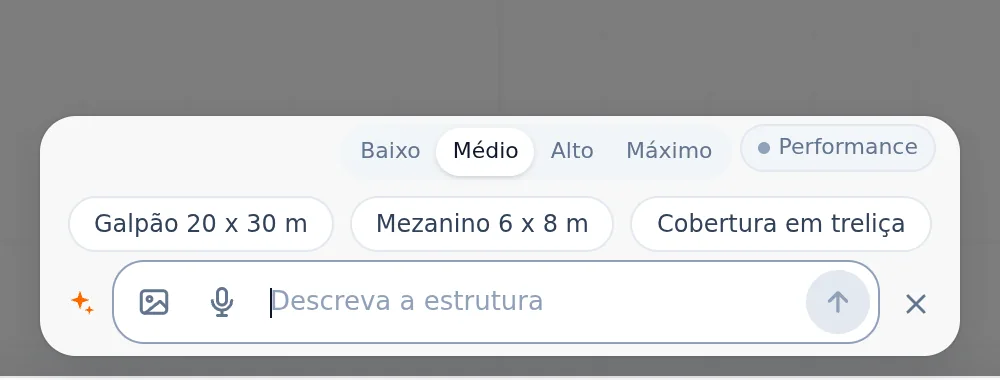
| Piece | What for |
|---|---|
| field | "Describe the structure we are going to build". Enter sends, Shift+Enter adds a new line |
| image | "Attach floor plan, PDF, photo or sketch": up to 4 images per request |
| microphone | "Speak instead of typing": records, transcribes and puts the text in the field |
| suggestions | Warehouse, Mezzanine and Truss roof are member structures. On the LSF tab, write your own request |
| level | Low, Medium, High and Max, when the switch shows on the card. Medium is the default, and the requests on this page were made on it |
The first request
2. Write the house in one sentence and press Enter
Size, system and ceiling height. No need to give the section or the spacing: the project already knows.
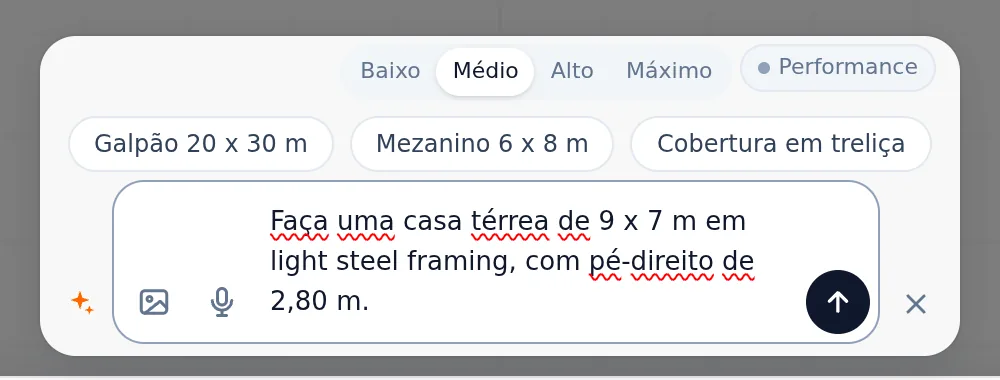
3. Watch without touching
The card shrinks and shows the phase. While the AI works, the camera stays free (wheel, middle and right buttons), and the stop button (the square), or the Esc key, stops the round.
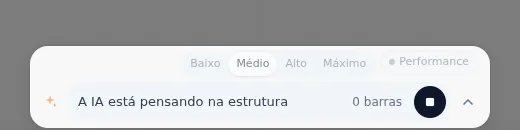
| Phase | What is happening |
|---|---|
| Thinking | the AI reads the request and the project and plans the actions |
| Building | the editor applies the actions one by one; the member counter goes up |
| Waiting for you | the AI finished and asked a question, or offered paths |
| Done · Stopped | the round is over, or you stopped it midway |
What came back
4. Read the summary and look at the 3D
The round ends with a short line, the summary of what went in and, almost always, two or three options for the next step. From Enter to the end, this request took 164 s, most of it building the 479 members on screen.
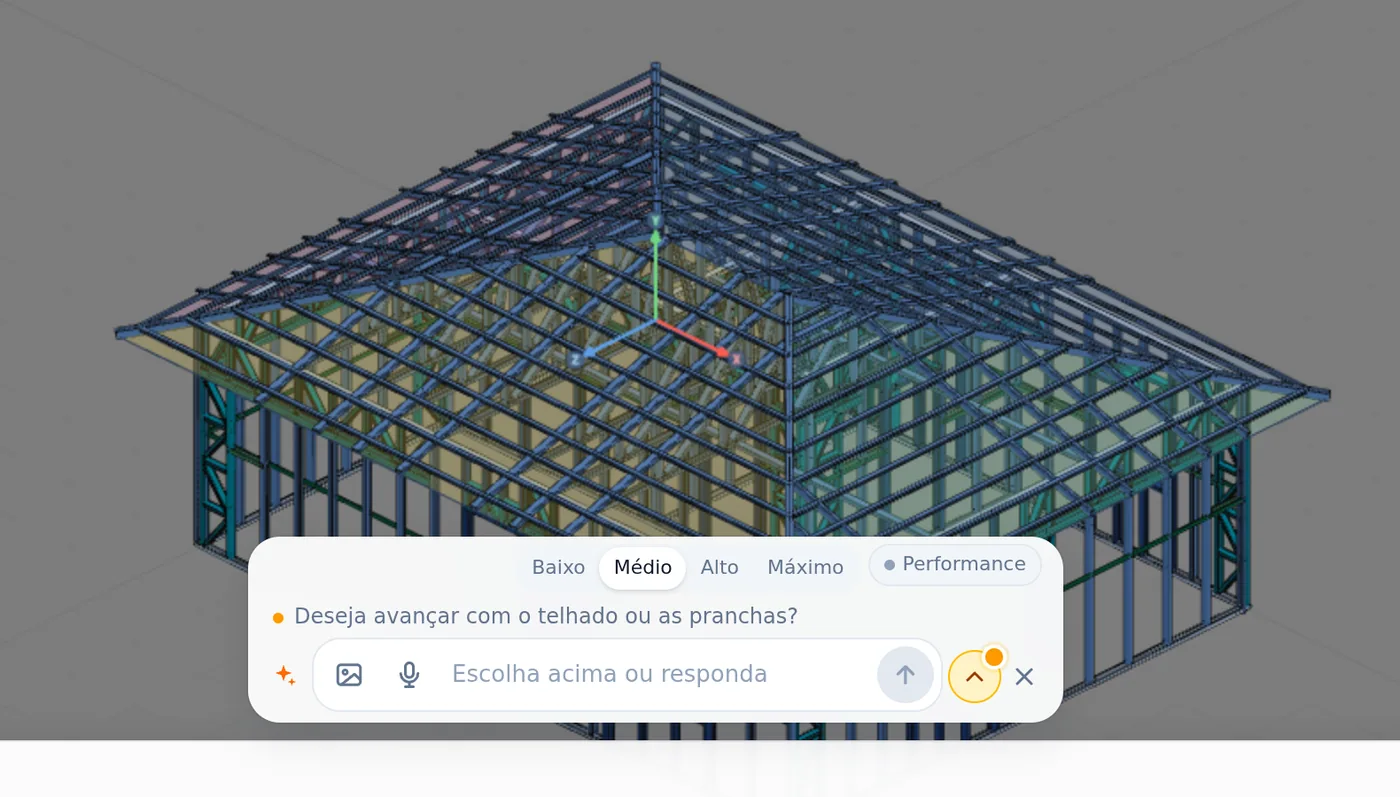
The options that came with the question: Generate the project sheets, Change the roof to 2 planes and Not for now.
- 7: walls, the outline and three interior ones
- 9: openings, 4 doors and 5 windows
- 16: lattice trusses, with 11 columns
- 479: members on screen at the end of the round
Adjust through the chat
5. Answer by typing, or click an option
The options are shortcuts, not obligations. With the AI question still on the card, you can write another request; it counts as the answer.
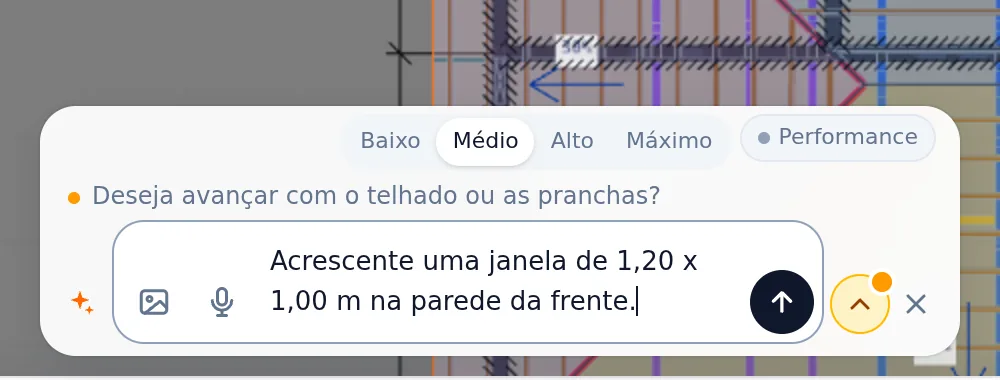
The window went in, and the round ended with three options: Generate sheets, Change position and Run analysis.
| Item | Where it came from |
|---|---|
| 1.20 x 1.00 m | from the request |
| front wall | from the request; the AI says which wall it understood (Z = 7.00 m) |
| X = 2.00 m | the AI's choice, stated in its reply, because the request gave no place |
| 1.00 m sill | the window default when the request does not say |
Exact place: say "1.50 m from the left corner of the front wall", or click Change position and answer with the dimension. This request took 60 s from Enter to the end.
One Ctrl+Z per request
6. Don't like it? Undo the whole round
At the start of each request the editor takes a snapshot of the project, LSF state included. That is why a single Ctrl+Z removes everything that request did, be it 1 or 479 members, and Ctrl+Y (or Ctrl+Shift+Z) puts it back.
Measured on the house on this page, after request 2
| Moment | Openings | Walls |
|---|---|---|
| with the new window | 10 | 7 |
| after Ctrl+Z | 9 | 7 |
| after Ctrl+Y | 10 | 7 |
Ctrl+Z removed only request 2. The house from request 1 stayed as it was.
7. Click outside the field first
With the cursor in the text field, Ctrl+Z undoes what you typed, not the project. Click the drawing area and then undo.
8. Stopped midway? The same shortcut works
If you stop with Esc, the card tells you how many members stayed: "Build stopped. N members stayed in the model; Ctrl+Z undoes the whole round."
From last to first. Each request is one step: two Ctrl+Z remove the last two requests, in reverse order. That is why it pays to ask in small parts.
Ask about the project
9. Ask as you would ask a colleague
A question draws nothing. The AI reads the open project and answers on the card, almost always with paths to follow. In request 3, the answer came with three options: Adjust and calculate, Place wind only and Leave as is.
The answer is a checklist, not a verdict. It says what to check; whether the project works is up to the calculation. Place what the list points to, through the chat or with the tools, and only then calculate.
10. Calculate with the button, or through the chat
"Run the analysis" calls the same calculation as the button at the top. The result comes back to the screen with the usual colors, and the AI reads the engine result; it does not redo it.
After a calculation with failures: the deep study
When the calculation fails members, the card asks "Do you want me to fix it?", and the first option is Run a deep study of the structure, offered to every logged-in account. It opens the "Finding a solution for the structure" panel: the AI reads the reason for each failure, tests hypotheses in a trial calculation and only then proposes. The stages show in the panel: Read the model, Diagnosis, Governing combinations, Trials, Check with all and Proposal. Nothing changes in the project until you click Apply proposal, and the verdict is still the engine's.
Shortcuts
- Home
3D view
Goes to 3D at the last camera pose. With the wall view open, closes it.
- Ctrl+Enter
Calculate the project
Sends the project to the engine, like the Calculate button.
Parameters
What the AI uses when the request does not say
| Parameter | Value | To change it |
|---|---|---|
| section, track, spacing | the project ones: C 89x41, 0.95 mm every 600 mm in the house on this page | Project settings, before asking |
| door | 800 x 2100 mm | give the size in the request |
| window | 1200 x 1000 mm, 1000 mm sill | give width, height and sill |
| ceiling height | the project one; accepted from 2 to 6 m | "3 m ceiling height" |
| place of the piece | chosen by the AI and stated in its reply | give the distance to a corner or to another piece |
| house without detail | rooms, doors and windows, lattice trusses, columns and a four-plane roof | describe what you want, or adjust later |
| AI level | Medium, the default | Low, High and Max are on the same switch, when it shows on the card |
| Performance | off | button next to the level: the AI investigates the model over several rounds before acting, and the card says "I investigated the model with N queries". It turns on in paid plans; in Free and in the trial it shows frozen |
Attachments
| Item | Limit |
|---|---|
| quantity | up to 4 images per request; if they are too large, the card asks for fewer images at a time |
| formats | JPG, PNG, WebP and PDF; from a long PDF the first pages go in, and the card says how many |
| password-protected PDF | does not open; remove the password or send the page as an image |
| build right away | field option, Build right away, no questions: the AI reads the image and builds straight away, without stopping for you to check the reading, and anything it estimates is flagged |
The AI in your plan. Each request uses the AI in your plan. When it runs out, the card tells you and says when it comes back; the project stays as it is.
Shortcuts
- CFG↵
Project settings
Opens the project wizard: envelope, structure, loads and wind.
Errors and refusals
The card warnings, and what to do
- "The editor did not apply N actions from this round". The AI proposed something the editor refuses, as it would refuse your click; the rest of the round stays. The reasons: the point is more than 40 cm from any wall, the wall is too short for the opening, there is already an opening there, sill plus height go past the ceiling height, or the ceiling height is outside 2 to 6 m. Redo the request with the corrected dimension or place.
- "This was already like this before your request, and I did not touch it". The final check found something the project already had. The AI does not fix it unless you ask: if you want, ask.
- The project is calculating or generating a file. While the calculation or a file is running, the AI does not touch the project. Wait for it to finish and send again.
- "Build stopped. N members stayed in the model". You stopped with Esc. Ctrl+Z removes the whole round; or ask it to continue from where it stopped.
- "The connection to the AI dropped before the end". The project may be half done. Ctrl+Z and send the request again. If it never started, the card says nothing was built.
- "Profile X is not in the catalog; I used Y, the closest one". It applies to a piece for which you asked for a section by name. Check the name in the catalog, or accept the closest one.
- The AI answered with a question. A dimension or a place was missing. Answer in the field; the answer continues the same request.
- "Does this pass?". The AI does not give a strength verdict. It offers to run the analysis, and the answer comes from the engine.
It came out different from what you wanted
1. Ctrl+Z
With the cursor outside the field. The project goes back to before the request.
2. Rewrite with dimension and place
"1.20 x 1.00 m window on the front wall, 1.50 m from the left corner" leaves the AI only what you did not say.
3. Split the request
One wall, one opening or one roof at a time. Each part is checked and undone on its own.
What the engine does
From the sentence to the checked member
The chat and the calculation are separate stages, and each has its owner. The AI writes actions; the editor and the LSF generator turn the actions into pieces; the engine checks the pieces. No stage skips the next.
| Stage | Who | What comes out |
|---|---|---|
| 1 · request | you | the sentence, or the image with the sentence |
| 2 · plan | AI | the list of actions: walls, openings, lattice trusses, roof; the reply and the summary |
| 3 · pieces | editor and LSF generator | studs, tracks, headers and trusses with the project section; refusal of what does not fit |
| 4 · calculation | engine | forces and the check of every member by NBR 14762, on the Calculate button or with "Run the analysis" |
| 5 · decision | engineer | review of the model and the result, and the ART |
A piece drawn through the chat is the same as one drawn by hand. Cut list, sheet, machine file and IFC read the same members, wherever they came from (see Cut list, takeoff, DXF and IFC).
Shortcuts
- Ctrl+Enter
Calculate the project
Sends the project to the engine, like the Calculate button.
Summary
The path, in one line
Project settings → Build with AI → one sentence with dimension and place → Enter → read the summary and look at the 3D → adjust through the chat or undo with Ctrl+Z → Calculate.
The three requests
- Request 1: the 9 x 7 m house, with 7 walls, 9 openings, lattice trusses and roof, 479 members
- Request 2: the 1.20 x 1.00 m window on the front wall, removed with Ctrl+Z and brought back with Ctrl+Y
- Request 3: what to check before calculating, without touching the project
- The verdict: always the engine's, on Calculate