LSF (Light Steel Framing)
Roll-former file
The <strong>Machine (CSV)</strong> box writes one file per wall for the roll former, FRAMECAD F325iT or Howick FRAMA 3200, with each member, its length, its position in the frame and its tool operations. Here you export the example house, read the file from the inside and take the way back, from the CSV to the wall.
Overview
From the model to the coil, one file per wall
An LSF roll former pulls the steel strip off the coil, forms the C section and, in the same pass, cuts it to length, swages, notches and punches it. It does not read drawings: it reads a list of members with the position of each tool operation. CalcSteel writes that list from the walls of the model, in the dialect of the chosen machine.
The button is on the LSF panel, right below Calculate: Machine (CSV). It opens a box with two sides. On the left, machine, format and joint detail, and the export button. On the right, the import side, which reads a CSV with positions and builds each panel as a wall.
The example house is the same 9x7 one from Exterior walls, redone in a new project. A new LSF project starts roll-formed on the FRAMECAD F325iT, and that is the machine this page follows. The reading example is the front wall, V6, with the door, the windows and the lattice column.
- 6: files, one per wall, V1 to V6, in a .zip
- 205: members in the house, all in C 89x41 at 0.95 mm
- 2,055: tool operations written in the six files
- 205 bars: back on import, in 6 walls
| Question | Short answer |
|---|---|
| Where | LSF panel, Machine (CSV) button, below Calculate |
| Machines | FRAMECAD F325iT (default for a new project) and Howick FRAMA 3200 |
| What it exports | the walls: the open wall, or all of them when none is open |
| What it imports | CSV with positions (FRAMECAD, Howick v2) or .zip; each panel becomes a wall |
| Check first | the purple button shows in 3D the operations that go into the file |
| In the calculation | nothing changes the file comes from the drawing, not from the result (see What the engine checks) |
What it is for
Stick-built or roll-formed
An LSF project asks, right at creation, how the steel will arrive on site. The wizard offers two answers, with the hint for each written on the button:
Stick-built
"The section arrives as a bar and is cut on site." The list that matters is the purchase and cut list: how many commercial bars of each section. The machine does not come in.
Roll-formed
"The members leave the roll former already cut, punched and swaged." Each member has its own length and its own operations, and someone has to hand that to the machine. That is what the file does.
Below, stud V6-M1a of the front wall as the FRAMECAD reads it: 2,796.28 mm and nine operations. At the ends, the cut, the dimple that will match the one on the track and the 55 mm swage that narrows the section so it fits between the track flanges. In the middle, twice, the lip notch and the dimple where the blocking crosses over.
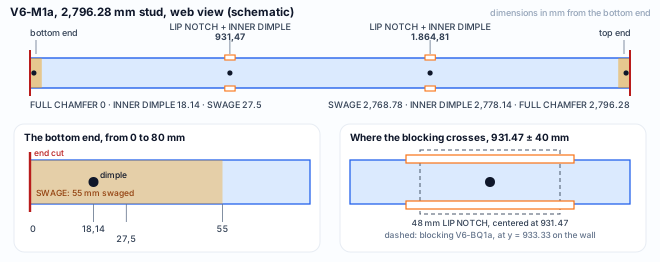
- 9: operations on a common stud of V6
- 55 mm: of swage at each end that goes into the track
- 1.86 mm: between the end of the stud and the bottom of the track
The operation name in the file is the machine's. On this page CalcSteel calls them swage (SWAGE), lip notch (LIP NOTCH), web notch (WEB NOTCH), dimple (INNER DIMPLE) and end cut (FULL CHAMFER).
What the standard says
Fabrication is part of the design
NBR 16970-2 does not mention CSV files or roll formers. It says what the design has to deliver, and the machine file is one way of delivering the fabrication part. The items that matter here:
NBR 16970-2 · 4.5.
The design is the set of specifications, structural calculations, "design, fabrication and erection drawings of the steel components".
NBR 16970-2 · 4.7 d).
The calculation report includes the "schemes adopted in the analysis of the structural elements and identification of their members".
NBR 16970-2 · 4.8.
The steel grades must appear "prominently" on the drawings, and the components must have the "same identification on the drawings and in the calculation report".
NBR 16970-2 · 4.8 e).
The drawings include the "drawing of the panels that make up each storey, showing each of their components".
NBR 16970-2 · 3.12 and 5.2.
Lateral restraint can be provided by "vertical trusses with members in the swaged-fit system" (3.12). Table 1 of 5.2 lists the most used steels, from ZAR 230 to ZAR 345.
Draft NBR 16970-3 · 4.6.1.
Service holes planned in the structural design, according to NBR 15253, with the major axis of the hole on the centerline of the web. Text of the draft in national consultation of Jan/2022.
| Item | In the machine file |
|---|---|
| 4.5 fabrication | each member with length and operations, one line per member (FRAMECAD and Howick v2) |
| 4.8 identification | the member label is the sheet mark: V6-M1a in the file is M1a on the V6 elevation |
| 4.8 e) panels | one file per wall; with positions, each member carries both ends in the frame |
| 3.12 swaged fits | the 55 mm SWAGE on every end that goes between the flanges of another member |
| 4.8 steel grade | the steel goes on the sheet and in the report; the FRAMECAD file carries section, position and operations, and Howick v2 also carries the steel name, in its own column |
| 16970-3 4.6.1 holes | SERVICE HOLE and BOLT HOLES exist in the dialect, but no hole was placed in this house |
The file is not the drawing. The steel, the identification in the report and the bolted connections (4.8 f) stay on the sheet and in the report. The CSV is the production order the machine understands, generated from the same source as the sheet.
Design recommendations
The order of use on this house
The file is the last thing that leaves the model. Anything that changes after it forces a new export, so the order matters:
| # | What | Why |
|---|---|---|
| 1 | New project as Roll-formed, FRAMECAD F325iT machine | the machine sets the section and the profiles of the project |
| 2 | Check the profiles on the Structure tab | the file comes out in a single section (see Parameters) |
| 3 | Walls, openings and connections done | each joint becomes an operation |
| 4 | Calculate and pass | the box does not require the calculation; you do |
| 5 | Purple button on, wall by wall | you see what the machine will do before sending |
| 6 | Export the whole project | a .zip with one CSV per wall |
| 7 | Read the export report | straps outside the machine and section swaps show up there |
| 8 | Import, if you want to check the file | preferably in a new project, because it renumbers the walls |
Joint detail
| In the box | What it does |
|---|---|
| FRAMECAD default | the machine's own joint, only on it |
| Single section, with swaging | every member in the stud profile; what does not fit is swaged |
| Profile per member, no swaging | blocking and diagonal in the smaller profile; what does not fit is refused |
Format
| Format | Carries |
|---|---|
| FRAMECAD Rollforming CSV | role, position in the frame, operations |
| Howick CSV v2 | section, position, operations |
| Howick CSV v1 | cut list: length and operations |
For the FRAMECAD, leave the detail on FRAMECAD Ltd default · FRAMECAD F325iT. It is the model that follows the machine's documented connections, and it is the one the box already has selected in a new project.
Step by step
1. Create the project and check fabrication
In New project · LSF, the header of the Project settings shows the country and the standard, Brazil · NBR 14762, and right below the choice Stick-built or Roll-formed. In a new project, Roll-formed is already selected and the machine is the FRAMECAD F325iT. A project saved earlier, without a fabrication model, reopens as stick-built; a project that already has a model does not change.

2. See the profiles the machine forms
On the Structure · profiles tab, the title becomes Profiles of FRAMECAD F325iT. Stud, track and blocking in C 89x41/39x12 at 0.95 mm, header at 1.15, bracing in RET 50x0.95 strap. The steel of the project is ZAR-230, and the stud spacing, 600 mm.
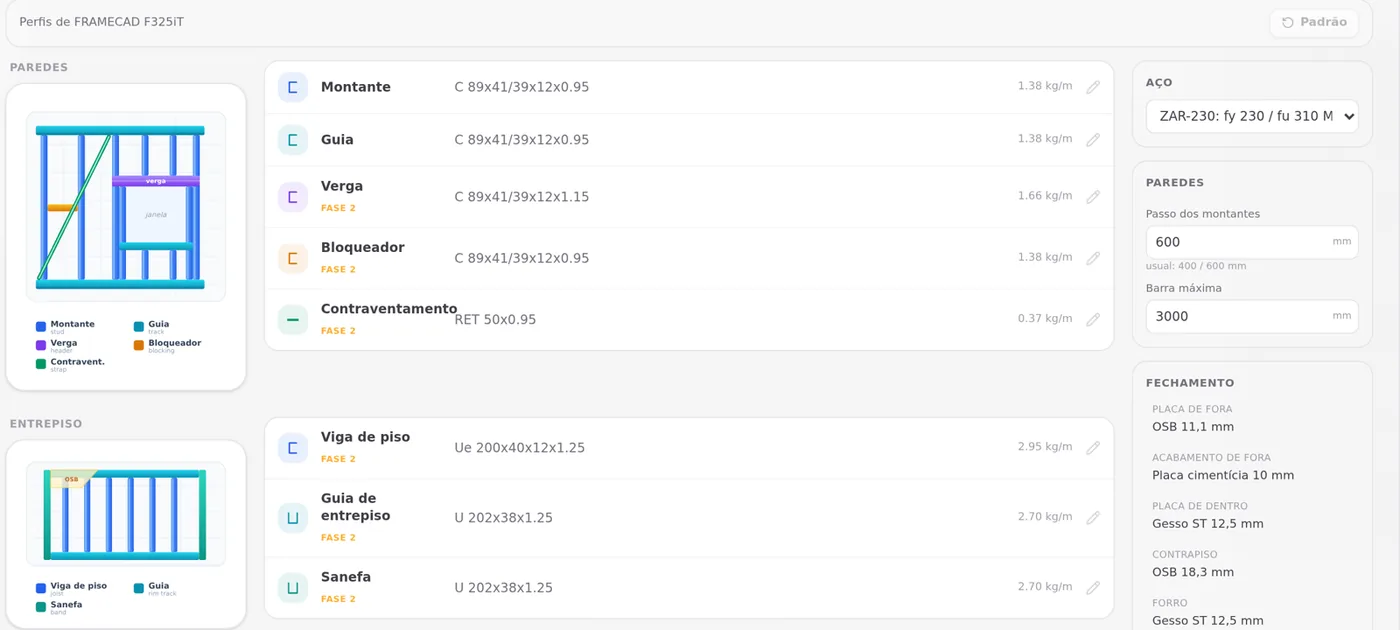
From here on the house is built as on the other pages: the six walls (see Exterior walls), the front openings (see Doors and windows) and the lattice column (see Columns). In the new project the walls get the labels V1 to V6, and the front one is V6.
3. Machine (CSV), below Calculate
The button is always on the LSF panel, without depending on the calculation. The box opens alongside, with the title Roll-former CSV. The project machine is already selected and, for the FRAMECAD, the machine's own model shows up first in the joint detail.
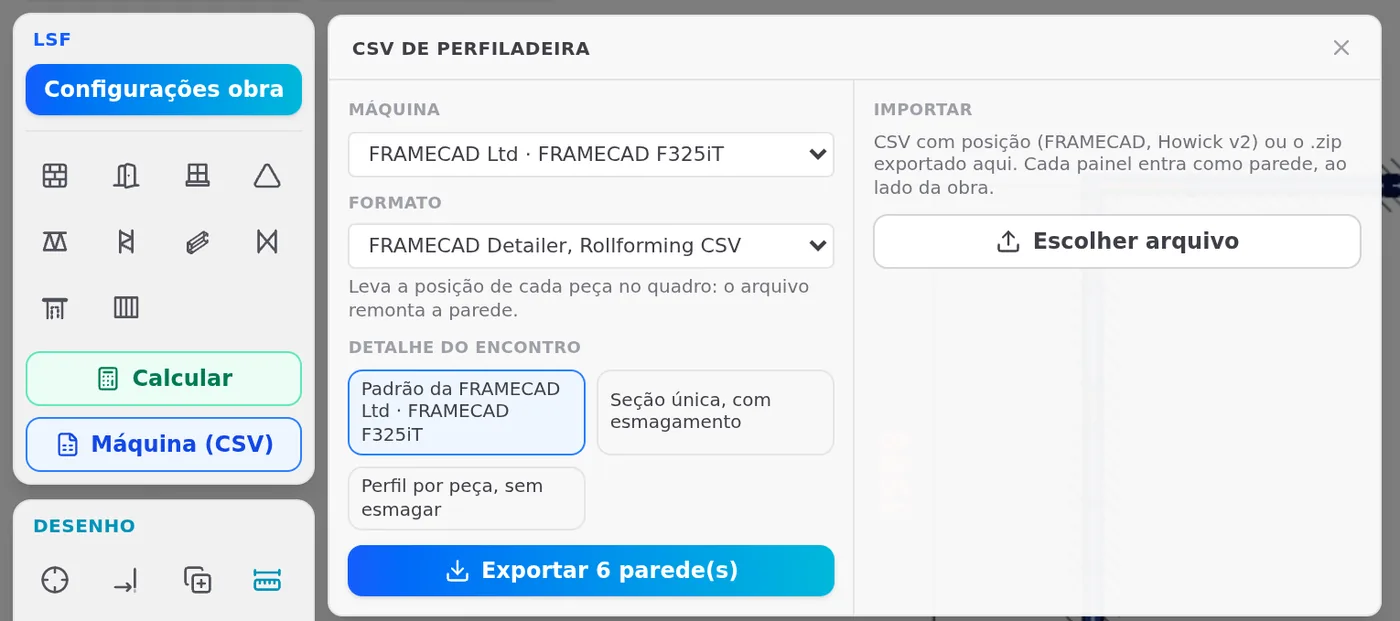
4. Switch machines, if needed
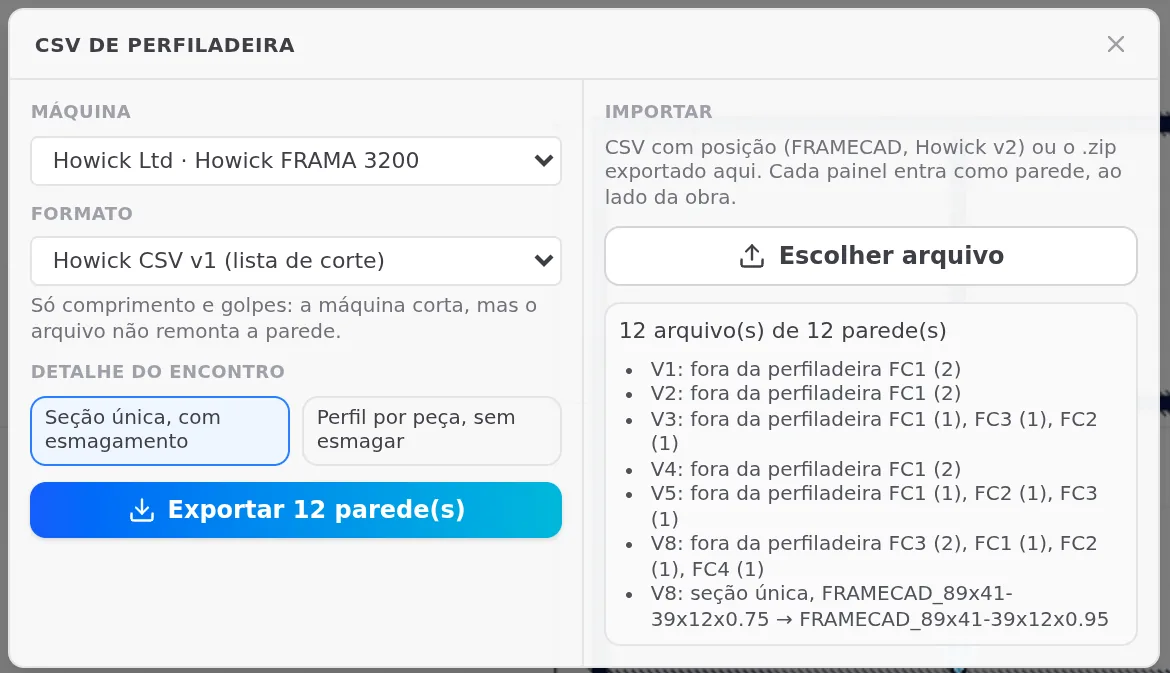
With the Howick FRAMA 3200, the format becomes Howick CSV v1 or v2, and the detail has two options, because the default belongs to the FRAMECAD. The text below the format says what it carries. On v1: "Only length and operations: the machine cuts, but the file does not rebuild the wall."
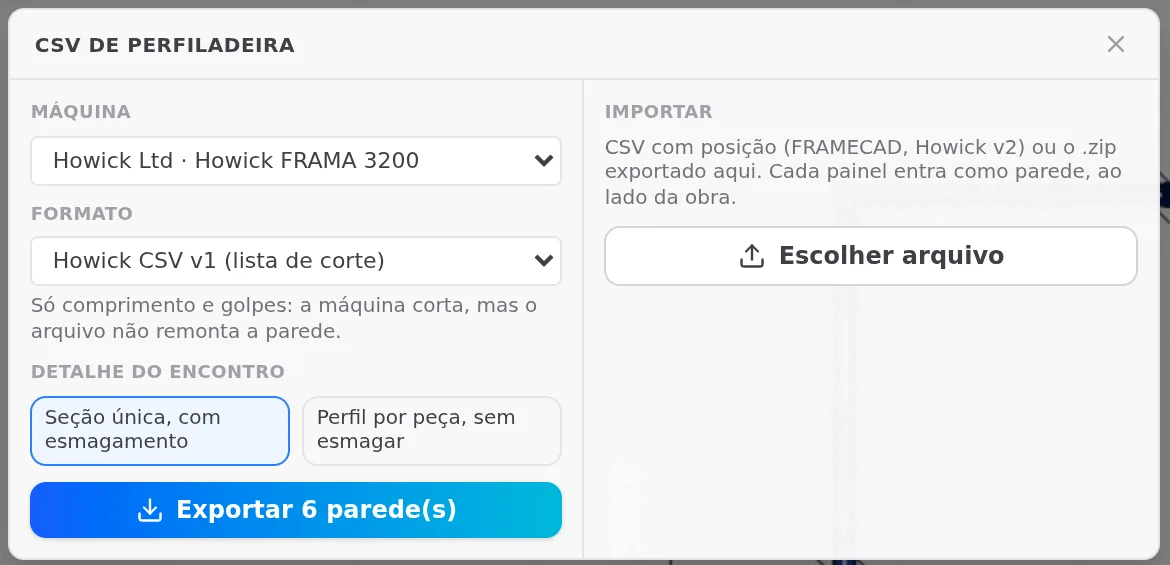
5. Export 6 wall(s)
With no wall open, the button says how many go: Export 6 wall(s). A single file comes out as .csv; several come out in a .zip named after the project and the machine, here CalcSteel_framecad_f325it.zip. The report shows on the right side of the box.
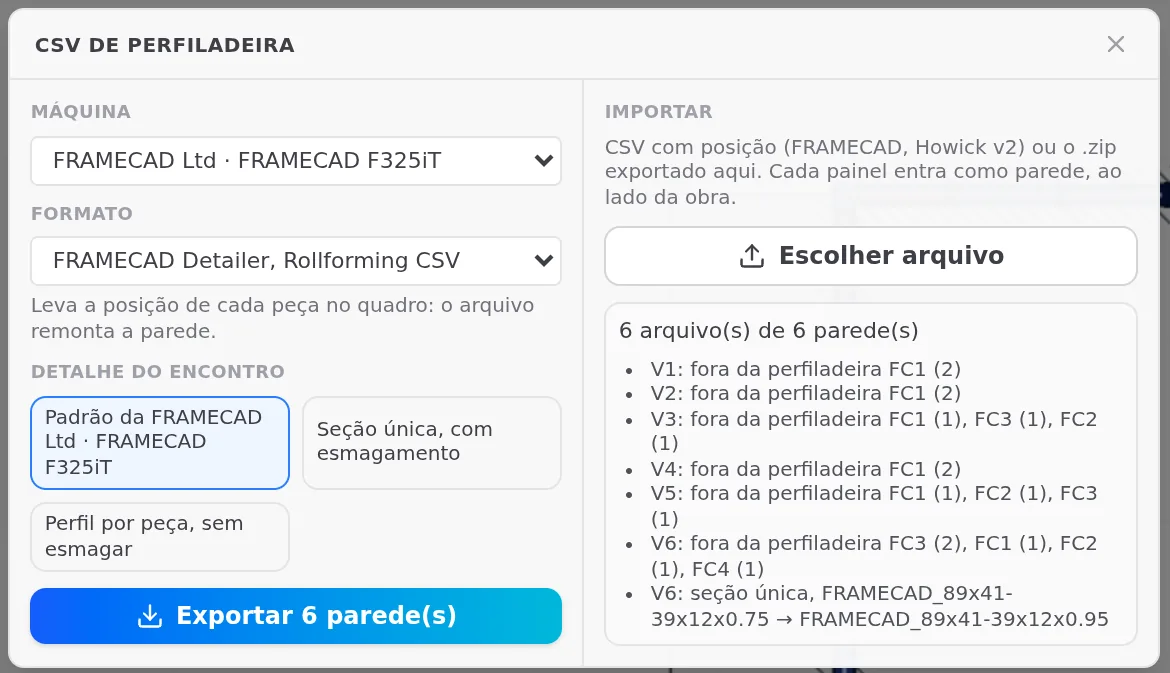
The report, line by line
| Line | Means |
|---|---|
| outside the roll former FC1 (2) | two blocking straps do not go into the file |
| V6: single section | the column diagonal was at 0.75 and comes out at 0.95 |
FX and FC, the X strap and the blocking strap, are flat steel: the C roll former does not form them. They stay on the purchase list.
Members per file
| Wall | Members | Where |
|---|---|---|
| V1 | 21 | interior, 7 m |
| V2 | 19 | side |
| V3 | 39 | side |
| V4 | 17 | interior, 4.5 m |
| V5 | 42 | back, 9 m |
| V6 | 67 | front, 9 m |
| Total | 205 | all 89S40_0.95 |
6. Open V6 and export only it
With the wall view open, the box exports only the open wall, and the button becomes Export V6. The file is V6.csv, the same one that goes inside the .zip.
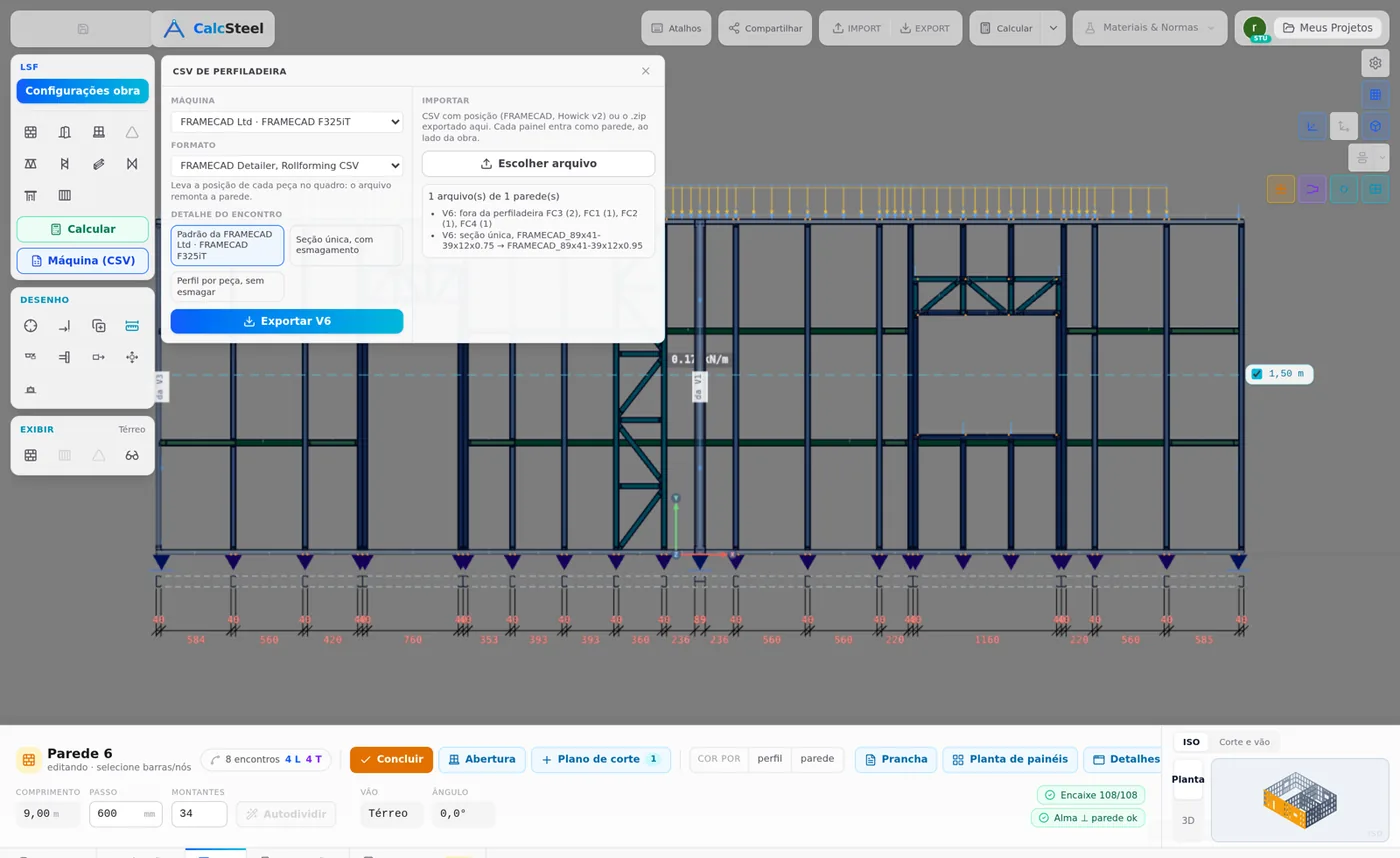
| column | V6-M1a | what it is |
|---|---|---|
| label | V6-M1a | wall and sheet mark |
| profile | 89S40_0.95 | web, shape, flange and thickness |
| role | STUD | the member role for the machine |
| orientation | RIGHT | which way the open side of the C faces |
| qty, empty | 1, | one line per member; the empty column belongs to the format |
| length | 2796.28 | mm, end to end |
| x1,y1 x2,y2 | 1200,1.86 1200,2798.14 | the ends in the wall frame |
| flange | 40 | flange width in the file |
| operation, position | SWAGE,27.5 | pairs to the end of the line |
The same label V6-M1a appears on four lines, at x = 1,200, 6,000, 8,400 and 9,000: they are identical members in different places. A member with the same mark and different operations gets an extra letter.
7. Show how the roll former forms
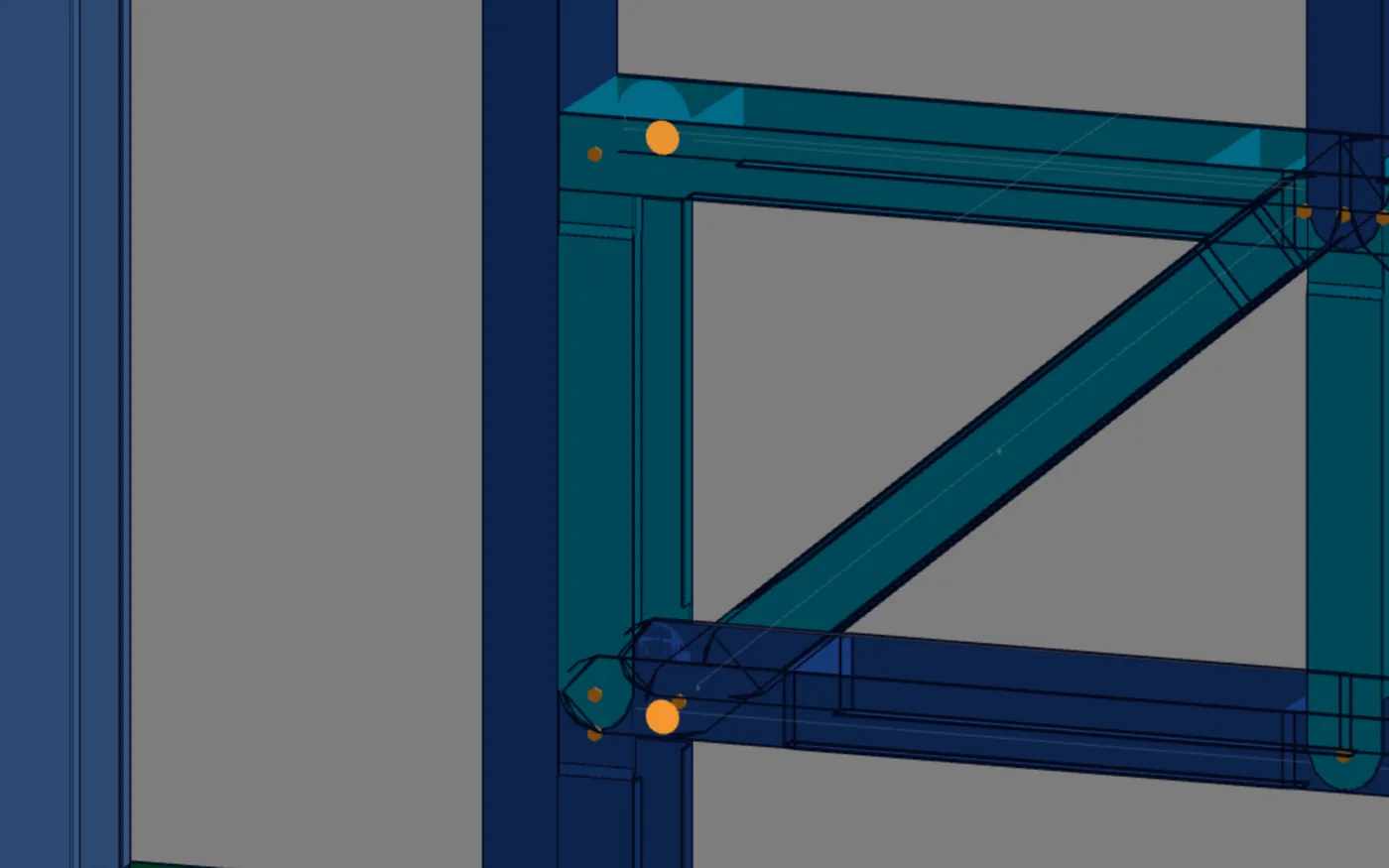
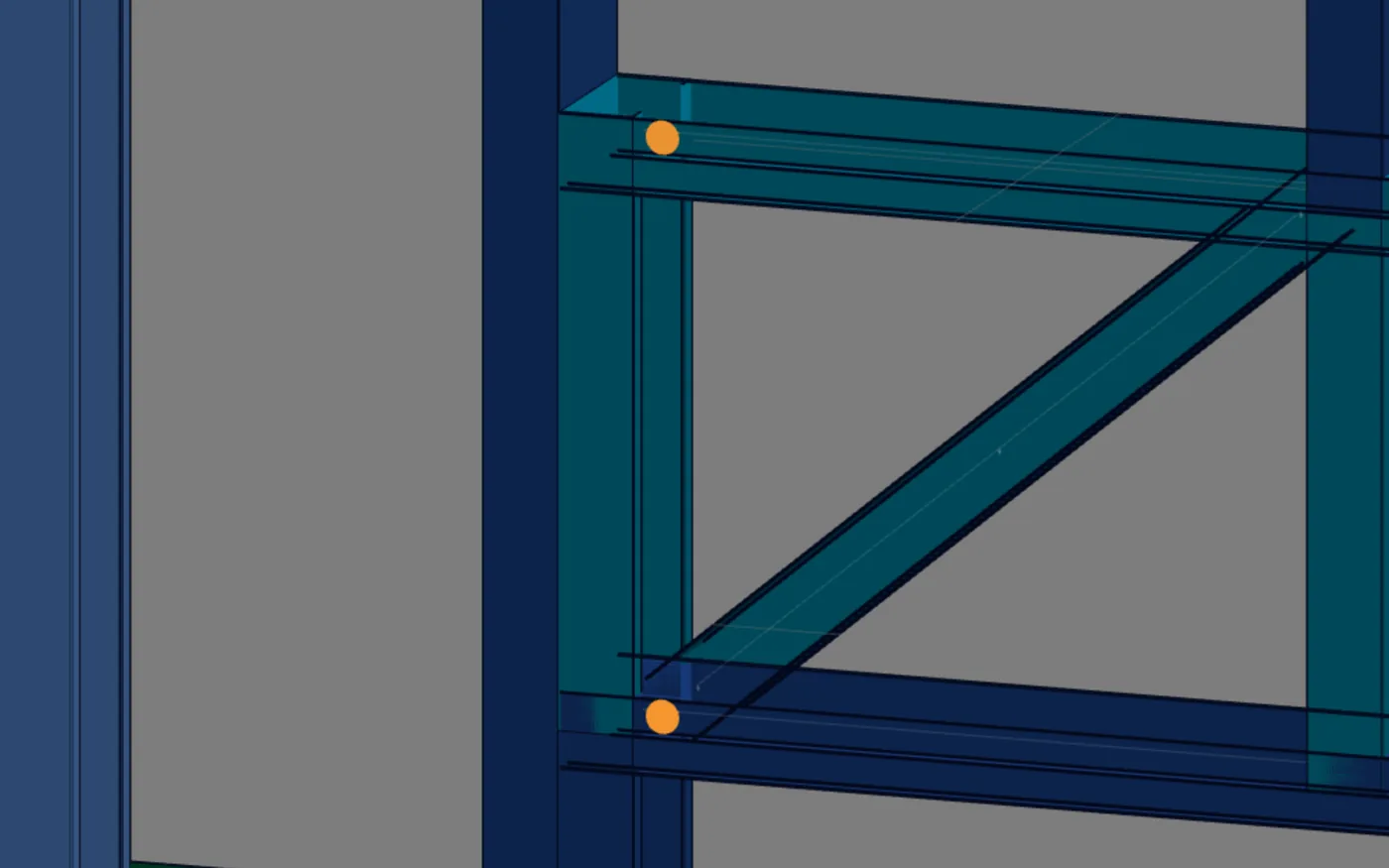
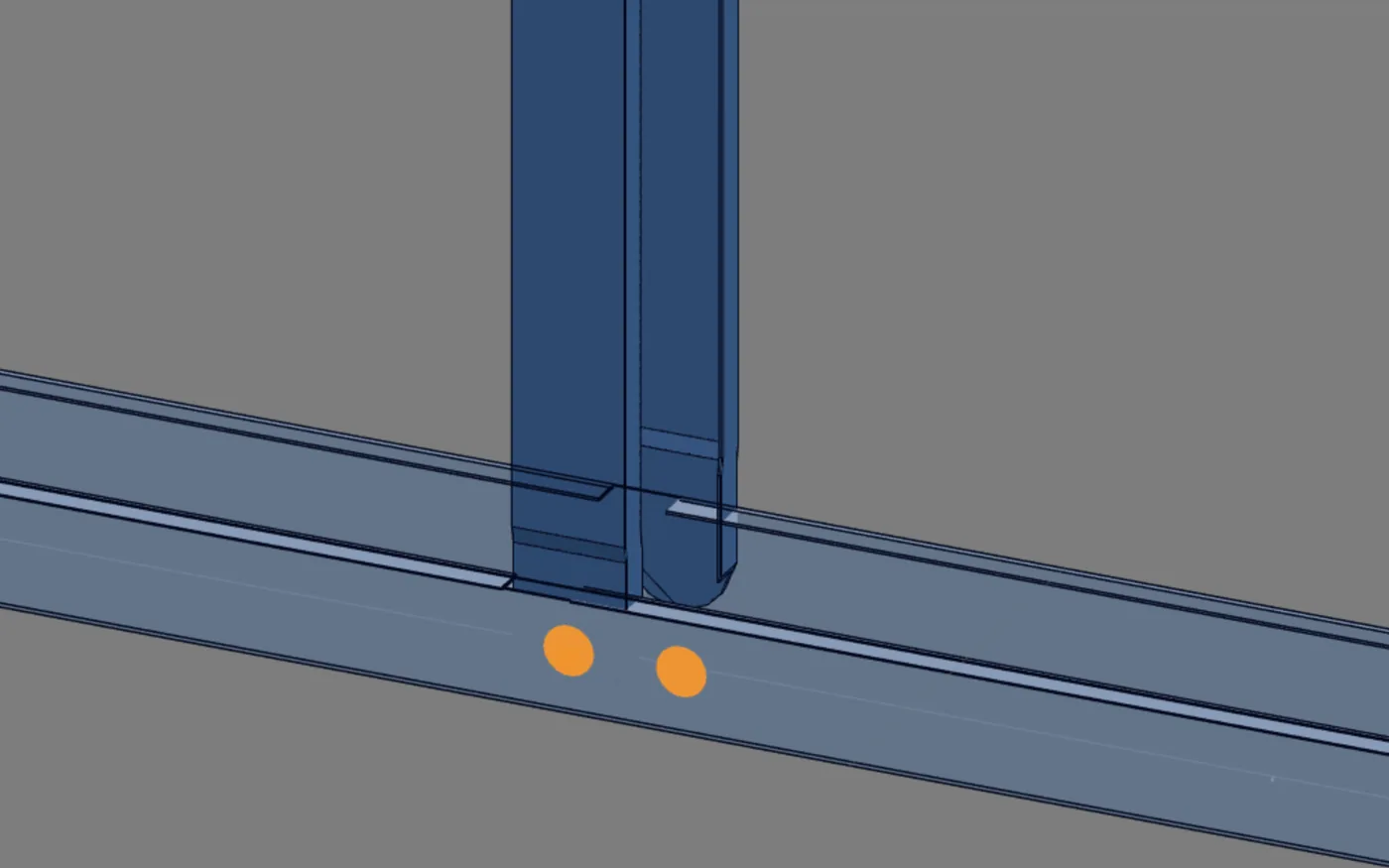
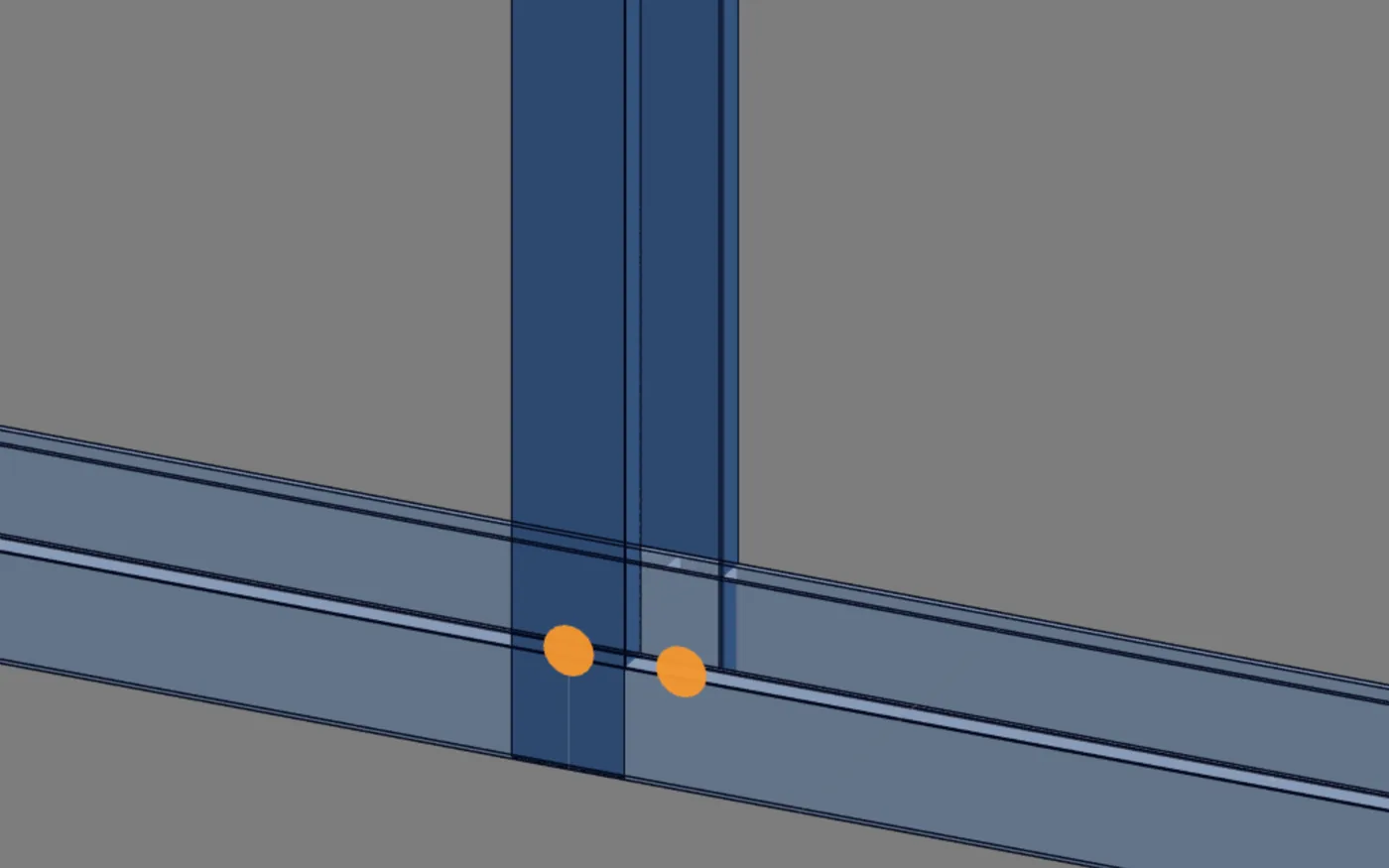
In the 3D button group, the purple one says "Show how the roll former forms (swaging, fit, dimple)". It is already on, and the choice is kept in the browser. It works only in 3D or in the wall view.
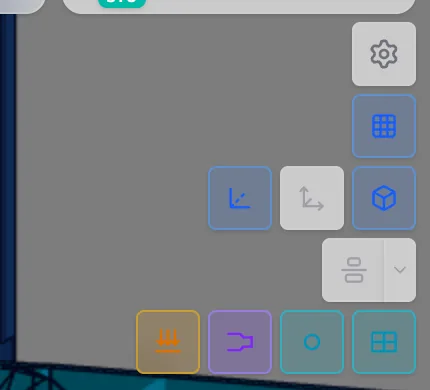
When on, each member shows as the machine will deliver it: the swaged end narrower, the lip notched where another member crosses, and the dimples in orange. When off, the member goes back to the plain profile of the calculation. The operations seen here are the same as in the CSV, just carried from the wall plane to 3D.
8. Choose file
The right side of the box reads a CSV with positions, from the FRAMECAD or the Howick v2, or a .zip exported here. Each panel comes in as a wall, next to the project. With the house .zip, the report says "6 wall(s) built, 205 bars", the same 205 members that went out.
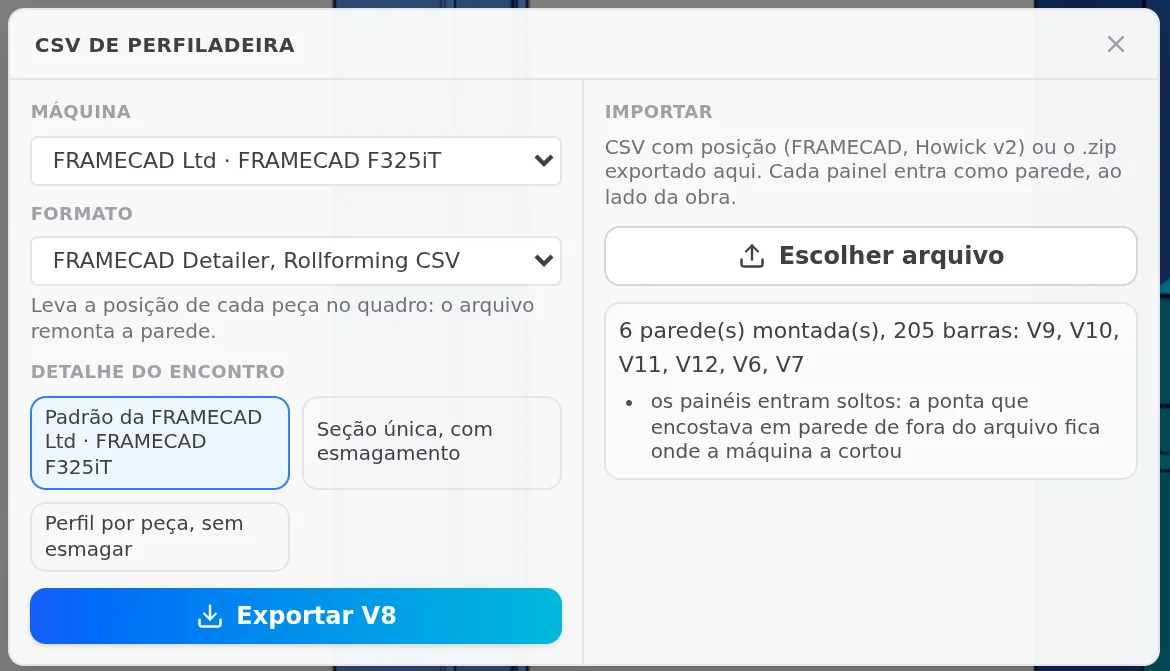
Importing renumbers the walls. The front wall, V6, became Wall 8, and the box showed "Export V8". An old V6 file no longer matches the label on screen. That is why step 8 works better in a new project, and not in the design project.
The panels come in 1.5 m from each other and 1.5 m from the project. "The end that touched a wall outside the file stays where the machine cut it": the panel comes back as the machine would form it, without the neighboring wall.
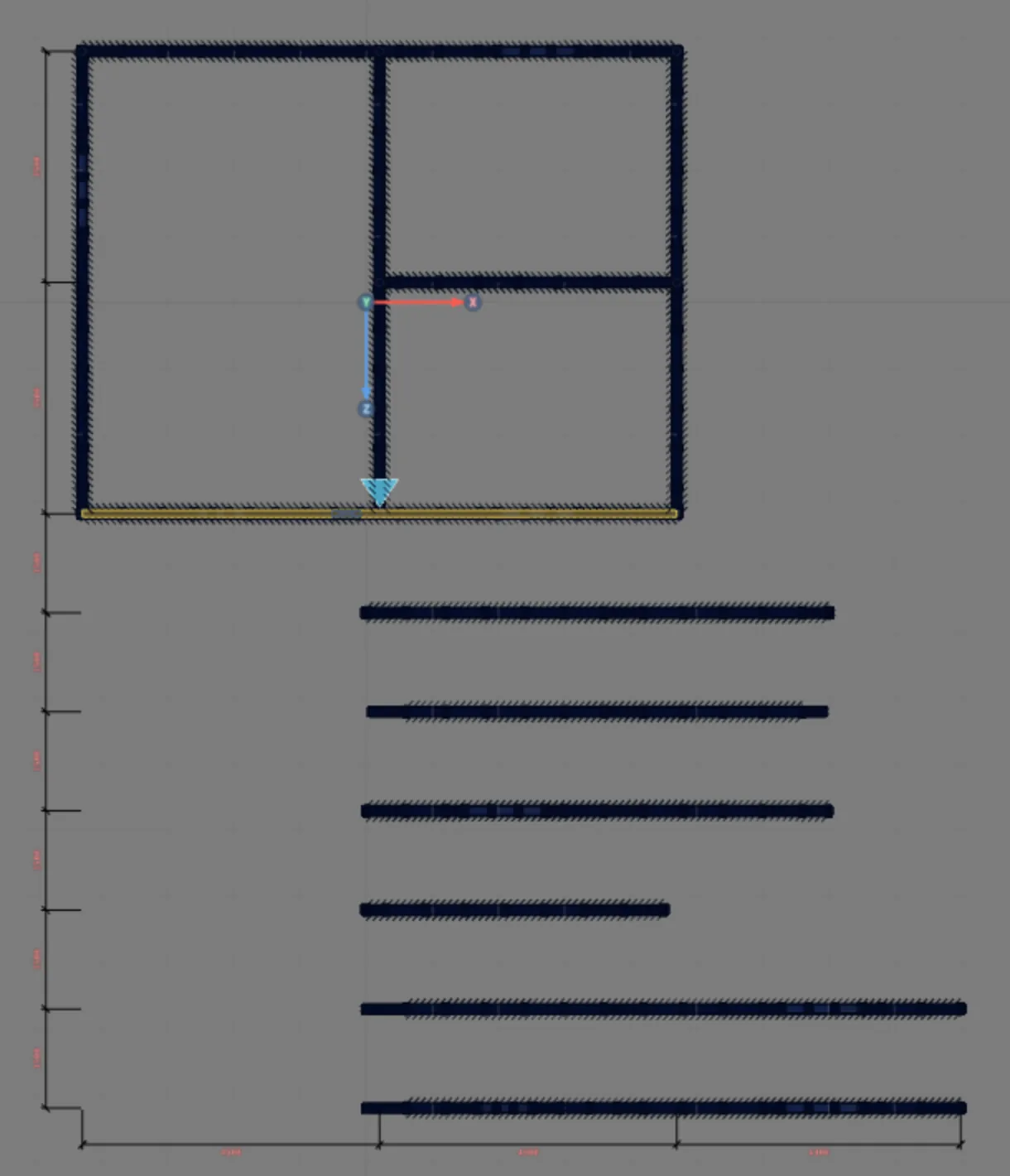
The FX and FC straps do not come back: they were not in the file. What comes back are the bars with profile, position and role.
Parameters
The two machines and the fit in the track
The machine catalog belongs to CalcSteel, and the box reads it from there. There are two:
| FRAMECAD F325iT | Howick FRAMA 3200 | |
|---|---|---|
| Section | 89x41, lip 12 (C 89x41/39x12) | 27 sections, from 45x45 to 150x45 |
| Thickness | 0.55 to 1.2 mm | 0.75 to 1.15 mm |
| Swage | 55 mm | 55 mm |
| Web notch | 48 mm | 48 mm |
| Lip notch | 48 mm | 46 mm |
| Holes | no size in the catalog | bolt 13; service 34.1; dimple 3.5 |
| Format | Rollforming CSV | Howick CSV v1 and v2 |
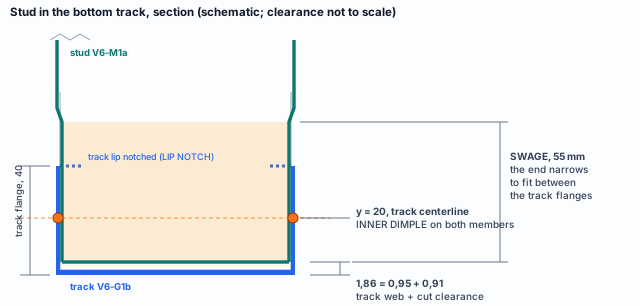
It is the FRAMECAD fit rule: the end stops t + 0.91 from the bottom of the receiving member, swaged if it does not fit and dimpled on the centerline; the receiving member has its lip notched in the strip and the dimple at the center. The top track receives the same way, so the stud has the same operations at both ends.
What goes into the six files
Operations, by type
| INNER DIMPLE | 709 | |
| LIP NOTCH | 480 | |
| SWAGE | 391 | |
| FULL CHAMFER | 370 | |
| WEB NOTCH | 105 | |
| BOLT HOLES | 0 | |
| SERVICE HOLE | 0 | |
| Total | 2,055 |
Members, by role
| STUD | 91 | |
| NOG | 46 | |
| WEB | 37 | |
| TRIMSTUD | 8 | |
| BOTTOMPLATE | 6 | |
| TOPPLATE | 6 | |
| HEADPLATE | 4 | |
| TOPCHORD | 4 | |
| SILL | 3 |
STUD is the stud, the king stud and the column chord; NOG is the blocking; WEB is the diagonal and the truss vertical; TRIMSTUD is the jack stud under the header; HEADPLATE and SILL are the head track and the sill track. Bolt and service holes exist in the dialect and do not show up here because the house has none placed.
The clearances of the FRAMECAD default model
| Parameter | Value | What it does |
|---|---|---|
| cut clearance | 0.91 mm | setback of the end in the fit and in the half-moon cut |
| end clearance | 1.86 mm | setback of the end in the overlap, as on blocking V6-BQ1a |
| slot clearance | 6 mm | beyond the web slot in the half-moon cut of the sloped end |
| contact | 5 mm | up to this distance beyond the face, it counts as a joint |
| minimum sine | 0.20 | below this the members are parallel and there is no joint |
| square sine | 0.985 | above this the end is square, with FULL CHAMFER |
| reach on the crossing member | 150 mm | an end that passes the end of the wall and lands on the track of the crossing wall |
Check with the manufacturer. Fit clearances, the LEFT or RIGHT side, the FULL CHAMFER at the end, the WEB NOTCH width and the hole diameter vary from machine to machine. Send a test panel and confirm with whoever will form it before the first production run.
Shortcuts
- CSV↵
Machine (CSV)
Opens the roll former CSV: exports the walls or imports the machine file.
Common mistakes and refusals
What the box says when it cannot
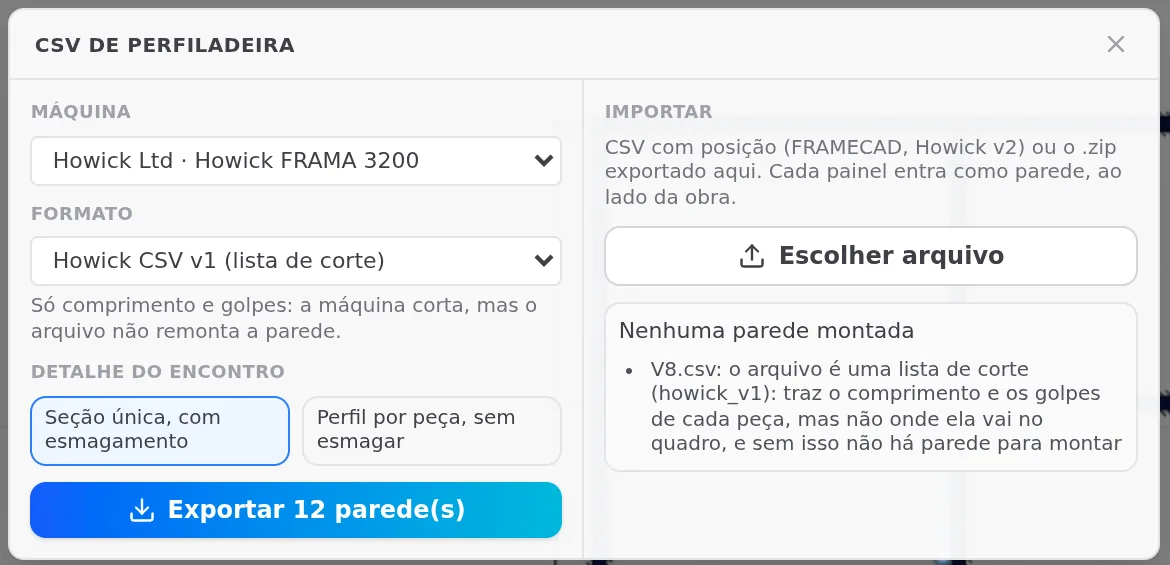
- Importing the Howick v1 cut list. "V8.csv: the file is a cut list (howick_v1): it carries the length and the operations of each member, but not where it goes in the frame, and without that there is no wall to build." v1 is for the machine to cut, not for going back to the model.
- A file from another machine, or a broken .zip. "no registered dialect reads this file". In the .zip: "not a .zip", "broken .zip index" or "compression N not supported". Only the .csv files in the .zip are read.
- A panel without track or without stud. "the wall was not recognized (no bottom and top track, or no stud)". The panel needs both tracks and at least one stud to become a wall.
- A member that does not fit between the flanges. With the Profile per member, no swaging model, a fit that does not fit is refused, and the message follows the pattern "fit: M with web 89 does not fit between the flanges of G (89 − 2×0.95)". If the member arrives from the back and would fit if turned, the message says that too. With swaging, the SWAGE solves it.
- Expecting the strap in the file, or the section you chose. FX and FC come out as "outside the roll former". And in the single-section model, a member of another profile is swapped for the stud profile, with the notice "single section, A → B". Read the report before sending: a thicker member in the calculation, such as the profile header at 1.15, would come out at 0.95.
What the engine checks
The file comes from the drawing, not from the calculation
The calculation engine checks the LSF bars. The roll-former file is built from the walls of the model, the machine catalog and the joint model: it carries what is drawn, and it does not read the calculation result. What that means in practice:
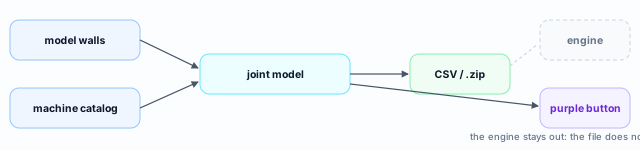
What the engine checks, and what goes into the file
| Topic | How it works |
|---|---|
| The calculation | checks the drawn bars, with the profiles of the Structure tab. The export button depends only on having walls, a machine and a joint model; the order in Design recommendations puts the calculation before the file |
| What goes in | the walls; floor and truss show their operations in the purple 3D |
| The profile | in the single-section model, the file uses the stud profile on every member and reports each swap |
| Steel | goes on the sheet and in the report, which go to the manufacturer along with the file. In Howick v2, the steel name also goes in a column of the file |
| Straps | FX and FC are flat steel and go on the purchase list |
| Length | each member comes out whole, as drawn: track V6-G1a is 9,089 mm long |
| Holes | SERVICE HOLE and BOLT HOLES are in the dialect; on this house the file came out with zero of both |
What stays with the designer
- The section swaps. Read each "single section, A → B" line in the report and check, on the Structure tab, that the calculation uses the profile that goes to the machine.
- The steel and the straps. Send the manufacturer the sheet and the report with the steel shown prominently, as NBR 16970-2, 4.8 requires, and the purchase list with FX and FC.
- The bolted connections. They stay on the sheet and in the report, per NBR 16970-2, 4.8 f).
- Clearances and sides with whoever forms. Fit clearance, LEFT or RIGHT, FULL CHAMFER, WEB NOTCH width and hole diameter vary from machine to machine: a test panel before the first production run (see Parameters).
Changed the model? Export again. The file is a snapshot of the project at the moment of the click. Recalculating, changing a profile or moving an opening does not alter a CSV already downloaded.
Shortcuts
- Ctrl+Enter
Calculate the project
Sends the project to the engine, like the Calculate button.
- CSV↵
Machine (CSV)
Opens the roll former CSV: exports the walls or imports the machine file.
Summary
The path, in one line
New roll-formed project → machine profiles checked → walls, connections and calculation → purple button wall by wall → Machine (CSV) → export the .zip → read the report → steel and straps on the sheet → import into a new project, if you want to check.
The example so far
- 6: files, V1 to V6
- 205: members in 89S40_0.95
- 2,055: tool operations
- 108/108: fits found on V6