Connections
Align by face
Align by face brings the face of one piece to the plane of the face of another, in two clicks. The piece slides within its own section: length, nodes and analysis stay as they were. This page uses the chalet mezzanine, where the joist reaches the beam on the axis and its top sits below the top of the beam.
Overview
Two clicks, and the order is the command
The first click picks the reference face: that piece stays where it is. The second picks the face of the piece that moves to the plane of the first. It is the order of the Revit Align command: what you click first stays, what you click second moves. Reversed, it moves the wrong piece.
The tool lives in the model tool rail of the Connections tab, and also in the node editor. The shortcut is A.
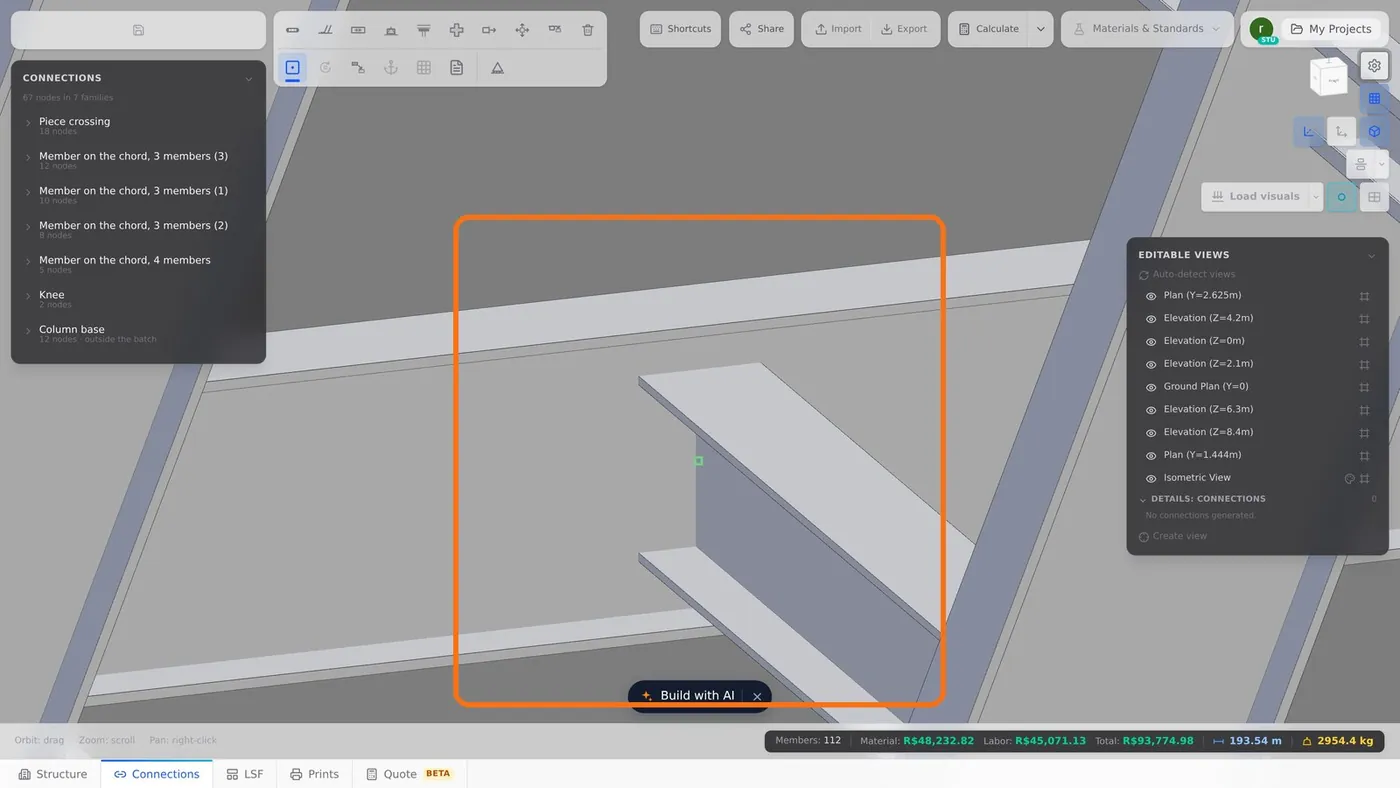
| What | After Align |
|---|---|
| Profile position in the section | changes: the Y and Z offset of the piece |
| Length | same |
| Nodes and connections | same |
| Analysis | same: the bar is still analysed on its axis, node to node |
Step by step
1. Arm the tool
In the model tool rail, click Align by face, or press A. With it armed, the face under the cursor lights up.
2. Click the reference face
Here, the top face of beam M11. It lights up and stays locked, and the notice asks for the second: "Reference face on M11 picked. Now click the face you want brought to it."
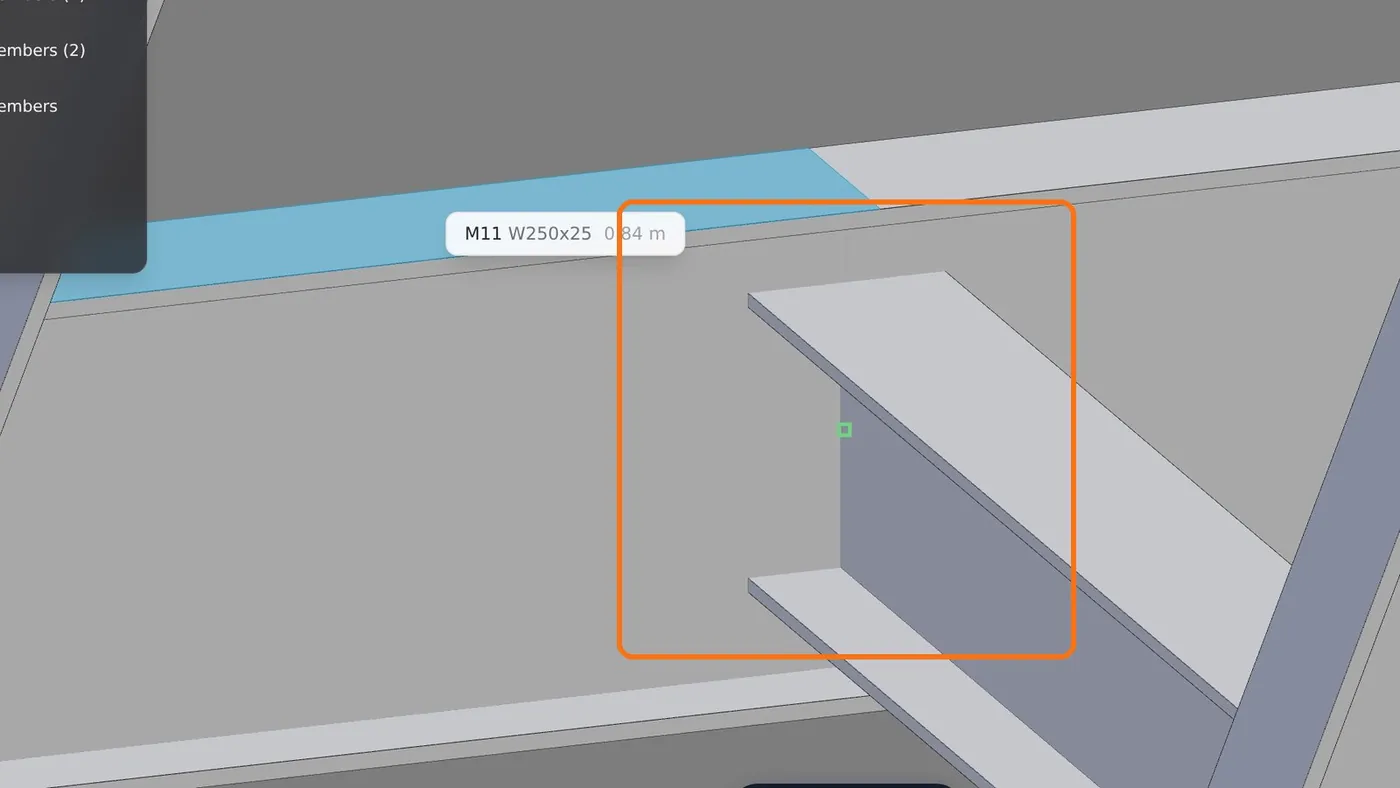
3. Click the face that will move
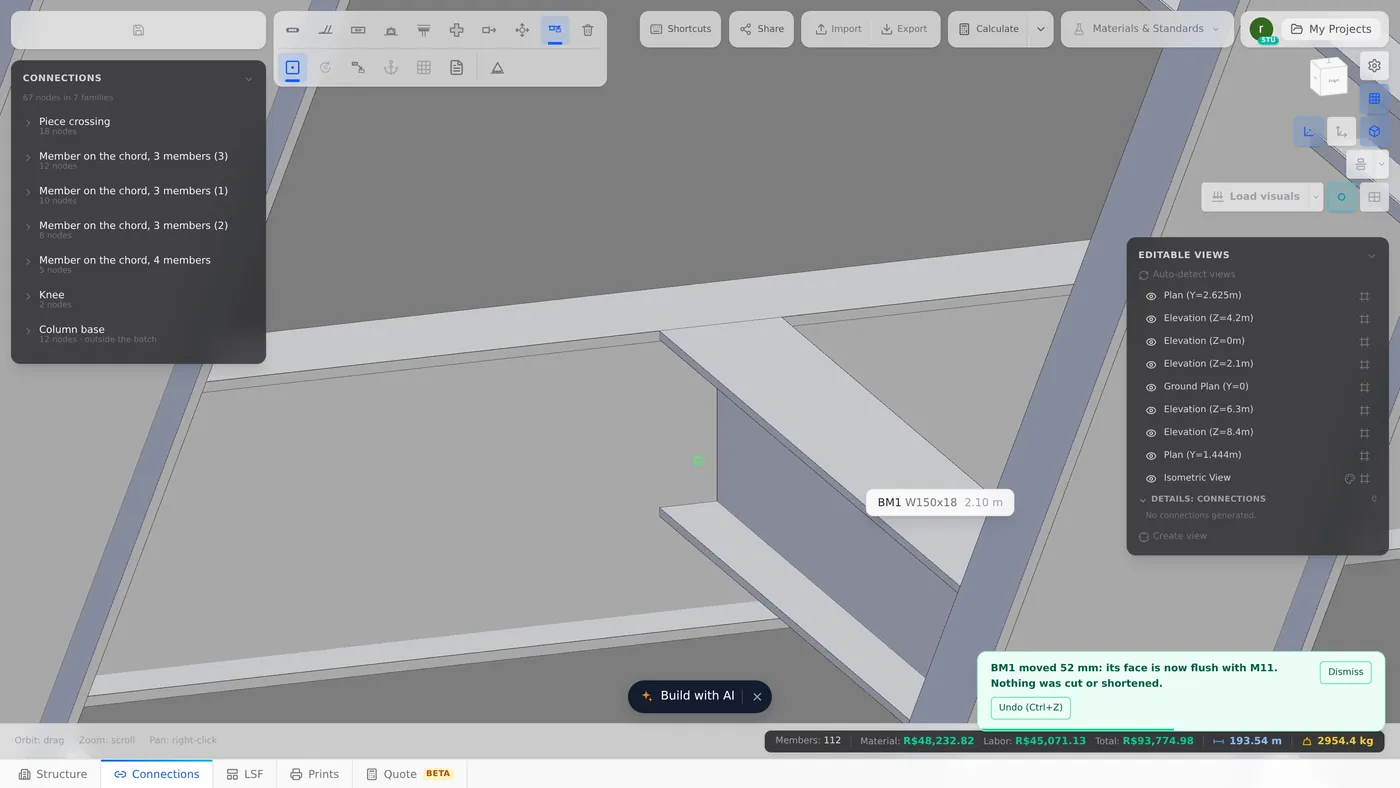
The top face of joist BM1. It rises to the plane of the beam, and the notice says how far it moved: "BM1 moved 52 mm: its face is now flush with M11. Nothing was cut or shortened."
It is 52 mm because the W250x25 is 257 mm deep and the W150x18 is 153 mm deep. With both on the axis, the tops were half the difference apart: (257 minus 153) divided by 2.
4. Check and leave
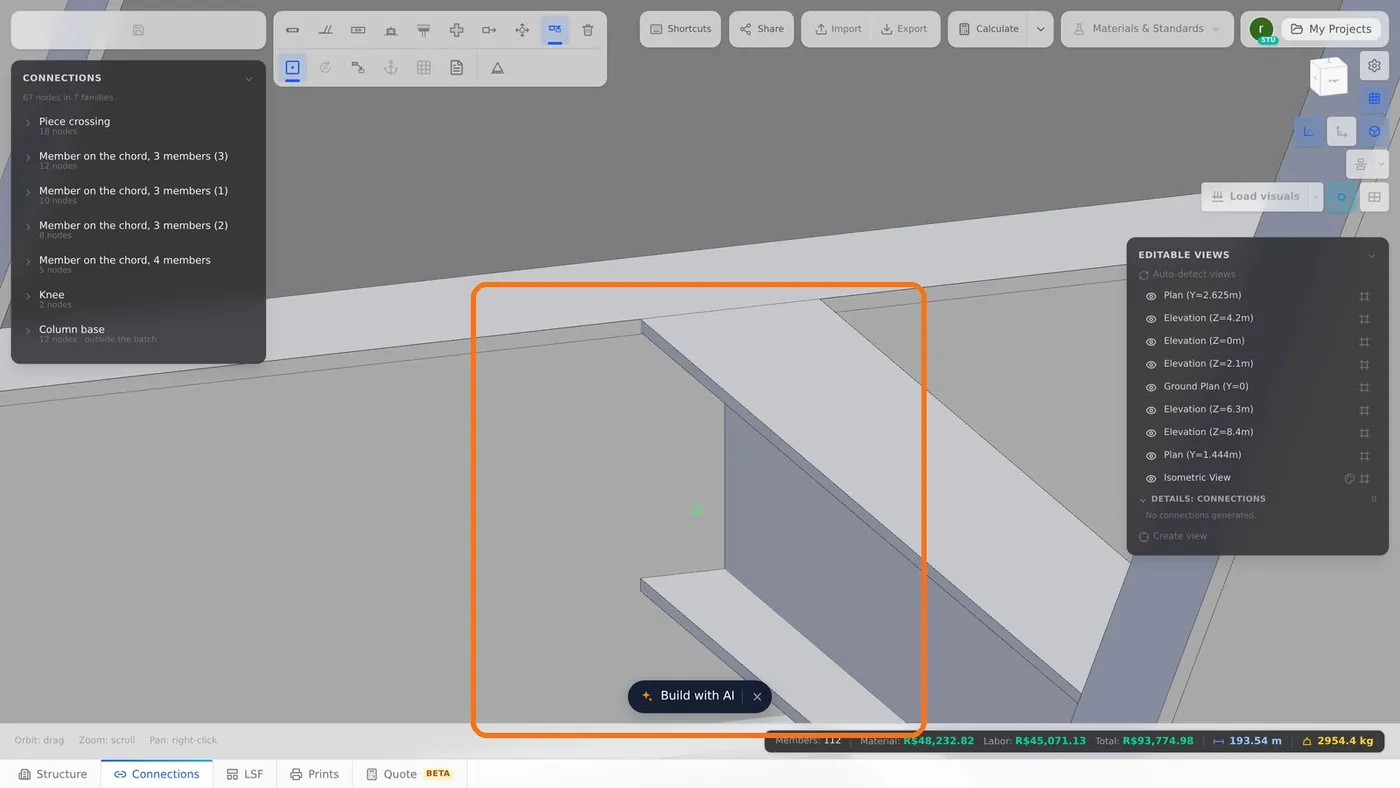
Up close, both tops are in the same plane, and the joist keeps the same nodes. Esc leaves the tool. One Ctrl+Z, or the Undo button on the notice, undoes the whole alignment.
The two faces must be parallel, within 2°: top with top, web with web. The side the face looks at does not matter. The piece moves only in the plane of its own section: no steel is created or cut. A flange cope, if any, is redrawn on its own, because it reads where the piece is.
Shortcuts
- A↵
Align by face
Brings a piece flush against another one's face.
In the node editor
The same command is in the node editor rail, with the same two clicks. There the second click can land on two kinds of piece:
| Piece that moves | How it moves | When it reaches the model |
|---|---|---|
| Member | within its own section, through the same channel as that node's Move in section | on Apply. A member that is not part of the connection model goes straight to the model |
| Base plate | along its own normal, and the anchor rods go with it, with the same length | right away, and the notice says how far the plate moved and which face it is now flush with |
The Automatic button, on the plate card, returns the plate to the calculated seat.
Shortcuts
- A
Align by face
Brings a piece flush against another one's face.
- Ctrl+Enter
Apply to model
Carries what you did at the node to the project.
When it refuses
Align does not rotate, cut or shorten a piece. When the request would need one of those, it refuses and says why:
| Notice | What to do |
|---|---|
| "These two faces are N° apart, so no move can make them flush." (N is the measured angle) | pick faces that already look parallel |
| "These faces are already flush." | nothing: it is already aligned |
| "No steel face under that click." | click on the face itself, not past the edge of the piece |
| "That is the reference piece." | the second click goes on a face of the other piece |
| "That is the edge of the plate (or an anchor rod)." | in the node editor: click the top or bottom face of the plate |
| "Only a member or the base plate can be aligned here." | in the node editor: plates and bolts come from the connection model and are not moved by hand |
The most common mistake is reversing the clicks. If the wrong piece moved, press Ctrl+Z and start with the face that must stay put.
What the engine checks
Align writes the section offset of the piece, the same offset Y and offset Z fields of the Placement card. The engine analyses each bar node to node, on its axis, and this offset stays out of the calculation: no eccentricity is added. What changes is the drawing: the 3D and the drawing outputs show the piece in its new place.
When the node has a catalogue connection, the node card checks whether the moved piece still fits the connection model, and warns when the piece leaves the face the connection bears on. It is a warning, not a block: the drawing follows what you asked for.
LSF Align is the same command, on the LSF Drawing card: see LSF editing tools.
Summary
| Align by face | model rail or node editor rail, key A |
| 1st click | the face that stays put |
| 2nd click | the face that moves to the plane |
| Esc | leaves |
| Ctrl+Z | undoes the whole alignment |
On video
Each tool on this page on video, in your language, with its manual chapter in PDF.
Align by face
Brings the face of one piece onto the plane of another's face; the piece moves within its own section.