Export a PDF Report of Your Structural Analysis
"How do I export a PDF report?" is the easy part — in CalcSteel it is a few steps. The harder questions are what belongs in that PDF, how to seal and archive it, and how its export differs from the desktop incumbents. This guide answers the how-to first, then traces how the calculation report became a portable, verifiable artifact and where CalcSteel fits — as one option — among the tools engineers already use.
Key takeaways
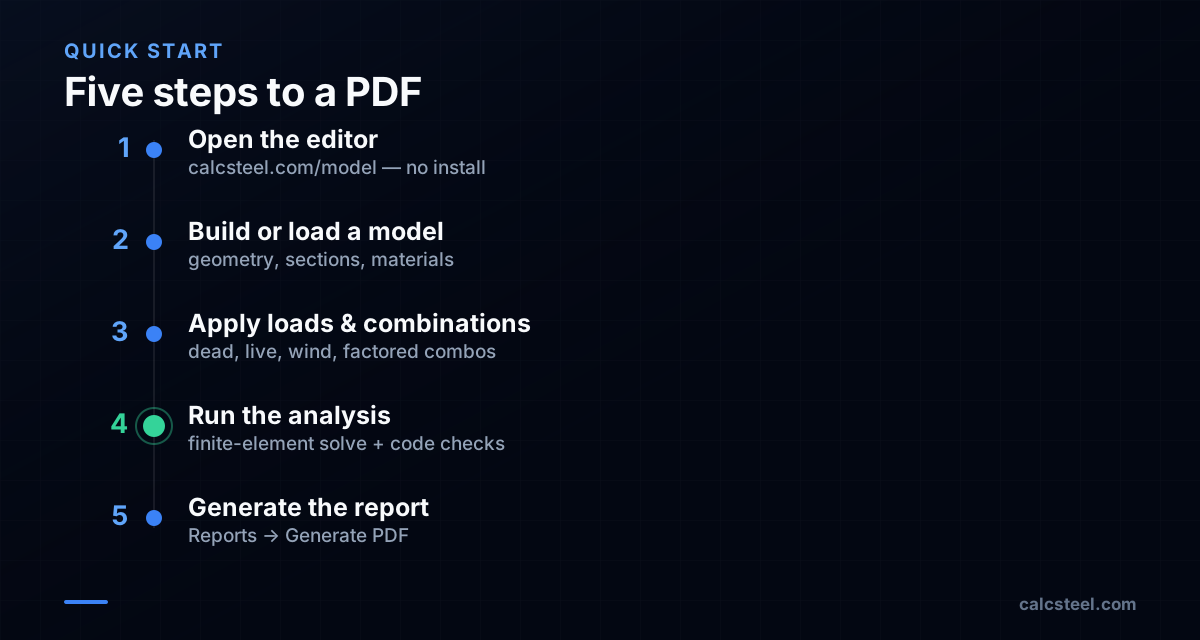
- To export in CalcSteel: open the editor, build or load a model, apply loads and combinations, run the analysis, then use Reports → Generate PDF — a single document you can attach to a submission or archive.
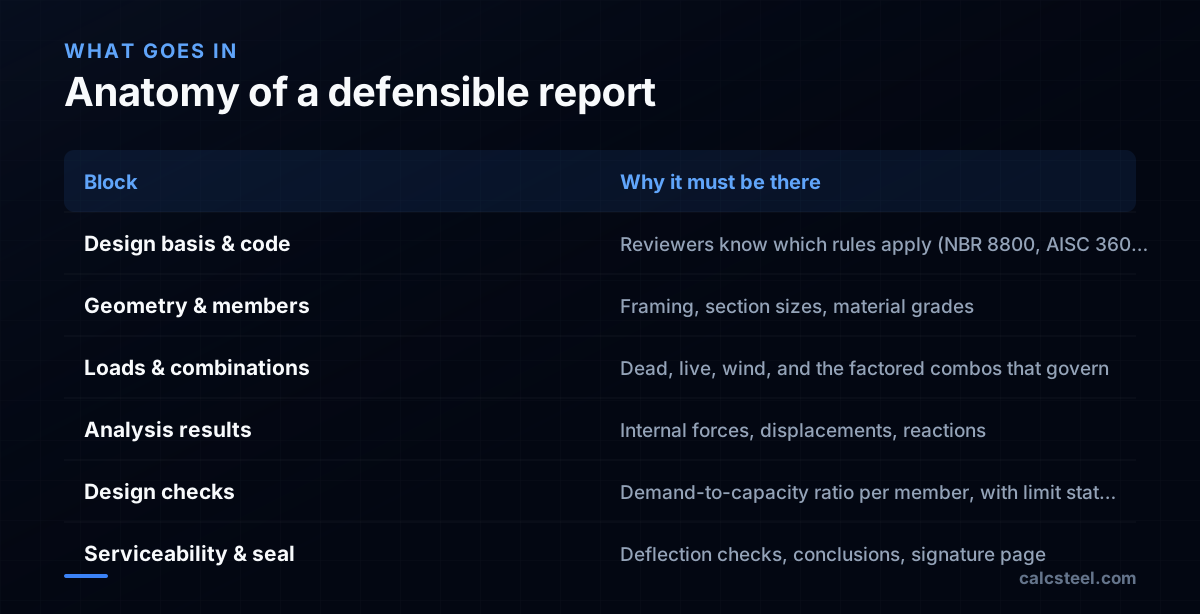
- A defensible report is not a number dump: reviewers expect the code basis, load combinations, governing utilization (the highest demand-to-capacity ratio per member), reactions and deflections, laid out so the design can be checked and, where required, signed and sealed.
- PDF won because it became vendor-neutral: born from John Warnock's 1990 Camelot paper, launched 15 June 1993, and made an open ISO standard (ISO 32000-1) in 2008 — exactly what sealed, long-lived engineering records need.
- Desktop suites (SAP2000, ETABS, RISA-3D, Robot) build reports desktop-side under a paid license; browser tools like SkyCiv and CalcSteel assemble the document on demand. CalcSteel generates its PDF in the browser and includes export on the free plan — with a watermark on free, and clean reports on the paid Starter/Pro tiers.
How to export a PDF in CalcSteel (the short answer)
If you just want the steps, here they are. The whole flow runs in a browser tab — there is nothing to install.
- 1. Open the editor. Go to the editor (calcsteel.com/model). Sign in if prompted; the free plan is enough to export a PDF, though the free report carries a watermark.
- 2. Build or load a model. Draw the framing or open a saved project. Assign section profiles from the catalog and set material grades.
- 3. Apply loads and combinations. Add dead, live and wind cases, then the factored load combinations for your standard.
- 4. Run the analysis. Trigger the finite-element solve. CalcSteel runs the analysis and the code checks (NBR 8800, AISC 360, Eurocode 3 or IS 800, among others, depending on what you selected).
- 5. Generate the report. Use Reports → Generate PDF to assemble the document. It bundles the cover page, 3D rendering, load combinations, FEM results (deformed shape, reactions, internal forces) and the per-member verification tables into one downloadable file.
What the free vs paid export actually differ by. On the free plan the PDF includes a small watermark; the Starter plan (US$9/month billed annually) removes it for clean, client-ready reports, and Pro (US$24/month billed annually) adds a company logo and a custom title block (designer name, registry number, project reference). The export blocks themselves are the same across tiers, per the CalcSteel FAQ.
Edge cases worth knowing. Generate the PDF only after the solve finishes so every result table is populated. To document a specific load combination, select it before generating so the governing case is the one shown. Set the report language before exporting for international submissions. If the analysis does not converge, the report cannot certify results that do not exist — fix the model (unstable mechanism, missing support, singular member) and re-run before exporting.
The report, not the model, is the deliverable
Engineers tend to fall in love with the model. But the model is not what gets reviewed, permitted, or archived — the report is. A building official, a checking engineer, or a future colleague never opens your analysis file; they open a document that has to stand on its own, often years later. That is why "how do I export a PDF" is really a question about turning a live computation into a durable, reviewable record.
Industry guidance is consistent on what that record must carry: the design basis and code reference, the load cases and load combinations, the analysis results, the design checks, and clear conclusions. And where the calculation set enters the public record, it must be signed, dated and sealed by the engineer in responsible charge — the single act that ties legal accountability to the numbers. The next section explains exactly how that seal is attached in practice.
So the export step is the moment your work becomes evidence. Everything before it is just preparation.
Sealing and archiving the exported PDF
The PDF documents the analysis; it does not replace the seal. CalcSteel produces a standard PDF and a signature page, but the legally binding seal is applied to that file afterward, the same way it is for any analysis package. There are two accepted routes, and your jurisdiction decides which.
- Digital signature (preferred where allowed). Open the exported PDF in a tool such as Adobe Acrobat and apply a certificate-based digital signature obtained from a third-party certification authority — not the self-signed option. Most boards require that the signature be unique to the engineer, verifiable, and that any later change to the file invalidate it. A single digital signature on the first page can cover a multi-page calculation PDF, accompanied by the required seal text (for example, "This item has been digitally signed and sealed by [name] on the date adjacent to the seal"). Note that printed copies of a digitally signed file are generally not considered signed and sealed.
- Print-and-stamp. Where physical seals are still mandated, print the report, apply the embossed or rubber seal and a wet signature, then scan if a PDF copy is needed for filing.
Archival format. CalcSteel's export is a plain PDF, not PDF/A out of the box. If your jurisdiction or records archive mandates the archival profile PDF/A, run a one-time conversion (Acrobat's "Save as PDF/A", or a preflight tool) before filing — ideally before sealing, so the signature is applied to the final archival file. Requirements vary by board and agency, so confirm the accepted route with the receiving authority.
From line-printer output to portable documents
The calculation report is far older than any modern file format. When Edward L. Wilson released SAP — the "Structural Analysis Program" — at the University of California, Berkeley in 1970, building on the finite-element foundations laid there by Ray W. Clough, output meant fixed-width text on continuous fan-fold paper from a line printer. There was no "file" to send; you mailed or faxed the printout.
Commercialization followed: Computers and Structures, Inc. (CSI) was founded in 1975 by Ashraf Habibullah, with co-founder Ben Kacyra, and the SAP lineage runs straight to today's SAP2000. For two decades, though, the report was tied to whatever printer and font the office happened to own. Sharing a calculation between firms, or to a building department, meant the physical page was the only thing both sides could trust to look the same.
Why PDF became the universal report
The problem the printout solved badly — identical appearance everywhere — is exactly the problem PDF was invented to fix. In the summer of 1990, Adobe co-founder John Warnock wrote a six-page white paper for an internal effort code-named Camelot, describing the inability to reliably exchange high-fidelity documents between different applications and systems. Development began in 1991, and Adobe formally launched Acrobat and the Portable Document Format on 15 June 1993.
For a long time PDF remained Adobe's proprietary format. The decisive moment for engineering came in 2008, when PDF was published as the open standard ISO 32000-1:2008. An open, vendor-neutral specification is precisely what a profession built on accountability and long records needs: a sealed calculation set should not depend on one company staying in business.
For archives there is a stricter relative, PDF/A (ISO 19005-1, first published in 2005), a constrained subset built around self-containment — fonts embedded, device-independent color, no encryption or scripting that could block future access. Most analysis packages export ordinary PDF, and whether a given export conforms to PDF/A depends on the tool and its settings; as noted above, CalcSteel exports plain PDF and a conversion step is needed for the archival profile.
A note on dating: some secondary timelines place the Camelot paper in 1991, but Adobe's own account and the PDF Association place it in 1990 — the date used here.
How PDF export differs across the tools
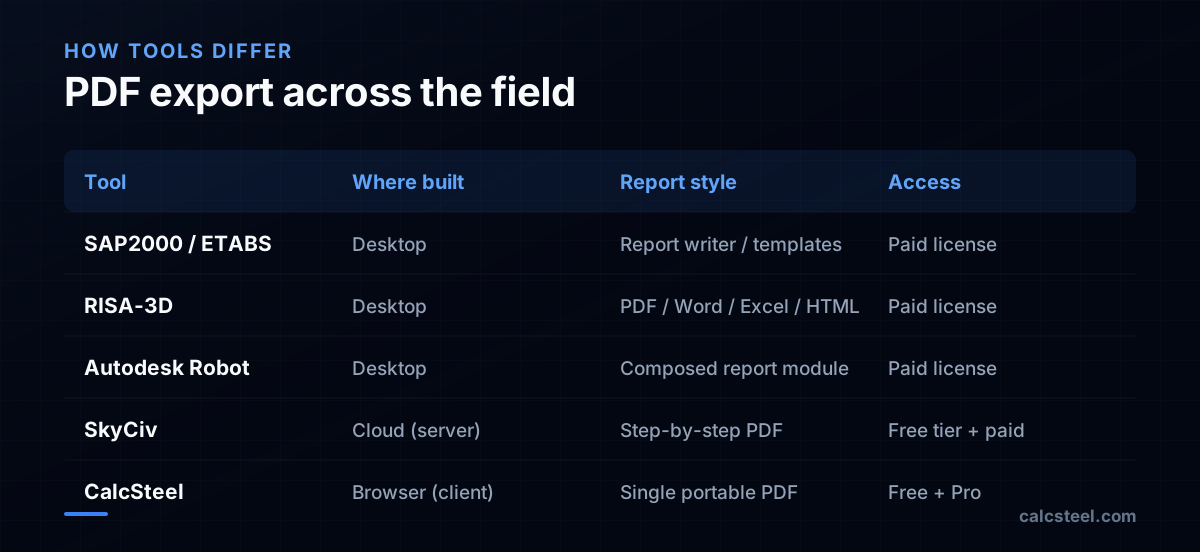
Every serious package can produce a PDF, but where, how, and at what cost differ — and that shapes your workflow, privacy and budget. The desktop incumbents from CSI — SAP2000 and ETABS — build reports through a report writer or XML templates inside the installed application; CSI sells these as perpetual licenses with an annual maintenance fee rather than a flat subscription. RISA-3D exports a customizable report to PDF, Word, Excel and HTML, letting you pick which tables, diagrams and equations to include, and is reported to cost on the order of US$2,070 per year for a single license. Autodesk Robot Structural Analysis composes a report from selected result tables and screen captures, also desktop-side. All four assume a licensed desktop install.
The browser-native generation differs. SkyCiv runs in the cloud; its standalone design modules are free to use and produce a clean step-by-step PDF, with paid plans unlocking integrated 3D and advanced analysis (P-Delta, modal). CalcSteel generates the report in the browser — per its documentation, it is a browser-native app with a React/TypeScript front end and a Python finite-element backend, so the document is assembled on the client side rather than rendered on a vendor server. The practical trade-offs:
- Privacy & workflow: client-side generation means the document is built on your device; server-side generation sends the model to the vendor's machine to render.
- Speed: no upload-render-download roundtrip means an immediate document. As an illustrative figure, a small single-frame report is typically a dozen-odd pages and a few hundred kilobytes; page count and file size grow with members and combinations.
- Cost & access: the desktop suites require a paid license; SkyCiv's standalone tier and CalcSteel's free plan run on a laptop or tablet at no cost, with CalcSteel Pro at US$24/month billed annually.
Where CalcSteel is genuinely weaker. The desktop suites do things it does not: RISA-3D exports native Word/Excel/HTML for in-house editing, the CSI suites offer firm-wide report templating and nonlinear/dynamic (P-Delta, modal, time-history) content in the report, and all of them carry decades of validated workflow. CalcSteel's report is a single PDF focused on steel design; its heavier interoperability exports (IFC and DXF) are about model exchange, not report formatting. None of this makes one tool universally "best" — it makes them suited to different constraints.
Verdict: when a CalcSteel PDF is enough
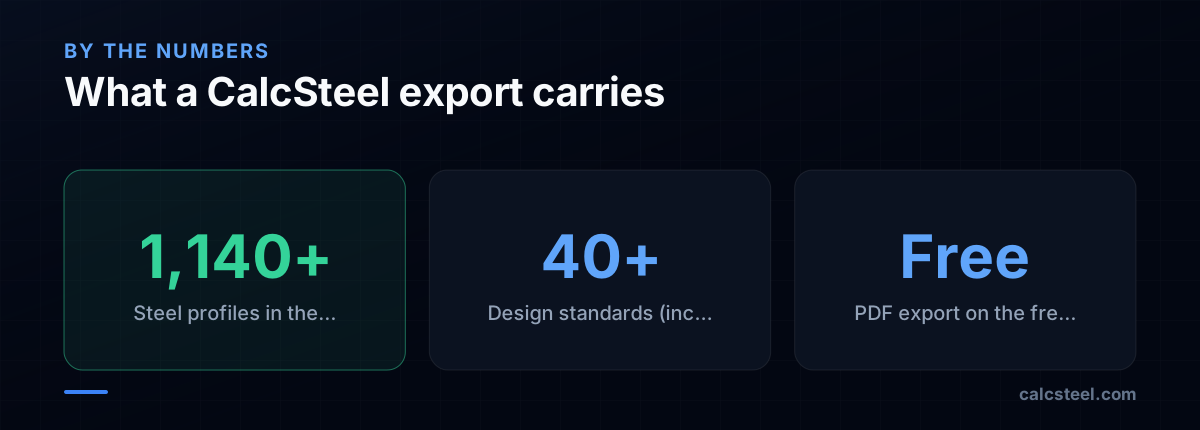
A report is review-ready when a reviewer who never sees your model can still follow it: the code basis is stated, every governing utilization (the highest demand-to-capacity ratio for a member) traces back to a load combination and a limit state, reactions and deflections are shown, and — where it enters the public record — a signature page carries the seal. CalcSteel's export carries exactly those blocks: geometry and sections from its catalog of 1,140+ steel profiles, the load combinations, the analysis results, and code checks against NBR 8800, AISC 360, Eurocode 3 and IS 800 among 40+ supported standards, in one portable PDF. Export is included on the free plan with a watermark; clean reports require Starter (US$9/month) or Pro (US$24/month, both billed annually).
Bottom line: if you need a browser-native, no-install steel-design report that states its code basis and shows traceable checks, a CalcSteel PDF is enough for submission and archiving once you remove the watermark on a paid tier, convert to PDF/A if your archive requires it, and add the engineer's seal. If you are locked into a firm-wide SAP2000/ETABS/RISA/Robot template, or need Word/Excel/HTML output or nonlinear/dynamic report content those suites uniquely produce, keep using them — and treat CalcSteel as one capable option among them. The quickest way to judge is to open the editor and export a model yourself.
Sources
- 1.History of PDF — Wikipedia
- 2.The Camelot Project (1990 white paper) — PDF Association
- 3.SAP — A General Structural Analysis Program (E. L. Wilson, UC Berkeley, eScholarship)
- 4.Computers and Structures (company), founded 1975 by Habibullah with co-founder Ben Kacyra — Wikipedia
- 5.PDF/A Family — Library of Congress Digital Preservation
- 6.Free Structural Design Software (standalone, free) — SkyCiv
- 7.How Much Does RISA-3D Really Cost? (~$2,070/yr) — RISA blog
- 8.Licensing Overview (perpetual + maintenance) — Computers and Structures, Inc.
- 9.Signing and Sealing Engineering Documents — Florida Board of Professional Engineers
- 10.Digital Seals, Signatures, and E-Stamps: A Compliance Guide — McKissock Learning
- 11.Image: Seattle Municipal Archives from Seattle, WA — CC BY 2.0 (Wikimedia Commons)
Try CalcSteel for free
Model, analyze and design steel structures in your browser. No install, no signup.
Open the 3D editor